How to rename multiple worksheets in Excel?
Normally to rename worksheets in Excel, we can quickly double click the sheet tab, or right click on the sheet tab to choose Rename command for renaming worksheets. That’s quite handy to rename one or two worksheets in Excel, but if we want to rename multiple worksheets within one operation, how can we do?

Using Rename command to rename worksheets
Using a handy tool to rename multiple worksheets comfortably
Using Rename command to rename worksheets

We can quickly rename worksheets in Excel with the Rename command according to the following procedures:
Right click on the sheet tab you want to rename, and choose Rename command from the Right-click menu. Or double click on the sheet tab to rename the worksheet. Then type a new name, and then press Enter key to rename it, see screenshot:
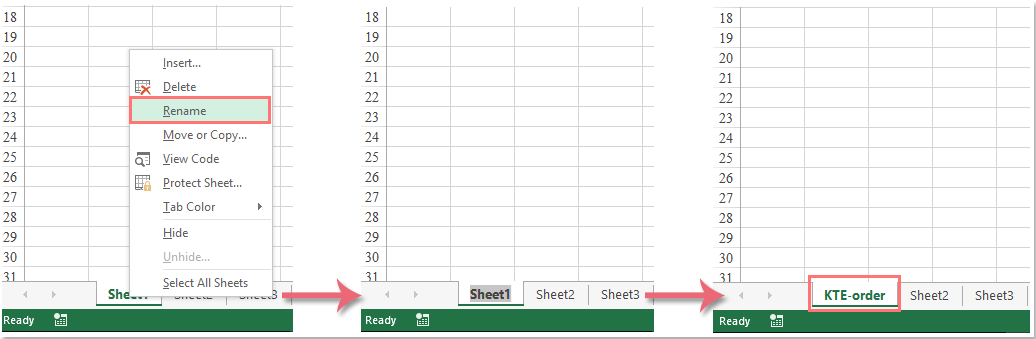
With this Rename command, you can rename only one worksheet at a time, for the purpose of renaming multiple worksheets, please repeat the above operations.
Easily rename multiple worsheets with specified text, cell values or specific cell value in each sheet
The Rename Multiple Worksheets utility of Kutools for Excel can help you easily rename multiple worksheets at the same time in Excel. Get a 30-day full-featured free trial now!
Kutools for Excel - Supercharge Excel with over 300 essential tools. Enjoy a full-featured 30-day FREE trial with no credit card required! Get It Now
Using a handy tool to rename multiple worksheets comfortably
The Rename Multiple Worksheets tool of Kutools for Excel is quite handy for renaming all worksheets or selected specific worksheets of current workbook.
With this tool, you can quickly rename all worksheets or selected specific worksheets by adding extra content before or after the existing worksheet name or replace the original sheet names with the new names. You can also rename all worksheets or selected worksheets by using the contents of a range cells.
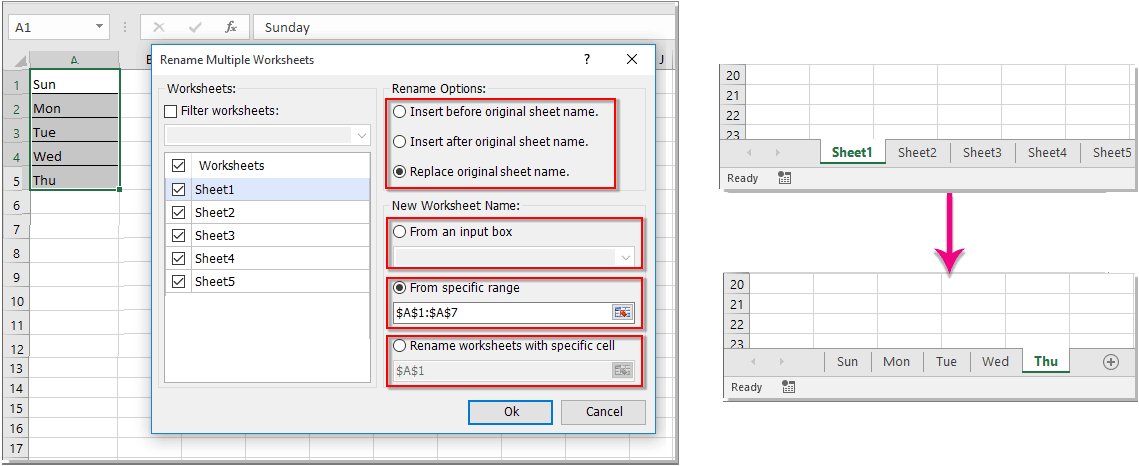
After downloading and installing Kutools for Excel, Click Kutools Plus > Worksheet > Rename Worksheets to open the Rename Multiple Worksheets dialog box. Then please do as follows:
Scenario 1. Rename multiple worksheets with specific data by using Kutools for Excel

- Select the worksheets you want to rename from the Worksheets list.
- Select one type which you want to rename the worksheets under Rename Options.
- Input the specific value into the From an input box.
- Click OK. You will get the following results:
Scenario 2. Rename multiple worksheets with cell values by using Kutools for Excel
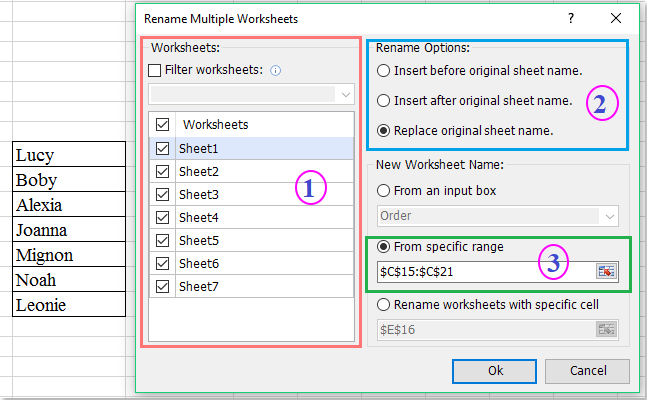
- Select the worksheets you want to rename from the Worksheets list.
- Select one type which you want to rename the worksheets under Rename Options.
- Click
 button to select the cell values that you want to name the worksheets based on under the From specific range section.
 - Click OK. You will get the following results:
 button to select the cell values that you want to name the worksheets based on under the From specific range section.
Scenario 3. Rename multiple worksheets with a specific cell value in each worksheet by using Kutools for Excel
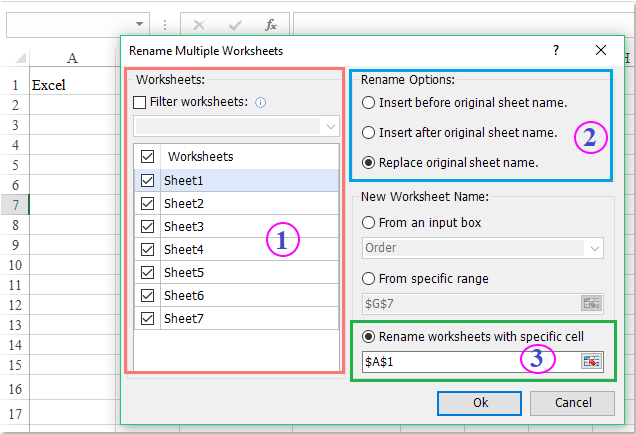
- Select the worksheets you want to rename from the Worksheets list.
- Select one type which you want to rename the worksheets under Rename Options.
- Click button to select the specific cell value that you want to name the worksheets based on under the Rename worksheets with specific cell section.
- Click OK. The worksheet names have been renamed with the specific cell value in each worksheet.

Using VBA code for renaming multiple worksheets
Here I will introduce you two VBA codes to rename multiple worksheets.
Code 1. VBA code to rename multiple worksheets by the name you want at once
Using the following VBA code, you can quickly rename all worksheets of the current workbook with the same prefix in their worksheet names, such as: KTE-order1, KTE-order 2, and KTE-order 3…
1. Click on Developer > Visual Basic, and click Insert > Module in the Microsoft Visual Basic Application Windows.
2. Please copy and paste the following code into the Module.
VBA: Rename all sheets by entering a specific name
Sub ChangeWorkSheetName()
'Updateby20140624
Dim Rng As Range
Dim WorkRng As Range
On Error Resume Next
xTitleId = "KutoolsforExcel"
newName = Application.InputBox("Name", xTitleId, "", Type:=2)
For i = 1 To Application.Sheets.Count
    Application.Sheets(i).Name = newName & i
Next
End Sub
3. Click  button to execute the code, and enter the name you want into the pop-out dialog.see screenshots:

4. Click OK. Then you can see all sheets are renamed.

2. VBA code to rename multiple worksheets by specific cell value in each worksheet of the active workbook
Using the following VBA code, it will rename all worksheets of current workbook by using the content of specific cell. For example, you can type the worksheet name in the A1 cell of the whole workbook, and then the worksheet will be renamed as the cell value A1.
1. Please specify a cell to contain the worksheet name in each worksheet and type the worksheet name in it. In this example, I will type the worksheet name in cell A1 in each worksheet.
2. Click Developer > Visual Basic, and click Insert > Module in the Microsoft Visual Basic Application Windows.
3. Please copy and paste the following code into the Module.
VBA: Rename worksheets by a specific cell content
Sub RenameTabs()
'Updateby20140624
 For x = 1 To Sheets.Count
 If Worksheets(x).Range("A1").Value <> "" Then
 Sheets(x).Name = Worksheets(x).Range("A1").Value
 End If
 Next
 End Sub
4. Click button to execute the code. All worsheets are renamed based on the cell content of A1.
Notes:
- In the above code, A1 is the cell content which you want to rename the worksheets based on, you can change it to your need
- If the specific cell has no content, then the worksheet of the specific cell will not be renamed.
Demo: Rename multiple worksheets with Kutools for Excel
Related articles
How to rename sheets based on cell values (from list) in Excel?
This article will guide you through these techniques, making the process straightforward and efficient.
Simple methods to rename a sheet in Excel
This tutorial will guide you through various methods to rename a single worksheet, or rename multiple worksheets simultaneously, and provide you with essential rules for naming worksheets in Excel.
How to copy sheet and rename automatically in Excel?
In this article, I will talk about how to copy a sheet one time or multiple times and give them specific names at once.
How to rename worksheet without using mouse in Excel?
In this case, I will talk about some shortcut keys for you to rename the worksheet tab.
The Best Office Productivity Tools
Kutools for Excel - Helps You To Stand Out From Crowd
Kutools for Excel Boasts Over 300 Features, Ensuring That What You Need is Just A Click Away...

Office Tab - Enable Tabbed Reading and Editing in Microsoft Office (include Excel)
- One second to switch between dozens of open documents!
- Reduce hundreds of mouse clicks for you every day, say goodbye to mouse hand.
- Increases your productivity by 50% when viewing and editing multiple documents.
- Brings Efficient Tabs to Office (include Excel), Just Like Chrome, Edge and Firefox.

