How to sort worksheets in alphabetical / alphanumeric order in Excel?
Normally you can sort or arrange worksheet tabs order in Excel by dragging and dropping the sheet tabs on the sheet tab bar. But for getting this done with multiple worksheets, you may consider the following tricky ways to quickly sort worksheets in alphabetical / alphanumeric order in a large workbook.
Sort worksheets in alphabetical / alphanumeric order with VBA code
Sort worksheets in alphabetical / alphanumeric order with Kutools for Excel
Sort worksheets in alphabetical / alphanumeric order with VBA code
There is a macro for sorting worksheets by alpha posted in the Microsoft Support center. We can apply it with following steps:
1. Hold down the ALT + F11 keys, and it opens the Microsoft Visual Basic for Applications window.
2. Click Insert > Module, and then paste the following macro in the Module Window.
VBA: Sort sheets in alphabetical / alphanumeric order
Sub SortWorkBook()
'Updateby20140624
Dim xResult As VbMsgBoxResult
xTitleId = "KutoolsforExcel"
xResult = MsgBox("Sort Sheets in Ascending Order?" & Chr(10) & "Clicking No will sort in Descending Order", vbYesNoCancel + vbQuestion + vbDefaultButton1, xTitleId)
For i = 1 To Application.Sheets.Count
    For j = 1 To Application.Sheets.Count - 1
        If xResult = vbYes Then
            If UCase$(Application.Sheets(j).Name) > UCase$(Application.Sheets(j + 1).Name) Then
                Sheets(j).Move after:=Sheets(j + 1)
            End If
            ElseIf xResult = vbNo Then
                If UCase$(Application.Sheets(j).Name) < UCase$(Application.Sheets(j + 1).Name) Then
                    Application.Sheets(j).Move after:=Application.Sheets(j + 1)
            End If
        End If
    Next
Next
End Sub
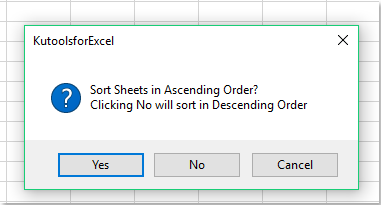
3. Press the F5 key to run this macro. In the following prompt box, click Yes, all the worksheets will be sorted by ascending alphabetical order; and click No, all the worksheets will be sorted by descending alphabetical order.
Sort worksheets in alphabetical / alphanumeric order with Kutools for Excel
If you are not familiar with macros or prefer to other ways, you can try Kutools for Excel. Kutools for Excel's Sort Sheets tool can sort all worksheets easily.
Before applying Kutools for Excel, please download and install it firstly.
1. Click Kutools Plus > Worksheet > Sort Sheets. See screenshot:

2. In the Sort Sheets dialog box, select one sorting type that you need on the right pane, such as Alpha Sort, Alpha Numeric Sort, and then click the OK button. See screenshot:

Then all worksheets are sorted based on the specified sorting type. See screenshot:

Kutools for Excel's Sort Sheets tool can quickly rearrange all worksheets in the active workbook. It supports several sorting types, including Alpha Sort, Alpha Numeric Sort, Color Sort and Reverse. In addition, you can also move up / down worksheets, and reset the sorting.
If you want to have a free trial (30-day) of this utility, please click to download it, and then go to apply the operation according above steps.
Demo: Sort all worksheets in alphabetical / alphanumeric order
Related article:
Best Office Productivity Tools
Supercharge Your Excel Skills with Kutools for Excel, and Experience Efficiency Like Never Before. Kutools for Excel Offers Over 300 Advanced Features to Boost Productivity and Save Time. Click Here to Get The Feature You Need The Most...

Office Tab Brings Tabbed interface to Office, and Make Your Work Much Easier
- Enable tabbed editing and reading in Word, Excel, PowerPoint, Publisher, Access, Visio and Project.
- Open and create multiple documents in new tabs of the same window, rather than in new windows.
- Increases your productivity by 50%, and reduces hundreds of mouse clicks for you every day!

