How to sort full name by last name in Excel?
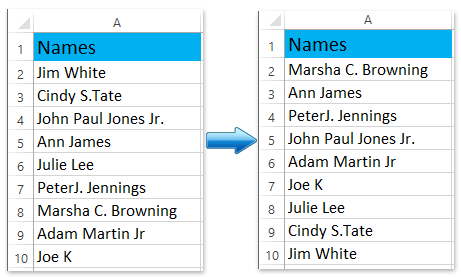
It is quite easy to sort a full name column with the first name. However, sometimes you may want to sort the full name column by the last name. How could you sort the full name by last name in Excel? This article brings you some tricky ways to help you sort full names column by last name in Excel easily.

Sort full name column by last name with Find and Replace feature
This method will introduce the Find and Replace feature to extract the last names from all full names, and then you can sort full names by the last name easily. Please do as follows:
1. Copy the full name column, and paste it beside the full name column, says Column B.
2. Keep selecting the pasted column, and press the Ctrl + H keys simultaneously to open the Find and Replace dialog box.
Note: You can also open this dialog box by clicking Home > Find & Select > Replace.
3. In the opening Find and Replace dialog box, please type a space into the Find What: box, type the @ into the Replace with: box, and then click the Replace All button. See screenshot:

And then a dialog box will pop up and show you how many replacements have been made, just click the OK button to close it.
4. Still select the new column, and in the Find and Replace dialog box, enter the *@ in the Find what: box, enter nothing in the Replace with: box, and then click Replace All button.

And then a dialog box will pop up and show you how many replacements have been made, just click the OK button to close it.
5. Keep selecting the new column, and click Data > Sort A to Z or Sort Z to A, and then in the Sort warning dialog box please check the Expand the selection option, and click the Sort button. See screenshot:

So far the full name column has been sorted by the extracted last names. If necessary, you can delete the new extracted last name column.
Easily sort by last name/word in cells in Excel
Kutools for Excel's Advanced Sort utility supports sorting data by many flexible scenario/methods, such as sort by text length, sort by frequency, sort by last name, etc.
Kutools for Excel - Supercharge Excel with over 300 essential tools. Enjoy a full-featured 30-day FREE trial with no credit card required! Get It Now
Sort by last name with extracting the last name firstly
If we can extracting the last name from each full name, and then it’s easy to sort the list of full names by the last names. This method will introduce Kutools for Excel’s Split Names utility to extract the last names firstly, and then sort by last name.
Kutools for Excel- Includes more than 300 handy tools for Excel. Full feature free trial 30-day, no credit card required! Get It Now
1. Select the full name column without column header, and click Kutools > Text > Split Names. And then in the opening Split Names dialog box, please check the Last name option only, and click the Ok button. See screenshot:
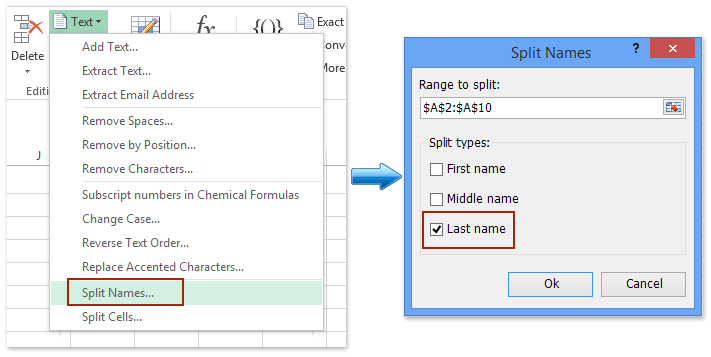
2. In the second Split Names dialog box, please specified the first cell of destination column beside original full name column, and click the OK button.
And then all last names are extracted from full names and placed beside original full name column. See screenshot:

3. Select the new last name column, and click Data > Sort A to Z or Sort Z to A, and then in the Sort warning dialog box please check the Expand the selection option, and click the Sort button. See screenshot:
And now the full name column is sorted by the last names. If necessary, please delete the new created last name column as you need.
Sort by last name with reversing the first and last names

Actually, we can reverse the full name cell and place the last name at the beginning of cell by the Reverse Text Order utility of Kutools for Excel, therefore it will be quite easy to sort by last names.
Kutools for Excel- Includes more than 300 handy tools for Excel. Full feature free trial 30-day, no credit card required! Get It Now
1. Select the full name column without the column header, and click Kutools > Text > Reverse Text Order. See left screenshot:
2. In the opening Reverse Text dialog box, please check the Space option, and click the Ok button. See screenshot:

3. Select the full name column, and then click Data > Sort A to Z or Sort Z to A. So far the full name column has been sorted by the last name already. But we need to restore the normal full name order.
4. Repeat Step 1 and Step 2 to restore normal full name order.
Please Select the full name column without the column header, and click Kutools > Text > Reverse Text Order. And then check the Space option and click the Ok button in the Reverse Text dialog box. See screenshot:

Sort full name column by last name with Kutools for Excel
Using Text to Column function or Find and Replace function to sort name by last name are no easier than applying Advanced Sort feature of Kutools for Excel.
Kutools for Excel- Includes more than 300 handy tools for Excel. Full feature free trial 30-day, no credit card required! Get It Now
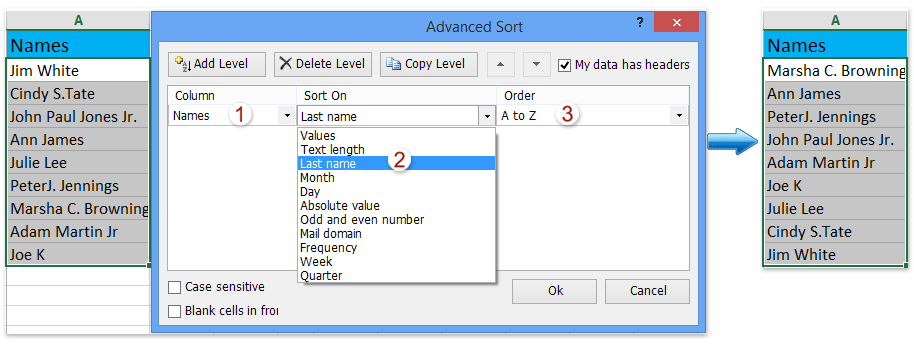
1. Select the full name column you want to sort by last name, and click Kutools Plus > Advanced Sort to enable this feature.
2. In the pop-up Advanced Sort dialog, select the column you want to sort, choose Last name from Sort On drop down list, specified the sort order from the Order drop down list, and click the Ok button. See screenshot:
So far the full name column has been sorted by last name at once.
Demo: sort full names by last name in Excel
Relative Articles
- Sort by frequency in Excel
- Sort birthdays (dates) by month/year/day only in Excel
- Sort cells by last character or number in Excel
- Auto sort column by value in Excel
- Save custom sort criteria/order in Excel
Best Office Productivity Tools
Supercharge Your Excel Skills with Kutools for Excel, and Experience Efficiency Like Never Before. Kutools for Excel Offers Over 300 Advanced Features to Boost Productivity and Save Time. Click Here to Get The Feature You Need The Most...

Office Tab Brings Tabbed interface to Office, and Make Your Work Much Easier
- Enable tabbed editing and reading in Word, Excel, PowerPoint, Publisher, Access, Visio and Project.
- Open and create multiple documents in new tabs of the same window, rather than in new windows.
- Increases your productivity by 50%, and reduces hundreds of mouse clicks for you every day!

