How to insert a radio button or option button in Excel?
Sometimes you may see a group of predefined options with circle holes allowing you to choose one of them, and the choice is exclusive. They are radio buttons or option buttons. It is quite useful with them to select one of a series of size as Small, Medium, and Large, or a series of color as Red, Orange, Yellow, Green, Blue, …etc.
Insert Radio buttons in Excel manually
One click to insert multiple Radio buttons
One click to delete all radio buttons in selection
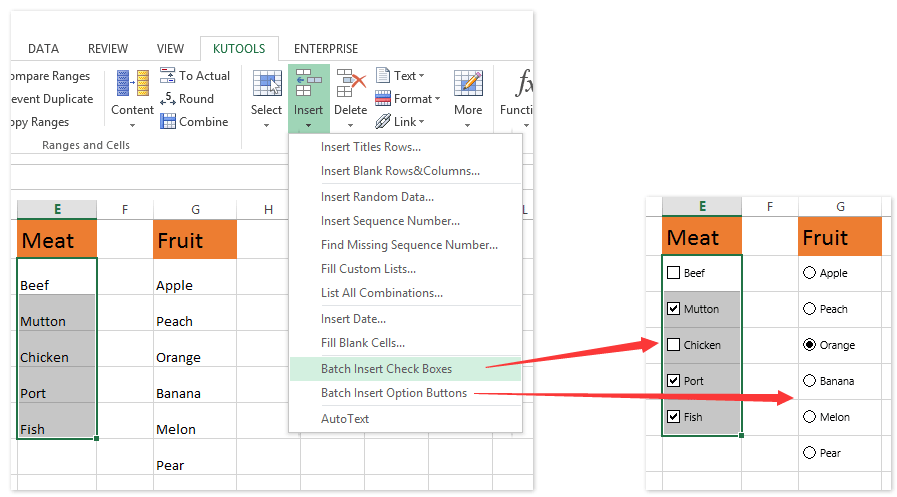
Easily insert multiple checkboxes or option buttons at once in Excel
Normally we can only insert one checkbox or option button in a cell at a time with tedious steps in Excel. But Kutools for Excel’s Batch Insert Check Boxes utility and Batch Insert Option Buttons utility can help Excel users quickly insert multiple checkboxes or option buttons into all selected cells.
 Insert Radio buttons in Excel manually


1. Go to the Controls group under Developer tab.
Note: If you can't view the Developer tab in ribbon, please do as follows:
- In Excel 2010 or higher versions, please click the File > Options > Customize Ribbon, and then check the Developer option in the right side.
- In Excel 2007, please click the Office button > Excel Options > Popular, and then check the Show Developer tab in the Ribbon option in the Top options for working with Excel section.
2. Click the Insert button, and select the Option Button, see the following screen shot:

3. Move mouse on working area, and draw a radio button. Repeat the Step 2 and Step 3, and insert as many radio buttons as you need.
4. Right click one of Option Buttons, and click the Edit Text item from context menu.

5. Then the text above selected option button is editable, type a new name for the selected radio button. And rename other radio buttons based on your needs.
6. After renaming the option buttons, you can also format them as you want. Right click one of radio buttons, and click the Format Control item from the context menu, see screenshot below:

7. In the Format Control dialog box, change the formatting styles of each radio button. See screenshot above:
Insert multiple Radio buttons in Excel with Kutools for Excel at once
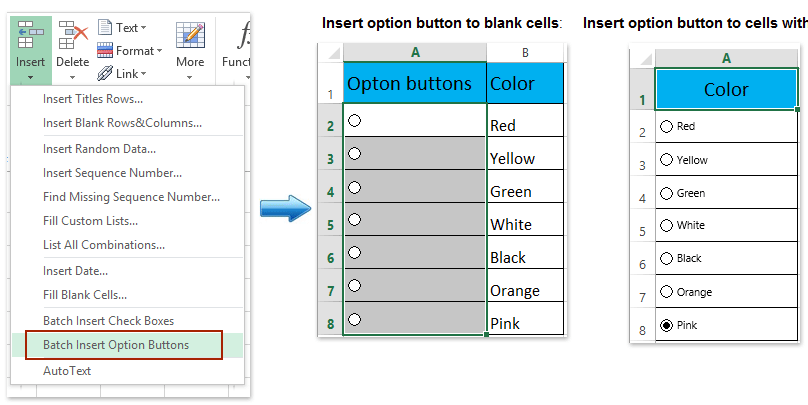
If you want to insert multiple radio buttons to a range of cells, the above method will be somewhat troublesome. If you have Kutools for Excel, with its Batch Insert Option Button feature, you can quickly insert the options buttons to a range of blank cells or cells with data.
Kutools for Excel - Packed with over 300 essential tools for Excel. Enjoy a full-featured 30-day FREE trial with no credit card required! Download now!
Select a range of cells that you want to insert the option buttons, and click Kutools > Insert > Batch Insert Option Buttons. And then your selected range have been filled with the option buttons at once as following screenshots shown:
To know more about this Batch Insert Option buttons utility, please have a free trial!
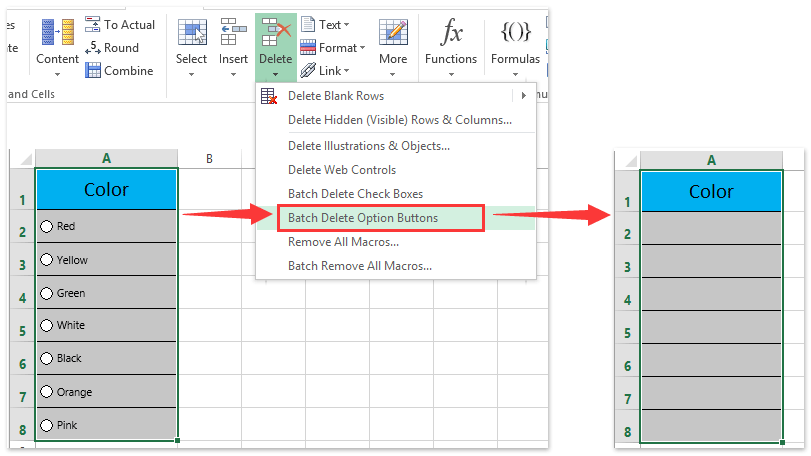
Note: Kutools for Excel also provides an handy Batch Delete Options Buttons utility to helper Excel users to quickly delete all option buttons in selected range with only one click. See screenshot:
Demo: insert and delete radio buttons (option buttons) in Excel
Best Office Productivity Tools
Supercharge Your Excel Skills with Kutools for Excel, and Experience Efficiency Like Never Before. Kutools for Excel Offers Over 300 Advanced Features to Boost Productivity and Save Time. Click Here to Get The Feature You Need The Most...

Office Tab Brings Tabbed interface to Office, and Make Your Work Much Easier
- Enable tabbed editing and reading in Word, Excel, PowerPoint, Publisher, Access, Visio and Project.
- Open and create multiple documents in new tabs of the same window, rather than in new windows.
- Increases your productivity by 50%, and reduces hundreds of mouse clicks for you every day!

