Comprehensive Guide to Setting Up Auto Replies in Outlook
Managing emails can be overwhelming, especially when you're out of the office or on vacation. Setting up auto-replies in Outlook can help you inform your contacts about your absence and provide alternative contact information. This guide will walk you through various methods to set up auto-replies in Outlook, ensuring your emails are managed efficiently even when you're away.
Set auto reply in Outlook 2007 with creating rule
Easily set different auto replies for different accounts with Kutools for Outlook
Set auto reply in new Outlook
The new Outlook supports setting up automatic replies for when users out-of-office of unavailable to respond to emails.
Set and turn on auto-reply
Launch Outlook and click on the "File" tab.
Ensure you are on the "Info" tab and click on "Automatic Replies (Out of Office)".

In the popping window,set as below:
- Select "Send automatic replies".
- Choose between the Inside My Organization tab or the Outside My Organization tab to specify who will receive your auto-reply.
- Type your auto-reply message.
- Click "OK" to save your settings.
Tip: Set the Time Range: Optionally, you can set a time range for your auto-replies by checking "Only send during this time range" and specifying the start and end times.
From now on, all senders will receive your auto-reply after sending emails to you.


Turn off auto-reply
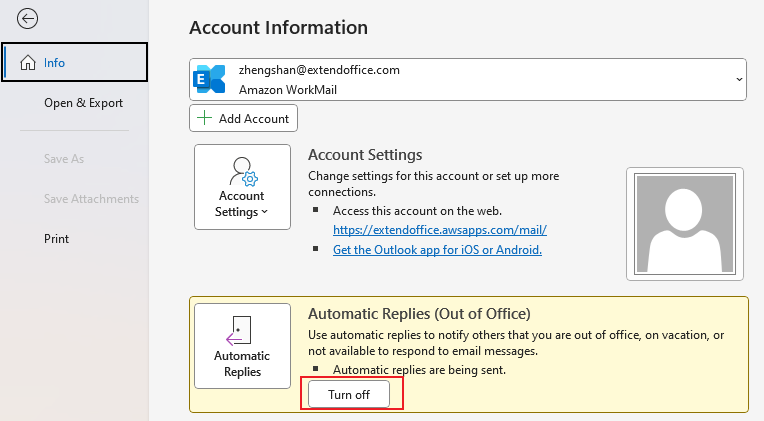
If you want to stop the auto-reply, go to File tab, and click Turn off button in Automatic Replies section.
AI Mail Assistant in Outlook: Smarter Replies, Clearer Communication (one-click magic!) FREE
Streamline your daily Outlook tasks with the AI Mail Assistant from Kutools for Outlook. This powerful tool learns from your past emails to offer intelligent and accurate responses, optimize your email content, and help you draft and refine messages effortlessly.

This feature supports:
- Smart Replies: Get responses crafted from your past conversations—tailored, precise, and ready to go.
- Enhanced Content: Automatically refine your email text for clarity and impact.
- Effortless Composition: Just provide keywords, and let AI handle the rest, with multiple writing styles.
- Intelligent Extensions: Expand your thoughts with context-aware suggestions.
- Summarization: Get concise overviews of long emails instantly.
- Global Reach: Translate your emails into any language with ease.
This feature supports:
- Smart email replies
- Optimized content
- Keyword-based drafts
- Intelligent content extension
- Email summarization
- Multi-language translation
Best of all, this feature is completely free forever! Don’t wait—download AI Mail Assistant now and enjoy!
Set auto reply in Outlook 2007 with creating rule
You can do as follows to creating a rule for setting up auto reply in Outlook.
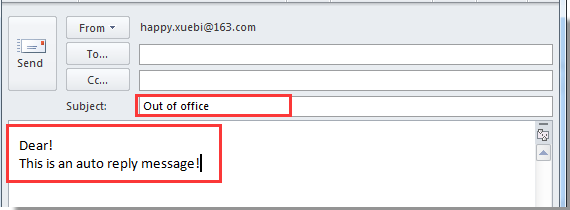
1. Create a new message with subject and body you want to send as auto replying.
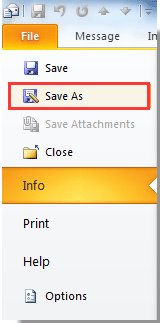
2. Click File (in Outlook 2007, click the Office button) > Save As.
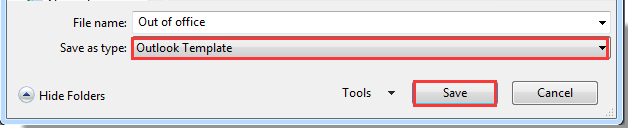
3. In the Save As dialog box, select Outlook Template in the Save as type drop-down list, and then click the Save button.
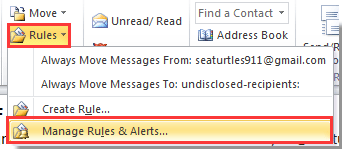
4. Close the message directly. If you are using Outlook 2010, 2013 and 2016, please click Home > Rules > Manage Rules & Alerts.
For Outlook 2007, click Tools > Rules and Alerts... from the menu in Outlook window. See screenshot:
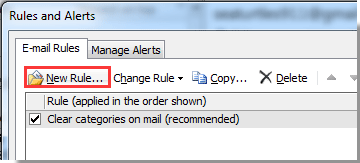
5. In the Rules and Alerts dialog box, click New Rule...
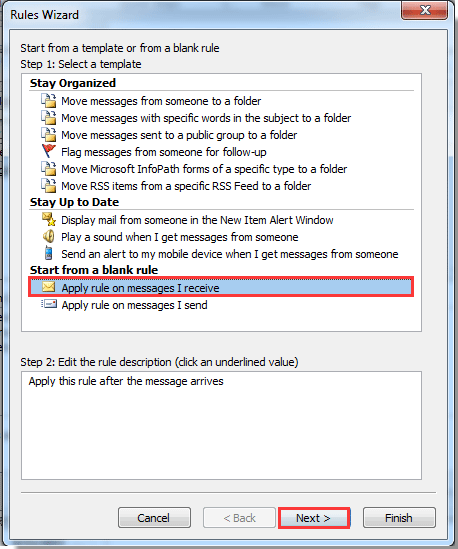
6. In the Rules Wizard dialog box, select Apply rule on message I receive in Outlook 2010 and 2013. And In Outlook 2007, select the Start from a blank rule option and the Check messages when they arrive option, and click Next button.
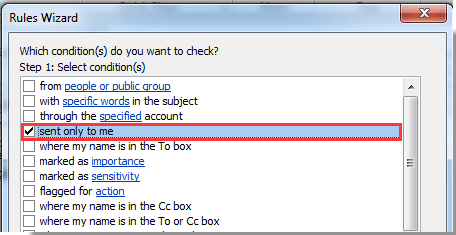
7. In the following Rules Wizard dialog box, select sent only to me in Outlook 2010 and 2013, or select where my name is in the To box in Outlook 2007, and then click Next button.
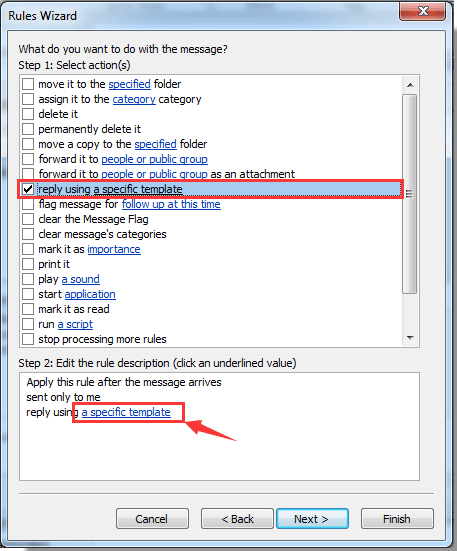
8. Check reply using a specific template under Select action(s), and click on a specific template in the Edit the rule description box. See screenshot:
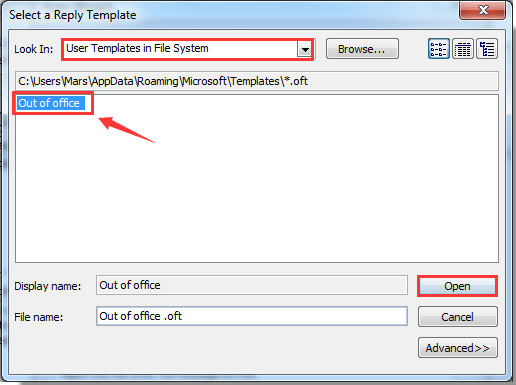
9. In the Select a Reply Template dialog box, select User Templates in File System in the Look In drop-down list, select the template you created before and click the Open button. When it returns to the previous Rules Wizard dialog box, click the Next button.
10. In the next Rules and Wizard dialog box, click the Next button without checking any exceptions.
11. Type a name for your auto reply rule in the Specify a name for this rule box, and click the Finish button.
If you want to use this rule for all email accounts, please check the Create this rule on all accounts box.
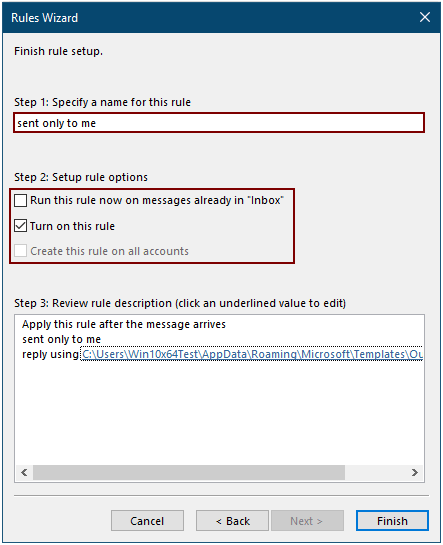
12. Now it returns to the Rules and Alerts dialog box, please click the OK button. Now the auto reply rule is created.
It’s too complicated to create rules for auto reply in Outlook, but you can easily get it done with the Kutools for Outlook’s Auto Reply function in next section.
Easily set up auto reply in Outlook with Kutools for Outlook
Here highly recommend the Auto Reply Manager utility of Kutools for Outlook to help you easily set up auto reply in Outlook.
1. Open your Microsoft Outlook, then click Kutools > Reply > Auto Reply Manager.
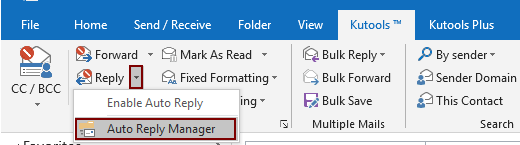
2. In the Auto Reply Manager dialog box, check the email account you want to auto reply when receiving emails, modify the auto reply subject prefix and the auto reply content as you need, and finally click the OK button. See screenshot:
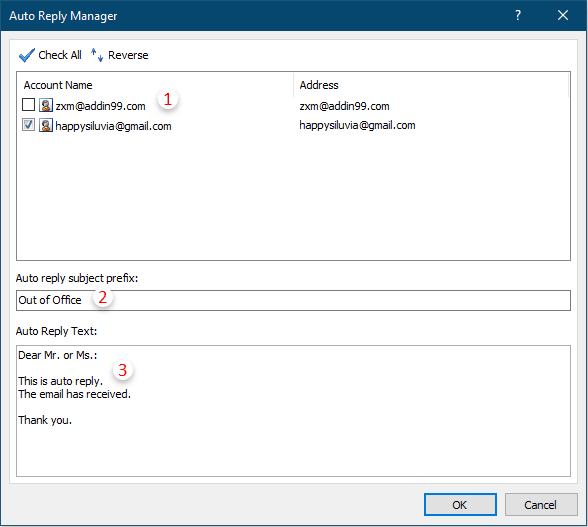
3. Then enable this auto Reply utility by clicking Kutools > Reply > Enable Auto reply.
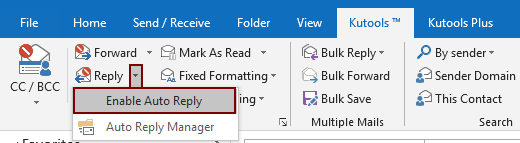
From now on, when receiving email in the specified email account, an auto reply email will be sent automatically to the email sender.
If you want to have a free trial (30-day) of this utility, please click to download it, and then go to apply the operation according above steps.
Easily set up auto reply in Outlook with Kutools for Outlook
Best Office Productivity Tools
Breaking News: Kutools for Outlook Launches Free Version!
Experience the all-new Kutools for Outlook with 100+ incredible features! Click to download now!
📧 Email Automation: Auto Reply (Available for POP and IMAP) / Schedule Send Emails / Auto CC/BCC by Rules When Sending Email / Auto Forward (Advanced Rules) / Auto Add Greeting / Automatically Split Multi-Recipient Emails into Individual Messages ...
📨 Email Management: Recall Emails / Block Scam Emails by Subjects and Others / Delete Duplicate Emails / Advanced Search / Consolidate Folders ...
📁 Attachments Pro: Batch Save / Batch Detach / Batch Compress / Auto Save / Auto Detach / Auto Compress ...
🌟 Interface Magic: 😊More Pretty and Cool Emojis / Remind you when important emails come / Minimize Outlook Instead of Closing ...
👍 One-click Wonders: Reply All with Attachments / Anti-Phishing Emails / 🕘Show Sender's Time Zone ...
👩🏼🤝👩🏻 Contacts & Calendar: Batch Add Contacts From Selected Emails / Split a Contact Group to Individual Groups / Remove Birthday Reminders ...
Use Kutools in your preferred language – supports English, Spanish, German, French, Chinese, and 40+ others!

