How to lock parts of document in Word?
If you want to allow other users to change the certain parts of a document, you can lock parts of the Word document, and the unlocked parts of the document can be edited freely.
Lock specified sections of document in Word
Lock part of documents with content control in Word
Recommended Productivity Tools for Word
Kutools for Word: Integrating AI 🤖, over 100 advanced features save 50% of your document handling time.Free Download
Office Tab: Introduces the browser-like tabs to Word (and other Office tools), simplifying multi-document navigation.Free Download
 Lock specified sections of document in Word

The first method will guide you to add section breaks in current document, and then lock specified sections easily. And you can do it as following:
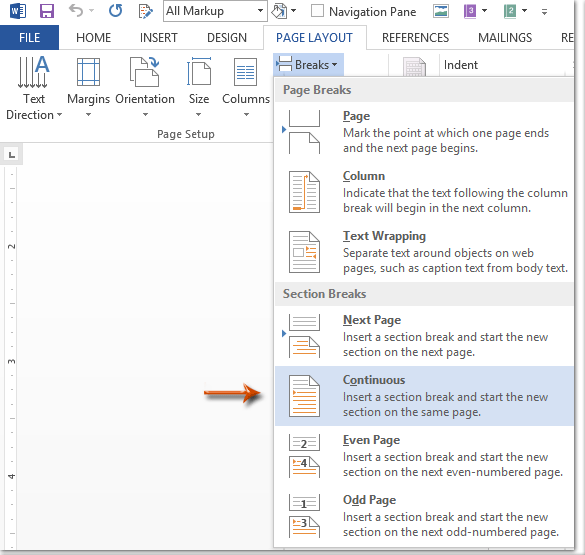
Step 1: Put the cursor before the part of document you will protect, and then click the Breaks > Continuous on the Page Layout tab. Then add a continuous break at the end of the part of document with same way.
Step 2: Show the Restrict Editing pane with clicking the Restrict Editing button on the Review tab.
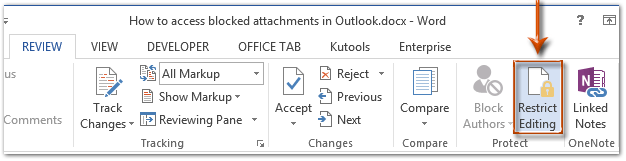
Note: In Word 2007, you need to click the Protect Document > Restrict Formatting and Editing on the Review tab.
Step 3: In the Restrict Editing pane, go to the Editing restrictions section, and:
(1) Check the option of Allow only this type of editing in the document;
(2) Click the following box, and then specify the Filling in forms from the drop down list;
(3) Click the text of Select Sections.
(4) In the popping up Section Protection dialog box, only check the sections you will protect, and then click the OK button.
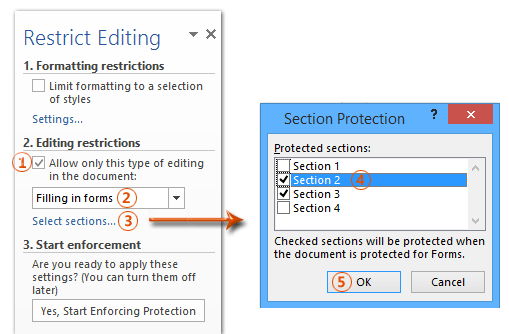
Step 4: Go ahead to click the Yes, Start Enforcing Protection button in the Restrict Editing pane.

Step 5: In the throwing Start Enforcing Protection dialog box,
(1) Check the Password;
(2) Enter your password in the both Enter new password (optional) box and Reenter password to confirm box;
(3) Click the OK button.
Step 6: Save your Word document.
Up to now, the specified sections have been protected by your specified password already.
Lock part of documents in Word
This method will guide you to lock a specified part of a document with adding a content control in Microsoft Word easily.
Step 1: Select the part of document you will protect, and then click the  Rich Text Content Control button on the Developer tab.
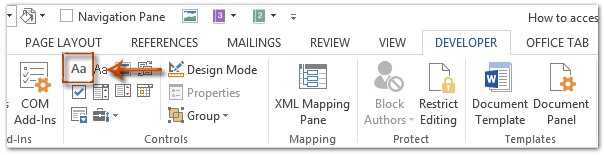
Note: Click to know how to add the Developer tab into the Ribbon: Show developer tab/ribbon in Word
Step 2: Go ahead to click the Properties button on the Developer tab.

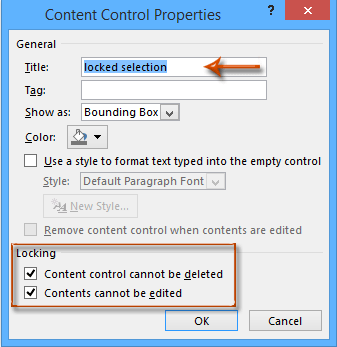
Step 3: In the coming Content Control Properties dialog box,
(1) Enter a name for this content control in the Title box;
(2) Check the option of Content control cannot be deleted;
(3) Check the option of Contents cannot be edited;
(4) Click the OK button.
Step 4: Enable the Restrict Editing pane (or Restrict Formatting and Edit pane) with clicking the Restrict Editing button on the Developer tab.

Notes:
(1) In Word 2007, please click the Protect Document > Restrict Formatting and Editing on the Developer tab.
(2) You can also find out the Restrict Editing button (or Protect Document button) on the Review tab.
Step 5: Go to the Restrict Editing pane,
(1) Check the option of Limit formatting to a selection of styles;
(2) Uncheck the option of Allow only this type of editing in the document;
(3) Click the Yes, Start Enforcing Protection button.

Step 6: In the coming Start Enforcing Protection dialog box,
(1) Check the Password;
(2) Enter your password in the both Enter new password (optional) box and Reenter password to confirm box;
(3) Click the OK button.
Step 7: Save current document.
Use Tabbed Document Interface in Office 2003/2007/2010/2013/2016/2019:
 Using tabs in Word, Excel, PowerPoint, Publisher, Access, Project and Visio;
Easy to switch back and forth between files in Microsoft Office 2003/2007/2010/2013/2016/2019;
Compatible with Windows XP, Windows Vista, Windows 7 / 8 / 10, Windows Server 2003 and 2008, Citrix System and Windows Terminal (Remote Desktop) Server;
Free trial without feature limitation in 30 days!