Navigation Pane – List Sheets, Workbooks, Columns, Names and insert auto text in Excel
Kutools for Excel
Boosts Excel With 300+
Powerful Features
If there are multiple opened workbooks which include dozens of worksheets, to switch between the workbooks and find the specific worksheet will spend much time. With the help of Kutools for Excel's Navigation Pane utility, you can quickly and conveniently view all the opened workbooks and their worksheets in the navigation pane at a glance. In other hand, the range names of active workbook and column titles of active worksheet also can be listed in the pane. At the same time, Navigation Pane provides Auto Text feature to add your custom formulas, pictures, charts, ranges and so on for reusing, as well as Advanced Find and Replace feature to find and replace values in multiple worksheets and workbooks.
See what Excel Navigation Pane can help:
- List all open workbooks: you can quickly click to navigate between all open workbooks (click for details);
- List all worksheets: almost 10 times faster to navigate between sheet tabs (click for details);
- Save and list custom formulas/pictures/charts/ranges as Auto Text entries for reusing by only one click (click for details);
- Find and replace values in multiple worksheets and multiple workbooks (click for details);
- List all columns (in active worksheet): you can click on the column letter to quickly go to the specific column in the active worksheet (click for details);
- List all names (in active workbook): click on the name and you will be navigated to the exact position of the name (click for details);
- List numbers of worksheets: adding status bar for numbers of all sheets, visible sheets and hidden sheets of current workbook (click for details);
- Toggle Button: toggle all of the hidden sheets/columns to be visible and invisible;
- Display hidden worksheets in Workbook & Sheet pane;
- Display hidden name ranges in Name Manager Pane;
- Preview Auto Text entries in the pane or in a floating preview pane;
- Apply the Find and Replace pane with shortcuts (click for details)
- Toggle between two latest sheets button: switch between just two sheets back and forth;
- Refresh Button: refresh all the information of the navigation pane;
- Scroll bar: makes it fluent to scroll the list from up to down; just as the way you do in browsing the web pages;
- When you switch multiple sheets by using the sheet tab of Excel, you can also stay at the specific position of that sheet in the Navigation Pane;
- Easily jump from one sheet (workbook, column or name range) to another by clicking the corresponding item in the pane;
- The more worksheets (columns) you work with, the faster the process can be when using Navigation pane.
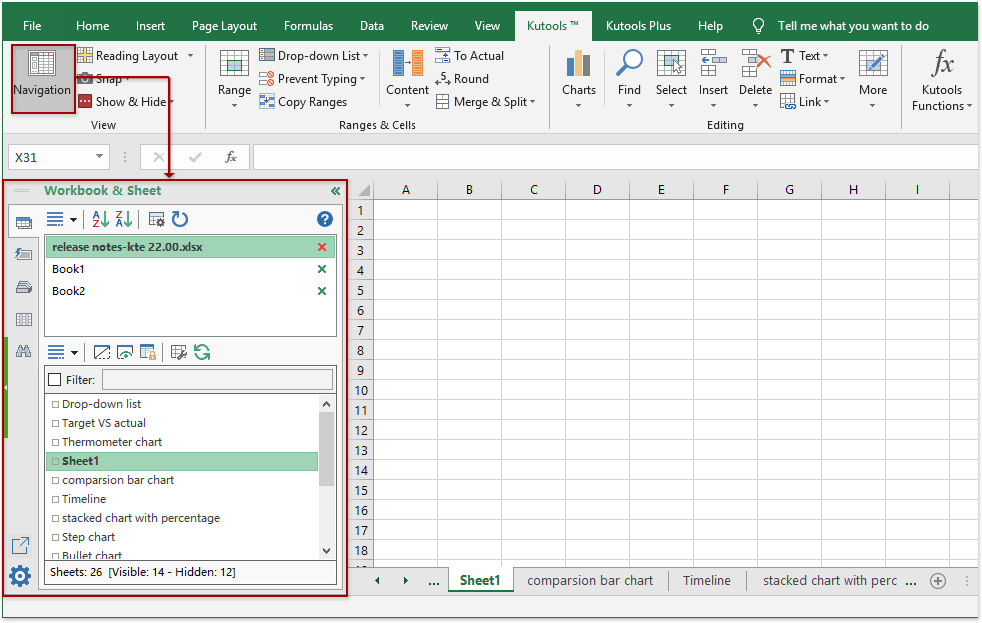
Click Kutools >> Navigation to enable the Navigation Pane, see screenshot:
Workbook & Sheet Tab: List all opened workbooks and their worksheets
With the Workbook & Sheet tab, you can quickly navigate between workbooks and worksheets.
You can use the Navigation pane as follows:
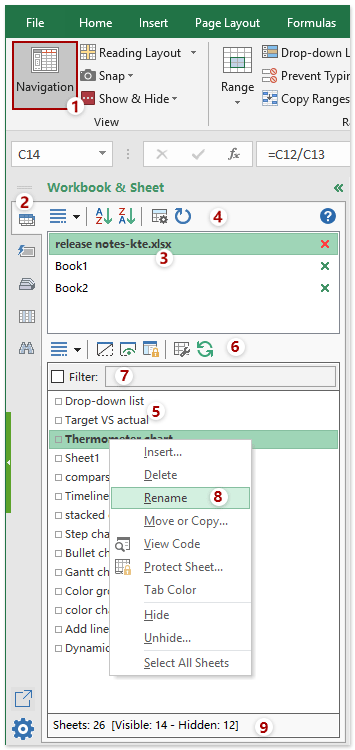
1. Click Navigation on the Kutools tab to enable the Navigation Pane, and click it again will close the Navigation Pane.
2. Click  button to enable the Workbook & Sheet pane.
3. All opened workbooks are listed here, click to navigate between all opened workbooks. You can click the  button to close the workbook as you need.
4. Buttons above the list of opening workbooks:
 Sort Workbooks in Ascending Order: Press this button will sort all opening workbooks in ascending order, and press again to restore original sorting order.
 Sort Workbooks in Descending Order: Press this button to sort all opening workbooks in descending order, and press again to recover original sorting order.
 Workbook Tools: Click it to quick access utilities in the Workbook group on the Kutools Plus tab.
 Refresh: It will refresh the information of the Navigation Pane.
 Sort Workbooks in Ascending Order: Press this button will sort all opening workbooks in ascending order, and press again to restore original sorting order.
 Sort Workbooks in Descending Order: Press this button to sort all opening workbooks in descending order, and press again to recover original sorting order.
 Workbook Tools: Click it to quick access utilities in the Workbook group on the Kutools Plus tab.
 Refresh: It will refresh the information of the Navigation Pane.
5. All worksheets of the current workbook are listed here, click to navigate between worksheets.
6. Buttons above the list of worksheets:
 Toggle to unhide / hide all hidden worksheet(s): one click will toggle all hidden worksheets to be visible, and click again will toggle all visible worksheets to be invisible.
 Show hidden sheet(s) in the worksheet pane: One click will toggle all hidden worksheets to be visible in the Worksheets Pane, and click again will hide these worksheets from the list of worksheets.
 Displays protection status of the worksheet in the worksheet pane: One click will mark all protected worksheets, and click again will hide the protection status.
 Sheets Tools: Click it to quick access utilities in the Worksheet group on the Kutools Plus tab.
 Toggle between two latest sheets button: switch between just two sheets back and forth.
 Toggle to unhide / hide all hidden worksheet(s): one click will toggle all hidden worksheets to be visible, and click again will toggle all visible worksheets to be invisible.
 Show hidden sheet(s) in the worksheet pane: One click will toggle all hidden worksheets to be visible in the Worksheets Pane, and click again will hide these worksheets from the list of worksheets.
 Displays protection status of the worksheet in the worksheet pane: One click will mark all protected worksheets, and click again will hide the protection status.
 Sheets Tools: Click it to quick access utilities in the Worksheet group on the Kutools Plus tab.
 Toggle between two latest sheets button: switch between just two sheets back and forth.
7. You can filter out the worksheet by enabling the Filter function and entering the sheet name as you need.
8. Right click on any worksheet name to display the context menu of worksheets.
9.  : Displays the total number of all worksheets, visible sheets and hidden sheets on the status bar of Kutools pane.
Resource Library Tab: Save custom formulas, pictures, charts and so on for reusing
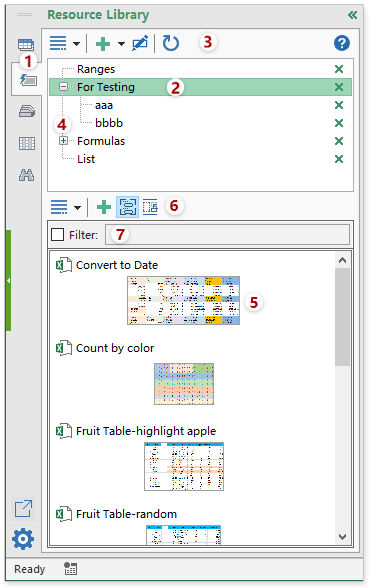
After clicking Kutools > Navigation to enable the Navigation pane, you can:
1. Click  button to enable the Resource Library pane.
2. The group names of resource library are listed here, you can create new group, sub-groups and delete any group you needn't use.
3. Buttons above the list of groups:
 Add group: Click to add a new root group or a subgroup to the current selected group.
 Rename current resource library group: rename the selected group name of the resource library.
 Refresh: it will refresh the information of the Resource Library Pane.
 Add group: Click to add a new root group or a subgroup to the current selected group.
 Rename current resource library group: rename the selected group name of the resource library.
 Refresh: it will refresh the information of the Resource Library Pane.
4. Click  before a group name to expand this group, and click
  before a group name to collapse this group.
5. All of the resource library entries of selected group will be listed here.
6. Buttons above the list of resource library entries:
- Add selected content to Resource Library: click this button to add currently selected content to the Resource Library pane.
 Show preview in Resource Library list: click will display the custom resource library entries in the Resource Library pane.
 Show floating preview of Resource Library entry: Click to enable it, and then put the cursor at the resource library entry, the floating preview will appear for you to view more clearly.
 Show preview in Resource Library list: click will display the custom resource library entries in the Resource Library pane.
 Show floating preview of Resource Library entry: Click to enable it, and then put the cursor at the resource library entry, the floating preview will appear for you to view more clearly.
7. You can filter out the resource library entries by enabling the Filter checkbox and entering the resource library entry name as you need.
To know more details about the Resource Library function, please read this article: Easily create and insert Resource Library entry in Excel.
Name Manager Tab: List all the range names of current workbook and enable to edit
With this Name Manager pane, all the range names of the active workbook are listed in the pane, and you can do such operations: create new name range, edit the named range, delete name range, and so on.
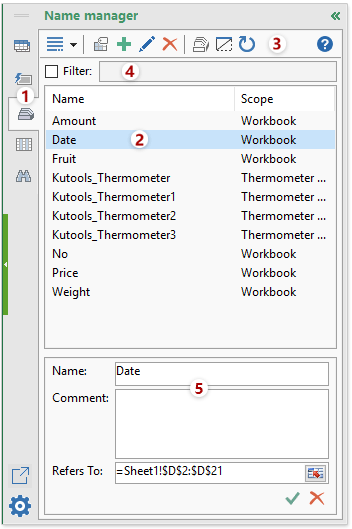
After clicking Kutools > Navigation to enable the Navigation pane, you can:
1. Click  button to open the Name manager pane.
2. All of the range names within the active workbook are listed here, click to navigate between names.
3. Buttons in this pane:
 Create names from selection: with it, you can quickly create multiple range names based on row or column labels.
 New name: Click this button to add new range name as you need.
 Edit Name: In this Edit Name box, you can rename the selected range name and change cell reference of the range name.
 Delete Name: delete the selected range name as you want.
 Name Manager: click this button to open the Name Manager dialog box.
 Display hidden name: Pressing the button displays the hidden names and hides them again when the button bounces.
 Refresh: it will refresh the information of the Name ranges.
 New name: Click this button to add new range name as you need.
 Edit Name: In this Edit Name box, you can rename the selected range name and change cell reference of the range name.
 Name Manager: click this button to open the Name Manager dialog box.
 Display hidden name: Pressing the button displays the hidden names and hides them again when the button bounces.
 Refresh: it will refresh the information of the Name ranges.
4. You can filter out certain range name by enabling the Filter function and entering the range names you need.
5. In this Edit Name section, you can rename the selected range name in the Name box to your need, and change the reference of the range name in the Refers To text box. And click  button to cancel the changes, and click
  button to save the changes.
Here, I will introduce you the usage of the Create names from selection feature in the Name manager pane.
Supposing you already have existing row and column labels in your worksheet, and now you want to create range names based on these labels, the Create names from selection feature can help you to create multiple ranges names quickly and easily.
Select your range which you want to create range names, and in the Name manager pane, please click  button in the top ribbon, and in the Create Names from Selection dialog box, check the options that you want to use, see screenshot:

And then click OK to close this dialog, and the range names have been created based on the row and column labels in the Name manager pane, see screenshot:

Column List Tab: List the column names and titles of current worksheet
The Column List pane in the Navigation pane can list the column names and titles of the current worksheet.
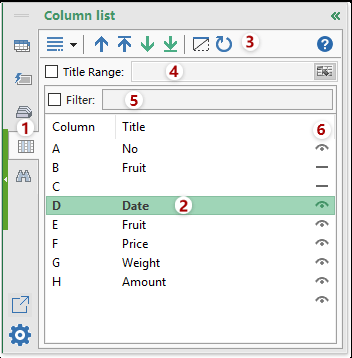
After clicking Kutools > Navigation to enable the Navigation pane, you can:
1.  Column List tab: click this button to enable the Column List pane.
2. List all column titles of current worksheet here, click on the column list will navigate between columns.
3. Buttons in this pane:
 : A group of arrows can help move the column up or down to any position.
  Toggle to unhide / hide all hidden column(s): one click will toggle all hidden columns to be visible, and click again will toggle all visible columns to be invisible.
 Refresh: it will refresh the information of the Column List pane.
 : A group of arrows can help move the column up or down to any position.
  Toggle to unhide / hide all hidden column(s): one click will toggle all hidden columns to be visible, and click again will toggle all visible columns to be invisible.
 Refresh: it will refresh the information of the Column List pane.
4. List specific columns in the selected range.
5. You can filter out the columns by ticking the Filter checkbox and entering the column name as you need.
6. Click  to hide the related column in the active sheet, and click
  to show the related column in the active sheet.
Advanced Find and Replace Tab: find and replace values in multiple worksheets and workbooks
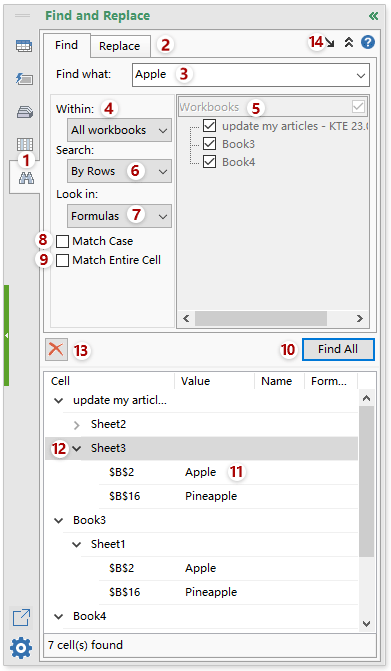
After clicking Kutools > Navigation to enable the Navigation pane, you can:
1.  Advanced Find and Replace Tab: click this button to enable the Advanced Find and Replace pane.
2. Switch between Find tab and Replace tab.
3. Type the search keywords (and replace with text if necessary) based on your needs.
4. Specify the finding or replacing scope: All workbook, Active workbook, Selected sheets, Active sheet, and Selection.
5. Select all or unselect all opening workbooks or worksheets.
6. Specify the search direction: By rows or By columns.
7. Specify the special search scope: formulas, cell values, comments, hyperlinks, or chart titles.
8. Tick the Match Case option to enable case-sensitive search.
9. Tick the Match Entire Cell option to enable exact search.
10. Find All: click this button to find certain values in the specified searching scope.
11. Search results or replacement results are listed here.
12. Search results are grouped by worksheets and workbooks. Click  before a worksheet or workbook to collapse all search results in the worksheet or workbook, and click
  to expand all search results in the worksheet or workbook.
13.  Delete: Clear all searching results.
14. Click  to float the Advanced Find and Replace pane in the workspace, and click
  to collapse the search fields.
To know more details for the feature, please view the Advanced Find & Replace utility.
Notes:
1. Stop automatically opening Navigation Pane when launching Excel by clicking Kutools > Navigation.
2. Expand, minimize, or pin the Navigation Pane
After activating the Navigation pane, the navigation pane displays normally. Now you can click the  button to minimize the Navigation pane. When the Navigation pane minimizes, you can click the
  button to expand it, and then click the
  button to pin it.
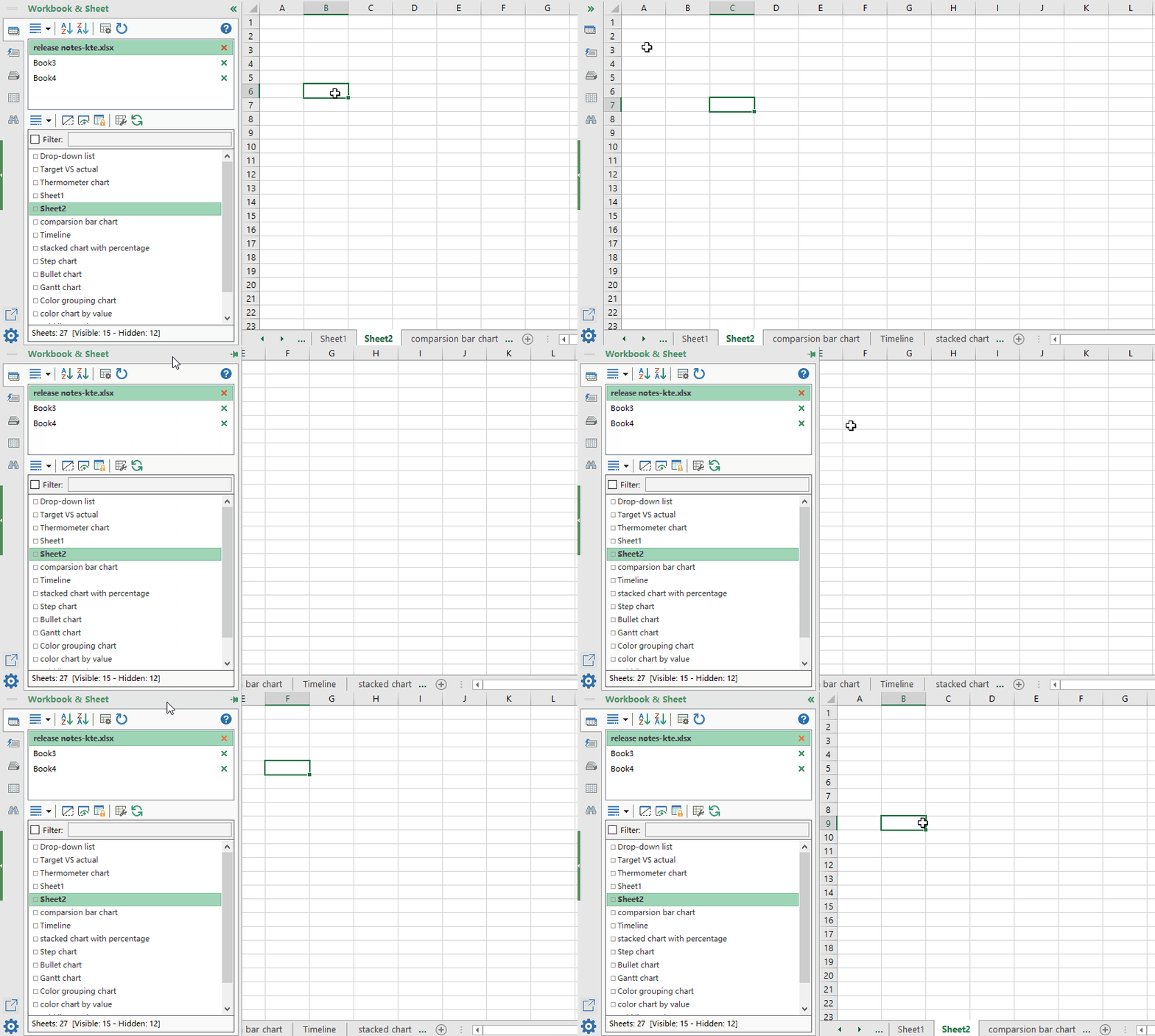
3. In the Navigation Options, you can set the following operations:
Please click Navigation Options  button to go to the Navigation Options dialog, see screenshot:

(1.) Show number of worksheets:
If you check the Show the count of sheet(s) in the sheets list box, the total number of worksheets, visible worksheets and hidden worksheets are displayed in the Status bar. See screenshot:

(2.) Using a shortcut key (Win+ Shift + A) to toggle between last two sheets:
You can quickly apply the Win + Shift + A shortcut key to toggle between the last two sheets if you check Using Win + Shift + A to switch between the last two sheets option, see screenshot:

(3.) Setting for previews of Resource Library entries:
If you check the Use large fonts when previewing text type Resource Library entry option, all text type of resource library entry will be previewed in big font. See screenshot:

(4.) Settings for Name manager:
Display name editor in the name manager: if you check this option, the Name editor will be displayed in the Name manager pane, otherwise, it will be hidden.

(5.) Apply the Find and Replace pane with shortcuts:
You can apply the Advanced Find and Replace function of Kutools for Excel with shortcuts Ctrl + F or Win + Shift + Q without opening the Navigation Pane. See screenshot:

You can specify your default search scope for the Advanced Find and Replace function of the Kutools Navigation Pane. See screenshot:

(5.) Share this feature to your friend or social medias
You can click the share icon  to share this Navigation Pane feature to your friend via email, or share to social medias, including Facebook, Twitter, Linkedin, and Weibo.

Demo: Navigation Pane: List all opened workbooks and their worksheets, range names at once:
Kutools for Excel: with more than 300 handy features, free to try with no limitation in 30 days. Download and free trial Now!
The following tools can greatly save your time and money, which one is right for you?
Office Tab: Using handy tabs in your Office, as the way of Chrome, Firefox and New Internet Explorer.
Kutools for Excel: More than 300 Advanced Functions for Excel 2021, 2019, 2016, 2013, 2010, 2007 and Office 365.
Kutools for Excel
The functionality described above is just one of 300 powerful functions of Kutools for Excel.
Designed for Excel(Office) 2021, 2019, 2016, 2013, 2010, 2007 and Office 365. Free download and use for 30 days.