Change working area size: show or hide ribbon, formula bar, and status bar in Excel
Kutools for Excel
Boosts Excel With 300+
Powerful Features
When you are working with a small screen computer, such as a laptop, or browsing a workbook with too much data, have you ever tried to get a bigger browsing area by toggling the status bar, the formula bar and the ribbon off? If so, with this Work Area Size you can quickly switch among the following 3 types of working area size in your Excel.
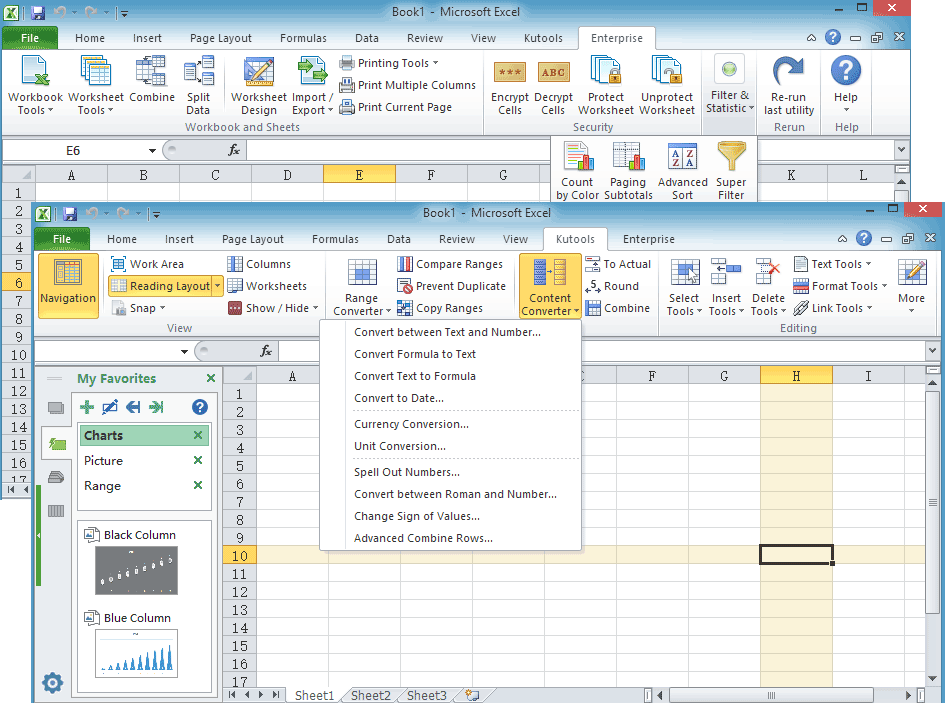
Click Kutools > Show & Hide > Work Area, See screenshot:

Usage:
Click Kutools > Show & Hide > Work Area, you will have a toolbar with 4 buttons locating on your screen as:

Click on the first button will reset your Excel to the normal working area size.

Click on the other 3 buttons will switch among 3 types of working area sizes in your Excel.

hide the status bar with one click
Click the second button, the status bar below the workbook will be hidden.

hide the status bar and the formula bar with one click
Click the third button, the status bar and the formula bar will be hidden.

hide the ribbon, the status bar and the formula bar with one click
Click the fourth button, the status bar, formula bar and the ribbon will be hidden.

Demo: Hide and show the ribbon, the status bar and the formula bar at once:
Kutools for Excel: with more than 300 handy Excel add-ins, free to try with no limitation in 30-day. Download and free trial Now!
The following tools can greatly save your time and money, which one is right for you?
Office Tab: Using handy tabs in your Office, as the way of Chrome, Firefox and New Internet Explorer.
Kutools for Excel: More than 300 Advanced Functions for Excel 2021, 2019, 2016, 2013, 2010, 2007 and Office 365.
Kutools for Excel
The functionality described above is just one of 300 powerful functions of Kutools for Excel.
Designed for Excel(Office) 2021, 2019, 2016, 2013, 2010, 2007 and Office 365. Free download and use for 30 days.