Creating a drop-down list in Excel can make data entry easier and more consistent. You may also want the selected values to display different colors. For example, when you select Apple, the cell can turn red; when you select Orange, it can turn orange, as shown below. This article introduces two ways to add colors to a drop-down list.
Applies a specified cell color when a particular drop-down value is selected. A separate rule is needed for each value.
A short list with only a few values
Kutools for Excel
Assigns colors to drop-down items in one dialog box and can apply the color to the selected cell or its entire row.
A quicker setup, especially for longer lists or row highlighting
Create a drop-down list
Before adding colors, create the drop-down list as follows:
Create a list of source values, and select the cells where you want to add the drop-down list. In this example, the destination range is A2:A6.
Click Data > Data Validation > Data Validation.
In the Data Validation dialog box, open the Settings tab, select List from the Allow drop-down list, and then select the source values you want to use.
Click OK. The drop-down list is created.
You can now use either of the following methods to add colors to the drop-down list.
Add color to a drop-down list with Conditional Formatting
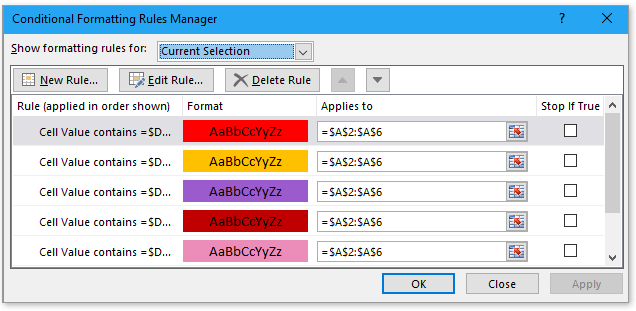
Select the cells containing the drop-down list, and click Home > Conditional Formatting > New Rule.
In the New Formatting Rule dialog box, select Format only cells that contain. In the Format only cells with section, select Specific Text from the first drop-down list and containing from the second. Then click the selection button and select the value you want to format.
Click Format, and select the required color on the Fill tab.
Click OK twice to close the dialog boxes. Repeat steps 2 and 3 for the other drop-down values, such as pink for Peach and purple for Grape.
When you select a value from the drop-down list, the cell is automatically filled with its specified color.
Add color to a drop-down list with Kutools for Excel
For a quicker setup, the Colored Drop-down List feature of Kutools for Excel lets you assign colors to the list items in one dialog box.
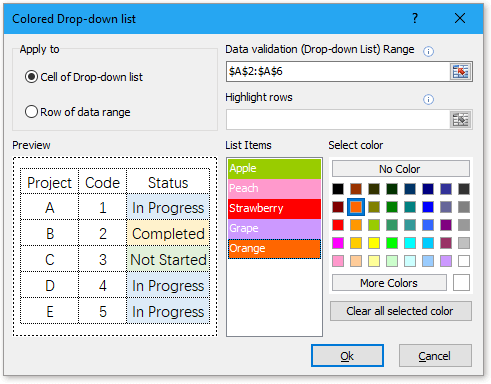
Select the cells containing the drop-down list, and click Kutools > Drop-down List > Colored Drop-down List.
In the Colored Drop-down List dialog box, configure the following settings:
Select where to apply the colors in the Apply to section.
If you select Row of data range, also select the row range you want to highlight.
Select an item under List Items, and then select the color you want to assign to it.
Repeat the previous step to assign colors to the remaining items.
Click OK. The drop-down list is now color-coded.
Frequently asked questions
Does Conditional Formatting color the items inside the opened drop-down menu?
No. Conditional Formatting colors the cell after a value is selected; it does not change the appearance of the items in Excel's standard drop-down menu.
Do I need a separate Conditional Formatting rule for every drop-down value?
Yes. Each value and its corresponding color normally require a separate rule.
Will the color change automatically when I select another value?
Yes. As long as the selected value matches an existing rule or color setting, the cell or row updates to the corresponding color.
Can Kutools color the entire row instead of only the drop-down cell?
Yes. In the Apply to section, select Row of data range, and then select the row range you want to highlight.
Why is Kutools not showing in my Excel ribbon?
Kutools for Excel must be installed and enabled before its tabs appear. If it is already installed, check whether it has been disabled under File > Options > Add-ins.
Other operations
Autocomplete when typing in an Excel drop-down list If you have a data validation drop-down list with many values, scrolling to find the correct one or typing the entire value can be inconvenient. This tutorial explains how to autocomplete an entry by typing its first letter.
Use Kutools in your preferred language – supports English, Spanish, German, French, Chinese, and 40+ others!
Supercharge Your Excel Skills with Kutools for Excel, and Experience Efficiency Like Never Before. Kutools for Excel Offers Over 300 Advanced Features to Boost Productivity and Save Time. Click Here to Get The Feature You Need The Most...
Kutools for Office suite bundles add-ins for Excel, Word, Outlook & PowerPoint plus Office Tab Pro, which is ideal for teams working across Office apps.
All-in-one suite — Excel, Word, Outlook & PowerPoint add-ins + Office Tab Pro
One installer, one license — set up in minutes (MSI-ready)
Works better together — streamlined productivity across Office apps
30-day full-featured trial — no registration, no credit card


 and select the value you want to format.