How to quickly convert pounds to ounces/grams/kg in Excel?
When working with data involving different weight measurements, it's common to encounter the need to convert values from pounds to other mass units such as ounces, grams, or kilograms in Excel. For example, if you have a list of product weights in pounds and need to analyze or report these in other units, manual conversion can be tedious and prone to errors, especially for large datasets. Efficient and accurate unit conversions not only save time but also reduce the risk of calculation mistakes. Here, we provide several practical solutions, including Excel formulas and the handy Unit Conversion utility, to help you handle these conversions smoothly and flexibly according to your specific needs.
Comparison of Methods for Converting Pounds to Ounces, Grams, or Kilograms
When working with product weights, shipping records, or scientific data, you may need to convert pounds into ounces, grams, or kilograms. The following table compares the methods introduced in this article.
| Feature | Excel CONVERT Function | Kutools Unit Conversion | VBA |
|---|---|---|---|
| Convert pounds to ounces, grams, or kilograms | ✔ | ✔ | ✔ |
| Supports reverse conversions | ✔ | ✔ | Requires editing the code |
| Batch conversion | Requires filling formulas | ✔ | ✔ |
| Requires formulas | ✔ | ✘ | ✘ |
| Requires VBA | ✘ | ✘ | ✔ |
| Requires unit abbreviations | ✔ | ✘ | ✘ |
| Preview results before applying | ✘ | ✔ | ✘ |
| Add converted results as comments | ✘ | ✔ | ✘ |
| One-click conversion | ✘ | ✔ | ✘ |
| Best for | Dynamic worksheet calculations | Fast batch conversions without formulas | Automating repeated conversions |
| Ease of use | Moderate | Very easy | Moderate |
Convert pounds to ounces/grams/kg with formulas
If you prefer a formula-based approach, Excel offers the versatile CONVERT function that enables you to easily change between various measurement units. This is especially helpful when you want your conversion logic to remain dynamic—whenever the source value changes, the converted result updates automatically. Below are step-by-step instructions for converting between pounds and other common mass units using formulas.
Convert between pounds and ounces
To convert values from pounds to ounces in Excel, proceed as follows:
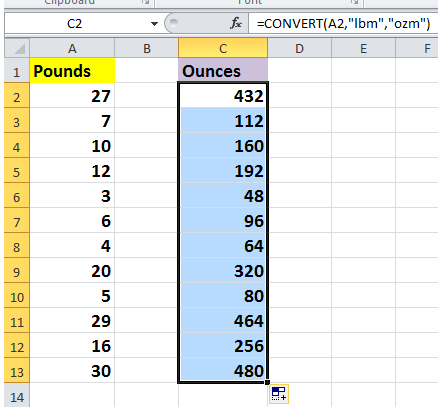
Select a blank cell next to your pounds data (for example, if your pounds data is in cell A2, select cell B2). Enter the formula below:
=CONVERT(A2,"lbm","ozm")After typing the formula, press the Enter key to confirm. You will see the value in pounds converted to ounces in the selected cell. To apply this conversion to the rest of your data, drag the autofill handle (a small square at the bottom-right corner of the cell) down along the column to fill in the formula for other rows as needed. This allows you to quickly scale up conversions across a long list of values.
 |
 |
 |
To convert from ounces back to pounds, simply reverse the units in the formula:
=CONVERT(A2,"ozm","lbm")Apply the formula in the same way: enter it in a blank cell adjacent to your ounces data, and fill down as needed.
Convert between pounds and grams
For converting pounds to grams, use the following steps:
Select a blank cell next to your pounds data and input this formula:
=CONVERT(A2,"lbm","g")Press Enter, then drag the autofill handle to copy the formula for all relevant rows. This instantly gives you the equivalent mass in grams.
 |
|
 |
To convert from grams to pounds, use:
=CONVERT(A2,"g","lbm")This formula is useful when you need to reconcile or compare weights submitted in grams with data in pounds.
Convert between pounds and kilograms
When kilogram conversions are needed, follow these steps:
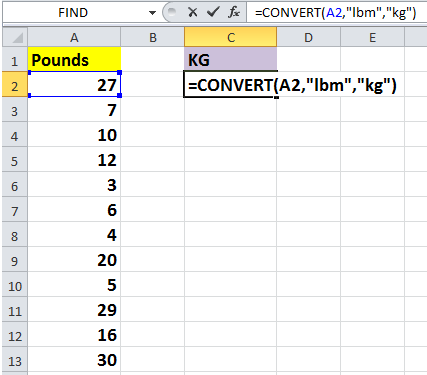
Select an empty cell adjacent to your pounds value and type:
=CONVERT(A2,"lbm","kg")Confirm with Enter. As before, use the autofill handle to quickly convert an entire list. This approach is particularly helpful for international projects or datasets that use metric units.
 |
|
 |
To convert kilograms to pounds, just use:
=CONVERT(A2,"kg","lbm")This is convenient when working with data from different sources using various measurement systems.
Tip: In each of these formulas, A2 refers to the cell containing the original value you wish to convert. You can adjust this reference as needed for your own worksheet layout.
Parameter notes and cautions:
- Check that your version of Excel includes the CONVERT function (e.g., Excel 2007 and later support it natively). If your Excel does not support this function, you may receive a #NAME? error.
- Ensure you select the correct unit codes: lbm for pounds (mass), ozm for ounces (mass), g for grams, and kg for kilograms. Do not use lbs or oz which are not accepted by the function.
- Double-check your cell references when dragging formulas, especially in complex tables, to prevent accidental misalignment.
Applying formulas is recommended when you need ongoing automatic updating—any change to the original pounds value will be reflected instantly in the converted value. However, for single-use or bulk static conversions, or when you want to avoid remembering or entering formulas, consider the built-in tools described below.
In case you encounter unexpected results, such as #N/A or #VALUE! errors, verify that your input cells contain valid numerical values and that you have spelled unit codes correctly. For more advanced scenarios or automation, you may also consider alternative methods such as VBA macros, which can automate conversions for large or irregular data ranges (see additional solutions below).
Quickly convert between multiple mass units with Unit Conversion utility
While formulas are ideal for dynamic calculations, sometimes you need to convert multiple cells or entire columns quickly without constructing or copying formulas. This is where Kutools for Excel comes in handy. With its Unit Conversion functionality, you can perform conversions between a wide range of mass units directly, with just a few clicks, making it especially useful when dealing with large amounts of data or recurring conversions.
After free installing Kutools for Excel, follow these steps to use the Unit Conversion tool:
1. Select the data range you wish to convert (e.g., a column of weights in pounds), then click Kutools > Content > Unit Conversion on the ribbon. Refer to the screenshot below for guidance:

2. In the Unit Conversion dialog box that appears:
- Select Mass from the Units dropdown list to focus only on weight/mass units.
- On the left, choose the unit you are converting from (for example, Pound (Avdp) for standard pounds).
- On the right, select the unit you wish to convert to (for instance, Ounce (Avdp) for ounces). The sample screenshot below shows these selections:
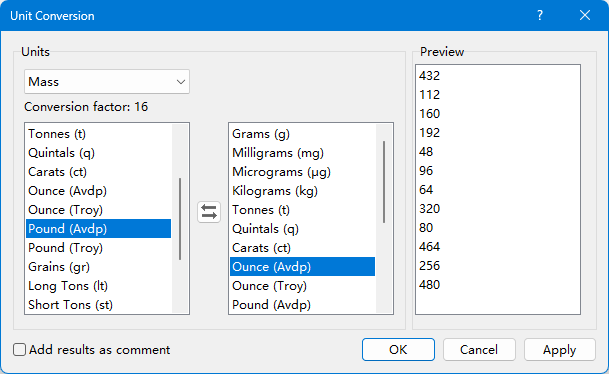
Note: If you need to swap the source and target units (for example, to convert from ounces to pounds instead), you can use the Swap Unit button  to reverse the direction instantly.
3. Click Ok or Apply. The values in the selected range are now converted to your chosen target unit directly within their original cells:

Additional notes for unit conversion:
- If you want to convert pounds to kilograms, select Pound (Avdp) on the left, then choose Gram on the right, and further select Kilo (1E+03) from the Metric prefix to output kilograms seamlessly.
- For reviews and auditing, you may wish to keep the original values visible and display conversion results just as cell comments. To do this, check the Add results as comment option in the Unit Conversion dialog before confirming the conversion. After clicking Ok or Apply, hover your mouse over a converted cell to view the result in the comment:

The Unit Conversion utility covers a wide range of units, allowing for rapid conversion between multiple measurement systems. This can be a significant time-saver when handling diverse data sources or reporting requirements. Click here to learn more about Unit Conversion capabilities.
Using the Unit Conversion utility is suitable for situations where you need quick, bulk conversions, especially if you don’t need automatic updating after the conversion or want results embedded directly as hard values in your sheet. One limitation is that converted values become static numbers unless you keep both original and converted data; if you need conversions to update dynamically, it’s recommended to use formulas as shown in the section above.
If you notice that data is not converting as expected, verify that you've selected the appropriate unit pair and that your original values are valid numbers. When using mass unit options, always distinguish between "Pound (Avdp)" and other possible pound or ounce variants to match your specific measurement system. If you wish to revert the conversion, the Undo function (Ctrl+Z) can restore the original data immediately.
Besides formulas and built-in utilities, Excel also supports conversion through VBA code, which can be particularly effective when you have to automate repeated or complex conversions, especially across different worksheets or workbooks.
Convert pounds to other units using VBA (Alternative Solution)
For users who frequently need to convert mass units or want to automate the conversion process for a large dataset, using a simple VBA macro can be very practical. VBA enables you to apply bulk conversions without entering formulas manually for each cell. Before proceeding, make sure to save your work, as running macros cannot be undone with a single click.
1. Activate the Developer tab by going to File > Options > Customize Ribbon and ticking the Developer checkbox if it isn’t visible.
2. Click Developer > Visual Basic to open the VBA editor. In the VBA window, click Insert > Module, then paste the following code:
Sub ConvertLbsToKgs()
    Dim rng As Range
    Dim cell As Range
    On Error Resume Next
    xTitleId = "KutoolsforExcel"
    Set rng = Application.InputBox("Select the range of pounds to convert to kilograms:", xTitleId, Type:=8)
    If rng Is Nothing Then Exit Sub
    For Each cell In rng
        If IsNumeric(cell.Value) Then
            cell.Value = cell.Value * 0.45359237 ' Convert pounds to kilograms
        End If
    Next
End Sub
3. To run the macro, close the VBA editor and return to Excel. Press Alt+F8 to open the "Macro" dialog, select ConvertLbsToKgs and click Run. When prompted, select the range containing pounds data. After running the macro, the values in the selected range will be converted directly to kilograms.
Tips:
- You can easily adapt this macro to convert pounds to grams or ounces by changing the multiplication factor (0.45359237 for kg, 453.59237 for grams, 16 for ounces).
- Always double-check a few results after running macros to ensure conversions applied correctly.
- Remember: Macro actions cannot be easily undone. It is a good idea to keep an original copy of your data before executing VBA conversions.
This method is best suited when you require one-time or automated repetitive conversions, especially for extensive or irregular data. However, unlike formulas, changes are not automatically updated if the input data changes later.
Convert Pounds to Ounces/Grams/KGs
Conclusion
Excel's CONVERT function is a reliable built-in solution for converting pounds to ounces, grams, kilograms, and other supported mass units. Because the result is formula-based, it updates automatically whenever the source value changes. However, users must remember the correct unit abbreviations and copy the formula across the required range.
The VBA solution is suitable for automating repetitive conversions. It can process an entire selected range at once and can be adapted to convert to different units by modifying the conversion factor in the code. However, it requires VBA knowledge and macro-enabled workbooks.
Kutools for Excel's Unit Conversion offers the most convenient workflow. It allows users to select source and destination units from drop-down lists, preview the results before applying them, batch-convert entire ranges, and even preserve the original values by adding the converted results as comments. It is the most efficient option for frequent or large-scale weight conversions without writing formulas or VBA code.
Best Office Productivity Tools
Supercharge Your Excel Skills with Kutools for Excel, and Experience Efficiency Like Never Before. Kutools for Excel Offers Over 300 Advanced Features to Boost Productivity and Save Time. Click Here to Get The Feature You Need The Most...
Office Tab Brings Tabbed interface to Office, and Make Your Work Much Easier
- Enable tabbed editing and reading in Word, Excel, PowerPoint, Publisher, Access, Visio and Project.
- Open and create multiple documents in new tabs of the same window, rather than in new windows.
- Increases your productivity by 50%, and reduces hundreds of mouse clicks for you every day!
All Kutools add-ins. One installer
Kutools for Office suite bundles add-ins for Excel, Word, Outlook & PowerPoint plus Office Tab Pro, which is ideal for teams working across Office apps.





- All-in-one suite — Excel, Word, Outlook & PowerPoint add-ins + Office Tab Pro
- One installer, one license — set up in minutes (MSI-ready)
- Works better together — streamlined productivity across Office apps
- 30-day full-featured trial — no registration, no credit card
- Best value — save vs buying individual add-in