How to select cells randomly in Excel?
Supposing you have a column of values (A1: A15) in a worksheet, and now you need to select 5 random cells of them, how could you deal with this? In this article, I will show you some tricks to select cells randomly in Excel.
Select cells randomly from a column with formula
Select cells randomly from a range with Kutools for Excel 
Select cells randomly from a column with User Defined Function (UDF)
Comparison of Methods for Randomly Selecting Cells in Excel
When you need to randomly pick cells or values from a dataset, Excel offers formula-based and VBA-based approaches, while Kutools for Excel provides a dedicated tool for selecting random cells, rows, or columns directly from the original range. The following table compares the three methods introduced in this article.
| Feature | Excel Formulas | Kutools Sort / Select Range Randomly | VBA / UDF |
|---|---|---|---|
| Get random items from data | ✔ | ✔ | ✔ |
| Directly select items in the original range | ✘ Displays random values in a new column | ✔ | ✘ Returns random values to other cells |
| Works with a single-column list | ✔ | ✔ | ✔ |
| Works directly with a multi-row, multi-column range | ✘ Article states the method is limited to a single-column range | ✔ | Not demonstrated in the article |
| Randomly select individual cells | ✘ Returns values instead of selecting source cells | ✔ | ✘ Returns values instead of selecting source cells |
| Randomly select entire rows | ✘ | ✔ | ✘ Not demonstrated |
| Randomly select entire columns | ✘ | ✔ | ✘ Not demonstrated |
| Specify the number of items to select directly | Indirectly — fill the result formula down to the required number | ✔ Enter the desired number in the dialog | Indirectly — fill the UDF down to the required number |
| Choose the selection type | ✘ | ✔ Cells, rows, or columns | ✘ |
| Randomly sort the selected range | ✘ Not part of this method | ✔ | ✘ Not part of this method |
| Requires a helper column | ✔ RAND helper column | ✘ | ✘ RAND helper column not required |
| Requires built-in worksheet formulas | ✔ RAND + INDEX + RANK | ✘ | ✘ Uses a custom function instead |
| Requires VBA / coding | ✘ | ✘ | ✔ |
| Requires opening the VBA Editor | ✘ | ✘ | ✔ |
| Requires creating a custom function | ✘ | ✘ | ✔ RandomSelection |
| Requires filling results down | ✔ | ✘ | ✔ |
| Returns results in a new location | ✔ New column | ✘ Selects directly in the source range | ✔ New cells |
| Convenient for formatting selected random items immediately | ✘ Source cells are not selected | ✔ | ✘ Source cells are not selected |
| Manual setup effort | Moderate | Low | High |
| Main setup process | Enter =RAND() beside the source column and fill it down. In another column, enter =INDEX($A$1:$A$15,RANK(B1,$B$1:$B$15)), then fill the formula down for the desired number of random results. | Select the source range, choose Kutools > Range > Sort / Select Range Randomly, open the Select section, enter the number to select, choose the required Select Type, and click OK or Apply. | Open Developer > Visual Basic, insert a Module, add the RandomSelection function, return to the worksheet, enter =RandomSelection($A$1:$A$15), and fill the function down for the desired number of results. |
| Best for | Returning random values from a single-column list using standard Excel formulas | Directly selecting random cells, rows, or columns from an existing range for sampling, formatting, copying, or further processing | Users comfortable with VBA who want a reusable custom function for returning random values |
| Ease of use | Moderate | Very easy | Advanced |
 Select cells randomly from a column with formula

As the following screenshot shows, you have a range of data from A1 to A15, the Rand and Index formula can help you display the random cells in a new column. Please do as follows:

1. In the adjacent cell such as B1, enter the formula =RAND(), and press the Enter key, then copy the formula to the cell B15. And the random values will be filled with the cells. See screenshot:
2. Then in the next cell over, in this case cell C1, enter the formula =INDEX($A$1:$A$15,RANK(B1,$B$1:$B$15)).
3. Then press Enter key, and select the cell C1, drag the fill handle to cover as many cells as desired selections. And random 5 cells of range A1:A15 have been displayed in the column C. See screenshot: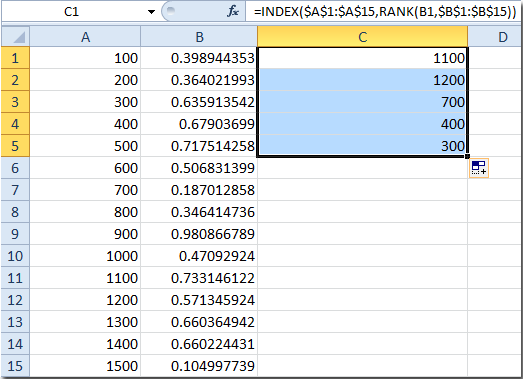
This method can display the random cell values in a new column, and they are only applied for a single column range, not work for a range of cells. Kutools for Excel's Sort Range Randomly tool can help you select cells randomly in an original range conveniently.
Select cells randomly from a range with Kutools for Excel
After free installing Kutools for Excel, please do as below:
1. Select the range that you want to use.
2. Apply the utility by clicking Kutools > Range > Sort / Select Range Randomly, see screenshot: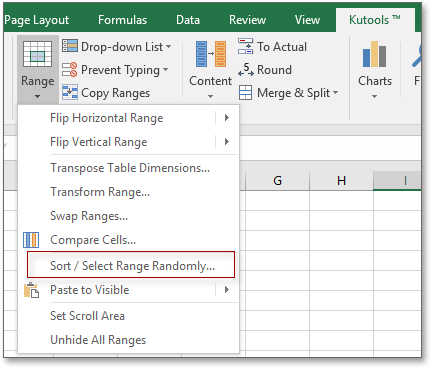
3. In the Sort / Select Range Randomly dialog box, click Select button, and enter the number of the cells that you want to select, then check the Select Type you need. Then click OK or Apply. See screenshot:
Select random 10 cells from the selected range
Select random 5 rows from the selected range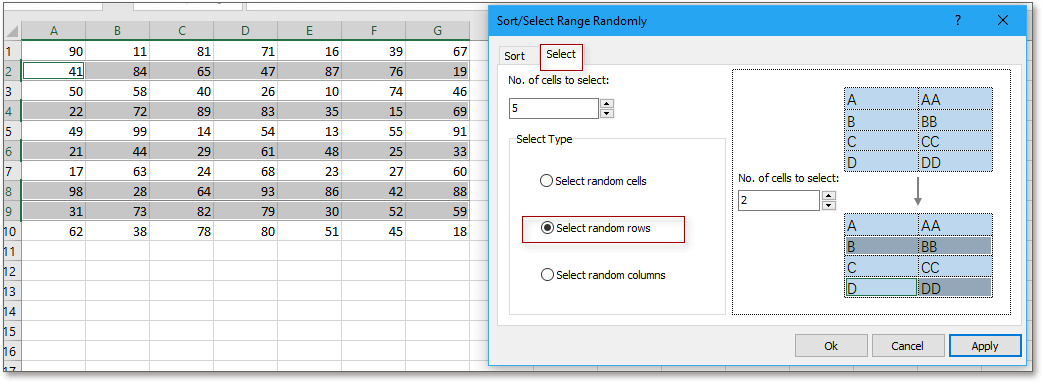
Select random 4 columns from selected range
Advanced to select random cells, Sort Range Randomly of Kutools for Excel can sort data randomly in whole range, in each rows, in each columns and so on.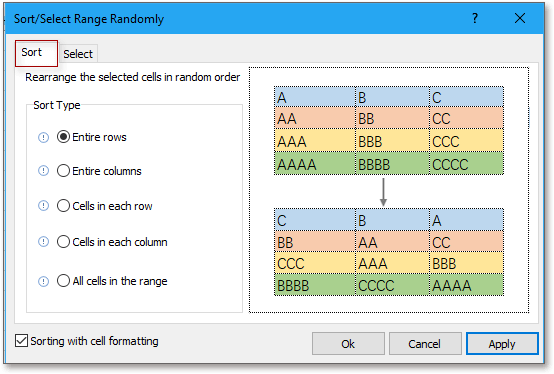
Select cells randomly from a column with User Defined Function (UDF)
The following VBA code also can help you to display random cells that you need.
1. Click Developer > Visual Basic, a new Microsoft Visual Basic for applications window will be displayed, click Insert > Module, and input the following function into the Module:
Function RandomSelection(aRng As Range)
'Update20131113
Dim index As Integer
Randomize
index = Int(aRng.Count * Rnd + 1)
RandomSelection = aRng.Cells(index).Value
End Function
2. Then close the module window, and enter this function =RandomSelection($A$1:$A$15) in the cell B1. See screenshot:
3. Press Enter key, and a random value of A1:A15 has been displayed in column B. And then drag the fill handle to cover as many cells as desired selections.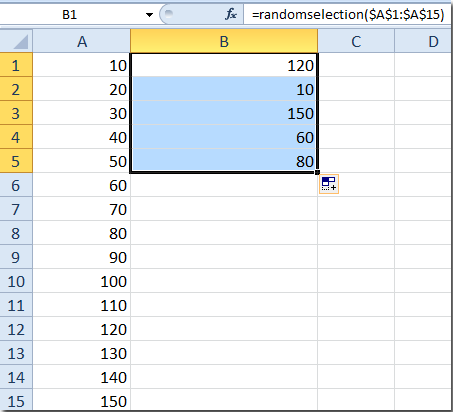
Conclusion
The Excel formula method is suitable when you need to return random values from a single-column list into a new column. It requires a RAND helper column together with INDEX and RANK formulas. However, the article specifically notes that this approach is designed for a single-column range and does not directly work for a multi-row, multi-column range.
The VBA / UDF method provides another way to return random values from a column. After creating the RandomSelection custom function, users can enter it in worksheet cells and fill it down to generate additional random results. However, this approach requires opening the VBA Editor, inserting a module, and adding custom code, making it less convenient for users who are unfamiliar with VBA.
Kutools for Excel's Sort / Select Range Randomly focuses on direct selection rather than returning random values in a separate column. It can randomly select a specified number of cells, entire rows, or entire columns from the original range. This makes it particularly useful for random sampling, spot checks, selecting employees or students, choosing records for review, or highlighting random items without helper columns, formulas, or VBA.
Related Article:
Randomly sort cells in a column or range
Best Office Productivity Tools
Supercharge Your Excel Skills with Kutools for Excel, and Experience Efficiency Like Never Before. Kutools for Excel Offers Over 300 Advanced Features to Boost Productivity and Save Time. Click Here to Get The Feature You Need The Most...
Office Tab Brings Tabbed interface to Office, and Make Your Work Much Easier
- Enable tabbed editing and reading in Word, Excel, PowerPoint, Publisher, Access, Visio and Project.
- Open and create multiple documents in new tabs of the same window, rather than in new windows.
- Increases your productivity by 50%, and reduces hundreds of mouse clicks for you every day!
All Kutools add-ins. One installer
Kutools for Office suite bundles add-ins for Excel, Word, Outlook & PowerPoint plus Office Tab Pro, which is ideal for teams working across Office apps.





- All-in-one suite — Excel, Word, Outlook & PowerPoint add-ins + Office Tab Pro
- One installer, one license — set up in minutes (MSI-ready)
- Works better together — streamlined productivity across Office apps
- 30-day full-featured trial — no registration, no credit card
- Best value — save vs buying individual add-in