Great and Handy Add-ins

Easy to use, simply the best way to use tabs in Microsoft Office

handy-tabs-features

Handy Tab Feature

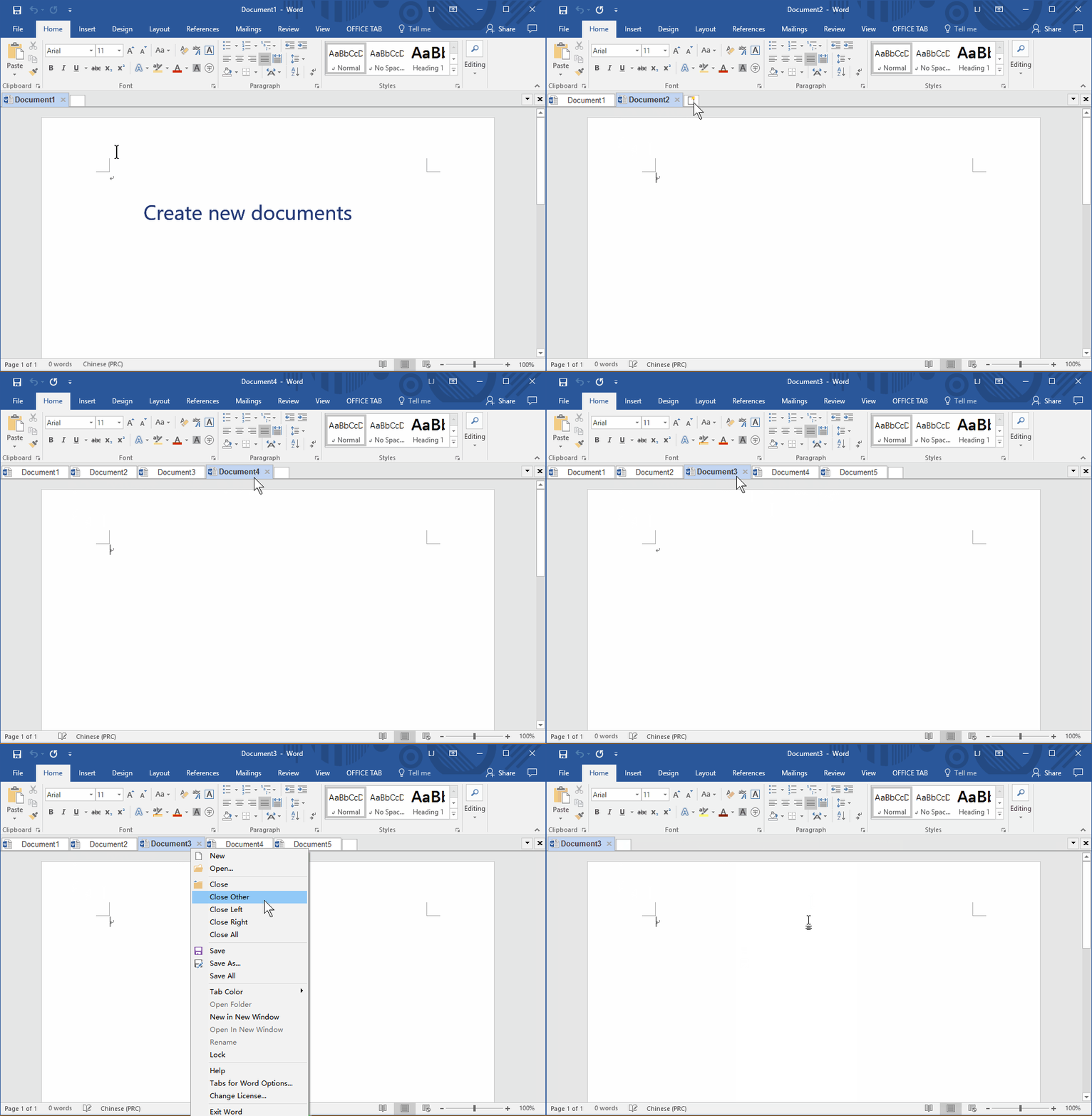
Using Tabs in Microsoft Office Applications like all modern browser Firefox, Chrome, Safari, Opera and Internet Explorer 8 and 9.

favorites group

Managing Files by Groups

Favorites Groups: easy to open, save and manage files in Microsoft Office applications as the method of managing website links.

demo easy use

Easy-to-Use

Each user of Microsoft Office (2003, 2007, or 2010) can have this handy and more efficient to use tabs feature by a few clicks!

multiple languages

Multiple Languages Support

Support multiple languages: English, French, German, Danish, Portuguese, Japanese, Spanish, Hungarian, Italian, Dutch, Simplified Chinese and Belarusian.

multiple monitors support

Multiple Monitors Support

For user who work on multiple monitors, You can quickly open more than one tabbed windows in Microsoft Office Word and Excel with "Open in New Window" command.

feature speed

Fast and Lightweight

Optimized loading times thanks to take full advantage of Microsoft Office add-in technology and keep improving the software according to the latest Microsoft Office.

What do you get?

A rich set of features working right after installation

  • Favorites Group

    It brings you group to manage documents, you can easily open, close or save a group of documents, and you can also drag and drop the document between groups for organizing favorites group.

    1. Add documents to a group.
    2. Organize the favorites group.
    3. Close all documents of a group.
    4. Open all documents of a group.
    5. Save all documents of a group.
    6. Click on the favorite item to open a document.
    video-demo
  • Built-in Handy Mouse Click Operation

    With Office Tab, you can:

    1. Double click on a tab to close it.
    2. Double click on the tab bar to create a new document.
    3. Right click on a tab to bring up the context menu of the tab.
    4. Right click on the tab bar to bring up the context menu of the tab bar.
    video-demo
  • Handy Shortcuts Operation

    In Office Tab, you can use shortcuts to operate the tabs and the tab bar.

    1. Press Alt + N to quickly select the tab. N: indicates the tab order on the tab bar from left to right. For example, from left to right on the tab bar, the first tab is “1”, the fifth tab is “5”, if you want to select the fifth tab, you just need to press “Alt +5”.
    2. Using shortcuts to hide/display the tab bar. The default shortcut setting is “Win+Q”. You can customize the shortcuts.
    3. Using shortcuts to navigate between tabs. The default shortcut setting is “Ctrl+Tab”. You can customize the shortcuts.
    video-demo
  • Multiple Monitors support

    You can easily open more than one tabbed windows in Microsoft Word and Microsoft Excel.

    1. Open multiple documents within one tabbed window.
    2. Choose the document you want to open in another tabbed window.
    3. Right click on the tab, and choose “Open in new window” command item to open the document in a new tabbed window.
    video-demo
  • Open Multiple Documents Within One Tabbed Window

    Open multiple documents at one time, and each document will be contained with a tab.

    1. Right click on a tab or tab bar.
    2. Click “open” command item.
    3. Hold down the Ctrl key to select multiple documents you want to open in the open dialog box.
    4. Click “Open”, the selected documents / files will be opened within one tabbed window, and each document or file to be contained with a tab.
    video-demo
  • Easily Manage Documents While Handling Multiple Documents in Microsoft Office Applications

    It’s never been so easy to manage your documents in your Microsoft Office applications.

    1. Close multiple documents with one click.
    2. One click to save all documents.
    3. You can lock the documents to prevent accidental modification.
    video-demo

Free download
No feature limitation, free trial in 30 days!