A faster way to duplicate selected worksheets in Excel
Duplicating worksheets is a very common task in Excel. Users often need to copy a sheet as a template, create backups before making changes, or duplicate multiple worksheets for similar reporting structures. However, Excel's built-in methods are not always efficient: You must right-click a sheet, choose Move or Copy, then check Create a copy, and finally confirm the destination, which involves unnecessary dialog boxes and extra confirmation steps.
For users who frequently work with multiple worksheets, these steps interrupt productivity and slow down everyday operations.
Duplicate is a newly introduced shortcut feature in Kutools for Excel that allows you to quickly duplicate the currently selected worksheet(s) with a single action. No dialog boxes. No extra confirmation steps.

Key Advantages of Using Duplicate
How to duplicate worksheets with Duplicate
Please follow these steps to duplicate worksheets using the Duplicate feature:
Step 1: Select the Worksheet(s)
- Click a worksheet tab to select a single worksheet.
- Hold Ctrl (or Shift) to select multiple worksheet tabs if needed.
Step 3: Duplicate the Worksheet(s)
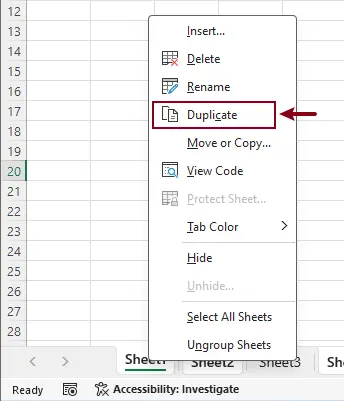
Right-click any of the selected worksheet tabs. In the context menu, click Duplicate.
Result
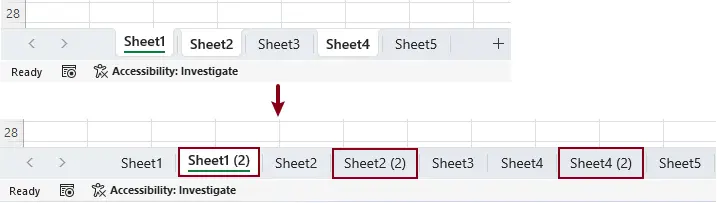
Each selected worksheet is copied once, and the duplicated worksheet(s) are inserted directly after the original worksheet(s).
Conclusion
The Duplicate feature simplifies one of the most frequently used worksheet operations in Excel. By eliminating unnecessary dialog boxes and confirmations, it provides a faster, cleaner, and more intuitive way to duplicate worksheets.
If you often copy worksheets as part of your daily Excel workflow, Duplicate helps you save time, reduce clicks, and stay focused on your work—making it a small feature with a big productivity impact.
Productivity Tools Recommended
Office Tab: Use handy tabs in Microsoft Office, just like Chrome, Firefox, and the new Edge browser. Easily switch between documents with tabs — no more cluttered windows. Know more...
Kutools for Outlook: Kutools for Outlook offers 100+ powerful features for Microsoft Outlook 2010–2024 (and later versions), as well as Microsoft 365, helping you simplify email management and boost productivity. Know more...
Kutools for Excel
Kutools for Excel offers 300+ advanced features to streamline your work in Excel 2010 – 2024 and Microsoft 365. The feature above is just one of many time-saving tools included.

Table of contents
- Key advantages of using Duplicate
- How to duplicate worksheets with Duplicate
- Conclusion
- The Best Office Productivity Tools
Kutools for Excel
Brings 300+ powerful features to streamline your Excel tasks.
- ⬇️ Free Download
- 🛒 Purchase Now
- 📘 Feature Tutorials
- 🎁 30-Day Free Trial