Install ZKutools Anywhere for Excel, Outlook, and Word
ZKutools Anywhere combines AI-powered tools with classic productivity features for Excel, Outlook, and Word. It works across Windows, macOS, the web, and iPad where supported. This guide shows how to add ZKutools Anywhere directly from within Excel, Outlook, or Word, or install it from Microsoft AppSource. It also explains how to sign in, register, update, remove, and fix common installation issues.
- Before you start
- Method 1: Add from within Excel, Outlook, or Word
- Method 2: Install from Microsoft AppSource
- Sign in or register a ZKutools AI account
- Remove or uninstall the add-in
- Troubleshooting
Before you start
Before installing ZKutools Anywhere, make sure you are signed in to Office with the Microsoft account you want to use. After installation, the add-in appears in the Office ribbon as the ZKUTOOLS tab in Excel and Word, or as a ZKutools Anywhere for Outlook entry in Outlook.
ZKutools Anywhere supports Excel, Outlook, and Word across Windows, macOS, the web, and iPad, where Office add-ins are available.
| Product | Windows | macOS | Web |
|---|---|---|---|
| ZKutools Anywhere for Excel | Excel 2016 or later | Excel 2016 or later | Excel on the web |
| ZKutools Anywhere for Outlook | Outlook 2013 or later | Outlook 2016 or later | Outlook on the web |
| ZKutools Anywhere for Word | Word 2013 or later | Word 2016 or later | Word on the web |
Method 1: Add from within Excel, Outlook, or Word
You can add ZKutools Anywhere directly from the Office app. This method is quick and convenient when you are already working in Excel, Outlook, or Word.
Choose the app you want to use:
Add ZKutools Anywhere for Excel / Word from within the app
The in-app add-in steps for Excel and Word are nearly identical. Open the app you want to use, search for the matching ZKutools Anywhere product, and add it from the Office Add-ins store.
- Open Excel or Word on the web, or open Excel or Word for Windows/macOS.
- Under the Home tab, click Add-ins.
- Search for the product you need, then click Add.
- ZKutools Anywhere for Excel
- ZKutools Anywhere for Word
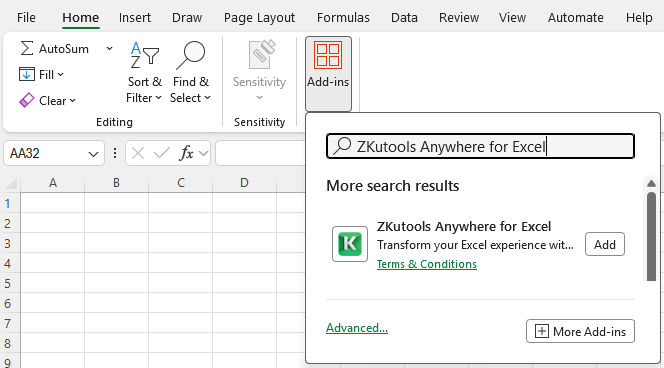
- After installation, the ZKUTOOLS tab appears in the ribbon.

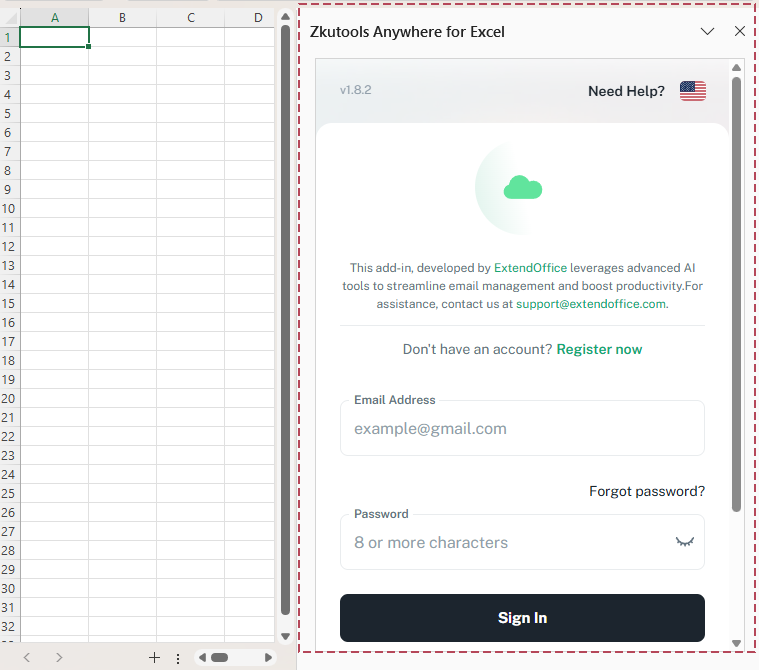
- Click any function button to open the ZKutools Anywhere for Excel or ZKutools Anywhere for Word pane on the right side of the app window.
Add ZKutools Anywhere for Outlook from Outlook
- Open Outlook on the web, New Outlook, or Classic Outlook.
- Use the correct entry point for your Outlook version:
- Outlook on the web or New Outlook: Go to Home > More apps > Add apps.
- Classic Outlook: Go to Home > Get Add-ins.
- Search for ZKutools Anywhere for Outlook, select the result, and click Add.
- After installation, open it from Home > More apps in Outlook on the web or New Outlook. In Classic Outlook, open it from the ribbon under the Home tab.
- The ZKutools Anywhere for Outlook pane appears on the right side of the Outlook window.
- After the ZKutools Anywhere for Outlook pane opens, sign in or create an account to use AI-powered features.
- You can click the
 Pin button to keep the ZKutools Anywhere for Outlook pane visible.
 - In New Outlook or Outlook on the web, you can pin ZKutools Anywhere for Outlook for faster access from the ribbon and message toolbar:
- In More apps, right-click ZKutools Anywhere for Outlook, then click Pin.
- Open an email in the reading pane, click the … button, choose Customize actions, select ZKutools Anywhere for Outlook, and click Save.
Method 2: Install from Microsoft AppSource
You can also install ZKutools Anywhere from Microsoft AppSource. Choose the product you need, click Get it now, sign in with your Microsoft account, and then open the corresponding Office app.
Choose the product you want to install:
Install ZKutools Anywhere for Excel / Word
The steps for Excel and Word are nearly identical. Start from the AppSource page for the product you need, then open the corresponding Office app after installation. The screenshots in this section use Excel as an example.
- For Excel, search ZKutools Anywhere for Excel on Microsoft AppSource and open the product page. Or open directly: ZKutools Anywhere for Excel — Microsoft AppSource.
For Word, search ZKutools Anywhere for Word on Microsoft AppSource and open the product page. Or open directly: ZKutools Anywhere for Word — Microsoft AppSource. - Click Get it now, then sign in with your Microsoft account.
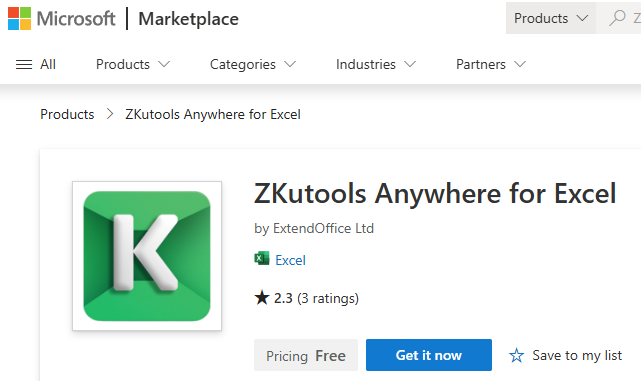
- On the Microsoft Store installation page, finish the installation for Excel or Word on Windows, macOS, or the web.
- Windows/macOS: Click Open in Excel or Open in Word, depending on the product you install.
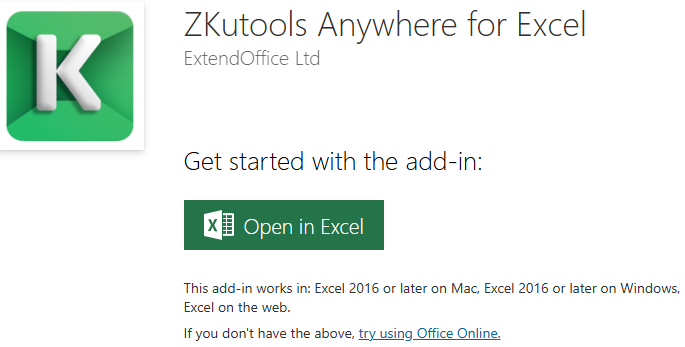
- Web: Click the try using Office Online link, then click Open in Excel Online or Open in Word Online.
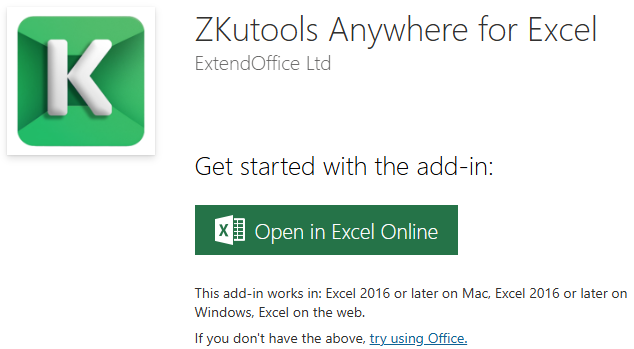
- Windows/macOS: Click Open in Excel or Open in Word, depending on the product you install.
- In Excel or Word, confirm that the ZKUTOOLS tab appears in the ribbon.
- Click any function button under the ZKUTOOLS tab to launch the pane. The ZKutools Anywhere for Excel pane or ZKutools Anywhere for Word pane appears on the right side of the Office window.
Install ZKutools Anywhere for Outlook
- Search ZKutools Anywhere for Outlook on Microsoft AppSource and open the product page. Or open directly: ZKutools Anywhere for Outlook — Microsoft AppSource.
- Click Get it now, then sign in with your Microsoft account.
- Then ZKutools Anywhere for Outlook is successfully added to your account for Outlook on Windows, macOS, or the web.
- Open Outlook and use the correct entry point for your Outlook version:
- New Outlook for Windows/macOS or Outlook on the web: Under the Home tab, click More apps > ZKutools Anywhere for Outlook.
- Classic Outlook for Windows/macOS:ZKutools Anywhere for Outlook appears on the ribbon under the Home tab. Click it to open the pane.
- The ZKutools Anywhere for Outlook pane opens on the right side of the Outlook window.
- After the ZKutools Anywhere for Outlook pane opens, sign in or create an account to use AI-powered features.
- To keep the ZKutools Anywhere for Outlook pane visible, use the Pin button in the pane.
- To access ZKutools Anywhere for Outlook faster from the ribbon, or message toolbar, see the Outlook tips in Method 1.
Sign in or register a ZKutools AI account
After the ZKutools Anywhere pane opens, sign in with your ZKutools AI account to use AI-powered features and manage your account plan. Some classic productivity features may be available directly from the ribbon without signing in. If you do not have a ZKutools AI account yet, you can create one from the pane.
Choose what you want to do:
Sign in with an existing ZKutools AI account
- Open the ZKutools Anywhere pane from the ribbon or Outlook add-in entry.
- Enter your Email Address and Password, then click Sign in. Tip: You can also click this ZKutools AI sign-in page to sign in directly.
- After signing in, you can use AI-powered features according to your ZKutools AI account plan.
View ZKutools AI Subscription Plans and upgrade to Premium for more available AI-powered features.
Register a new ZKutools AI account
- Open the ZKutools Anywhere pane from the ribbon or Outlook add-in entry.
- In the ZKutools Anywhere pane, click Register now. Tip: You can also click this ZKutools AI sign-up page to register directly.
- Enter the required account information:
- First Name
- Last Name
- Email Address
- Password
- Click Create Account.
- Return to the ZKutools Anywhere pane and click Sign in with your new ZKutools AI account.
Remove or uninstall the add-in
The removal steps are different for Excel, Word, and Outlook. Choose the steps for your app below.
Remove from Excel or Word
- Open any workbook or document.
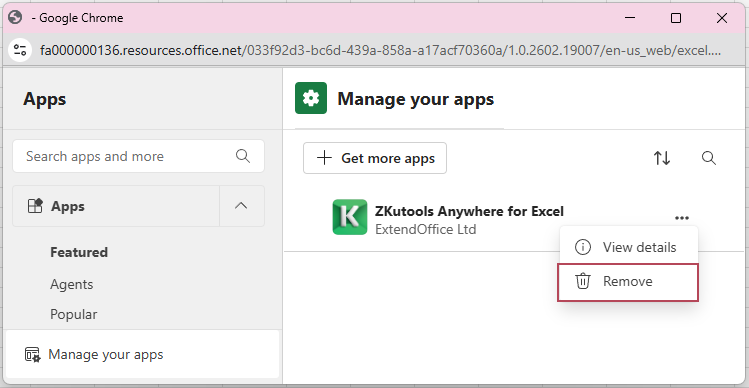
- Go to Home > Add-ins > Manage in the web version. In desktop versions, go to Home > Add-ins > More Add-ins > Manage your apps.
- Find ZKutools Anywhere for Excel or ZKutools Anywhere for Word.
- Click … > Remove.
Remove from Outlook
- Outlook on the web: Go to Home > More apps. Right-click ZKutools Anywhere for Outlook, then click Uninstall.
- New or Classic Outlook for Windows/macOS: Go to Home > Get Add-ins > My add-ins. Locate ZKutools Anywhere for Outlook, then click … > Remove.
Troubleshooting
If ZKutools Anywhere does not appear or cannot be added, use the quick fixes below.
Find the issue you need:
- The add-in cannot be found or added from the in-app Store
- The Add-ins or Get Add-ins button is missing
- ZKutools Anywhere is added but not visible
- Your organization manages or blocks Office add-ins
The add-in cannot be found or added from the in-app Store
- Check the product name: Search for the exact product name, such as ZKutools Anywhere for Excel, ZKutools Anywhere for Outlook, or ZKutools Anywhere for Word.
- Use the correct Office app: Search for ZKutools Anywhere for Excel in Excel, ZKutools Anywhere for Word in Word, and ZKutools Anywhere for Outlook in Outlook.
- Check your Office account: Make sure you are signed in to Office with the Microsoft account you want to use.
- Try Microsoft AppSource: If you cannot find the add-in from within the Office app, use Method 2: Install from Microsoft AppSource.
The Add-ins or Get Add-ins button is missing
- Check the correct entry point:
- Excel/Word: Try Home > Add-ins. In some Office versions, use File > Get Add-ins or Insert > Get Add-ins.
- Outlook on the web or New Outlook: Go to Home > More apps > Add apps.
- Classic Outlook: Go to Home > Get Add-ins.
- Check the ribbon layout: If you use a simplified ribbon or a smaller window, the command may be under More apps, Apps, More Add-ins, or a ... menu.
- Try the web version: If you cannot find the button in the desktop app, open Excel, Word, or Outlook on the web with the same Microsoft account and try adding ZKutools Anywhere there.
ZKutools Anywhere is added but not visible
- Restart the Office app: Close Excel, Word, or Outlook completely, then open it again.
- Check where the add-in appears:
- Excel/Word: Look for the ZKUTOOLS tab in the ribbon.
- Outlook on the web or New Outlook: Check Home > More apps, the ribbon, or the message toolbar.
- Classic Outlook: Check the ribbon under the Home tab.
- Check My Add-ins: In Excel or Word, open Home > Add-ins or File > Get Add-ins, then check your installed add-ins. In Outlook, check Get Add-ins or More apps depending on your Outlook version.
- Check your account: Make sure you are using the same Microsoft account in Office that you used when adding ZKutools Anywhere.
Your organization manages or blocks Office add-ins
- Work or school accounts: Some organizations control whether users can install Office add-ins from Microsoft Marketplace or AppSource.
- Admin-deployed add-ins: If your organization deploys add-ins centrally, ZKutools Anywhere may need to be assigned to your account by a Microsoft 365 administrator.
- What to ask: Contact your Microsoft 365 administrator and ask whether Office add-ins, Microsoft Marketplace access, and ZKutools Anywhere are enabled for your account.