How to Add Bullet Points in Excel Cells Quickly (Bulk, Custom, and Reusable)
Want clean bullet lists in Excel without editing cells one by one? Kutools for Excel's Insert Bullet helps you apply bullet points to a selected range in seconds. Pick from a library of preset bullets, create your own custom symbol, reuse recently used bullets for consistent formatting, and fine-tune what gets processed using smart Bullet Options.

Why use Kutools's Insert Bullet
Where to find the Insert Bullet feature
How to insert bullet points in multiple cells (3 quick methods)
Why use Kutools's Insert Bullet
People search for “insert bullet points in Excel” because a clean bullet list instantly makes tasks, notes, and reports easier to read. The frustration is that Excel still makes bulk bullets awkward—you often end up editing cells one by one. Insert Bullet solves this with a faster, worksheet-friendly workflow: apply bullets to a range in seconds, keep symbols consistent, and control exactly which cells are affected.
- ⚡ Bulk bullets in seconds – apply bullet points to many cells at once.
- ⭐ Preset bullet library – choose from common symbols (dots, circles, arrows, check marks, stars, and more).
- 🧩 Custom bullet support – define a specific symbol for your team’s style or status reporting.
- 🕘 Recently Used bullets – keep formatting consistent across multiple sheets and workbooks.
- 🎯 Smarter than manual formatting – control which cells get processed to avoid messy results.
Locatoin of the Insert Bullet feature
Click Kutools >> Insert >> Insert Bullet. The Insert Bullet dialog box includes four main areas: a preset Bullets library, a Recently Used section, a Custom area (with an Edit button), and Bullet Options that control what gets processed.

How to insert bullet points in multiple cells (3 quick methods)
The three methods below cover the most common needs: bulk preset bullets (fastest), custom bullets (flexible), and Recently Used bullets (consistent). Choose the one that best matches your worksheet.
Method 1: Insert preset bullet points in bulk (fastest)
This is the most important and most common use case: select a range, choose a bullet from the preset library, and apply it instantly. It’s perfect for to-do lists, meeting notes, feature lists, and any worksheet where you need readable items fast.
1. Select the cells you want to turn into a bullet list.
2. Click Kutools > Insert Bullet.
3. Under Bullets, click a preset symbol (for example, ●, ◆, ✓, ★, or ➤).
4. The bullet is inserted into the selected cells in bulk. Click Close when finished.

Tip: Preset bullets are the quickest choice for most lists because they are consistent and easy to scan.
Method 2: Create and use a custom bullet symbol
If the preset bullets don’t include the symbol you want, use the Custom section to add your own bullet symbol. This lets you insert the exact bullet you need—then reuse it anytime.
1. Select the target range.
2. Click Kutools > Insert Bullet.
3. In the Custom area, click Edit to set your own preferred bullet symbol.

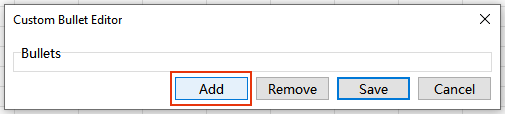
4. In the Custom Bullet Editor dialog:
- 1) Click Add.
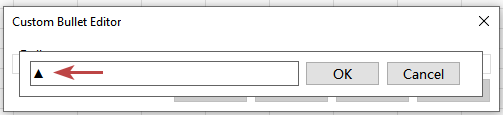
- 2) Paste the symbol you want to add (for example, ▲, ▼, ⊕, or ⊖), then click OK. Repeat this step to add more symbols if needed.
- 3) Click Save to keep your custom bullets for future use.
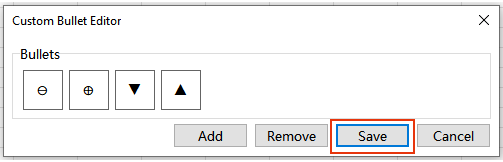
5. Apply the custom bullet to the selection. Click Close when finished.

Tip: To delete a custom symbol, go to the Custom area and click Edit. In the Custom Bullet Editor, select the symbol you want to remove, then click Remove.
Method 3: Reuse Recently Used bullets for consistent lists
Once you apply bullets, they appear under Recently Used. This is a big time saver when you format recurring reports, multiple sheets, or multiple workbooks—because you can reuse the same bullet style in one click.
1. Select another range (or switch to another sheet).
2. Click Kutools > Insert Bullet.
3. Under Recently Used, click the bullet style you used before. Click Close when finished.

Tip: If you care about consistent formatting, using Recently Used is often better than choosing a new symbol each time.
Notes and recommended settings for Bullet Options
The methods above focus on choosing bullets (preset, custom, and recently used). In real worksheets, the key to getting clean results is configuring Bullet Options so only the right cells are processed—especially when your selection contains blanks, formulas, numbers, or mixed data types.
What each option means:
- Process constant cells: inserts bullets only into cells that do not contain formulas (for example, text or numbers entered directly).
- Process formula cells: inserts bullets into cells that contain formulas.
- Process blank cells: inserts bullets into empty cells (useful for templates; turn it off to keep lists clean).
- Process only text cells in non-empty ranges: limits insertion to text cells, helping you avoid inserting bullets into numbers or dates in mixed ranges.

Recommended settings (common scenarios)
Assuming all four options are checked by default, in most cases you only need to change one setting:
- For clean lists (most common): uncheck Process blank cells. Keep the other three options checked.
- For template building: keep Process blank cells checked (leave all four options checked) to pre-fill bullet placeholders.
Notes:
- If you want to undo the bullet insertion right away, press Undo (Ctrl+Z).
- If your results look “messy,” the quickest fix is usually to disable Process blank cells and enable Process only text cells in non-empty ranges.
Productivity Tools Recommended
Office Tab: Use handy tabs in Microsoft Office, just like Chrome, Firefox, and the new Edge browser. Easily switch between documents with tabs — no more cluttered windows. Know more...
Kutools for Outlook: Kutools for Outlook offers 100+ powerful features for Microsoft Outlook 2010–2024 (and later versions), as well as Microsoft 365, helping you simplify email management and boost productivity. Know more...
Kutools for Excel
Kutools for Excel offers 300+ advanced features to streamline your work in Excel 2010 – 2024 and Microsoft 365. The feature above is just one of many time-saving tools included.

Table of Contents
- Why use Kutools's Insert Bullet
- Locatoin of the Insert Bullet feature
- How to insert bullet points in multiple cells (3 quick methods)
- Method 1: Insert preset bullet points in bulk (fastest)
- Method 2: Create and use a custom bullet symbol
- Method 3: Reuse Recently Used bullets for consistent lists
- Notes and recommended settings for Bullet Options
- The Best Office Productivity Tools
Kutools for Excel
Brings 300+ advanced features to Excel
- 🧩 Overview
- 📥 Free Download
- 🎁 30-Day Free Trial available