Kutools AI functions: Bring AI intelligence into Excel formulas
Traditional Excel functions are designed for calculations and fixed logic, but they struggle with natural language, unstructured text, and semantic understanding. Kutools AI Functions extend Excel’s capabilities by embedding AI directly into worksheet formulas.
With these functions, you can ask questions, extract meaningful information, or translate text—all by using simple Excel formulas.
- Why use Kutools AI functions?
- Configure AI options
- KUTOOLSAIASK – Ask questions directly in Excel
- KUTOOLSAIEXTRACT – Extract structured data from text
- KUTOOLSAITRANSLATE – Translate text inside cells
- Conclusion
Why use Kutools AI functions?
Configure AI options
Before using Kutools Functions, you need to configure your AI connection. This is a one-time setup that allows the feature to communicate with your selected AI service.
To configure the AI options:
- Click Kutools AI > Options > Options.
- In the Set Kutools AI Options window, select an AI provider.
- Enter and save your API key.
Once configured, Kutools Functions will be available for use in all workbooks.
To learn how to configure different AI providers, including custom providers, please refer to this article: Set Kutools AI Options.

KUTOOLSAIASK – Ask questions directly in Excel
Excel cannot answer questions. If you want explanations, definitions, or contextual information, you normally have to leave Excel and search elsewhere. KUTOOLSAIASK allows you to ask questions directly in a cell and receive clear, AI-generated answers as formula results.
How it works?
- Select a cell to output the result.
- Go to Kutools AI, select Functions > KUTOOLSAIASK.
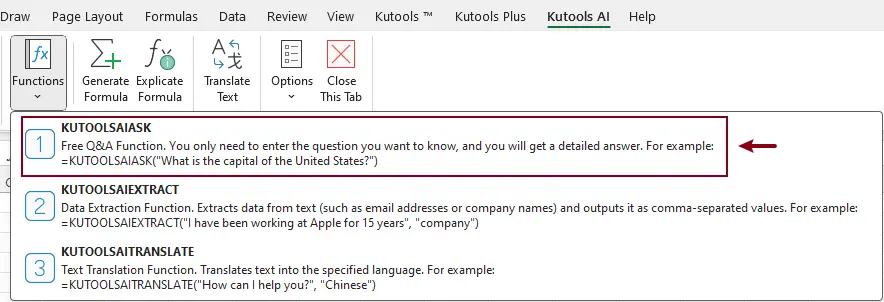
- In the Function Arguments dialog, type your question into the Question box, and then click OK.
Example: What is the capital of the United States?
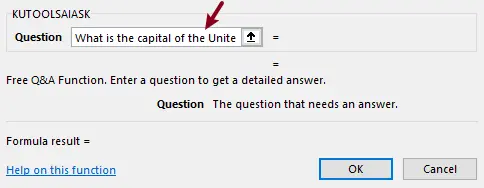
A KUTOOLSAIASK formula will be generated in the selected cell, and the corresponding answer is returned automatically.

KUTOOLSAIEXTRACT – Extract structured data from text
In real-world Excel work, text data is rarely clean or structured. Information such as company names, email addresses, phone numbers, or job titles is often embedded inside long sentences, notes, or descriptions. Extracting this information with traditional Excel formulas usually requires complex combinations of functions, or even VBA—making the process slow and difficult to maintain.
KUTOOLSAIEXTRACT simplifies this task by using AI to understand the meaning of text and extract the information you specify. Instead of relying on rigid patterns, it focuses on semantic understanding, allowing you to convert unstructured text into structured data with a single function.
How it works?
- Select a cell to output the result.
- Go to Kutools AI, select Functions > KUTOOLSAIEXTRACT.
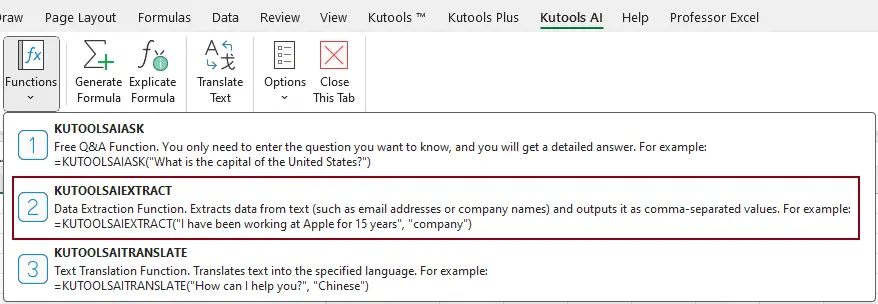
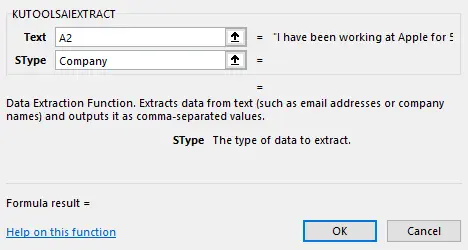
- In the Function Arguments dialog, do the following:
- Specify the source text in Text. Here, I select the cell that contains the text I want to extract data from.
- Define the extraction type in SType. In this example, I enter Company to extract company names from the selected text.
- Click OK.
After the first result is generated, if you have a list of cells to process, select the cell containing the formula and drag the Fill Handle down to apply the extraction to the remaining cells.
Once the original text is modified, the results will update automatically.

KUTOOLSAITRANSLATE – Translate text inside cells
Excel does not provide built-in translation functions. Translating text cell by cell is time-consuming and inconsistent. KUTOOLSAITRANSLATE enables automatic translation using a simple Excel formula.
How it works?
- Select a cell to output the result.
- Go to Kutools AI, select Functions > KUTOOLSAITRANSLATE.
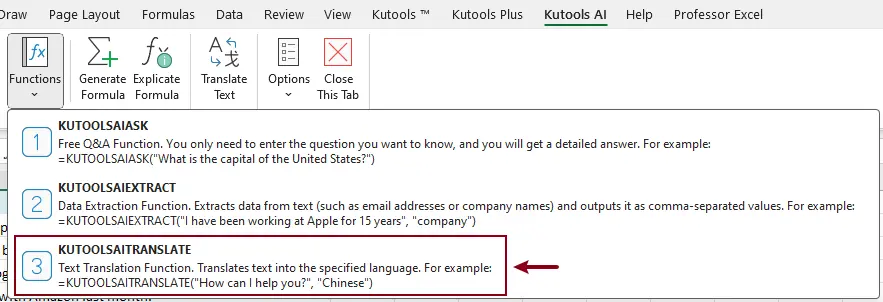
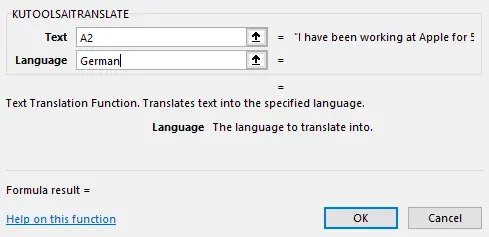
- In the Function Arguments dialog, do the following:
- In the Text argument field, enter the text or select a cell that contains the text you want to translate.
- In the Language argument field, specify the target language.
- Click OK.
After the first result is generated, if you have a list of cells to process, select the cell containing the formula and drag the Fill Handle down to apply the translation to the remaining cells.
Once the original text is modified, the results will update automatically.

Conclusion
Kutools AI Functions extend Excel beyond traditional calculations by embedding AI capabilities directly into worksheet formulas. Whether you are asking questions, extracting meaningful information from text, or translating content across languages, these functions allow you to handle complex, text-based tasks with simple and intuitive formulas.
Productivity Tools Recommended
Office Tab: Use handy tabs in Microsoft Office, just like Chrome, Firefox, and the new Edge browser. Easily switch between documents with tabs — no more cluttered windows. Know more...
Kutools for Outlook: Kutools for Outlook offers 100+ powerful features for Microsoft Outlook 2010–2024 (and later versions), as well as Microsoft 365, helping you simplify email management and boost productivity. Know more...
Kutools for Excel
Kutools for Excel offers 300+ advanced features to streamline your work in Excel 2010 – 2024 and Microsoft 365. The feature above is just one of many time-saving tools included.

Table of contents
- Why use Kutools AI functions
- Configure AI options
- KUTOOLSAIASK – Ask questions directly in Excel
- KUTOOLSAIEXTRACT – Extract structured data from text
- KUTOOLSAITRANSLATE – Translate text inside cells
- Conclusion
- The Best Office Productivity Tools
Kutools for Excel
Brings 300+ powerful features to streamline your Excel tasks.
- ⬇️ Free Download
- 🛒 Purchase Now
- 📘 Feature Tutorials
- 🎁 30-Day Free Trial