Kutools Cells Aide: Smarter AI-powered cell operations in Excel
Excel is excellent at handling structured data, but it becomes inefficient and fragile when dealing with real-world cell content, such as:
- Cells containing mixed text, numbers, and descriptions
- Vague expressions like “next Friday”, “3 days ago”, or “end of this month”
- Long feedback text that needs summarization or classification
- Inconsistent formats across large datasets
Formulas, Power Query, and VBA can sometimes address these challenges, but they often rely on complex logic, require technical expertise, involve lengthy setup processes, and demand ongoing maintenance—making them inefficient for many everyday cell-level tasks.
This is exactly where AI-powered cell processing becomes valuable. The Cells Aide feature of Kutools for Excel introduces AI directly into cell operations, allowing you to analyze, extract, rewrite, clean, and standardize cell data in bulk, using simple natural-language instructions instead of formulas.
- Example 1: Extract and standardize dates from text
- Example 2: Summarize long text in cells
- Example 3: Translate to a certain language
- Example 4: Clean cell content
The advantages of using Kutools Cells Aide
Configure AI options
Before using Cells Aide, you need to configure your AI connection. This is a one-time setup that allows the feature to communicate with your selected AI service.
To configure the AI options:
- Click Kutools AI > Options > Options.
- In the Set Kutools AI Options window, select an AI provider.
- Enter and save your API key.
Once configured, Cells Aide will be available for use in all workbooks.
To learn how to configure different AI providers, including custom providers, please refer to this article: Set Kutools AI Options.

Use preset prompts to handle different cell operations
Cells Aide includes a built-in Prompt Library, which groups common cell operations into practical categories. These preset prompts are designed to handle frequent tasks without requiring users to write their own instructions.
Core capabilities include:
- Data extraction & recognition: Accurately extract key details (e.g., dates, contact info, company names) from cell content.
- Content analysis: Summarize, categorize, or extract key points from large text entries.
- Text processing: Instantly translate, polish, or generate reply to improve clarity and consistency.
- Data cleaning & standardization: Automatically normalize cell data formats and ensure uniform structure across datasets.
Below are four typical examples showing how preset prompts can be used in real scenarios.
Example 1: Extract and standardize dates from text
In many worksheets, dates are embedded in text and expressed in different ways, such as exact dates or relative expressions as shown in the screenshot below. This makes filtering, sorting, or analyzing the data difficult. Here I will show you how to use this Cells Aide to extract and standardize dates from selected cells easily.

- Open Cells Aide by selecting Kutools AI > Cells Aide.

- In the Cells AI All-in-One Aide window, do the following:
- Select the cells that contain text with date information.
- Expand the Prompt Library drop-down list and choose Extract Date from the Extraction category.
- In the preset prompt content, update today’s date if required. You can also modify other parts of the prompt to better match your needs.
- Click Preview to preview the result for the first 12 cells. After confirming that the results are correct, click Generate to process the entire selected range.
Note: Previewing the first 12 cells helps ensure the accuracy of the results before generating the full output. You can also click Generate directly without previewing. If the results do not meet your expectations, you can regenerate them at any time.
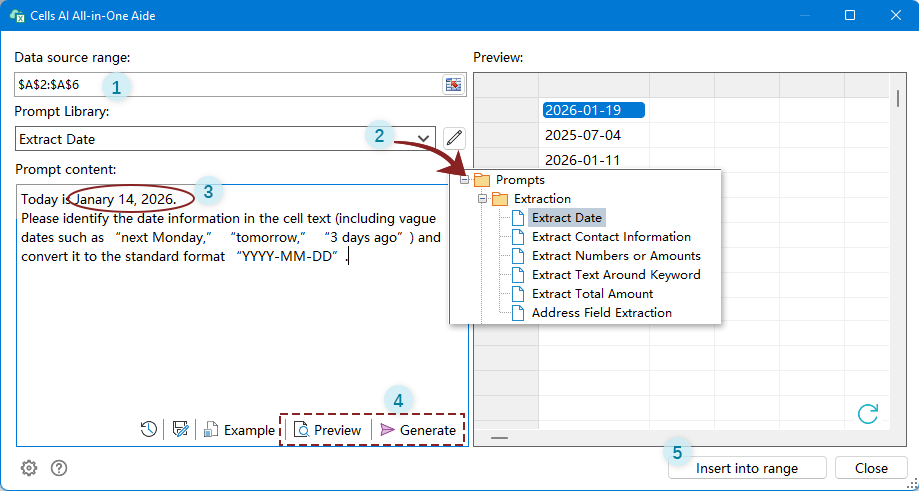
- After the results are generated, click Insert into range, select a destination cell to output the results, and then close the Cells AI All-in-One Aide window.
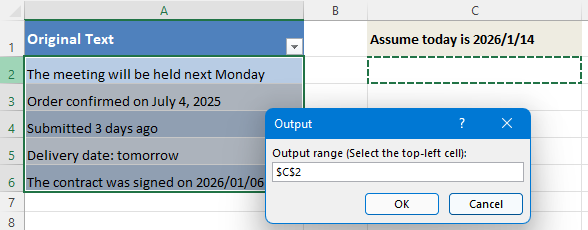
Result
Both vague and explicit date expressions are accurately recognized and extracted into a consistent date format, making the results immediately usable for sorting, filtering, and further analysis.

Example 2: Summarize long text in cells
Cells often contain long feedback, comments, or descriptions that are difficult to review at a glance. Manually summarizing this content is inefficient, especially when working with large datasets. Cells Aide helps you quickly summarize long text in cells and extract the main idea with minimal effort.
- Open Cells Aide by selecting Kutools AI > Cells Aide.
- In the Cells AI All-in-One Aide window, do the following:
- Select the cells that contain text you want to summarize.
- Expand the Prompt Library drop-down list and choose Summarize Main Idea from the Content Analysis category.
- In the preset Prompt content, you can modify the prompt to better match your needs.
- Click Preview to preview the result for the first 12 cells. After confirming that the results are correct, click Generate to process the entire selected range.
Note: Previewing the first 12 cells helps ensure the accuracy of the results before generating the full output. You can also click Generate directly without previewing. If the results do not meet your expectations, you can regenerate them at any time.
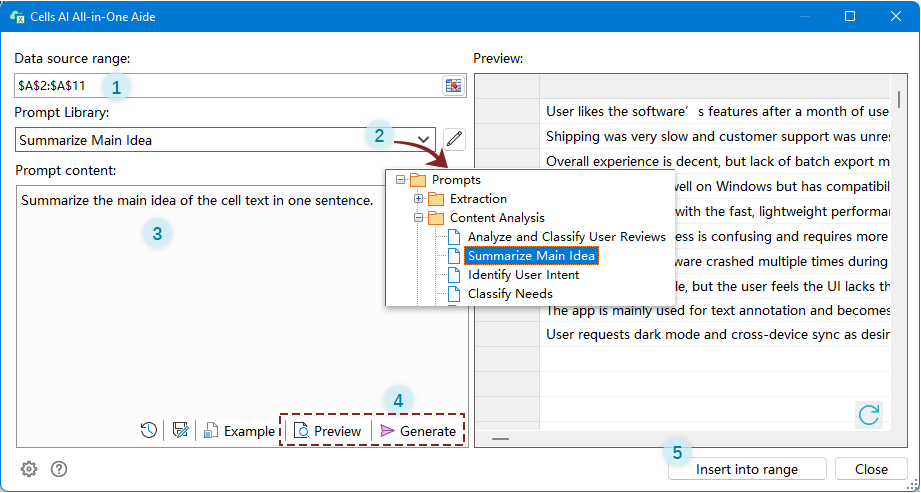
- After the results are generated, click Insert into range, select a destination cell to output the results, and then close the Cells AI All-in-One Aide window.
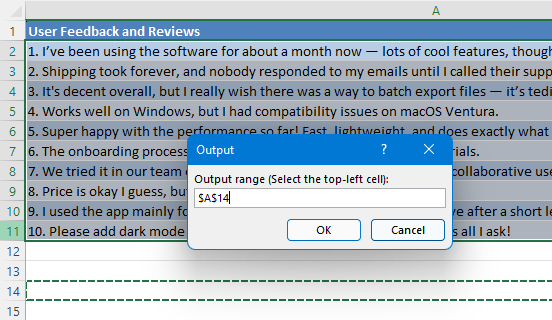
Result
Each cell is analyzed independently and reduced to a concise summary, helping you quickly understand key points.

Example 3: Translate cell content to a certain language
When working with multilingual data, translating text cell by cell is time-consuming and often inconsistent. Cells Aide streamlines this process by enabling fast and consistent translation across selected cells.
- Open Cells Aide by selecting Kutools AI > Cells Aide.
- In the Cells AI All-in-One Aide window, do the following:
- Select the cells that contain text you want to translate.
- Expand the Prompt Library drop-down list and choose Translate to German from the Text Processing category.
- In the preset Prompt content, modify the target language to match your translation needs.
- Click Preview to preview the result for the first 12 cells. After confirming that the results are correct, click Generate to process the entire selected range.
Note: Previewing the first 12 cells helps ensure the accuracy of the results before generating the full output. You can also click Generate directly without previewing. If the results do not meet your expectations, you can regenerate them at any time.
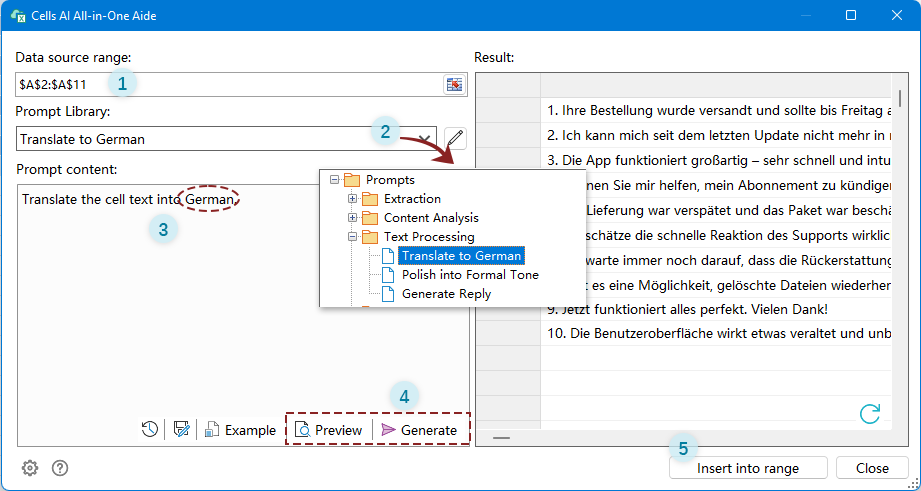
- After the results are generated, click Insert into range, select a destination cell to output the results, and then close the Cells AI All-in-One Aide window.
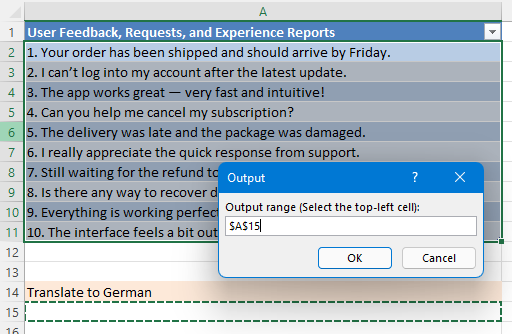
Result
All cells in the selected range are now translated into the specified language.

Example 4: Clean cell content
In many Excel worksheets, text data is copied from emails, web pages, PDFs, or external systems. As a result, cells often contain extra spaces, tab characters, or unwanted line breaks, which can affect readability, data comparison, and downstream processing. Cleaning this content manually is tedious and error-prone, especially across large ranges.
With Cells Aide, you can quickly clean and normalize such text using a preset prompt, ensuring that all cell content follows a consistent and tidy format.
- Open Cells Aide by selecting Kutools AI > Cells Aide.
- In the Cells AI All-in-One Aide window, do the following:
- Select the cells that contain extra spaces, tabs, or line breaks you want to clean.
- Expand the Prompt Library drop-down list and choose Remove Extra Spaces, Tabs, and Line Breaks from the Text Cleaning and Standardization category.
- In the preset Prompt content, keep the prompt or modify it to better match your needs.
- Click Preview to preview the result for the first 12 cells. After confirming that the results are correct, click Generate to process the entire selected range.
Note: Previewing the first 12 cells helps ensure the accuracy of the results before generating the full output. You can also click Generate directly without previewing. If the results do not meet your expectations, you can regenerate them at any time.
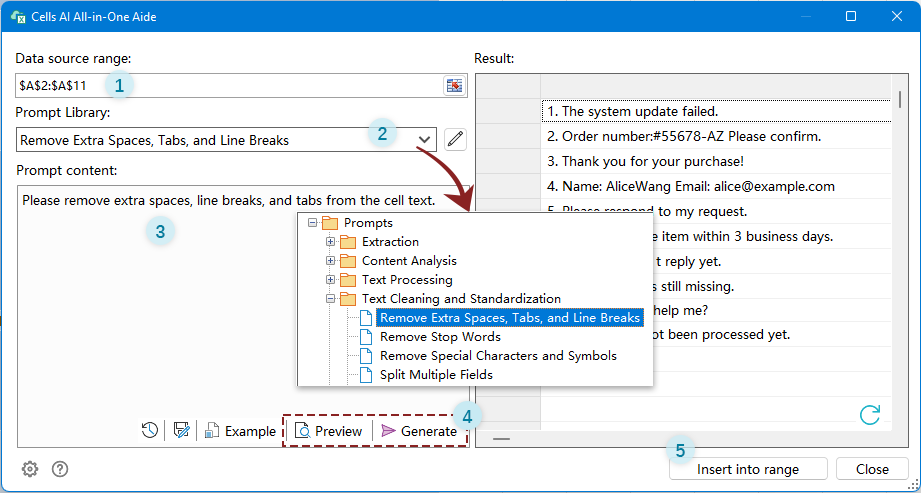
- After the results are generated, click Insert into range, select a destination cell to output the results, and then close the Cells AI All-in-One Aide window.
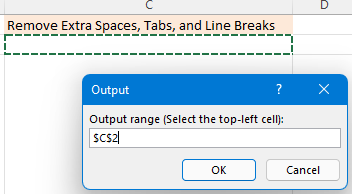
Result
All unnecessary spaces, tabs, and line breaks are removed from the selected cells. The cleaned text becomes more consistent, readable, and suitable for sorting, comparison, or analysis.

Build and reuse your own AI rules
Preset prompts in Cells Aide cover many common scenarios, but real-world work often requires custom logic that combines multiple steps or follows specific business rules. When no existing prompt fits your needs, Cells AI All-in-One Aide allows you to create your own AI rule and save it for future reuse.
For example, suppose you have a list of cells containing text with date information related to different events. You want to:
- Extract the date from each cell
- Convert it to the format YYYY-MM-DD
- Append the related event as a label after the date
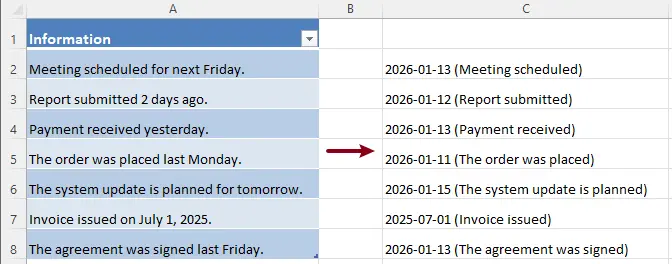
This type of output is not available as a preset prompt, but it can be achieved easily with a custom AI rule.
Build your own AI rule
- Open Cells Aide by selecting Kutools AI > Cells Aide.
- In the Cells AI All-in-One Aide window, do the following:
- Select the cells you want to extract dates with labels.
- In the prompt content box, enter a custom prompt that matches your needs.
For example:Today is January 14, 2026. Please extract the date mentioned in the text, convert it to YYYY-MM-DD format, and note the specific events associated with that date. Output the information in the format YYYY-MM-DD (Event).To test this AI rule, continue with the following steps to generate the results. Otherwise, you can save the rule directly for future use.
- Click Preview to preview the result for the first 12 cells. After confirming that the results are correct, click Generate to process the entire selected range.
Note: Previewing the first 12 cells helps ensure the accuracy of the results before generating the full output. You can also click Generate directly without previewing. If the results do not meet your expectations, you can regenerate them at any time.
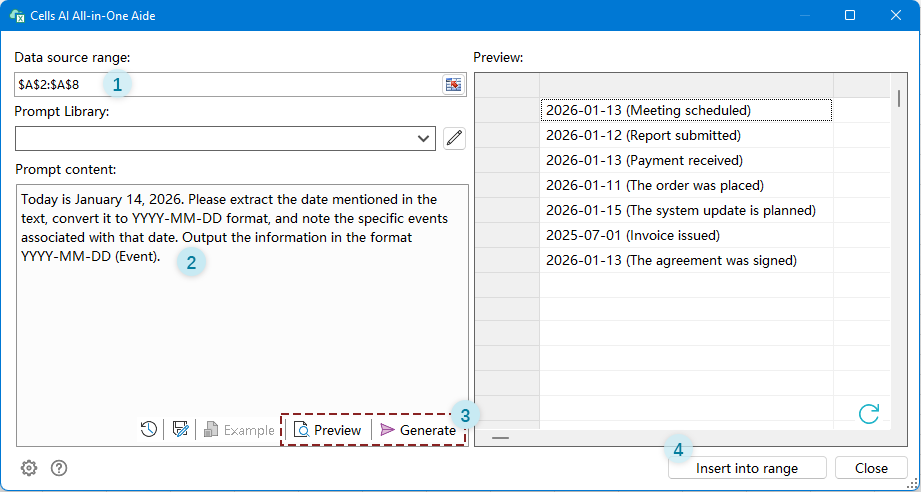
- After the results are generated, click Insert into range, select a destination cell to output the results, and then close the Cells AI All-in-One Aide window.
Result
The selected cells are converted into structured, labeled results that combine standardized dates with contextual event information.
Save and reuse the custom rule
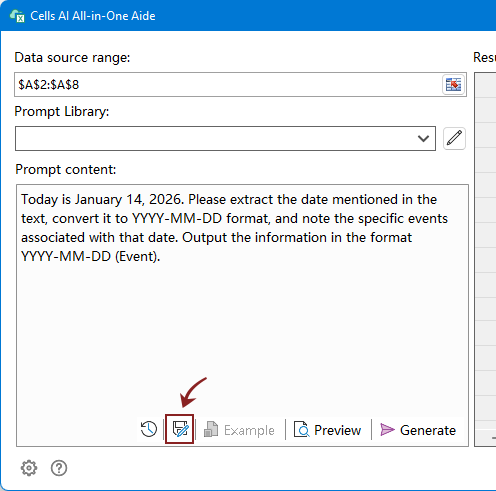
This custom rule can be saved and reused, allowing you to handle similar tasks consistently across different worksheets or projects.
- After building your own rule, click the Save As button..
- 2. In the Save Prompt As dialog box, select a prompt category, enter a name for the rule, and then click Save.
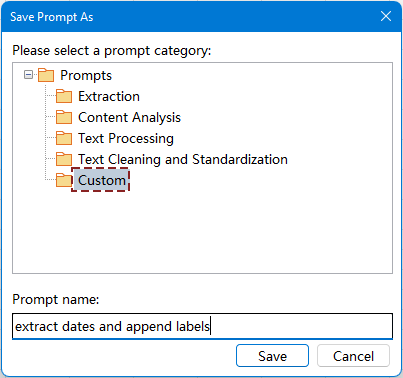
Whenever you want to use this custom rule, simply expand the Prompt Library drop-down list, locate the category, and select the rule.

Additional Tips for Cells Aide
Other enhancement buttons on the Cells Aide interface:
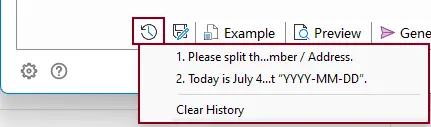
- History stores the last 10 prompts you used, allowing quick reuse. You can clear the history by clicking Clear History from the menu.
- Example opens sample worksheet related to the selected preset prompt.
This option is available only for built-in prompts. After selecting a default prompt, click Example to generate a sample worksheet in the current workbook. You can try the prompt on the sample data first, which helps you quickly understand how the prompt works before applying it to your own data.
Manage the prompt library
As you use Cells Aide more frequently, you may want to refine existing prompts, organize them by purpose, or build a personalized prompt collection for recurring tasks. The Prompt Manager provides a centralized place to manage all preset and custom prompts, helping you keep your AI workflows organized, reusable, and easy to maintain.
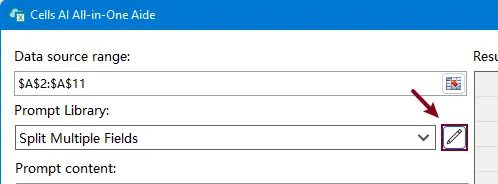
- Click the Open Prompt Manager button.
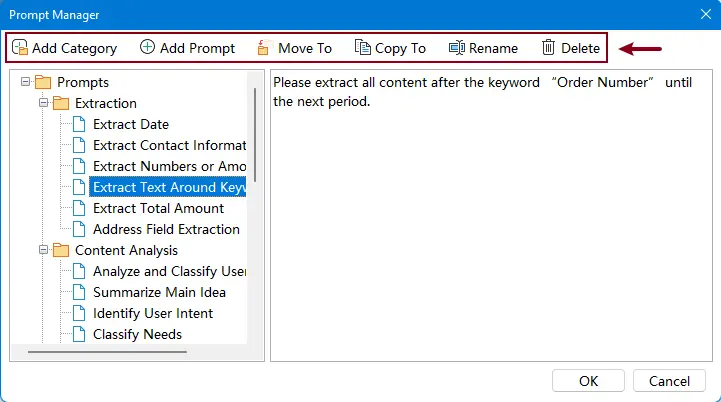
- In the Prompt Manager window, you can:
- Modify a prompt to better match your specific needs.
- Add new prompt categories to organize different workflows.
- Create new prompts for custom cell operations.
- Move a prompt to a different category.
- Copy a prompt to another category for reuse.
- Rename a category or an individual prompt.
- Delete categories or prompts that are no longer needed.
Disable all AI features in Kutools for Excel
If you want to turn off all AI-related features in Kutools for Excel, follow these steps:
- Go to the Kutools AI tab.
- Click Options > Disable All AI Features of Kutools.
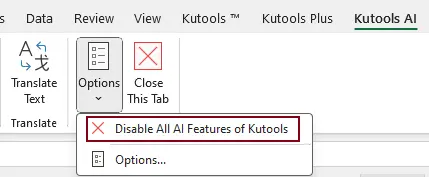
Once disabled, all AI features will be turned off until you enable them again.
Conclusion
Cells AI All-in-One Aide transforms how you work with cell content in Excel. Instead of relying on complex formulas or manual edits, you can use AI-driven prompts to process data more intelligently and efficiently.
Productivity Tools Recommended
Office Tab: Use handy tabs in Microsoft Office, just like Chrome, Firefox, and the new Edge browser. Easily switch between documents with tabs — no more cluttered windows. Know more...
Kutools for Outlook: Kutools for Outlook offers 100+ powerful features for Microsoft Outlook 2010–2024 (and later versions), as well as Microsoft 365, helping you simplify email management and boost productivity. Know more...
Kutools for Excel
Kutools for Excel offers 300+ advanced features to streamline your work in Excel 2010 – 2024 and Microsoft 365. The feature above is just one of many time-saving tools included.

Table of contents
- The advantages of Kutools Cells Aide
- Configure AI options
- Use preset prompt
- Extract and standardize dates from text
- Summarize long text in cells
- Translate to a certain language
- Clean cell content
- Build and reuse Your Own AI Rules
- Build your own AI rule
- Save and reuse the custom rule
- Additional tips for Cells Aide
- Conclusion
- The Best Office Productivity Tools
Kutools for Excel
Brings 300+ powerful features to streamline your Excel tasks.
- ⬇️ Free Download
- 🛒 Purchase Now
- 📘 Feature Tutorials
- 🎁 30-Day Free Trial