How to Install or Uninstall ZKutools Anywhere for Excel?
ZKutools Anywhere for Excel is an Office web add-in developed by ExtendOffice Ltd. It brings useful Kutools features to Excel on the web, and also supports Excel 2016 or later on Windows and Mac. Unlike traditional desktop add-ins, ZKutools Anywhere does not require you to download and run a local installer when using Excel on the web. Instead, you can install it directly from Microsoft AppSource or the Office Add-ins store.
As more users work with Excel in the browser, ZKutools Anywhere for Excel makes it easier to access productivity tools in a cloud-based environment. Whether you want to install it to improve your Excel workflow, open and use it after installation, remove it from Excel on the web, or fix common installation issues, this guide provides a complete step-by-step walkthrough.
What Is ZKutools Anywhere for Excel?
ZKutools Anywhere for Excel is a modern, AI-powered productivity add-in developed by ExtendOffice. It brings artificial intelligence and advanced automation directly into Microsoft Excel, working seamlessly across Excel for the Web (browser version), Mac, and desktop Windows.
If you are familiar with the classic desktop plugin Kutools for Excel, ZKutools Anywhere is its cloud-ready, AI-driven sibling built for the modern Office ecosystem.
It is especially useful when you:
- Work mainly in Excel for the web
- Use Excel across different computers
- Do not want to install desktop software
- Need a cloud-based add-in that works with your Microsoft account
- Want access to Kutools tools from Windows, Mac, or web Excel
What You Need Before Installing?
Before installing ZKutools Anywhere for Excel on web, make sure the following requirements are met:
| Requirement | Description |
|---|---|
| Microsoft account | You need to sign in with a Microsoft account or Microsoft 365 account. |
| Excel on the web | Open Excel through a browser, such as Edge, Chrome, or Firefox. |
| Add-ins access | Your organization must allow Office Store add-ins. |
| Stable internet connection | Web add-ins need internet access to load properly. |
| Supported Excel version | Excel on the web, or Excel 2016 and later on Windows, Mac, and iPad. |
Install ZKutools Anywhere for Excel
This section introduces two official ways to install ZKutools Anywhere for Excel. We recommend using Method 1: Install from AppSource first, as it works well on Windows, macOS, iPad, and Excel for the web, with a higher installation success rate. If you can see the Add-ins Store entry in the Office ribbon, you can also use Method 2: Install from the in-app Office Store.
Method1: Install from Microsoft AppSource
Go to the official ZKutools Anywhere for Excel page on Microsoft AppSource. See screenshot:
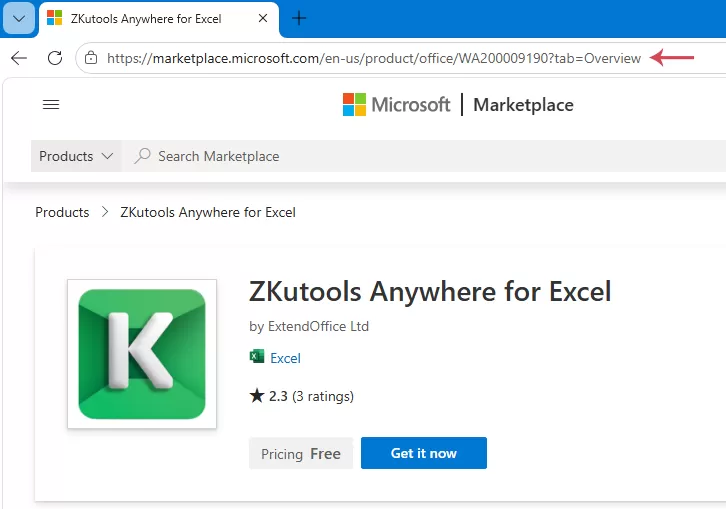
Click Get it now, then follow the on-screen instructions to sign in with your Microsoft account step by step.
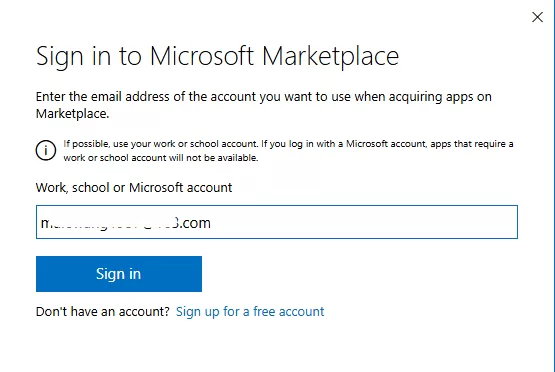
After signing in, you will be taken to the ZKutools Anywhere for Excel installation page in Microsoft Store. You can then choose to install the Windows version, Mac version, or online version based on your needs.
Windows/macOS: Click the Open in Excel button.
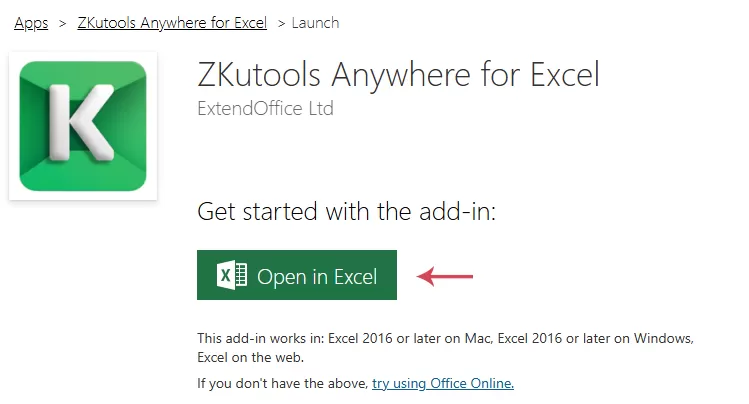
Then, an Excel file will open automatically, and you will see the ZKUTOOLS tab appear in the ribbon.

Web: Click the try using Office Online link.
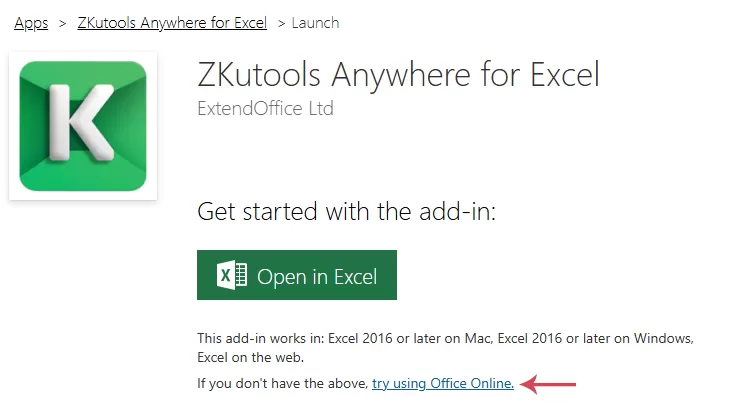
Then click the Open in Excel Online button.
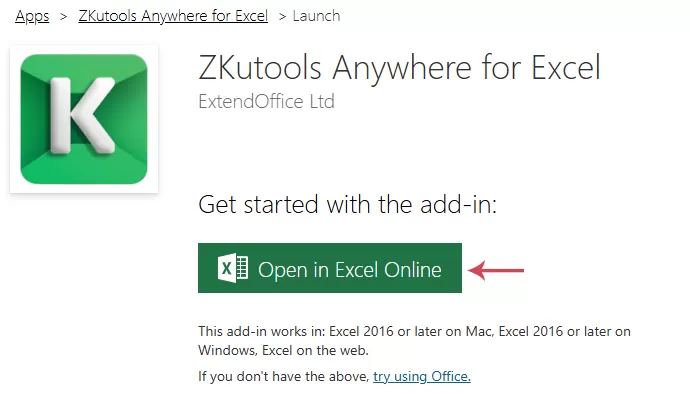
Excel for the web will open automatically in your browser, and the ZKUTOOLS tab will appear in the ribbon.
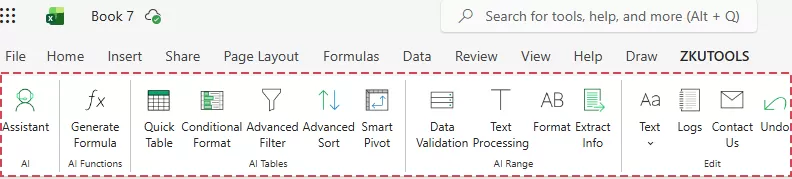
Method 2: Install from Within the App
If you prefer to install ZKutools Anywhere directly from Excel, you can add it through the built-in Office Add-ins store. This method is convenient when the Add-ins option is available in your Excel ribbon. You do not need to visit Microsoft AppSource separately — simply open Excel, search for ZKutools Anywhere in the add-ins store, and add it to your account.
Tip: The same installation steps also apply to the Windows and Mac desktop versions.
Open Excel on the web.
Under the Home tab, click Add-ins. In the Office Add-ins store, search for: ZKutools Anywhere for Excel or simply zkutools, select the correct add-in and click Add. See screenshot:
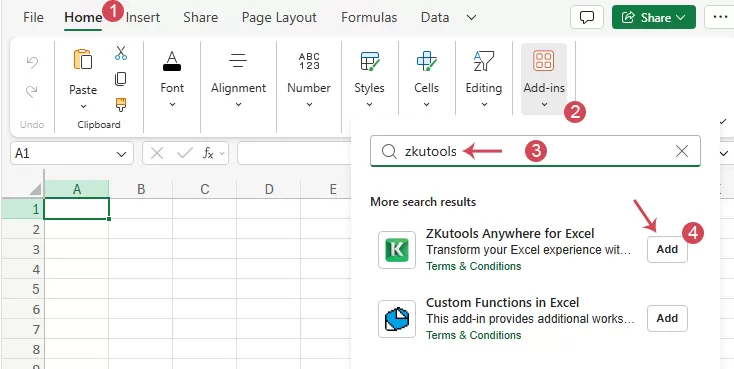
After installation, the ZKUTOOLS tab appears in the ribbon.
Sign in or register a ZKutools AI account
ZKutools Anywhere for Excel includes both AI-powered features and classic productivity tools. Some basic tools may be available directly after installing the add-in, but features related to AI usually require you to sign in or register a ZKutools AI account before they can be used. This guide explains how to sign in, create a new account.
ZKutools AI account is required to access AI-related features in ZKutools Anywhere for Excel. After signing in, you can use AI tools to help with tasks such as analyzing data, cleaning text, generating formulas, summarizing content, translating text, and improving spreadsheet workflows.
Register a ZKutools AI account
If you do not already have a ZKutools AI account, you can create one directly from the Kutools pane.
Open Excel for the web, Excel on Windows, Excel on Mac, or Excel on iPad where ZKutools Anywhere is installed.
Go to the ribbon and click the ZKUTOOLS tab, then, click Assistant or any other AI feature to open the ZKutools Anywhere for Excel pane. In the ZKutools pane, click Register now.
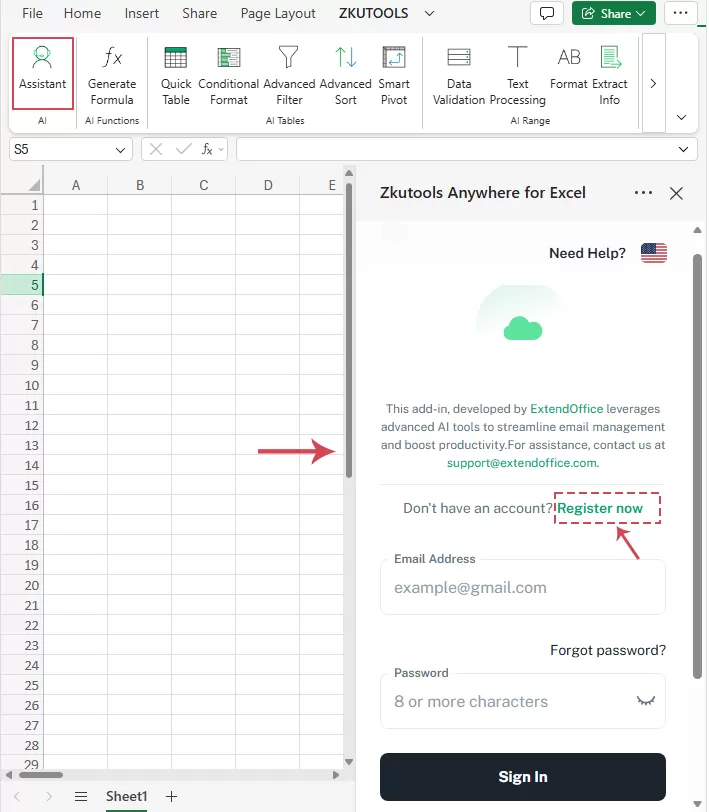
Enter the required information, such as:
- First Name
- Last Name
- Email Address
- Password
Click Create Account.
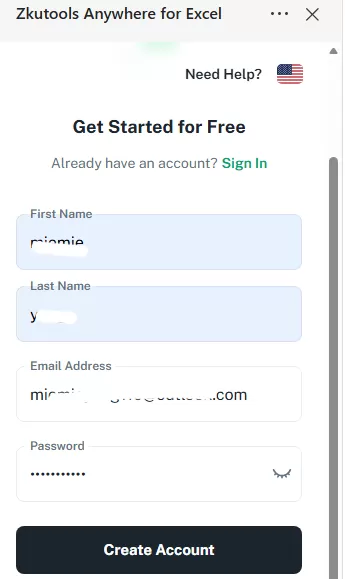
After submitting your registration information, check your email inbox for a verification code or confirmation message. Enter the verification code in the registration window, then click Verify.
Once verification is complete, your ZKutools AI account will be created successfully. The system will automatically return you to the ZKutools pane, and you can start using the AI features right away.
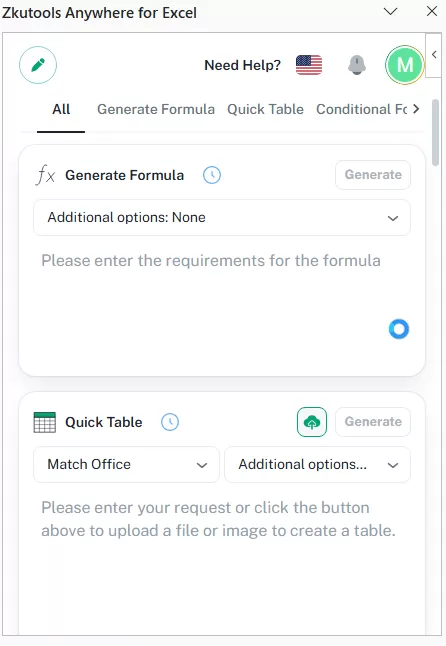
Sign in
If you already have a ZKutools AI account, you can sign in directly from the ZKutools pane.
Enter your registered email address and password, then click Sign in. After signing in successfully, you can start using the AI-powered features in ZKutools Anywhere for Excel.
Tip:
ZKutools provides 500,000 free tokens for you to try its AI features. Once your tokens are used up, you can upgrade or subscribe to continue. To view plans or upgrade to Premium, visit the ZKutools Anywhere pricing page.
How to Remove, Reinstall or Update ZKutools Anywhere for Excel?
Remove ZKutools Anywhere for Excel
Because ZKutools Anywhere for Excel is a web add-in, you do not uninstall it from Windows Control Panel. Instead, you remove it from the Office Add-ins manager.
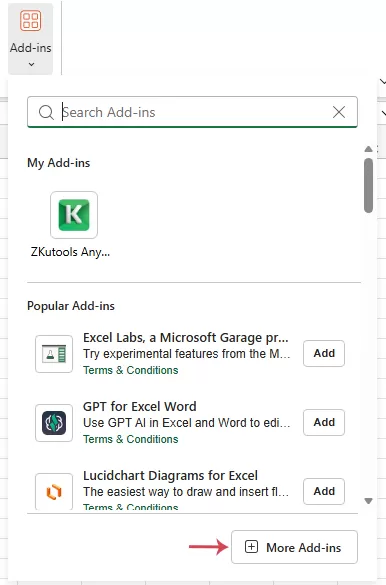
Open an existing workbook or create a blank workbook. Click Home > Add-ins > More Add-ins, see screenshot:
In the Office Add-ins window, under the MY ADD-INS tab, find ZKutools Anywhere for Excel, Click the Options button, usually shown as …, and choose Remove. See screenshot:
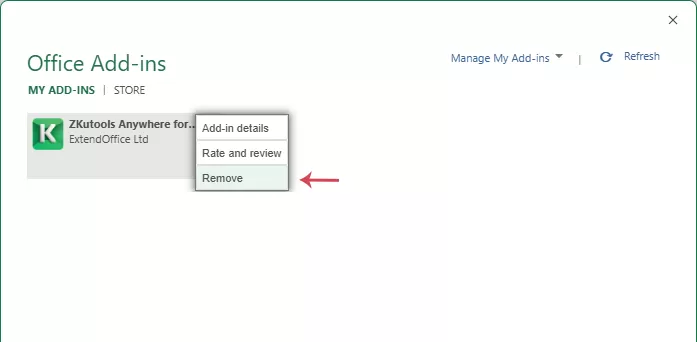
Confirm the removal in the prompt box.
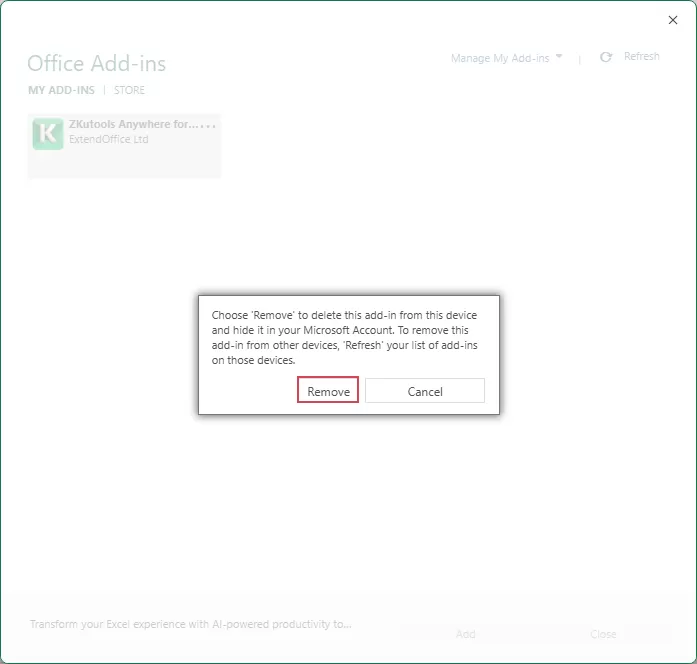
Note: If the add-in still appears, Close the workbook and reopen Excel.
Reinstall ZKutools Anywhere for Excel
If you removed the add-in by mistake or want to use it again, you can reinstall it at any time.
Use either method:
- Go to Microsoft AppSource and install it again.
- Open Excel on the web, go to Home > Add-ins, search for ZKutools Anywhere for Excel, and click Add.
Note: For best syncing, use the same Microsoft account across Excel on the web and Excel desktop.
Update ZKutools Anywhere for Excel
ZKutools Anywhere for Excel is an Office add-in, so updates are usually applied automatically through Microsoft AppSource or the Office Add-ins Store.
Note: In most cases, you do not need to download or install updates manually. Simply reopen Excel, refresh the add-in pane, or restart Excel to make sure you are using the latest version.
Troubleshooting & Solutions
When installing or using ZKutools Anywhere for Excel, you may occasionally run into issues such as the add-in not appearing, the pane not loading, sign-in problems, or AI features not being available. Most of these problems are related to account permissions, network connection, browser settings, or Office add-in access.
This section lists common issues and provides practical solutions to help you get ZKutools Anywhere working properly again.
Conclusion
Installing ZKutools Anywhere for Excel on web is simple: open Microsoft AppSource or Excel’s built-in Add-ins store, search for the add-in, sign in, and add it to Excel. Once installed, you can launch it from the Excel ribbon and use it in the right-side task pane.
To uninstall it, do not use Windows Control Panel. Instead, open Excel on the web, go to Home > Add-ins > More Add-ins, find ZKutools Anywhere for Excel, and choose Remove.
For the smoothest experience, always sign in with the same Microsoft account, keep Office Store access enabled, and refresh Excel after installing or removing the add-in.
Table of contents
- What Is ZKutools Anywhere for Excel?
- What You Need Before Installing?
- Install ZKutools Anywhere for Excel
- Method 1: Install from Microsoft AppSource
- Method 2: Install from Within the App
- Sign in or Register a ZKutools AI Account
- How to Remove, Reinstall, or Update?
- Troubleshooting & Solutions
- Conclusion
ZKutools for Excel
Brings AI-powered assistance and practical productivity tools directly into Excel for the web, Windows, Mac, and iPad.
- ✔ AI assistance in Excel
- ✔ Works across platforms
- ✔ No complex setup
- ✔ Classic Kutools tools