How to Compare Dates with a Specific Date in Excel
When working with deadlines, schedules, training records, orders, or other date-based data in Excel, you may need to check whether each date falls after a specific cutoff date and return different results accordingly. Although this can be done with an IF formula combined with DATEVALUE, building the formula manually requires you to correctly set up the comparison and return values.
Dates to compare dates with a specific date in the Online library of Kutools for Excel's Formula Helper Plus provides a guided way to create this comparison. Simply specify the dates to check, the reference date, and the values to return when the condition is true or false, and Formula Helper Plus generates the formula for you.
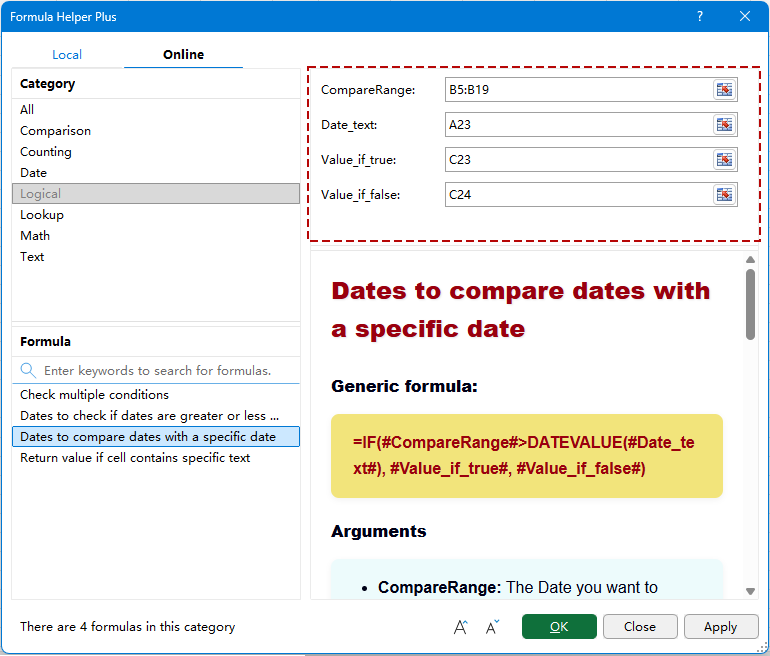
Advantages of Dates to compare dates with a specific date
How to compare dates with a specific date
- Compare dates with a specific date using Formula Helper Plus Online
- Understand the four formula arguments
- How the generated IF and DATEVALUE formula works
Understand the date comparison condition
Advantages of Dates to compare dates with a specific date
Dates to compare dates with a specific date makes it easier to evaluate dates against a fixed reference date and return meaningful results without manually constructing an IF and DATEVALUE formula.
Compare multiple dates with one reference date
Check a range of dates against the same cutoff date, such as comparing employee completion dates with a required training deadline.
Return meaningful custom results
Instead of returning only TRUE or FALSE, specify results such as Late and On time to make the worksheet easier to understand.
Create the formula without typing it manually
Formula Helper Plus builds the IF and DATEVALUE formula after you provide the required inputs, reducing the need to remember formula syntax.
Configure each argument through labeled input boxes
Separate fields for the comparison range, reference date, and true and false results make the formula easier to configure and understand.
How to compare dates with a specific date
Dates to compare dates with a specific date checks whether dates in a selected range are later than a specified reference date and returns different values depending on the result. This section shows how to locate the formula in the Online library, configure its four arguments, and understand the formula that Formula Helper Plus creates.
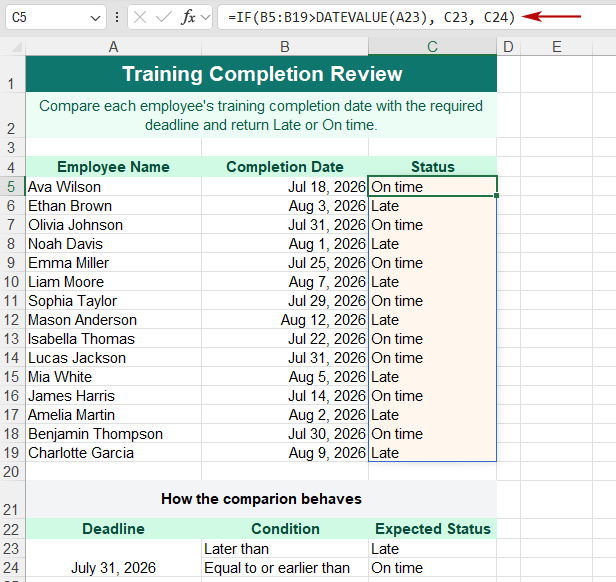
In the example below, employee Completion Dates are compared with a training deadline of Jul 31, 2026. Dates after the deadline return Late, while dates on or before the deadline return On time.
Compare dates with a specific date using Formula Helper Plus Online
Use this method to compare multiple dates against the same cutoff date and return a custom status for each record.
1. Prepare the dates you want to compare and the reference date. In this example, employee completion dates are stored in B5:B19, while the training deadline Jul 31, 2026 is entered in A23. The results Late and On time are entered in C23 and C24.
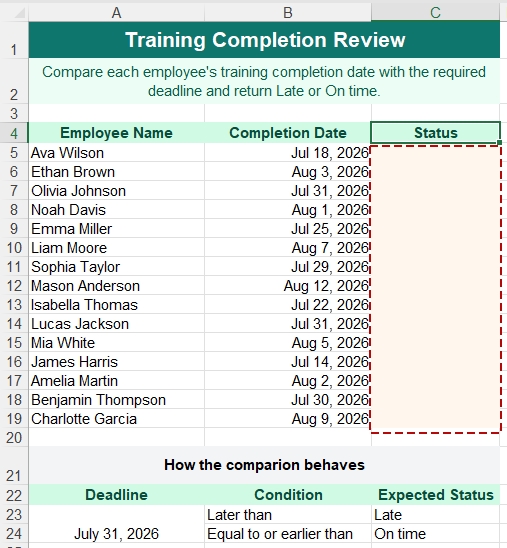
2. Select C5, where you want the comparison results to begin.
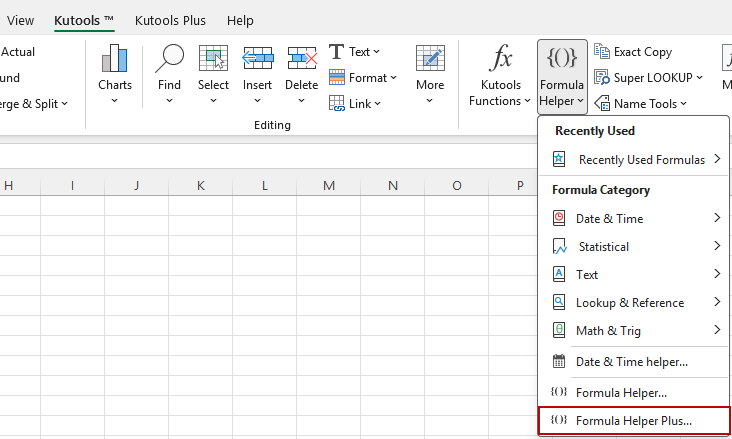
3. Click Kutools > Formula Helper > Formula Helper Plus.
4. In Formula Helper Plus, select the Online tab. Under Category, click Logical, then select Dates to compare dates with a specific date.
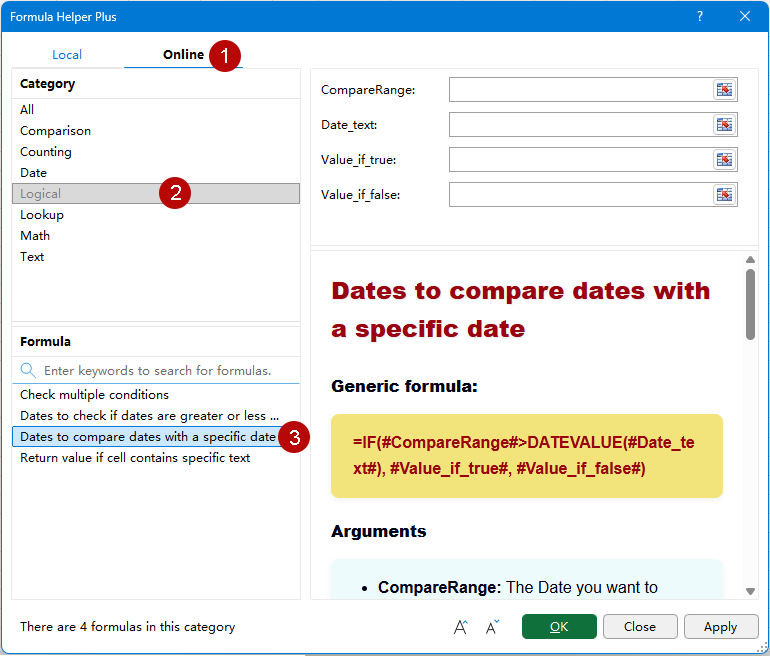
Tip: You can also enter keywords such as compare dates or specific date in the search box to quickly locate the formula.
5. Specify the four arguments. Select B5:B19 as CompareRange, A23 as Date_text, C23 as Value_if_true, and C24 as Value_if_false.
6. Click OK or Apply. Because the full completion-date range is selected as CompareRange, the results are returned for the entire range and spill down from C5.
Result: Completion dates later than Jul 31, 2026 return Late. Dates equal to or earlier than the deadline return On time.
Tip: When a range is used as CompareRange, the formula can return multiple results as a dynamic array. Make sure the cells below the output cell are empty and that the formula is entered in a normal worksheet range rather than inside an Excel Table so the results can spill successfully.
Understand the four formula arguments
The formula uses four arguments to determine which dates to compare and what result to return for each outcome.
| Argument | Purpose | Example |
| CompareRange | The date or range of dates you want to compare with the specified date. | B5:B19 |
| Date_text | The reference date used as the cutoff for the comparison. | A23 — Jul 31, 2026 |
| Value_if_true | The value returned when the compared date is later than the specified date. | C23 — Late |
| Value_if_false | The value returned when the compared date is equal to or earlier than the specified date. | C24 — On time |
Tip: For Date_text, Value_if_true, and Value_if_false, you can either select a cell containing the value or enter the value directly. The return values are fully customizable, so instead of Late / On time, you can use results such as Yes / No, Review / OK, or After cutoff / On or before cutoff.
How the generated IF and DATEVALUE formula works
The generic formula used by Dates to compare dates with a specific date is:
=IF(#CompareRange#>DATEVALUE(#Date_text#),#Value_if_true#,#Value_if_false#)With the cell references used in this example, Formula Helper Plus generates:
=IF(B5:B19>DATEVALUE(A23),C23,C24)The formula works in three main parts:
- DATEVALUE(A23) converts the specified date text into a date value that Excel can use for comparison.
- B5:B19>DATEVALUE(A23) checks whether each completion date is later than the deadline.
- IF returns the value in C23 when the condition is TRUE and the value in C24 when the condition is FALSE.
For example, Aug 3, 2026 is later than Jul 31, 2026, so the formula returns Late. In contrast, Jul 31, 2026 is equal to the deadline rather than later than it, so the formula returns On time.
Note: This example uses cell references for Date_text, Value_if_true, and Value_if_false. If you enter these values directly in Formula Helper Plus instead, the generated formula uses the entered values rather than these cell references.
Understand the date comparison condition
Although the formula name refers generally to comparing dates with a specific date, the generated formula uses the > operator. This means it specifically checks whether each compared date is later than the specified date.
| Completion Date | Deadline | Condition | Result |
| Aug 3, 2026 | Jul 31, 2026 | Later than | Late |
| Jul 31, 2026 | Jul 31, 2026 | Equal to | On time |
| Jul 30, 2026 | Jul 31, 2026 | Earlier than | On time |
Key point: A date must be strictly later than the specified date to return Value_if_true. A date that is equal to or earlier than the specified date returns Value_if_false.
Tips for accurate date comparisons
Keep the following points in mind when using the formula to compare dates.
- Use valid Excel dates in CompareRange: Make sure the values you want to evaluate are recognized as dates rather than unrelated text strings.
- Use a recognizable date for Date_text: Enter the reference date in a format that Excel can interpret correctly, such as Jul 31, 2026.
- Remember that the comparison means “later than”: A date equal to the specified date does not meet the > condition and therefore returns Value_if_false.
- Choose meaningful return values: Labels such as Late / On time make the results easier to interpret than generic TRUE/FALSE values.
- Keep the spill range clear: If you use multiple cells as CompareRange, make sure the destination cells are empty so Excel has room to return all results.
- Avoid placing a spilling formula inside an Excel Table: Dynamic array formulas cannot spill inside a table. Use a normal worksheet range when returning multiple results at once.
Practical use cases
This formula is especially useful when many records need to be evaluated against the same cutoff or reference date.
Identify training completed after a deadline
Compare employee training completion dates with the required deadline and return statuses such as Late or On time.
Flag orders placed after a cutoff date
Compare order dates with a promotional, reporting, or processing cutoff and return results such as After cutoff or On or before cutoff.
Check project dates against a milestone
Compare task or completion dates with a milestone date and return labels such as Review and OK.
Identify records created after a specific date
Use a reference date to identify records added after a migration, audit, policy change, or other important event.
About Formula Helper Plus
Formula Helper Plus in Kutools for Excel provides Local and Online formula libraries that help you find, understand, and insert useful formulas through a guided interface.
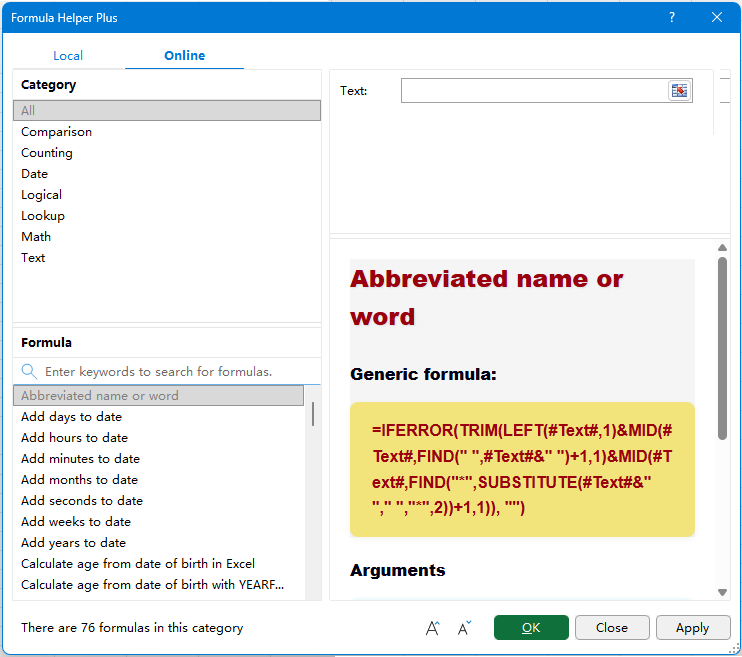
The Online library organizes formulas into categories such as Comparison, Counting, Date, Logical, Lookup, Math, and Text. You can browse formulas by category or use the search box to quickly locate one by name or purpose. Dates to compare dates with a specific date is available under the Logical category.
After selecting a formula, its argument boxes appear at the top of the window, while the right-hand information pane displays the formula description, generic formula, argument explanations, and other guidance to help you configure the formula correctly.
🔤 Display controls
Use the display controls at the bottom of the Formula Helper Plus window to adjust the text size in the right-hand information pane for easier reading. These controls are available in both the Local and Online libraries.
 Increase font size: Enlarge the formula description, generic formula, arguments, and other information displayed in the right-hand pane.
 Decrease font size: Reduce the text size in the right-hand pane when you want to view more information at once.
 Increase font size: Enlarge the formula description, generic formula, arguments, and other information displayed in the right-hand pane.
 Decrease font size: Reduce the text size in the right-hand pane when you want to view more information at once.
FAQ
What does Dates to compare dates with a specific date do?
It compares a date or range of dates with a specified reference date. Dates later than the reference date return Value_if_true, while dates equal to or earlier than it return Value_if_false.
What happens if the compared date is equal to the specified date?
The generated formula uses the > operator, so only dates strictly later than the specified date satisfy the condition. A date equal to or earlier than the reference date returns Value_if_false. For example, with a deadline of Jul 31, 2026, a completion date of Jul 31 returns On time.
Can I customize the results returned by the formula?
Yes. Value_if_true and Value_if_false can be customized to return results such as Late / On time, Yes / No, or Review / OK. You can either select cells containing these values or enter the values directly in Formula Helper Plus.
What is Date_text used for?
Date_text specifies the reference date used for the comparison. You can select a cell containing the date or enter the date directly, and the generated formula uses DATEVALUE to convert it into a value Excel can use for the comparison.
Can I compare multiple dates at once?
Yes. You can select a range such as B5:B19 as CompareRange. The generated formula can then return multiple results as a dynamic array that spills from the starting result cell into the cells below.
Why do I get a #SPILL! error?
A #SPILL! error occurs when Excel cannot place all dynamic array results in the required cells. Make sure the spill range is empty and that the formula is entered in a normal worksheet range rather than inside an Excel Table.
Where can I find Dates to compare dates with a specific date?
Click Kutools > Formula Helper > Formula Helper Plus, select the Online tab, and choose Logical > Dates to compare dates with a specific date. You can also use the search box in the Online library and enter keywords such as compare dates or specific date to find it quickly.
Productivity Tools Recommended
Office Tab: Use handy tabs in Microsoft Office, just like Chrome, Firefox, and the new Edge browser. Easily switch between documents with tabs — no more cluttered windows. Know more...
Kutools for Outlook: Kutools for Outlook offers 100+ powerful features for Microsoft Outlook 2010–2024 (and later versions), as well as Microsoft 365, helping you simplify email management and boost productivity. Know more...
Kutools for Excel
Kutools for Excel offers 300+ advanced features to streamline your work in Excel 2010 – 2024 and Microsoft 365. The feature above is just one of many time-saving tools included.

Table of Contents
- Advantages of Dates to compare dates with a specific date
- How to compare dates with a specific date
- Compare dates with a specific date using Formula Helper Plus Online
- Understand the four formula arguments
- How the generated IF and DATEVALUE formula works
- Understand the date comparison condition
- Tips for accurate date comparisons
- Practical use cases
- About Formula Helper Plus
- FAQ
- The Best Office Productivity Tools
Kutools for Excel
Brings 300+ advanced features to Excel
- 🧩 Overview
- 📥 Free Download
- 🎁 30-Day Free Trial available