How to pick and reuse screen colors in Excel with Kutools
Matching colors across different elements in Excel—like charts, shapes, and cells—can be challenging, especially when you need to use colors from external sources like websites, images, or other applications. With Kutools for Excel, the built-in Color Picker tool makes this easy. It lets you pick any color on your screen, reuse it instantly in Excel, and saves up to 30 recently picked colors—far more than Excel’s default of 10.
Better yet, these colors are automatically synced to Excel’s Recent Colors palette, so you can maintain consistent formatting across your work without extra steps. Whether you're designing dashboards or formatting data, this tool saves time and ensures a professional, polished look.

Why use Kutools’ Color Picker in Excel?
- 🎨 Pick any color on your screen – Select colors not just from Excel, but from images, websites, or any open application.
- 🔄 Automatically syncs with Excel’s Recent Colors – Picked colors are instantly added to Excel’s Recent Colors palette, so you can apply them anywhere in Excel.
- 📊 Stores more recent colors – Kutools saves up to 30 recently picked colors, compared to Excel’s limit of 10.
- 🧠 No need to remember color codes – Just click and apply; no need to enter or copy hex or RGB values manually.
- ⚡ One-click access from the ribbon – Easy to find and use, even for beginners.
- 📌 Consistent formatting – Maintain a uniform design across charts, shapes, tables, and dashboards.
Step-by-step guide to picking colors using Kutools for Excel
Follow the steps below to pick and reuse any color from your screen directly in Excel using Kutools’ Color Picker tool.
Open the Color Picker.
In Excel, go to Kutools > Format (in the Editing group) > Color Picker.
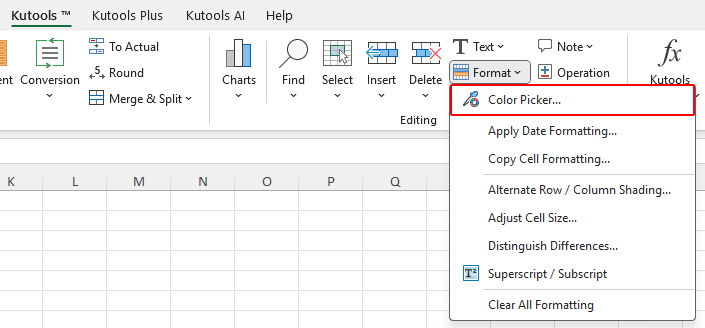
Note: If your Kutools ribbon is in narrow toolbar mode, go to Kutools > Select (in the Editing group) > Color Picker instead.
Pick a color from anywhere on the screen.
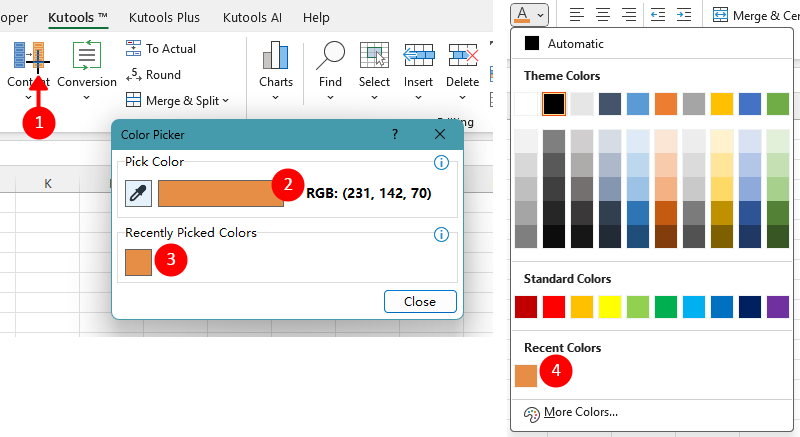
Once the Color Picker is open, your mouse cursor will turn into a crosshair pointer[See mark 1 in the screenshot below]. Move the cursor to any point on your screen.
The color under the cursor is shown in real-time in the Pick Color preview area[See mark 2].
- Left-click: Pick the current color and automatically add it to both the Recently Picked Colors area[See mark 3] and Excel’s Recent Colors palette[See mark 4].
- Right-click: Cancel and return to the normal cursor.
Reuse a recently picked color.
Recently picked colors appear in Excel’s Recent Colors[See mark 4 in the screenshot above] and can be applied directly in shapes, charts, or cells.
Note: If a previously picked color doesn’t appear in Excel’s Recent Colors (due to Excel’s 10-color limit), click it from the Recently Picked Colors section in the Kutools Color Picker window to add it back to Excel’s palette.
- You can pick colors from any part of your screen, including other applications, images, or websites.
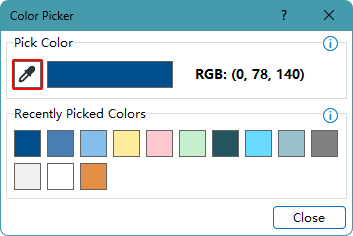
- To pick another color, simply click the eyedropper icon(see the red box in the screenshot below).
- Color Picker saves up to 30 recent selections for quick reuse.
Productivity Tools Recommended
Office Tab: Use handy tabs in Microsoft Office, just like Chrome, Firefox, and the new Edge browser. Easily switch between documents with tabs — no more cluttered windows. Know more...
Kutools for Outlook: Kutools for Outlook offers 100+ powerful features for Microsoft Outlook 2010–2024 (and later versions), as well as Microsoft 365, helping you simplify email management and boost productivity. Know more...
Kutools for Excel
Kutools for Excel offers 300+ advanced features to streamline your work in Excel 2010 – 2024 and Microsoft 365. The feature above is just one of many time-saving tools included.

Table of Contents
- Why use Kutools' Color Picker feature
- How to use Kutools' Color Picker
- The Best Office Productivity Tools
Kutools for Excel
Brings 300+ advanced features to Excel
- 🧩 Overview
- 📥 Free Download
- 🎁 30-Day Free Trial available