How to Identify and Highlight Different Data Types in Excel
Excel data can look consistent while actually containing different underlying data types. For example, a Quantity column may contain mostly real numbers but also a few numbers stored as text, while a Date column may mix real Excel dates with text-formatted dates. Other unexpected values, such as errors or blanks, can also be scattered through a large worksheet and easily go unnoticed.
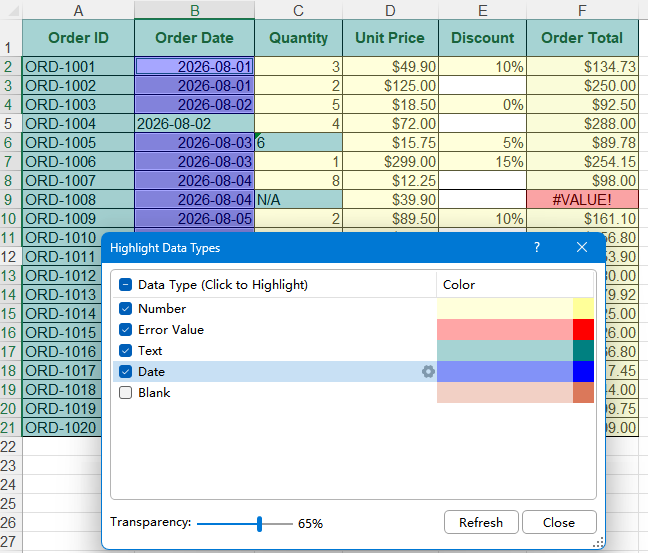
Highlight Data Types in Kutools for Excel provides a quick visual way to audit this kind of data. It analyzes the visible cells in the current worksheet and highlights numbers, text, dates, and other data types with different colors. You can also quickly locate cells of a specific type, format related cells in bulk, adjust the highlight appearance, and refresh the results after your data changes.
Advantages of the Highlight Data Types function
How to use Highlight Data Types
- Highlight, locate, and select different data types in a worksheet
- Use Settings to format cells of a specific data type in bulk
- Customize highlight colors and transparency
- Refresh highlights after data changes
Practical uses for checking Excel data
Advantages of the Highlight Data Types function
Highlight Data Types is especially useful for auditing imported, copied, or manually maintained Excel data where different value types may be mixed together unexpectedly.
Identify multiple data types at a glance
Use different highlight colors to distinguish Number, Error Value, Logical Value, Text, Date, and Blank cells across the visible worksheet.
Spot inconsistent data quickly
Values that look similar may actually have different data types. Highlighting makes it much easier to notice text values mixed into numeric or date columns.
Quickly locate cells of a specific type
Click a data type in the list to quickly locate and select the corresponding cells instead of searching through the worksheet manually.
Format related cells in bulk
Use the Settings button for a data type to open Format Cells and apply a Number, Currency, Date, Time, Percentage, Text, or other format to the corresponding cells in one operation.
Flexible highlighting for easier review
Choose which data types to highlight and adjust the colors and transparency so differences stand out without hiding the original cell contents.
How to use Highlight Data Types
Highlight Data Types lets you visually distinguish different types of values in the current worksheet, quickly locate cells of a specific type, apply formatting to related cells in bulk, customize highlight colors and transparency, and refresh the results after worksheet data changes.
In the following example, we use an imported order list containing several common data types and a few intentionally inconsistent values to demonstrate how the feature works.
Highlight, locate, and select different data types in a worksheet
Use this option to visually distinguish different data types in the current worksheet and quickly locate and select cells of a specific type for further review.
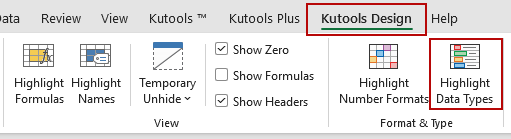
1. Open the worksheet you want to inspect. Click Kutools > Design View to open the Design View tab, then click Highlight Data Types.
2. In the Highlight Data Types window, select the data types you want to check, such as Number, Text, Date, or other types. The corresponding cells in the worksheet are immediately highlighted, located, and selected, making it easier to review the matching values.
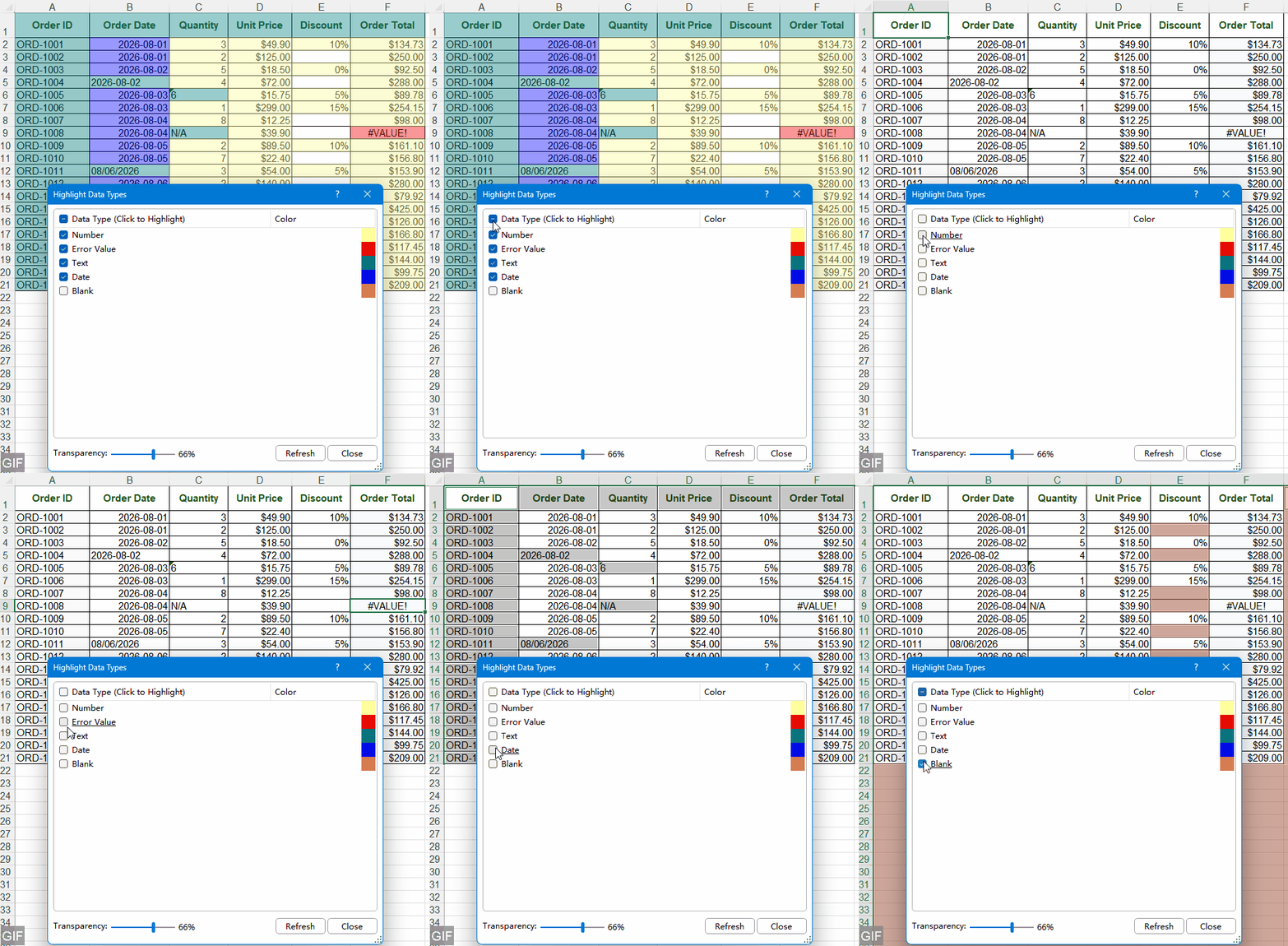
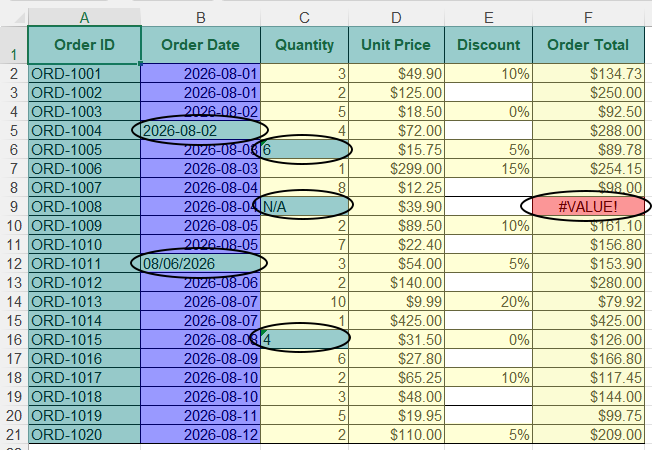
Result: Inconsistent values—such as numbers or dates stored as text—as well as error values become much easier to spot and review, helping you quickly identify potential data issues in the worksheet.
Use Settings to format cells of a specific data type in bulk
After identifying cells of a particular data type, you can use Settings to apply a suitable cell format to them in bulk.
1. In the Highlight Data Types window, select the data type you want to work with.
2. Click the Settings icon next to that data type.
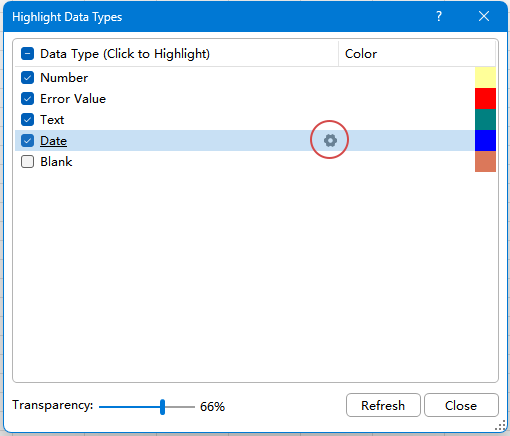
3. In the Format Cells dialog box, choose the format you need, such as Number, Currency, Accounting, Date, Time, Percentage, or Text.
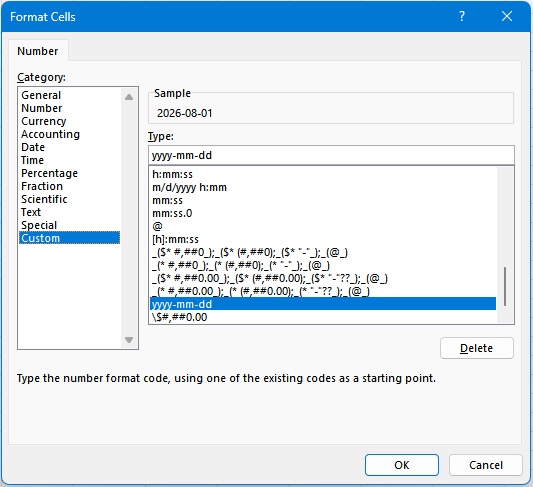
4. Click OK to apply the selected format to the corresponding cells.
Tip: Changing a cell format does not always change the underlying stored value. For example, a number stored as text may still require a separate conversion before Excel treats it as a real number.
Customize highlight colors and transparency
You can adjust the highlighting to make different data types easier to distinguish while keeping the worksheet content readable.
1. Use the color setting beside a data type to customize its highlight color if needed.
2. Drag the Transparency slider at the bottom of the window to change the strength of the highlight.
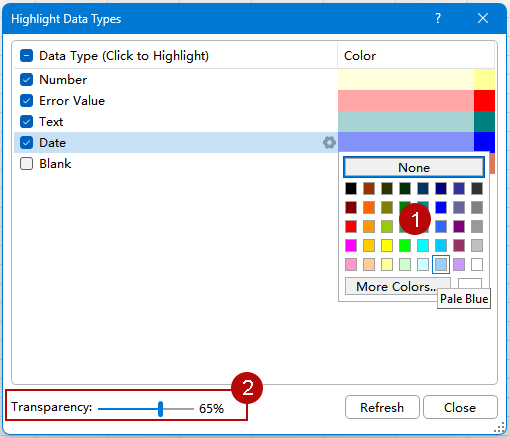
A stronger highlight makes differences between data types more obvious, while greater transparency makes the original worksheet contents easier to read. The highlighting updates as the transparency is adjusted.
Refresh highlights after data changes
If you correct or edit values while reviewing the worksheet, click Refresh to analyze the visible cells again and update the highlighting.
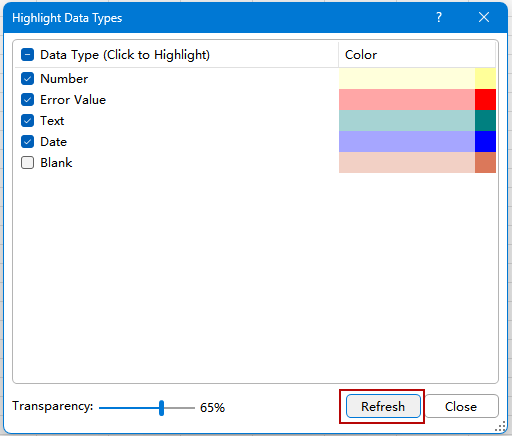
For example, after fixing a text-formatted number or correcting a formula that previously returned an error, refreshing the results makes it easier to confirm whether the problem has been resolved.
Tip: The results are also updated as you move through the worksheet, helping you continue checking visible data while scrolling through a larger sheet.
Practical uses for checking Excel data
Highlight Data Types is especially useful when checking imported, copied, or manually maintained data before calculations, sorting, filtering, PivotTables, or further analysis. It helps you quickly spot values that look normal but may actually have an unexpected data type.
Find numbers stored as text
A numeric column may contain a few values that look like numbers but are actually stored as text. These inconsistencies can affect calculations, sorting, lookups, and other Excel operations.
By highlighting Number and Text differently, Highlight Data Types makes these unusual values stand out from the surrounding numeric data.
Find dates stored as text
Dates imported from CSV files, websites, or other systems may look like normal Excel dates while actually being stored as text. This can cause problems with date calculations, chronological sorting, filtering, and PivotTable grouping.
Highlighting Date and Text makes these inconsistencies much easier to identify.
Locate formula errors
Formula errors such as #VALUE!, #N/A, or #DIV/0! can be difficult to notice in a large worksheet. Highlighting Error Value makes these cells immediately visible so you can locate and review them more efficiently.
Spot missing values
Highlighting Blank cells can help reveal missing information in order lists, customer records, inventory data, imported reports, and other structured datasets, especially when empty cells are scattered across a large worksheet.
Notes for using Highlight Data Types
Keep the following points in mind when using Highlight Data Types to check your worksheet.
- Only visible cells in the current worksheet are analyzed: The feature checks the cells currently visible in the active worksheet.
- Values are highlighted according to their detected data type: A value such as 00123 may look numeric, but if Excel stores it as text, it is identified as Text. The same applies to dates stored as text.
- Display format and data type are different concepts: Currency, Percentage, Fraction, and Scientific formats can all represent underlying numeric values and may therefore be identified as Number.
- Changing the cell format does not always convert the underlying value: The Settings option lets you apply formats to selected cells in bulk, but a number or date stored as text may still require an additional conversion before Excel treats it as a true number or date.
- Refresh the results after editing data: If you correct or replace values while checking the worksheet, click Refresh to update the highlighting.
FAQ
What data types can Highlight Data Types identify in Excel?
Highlight Data Types can distinguish Number, Error Value, Logical Value, Text, Date, and Blank cells in the visible worksheet.
How can I find numbers stored as text in Excel?
Highlight Number and Text at the same time. Values stored as text will use the Text highlight, making them easier to distinguish from real numbers in the same column.
How can I find dates stored as text in Excel?
Highlight both Date and Text. Real Excel dates are identified as Date, while date-looking values stored as text remain in the Text category.
Can Highlight Data Types find Excel formula errors?
Yes. Select Error Value to highlight cells containing errors such as #VALUE!, #N/A, or #DIV/0!. You can also click the data type to quickly locate and select the matching cells.
Can I quickly select cells of a specific data type?
Yes. Click a data type in the Highlight Data Types window to quickly locate and select the corresponding cells in the worksheet.
Can I format cells after identifying their data type?
Yes. Click the Settings icon for a data type to open the Format Cells dialog box, where you can apply the required formatting to the corresponding cells in bulk.
Does changing the cell format convert the actual value?
Not always. Cell formatting mainly controls how a value is displayed. For example, applying a Number format to a number stored as text does not necessarily convert it into a true numeric value.
Does Highlight Data Types change my worksheet values?
No. Highlighting is used to visually identify different data types and does not replace or modify the underlying cell values.
Productivity Tools Recommended
Office Tab: Use handy tabs in Microsoft Office, just like Chrome, Firefox, and the new Edge browser. Easily switch between documents with tabs — no more cluttered windows. Know more...
Kutools for Outlook: Kutools for Outlook offers 100+ powerful features for Microsoft Outlook 2010–2024 (and later versions), as well as Microsoft 365, helping you simplify email management and boost productivity. Know more...
Kutools for Excel
Kutools for Excel offers 300+ advanced features to streamline your work in Excel 2010 – 2024 and Microsoft 365. The feature above is just one of many time-saving tools included.

Table of Contents
- Advantages of the Highlight Data Types function
- How to use Highlight Data Types
- Highlight, locate, and select different data types in a worksheet
- Use Settings to format cells of a specific data type in bulk
- Customize highlight colors and transparency
- Refresh highlights after data changes
- Practical uses for checking Excel data
- Notes for using Highlight Data Types
- FAQ
- The Best Office Productivity Tools
Kutools for Excel
Brings 300+ advanced features to Excel
- 🧩 Overview
- 📥 Free Download
- 🎁 30-Day Free Trial available