Hover View in Kutools for Excel: Preview Full Cell Content and Formulas on Hover
When working in Excel, it is common to encounter cells that contain long text, partially visible values, or formulas that are not easy to inspect at a glance. Hover View in Kutools for Excel solves this problem by showing a floating preview window when you move the mouse over a cell, allowing you to quickly view the full cell content or formula without resizing columns or entering edit mode.
What Is Hover View in Kutools for Excel?
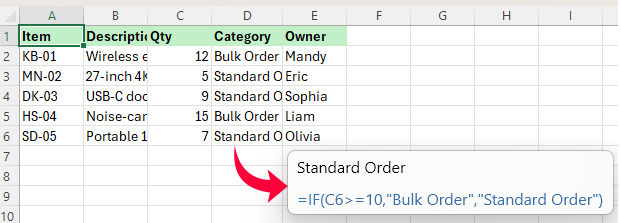
Hover View is a preview feature in Kutools for Excel that displays a floating window when you move the mouse pointer over a cell. It allows you to quickly view the full cell content or formula without resizing columns, checking the Formula Bar, or entering edit mode.
This feature is especially useful for cells containing long text, truncated values, or formulas that are not easy to inspect directly in the worksheet. With Hover View, you can preview hidden details instantly while keeping the worksheet layout unchanged.
Why Use Hover View in Excel?
Hover View makes it easier to read hidden cell content and inspect formulas without changing your worksheet layout. Instead of widening columns, switching to the Formula Bar, or entering edit mode, you can simply hover over a cell to preview the details instantly.
- 👀 Preview full content on hover – quickly read long text and partially visible entries.
- 🧮 Inspect formulas more easily – view formulas directly in a floating preview window.
- ⚡ Work more efficiently – avoid repeated resizing, clicking, and editing when reviewing worksheets.
- 🧠 Choose how previews appear – display previews only when needed, or for all non-empty cells.
- 📐 Preserve worksheet layout – check cell details without changing column width or formatting.
- ✅ More convenient than Excel alone – read cell content and formulas in place with less interruption.
How to Use Hover View in Kutools for Excel
Using Hover View is straightforward. Once enabled, it works directly in the worksheet as you move the mouse across cells.
Step 1. Turn on Hover View
Click Kutools >View >Hover View to enable the feature.
Step 2. Hover over a cell
Move the mouse pointer over a cell in the worksheet. A floating preview window will appear beside the cell so you can quickly inspect the cell details without editing the cell or changing the worksheet layout.
Note: The preview may show cell content, formulas, or both, depending on your current Hover View settings. To change what is displayed and when the preview window appears, continue to Step 3.
Step 3. Adjust the Hover View settings if needed
To customize how Hover View works, open Hover View > Options. 
In the Cell Hover View Options dialog, you can choose what to display, control when the preview window appears, and adjust the preview window position and font size. To learn what each option does, jump to Hover View Options Explained.
Hover View Options Explained
The Cell Hover View Options dialog is organized into three parts: Display Type, Other Options, and Enable Cell Hover View. Together, these settings control what Hover View shows, when the preview window appears, and how it is displayed.
1. Display Type
This section controls what appears in the preview window:
- Show text of cell – displays the full cell content, mainly useful for long text and cells showing ### because the value cannot be fully displayed.
- Show formula of cell – displays the formula stored in the cell, which is useful for checking formula structure, reviewing calculation logic, and auditing worksheets.
If both options are selected, Hover View supports both content preview and formula preview.
2. Other Options
This section controls when and how the preview window is shown:
- Show view window for all cells with content – for Text, controls whether Hover View appears for all non-empty text cells or only when the content cannot be fully displayed. For Formula, this option does not apply, and Hover View always appears for formula cells.
- View window position – lets you place the preview window at the bottom-right of cursor or bottom-right of cell.
- View window font size – lets you choose from Small, Smaller, Medium, Larger, and Large.
- For Text: when disabled, Hover View appears only when the content cannot be fully displayed; when enabled, it appears for all non-empty text cells.
- For Formula: this option does not turn off the preview window. If the display type includes Formula, Hover View appears for all cells containing formulas.
Tip: If you want Hover View to stay less intrusive, turn off Show view window for all cells with content so previews appear only when content is not fully visible.
3. Enable Cell Hover View
This is the master switch for the feature. When enabled, Hover View works according to the selected settings. When disabled, the preview window will not appear.
Hover View vs. Default Excel Viewing
The table below shows how Hover View compares with Excel’s default ways of checking cell content and formulas:
| Comparison Point | Default Excel Viewing | Hover View |
|---|---|---|
| Full cell content | Resize columns or wrap text ✘ | Preview on hover ✔ |
| Formula viewing | Use Formula Bar or edit mode ✘ | View on hover ✔ |
| Worksheet layout | May change layout ✘ | Keeps layout unchanged ✔ |
| Workflow | More manual steps ⚠ | Faster and smoother ✔ |
| Truncated content | Less convenient ⚠ | Easy to inspect ✔ |
| Smart preview | Not available ✘ | Available ✔ |
| Dense worksheets | Slower to review ⚠ | Better for quick review ✔ |
In short, Hover View provides a faster and more convenient way to inspect cell content and formulas without interrupting your worksheet workflow.
Productivity Tools Recommended
Office Tab: Use handy tabs in Microsoft Office, just like Chrome, Firefox, and the new Edge browser. Easily switch between documents with tabs — no more cluttered windows. Know more...
Kutools for Outlook: Kutools for Outlook offers 100+ powerful features for Microsoft Outlook 2010–2024 (and later versions), as well as Microsoft 365, helping you simplify email management and boost productivity. Know more...
Kutools for Excel
Kutools for Excel offers 300+ advanced features to streamline your work in Excel 2010 – 2024 and Microsoft 365. The feature above is just one of many time-saving tools included.

Table of Contents
- What Is Hover View in Kutools for Excel?
- Why Use Hover View in Excel?
- How to Use Hover View in Kutools for Excel
- Hover View Options Explained
- Hover View vs. Default Excel Viewing
- The Best Office Productivity Tools
Kutools for Excel
Brings 300+ advanced features to Excel
- 🧩 Overview
- 📥 Free Download
- 🎁 30-Day Free Trial available