How to Protect Data Validation Rules in Excel
Excel Data Validation helps control what users can enter in a worksheet, such as drop-down lists, date restrictions, number limits, text length limits, or custom rules. However, in daily data entry work, these rules may still be accidentally changed, damaged, or bypassed by operations such as typing, pasting, filling, dragging, inserting, or deleting.
Kutools for Excel provides the Validate Protection feature to add a protection layer based on existing data validation rules. It helps prevent users from accidentally changing or damaging validation rules, and also blocks values that do not meet the validation criteria from being typed, pasted, filled, or otherwise entered into the workbook.

What does Validate Protection do
Validate Protection is designed for workbooks that already contain Excel data validation rules. It does not create validation rules for you. Instead, it adds a protection layer to help keep existing validation rules reliable during data entry and everyday workbook editing.
To understand this feature clearly, it helps to separate Excel Data Validation from Kutools Validate Protection:
| Feature | What it does |
|---|---|
| Excel Data Validation | Creates and defines the input rules, such as allowed numbers, dates, drop-down lists, text length limits, or custom formulas. |
| Kutools Validate Protection | Works on top of existing validation rules to help protect them from accidental damage and keep entered values within the allowed criteria. |
In practice, Validate Protection mainly helps with two situations:
- Data validation rules are changed or damaged: It helps prevent manual operations, such as pasting, filling, dragging, inserting, or deleting, from accidentally changing or damaging existing cell data validation rules.
- Values do not meet validation criteria: It blocks values that violate the existing validation rules from being typed, pasted, filled, or otherwise entered into the workbook, such as values outside an allowed number range or items not included in a drop-down list.
In short, create data validation rules in Excel first, and then enable Validate Protection to help protect those rules and make the data entry process more reliable.
Why use Kutools Validate Protection in Excel
In shared Excel templates, data validation rules often control the quality of the collected data. If these rules are accidentally affected, the workbook may still look normal, but the entered data can become inconsistent and harder to check, summarize, or report later.
Validate Protection is useful when a workbook will be filled in repeatedly or edited by different users. It adds an extra safeguard so the input structure is more likely to stay reliable during daily data entry.
- ✅ Keep drop-down choices reliable: Useful for regions, statuses, categories, departments, or approval results.
- 📅 Maintain date entry standards: Helpful for order dates, delivery dates, project dates, or reporting periods.
- 🔢 Support accurate numeric input: Useful for quantities, scores, percentages, amounts, or other limited values.
- 🧩 Protect business-specific input logic: Helpful when custom validation formulas are used for special rules.
- 📋 Make shared templates easier to maintain: Useful for order forms, report files, project trackers, and collection sheets.
For example, in an order entry workbook, you may use validation rules for Region, Status, Order Date, and Quantity. With Validate Protection enabled, the template is easier to keep consistent during repeated use.
How to use Validate Protection
Before using Validate Protection, make sure your worksheet already contains data validation rules. For example, you may have drop-down lists, date restrictions, number limits, text length limits, or custom validation formulas.
Step 1: Open a workbook that already has data validation rules
Open the Excel workbook that contains the data validation rules you want to protect. Before enabling Validate Protection, quickly test one or two rules to make sure they work correctly. For example, enter an invalid value in a restricted cell and check whether Excel shows a validation error.
Step 2: Enable Validation Protection
After confirming that the validation rules are correct, click Kutools Plus > Validate Protection > Enable Validation Protection.
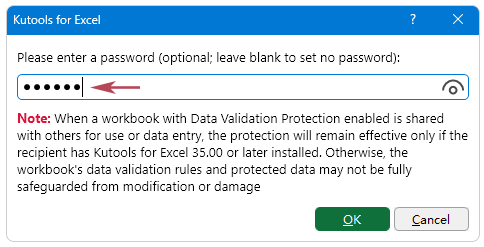
Step 3: Enter a password or leave it blank
In the pop-up dialog box, choose one of the following options:
- Set a password: Enter a password, click OK, enter the password again to confirm it, and then click OK again. This helps prevent others from disabling the protection easily.
- Set no password: Leave the password box blank and click OK if you do not want to set a password.
Result
After the protection is enabled, save the workbook to keep the protection settings. Kutools protects the current data validation rules and helps prevent invalid values from entering the workbook.
When a risky operation is detected, such as typing, pasting, filling, dragging, inserting, or deleting in a way that may damage validation rules or enter values that do not meet validation criteria, Kutools automatically blocks the operation and shows a warning message.
If protected validation rules are later modified, cleared, or damaged by VBA, macros, other automation programs, or unexpected operations, you can use Verify Data Validation Protection to check for differences, view affected ranges, and restore the original validation rules when needed.
How to verify Data Validation Protection
After Validate Protection is enabled, you can use Verify Data Validation Protection to check whether the data validation rules in the current worksheet are still consistent with the saved Data Validation Protection data.
This is useful when you suspect that protected validation rules may have been modified, cleared, or damaged by VBA, macros, other automation programs, or unexpected operations.
Step 1: Open the protected workbook
Open the workbook where Validate Protection has already been enabled.
Step 2: Click Verify Data Validation Protection
Click Kutools Plus > Validate Protection > Verify Data Validation Protection.
Step 3: Check the verification result
Kutools will check whether the current worksheet’s Data Validation Protection status is consistent with the saved protected data.
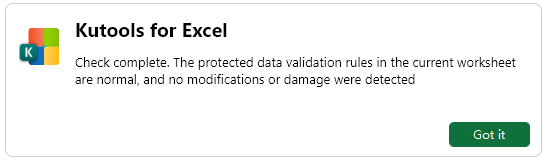
- If no issues are detected: A message will appear to tell you that the check is complete, and that the protected data validation rules in the current worksheet are normal.
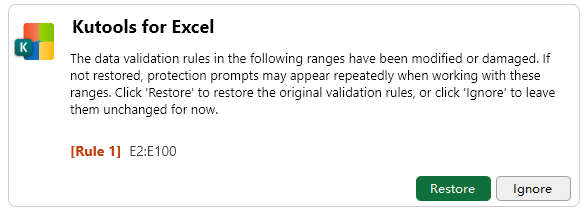
- If differences are detected: The affected ranges are listed. Click Restore to restore the original data validation rules, or click Ignore to leave them unchanged for now.
After clicking Restore: The original data validation rules are restored successfully. However, existing cell values are not automatically corrected. You should check the affected ranges and make sure the existing data complies with the restored validation rules.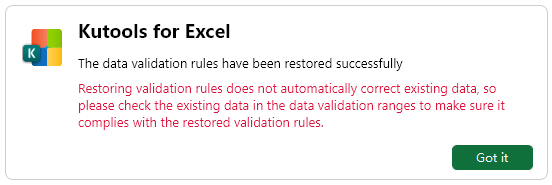
Tips and important notes
- Enabled per workbook: This feature is enabled per workbook. Only protected workbooks are affected.
- Set up validation rules first: Create and test your Excel data validation rules before enabling Validate Protection.
- Use Excel Data Validation normally when needed: You can still add, edit, or delete data validation rules through Excel’s own Data Validation feature when needed.
- Can be used with protected worksheets: Validate Protection can also be used when Excel sheet protection is enabled. If the cells with data validation are left editable, they may still be affected by manual operations such as pasting, filling, or dragging. Validate Protection helps protect the validation rules and block invalid input in those editable validation areas.
- Disable protection before updating rules: If you need to intentionally add, edit, or delete validation rules, disable Validate Protection first, make the changes, and then enable protection again.
- Manual and unexpected operations: Validate Protection helps block risky manual operations and invalid input. If validation rules are affected by VBA, macros, or other automation tools, use Verify Data Validation Protection to check and restore them when differences are detected.
- Save the workbook after enabling protection: This helps keep the protection settings with the workbook.
- Use a password for shared templates: A password can help prevent others from turning off the protection easily.
Conclusion
Excel Data Validation defines the rules for allowed input, while Validate Protection in Kutools for Excel helps protect those existing rules and blocks values that do not meet the validation criteria. It is especially useful for shared forms, order entry templates, collection sheets, and other workbooks that rely on clean and consistent data entry.
By using Validate Protection, you can reduce accidental validation rule damage, prevent invalid values from being typed or pasted into protected workbooks, and make your data entry templates more reliable.
Productivity Tools Recommended
Office Tab: Use handy tabs in Microsoft Office, just like Chrome, Firefox, and the new Edge browser. Easily switch between documents with tabs — no more cluttered windows. Know more...
Kutools for Outlook: Kutools for Outlook offers 100+ powerful features for Microsoft Outlook 2010–2024 (and later versions), as well as Microsoft 365, helping you simplify email management and boost productivity. Know more...
Kutools for Excel
Kutools for Excel offers 300+ advanced features to streamline your work in Excel 2010 – 2024 and Microsoft 365. The feature above is just one of many time-saving tools included.

Table of Contents
- What does Validate Protection do
- Why use Kutools Validate Protection in Excel
- How to use Validate Protection
- How to verify Data Validation Protection
- Tips and important notes
- Conclusion
- The Best Office Productivity Tools
Kutools for Excel
Brings 300+ advanced features to Excel
- 🧩 Overview
- 📥 Free Download
- 🎁 30-Day Free Trial available