How to Sum Values If Cells Contain Specific or Partial Text in Excel
When working with sales, orders, expenses, or other Excel data, you may need to add values only when another column contains a certain word or phrase. The text does not always need to match the entire cell—for example, searching for Mouse may need to include Wireless Mouse, Bluetooth Mouse, Mouse Pad, and other descriptions containing the same word.
Sum values if cell contains specific or partial text in the Online library of Kutools for Excel's Formula Helper Plus provides a guided way to perform this calculation. Specify the values to sum, the text to search for, and the range to search, and Formula Helper Plus generates the required SUMPRODUCT formula for you.
Advantages of Sum values if cell contains specific or partial text
How to sum values if cells contain specific or partial text
- Sum matching values with Formula Helper Plus Online
- Understand the three formula arguments
- How the generated SUMPRODUCT, SEARCH, and ISNUMBER formula works
Understand how partial text matching works
Advantages of Sum values if cell contains specific or partial text
Sum values if cell contains specific or partial text makes it easier to total values based on text contained in another range, especially when the text does not exactly match the complete cell content.
Sum values based on text in another range
Search one range for matching text and add the corresponding numeric values from another range.
Match partial text within longer descriptions
A criterion such as Mouse can match Wireless Mouse, Bluetooth Mouse, Mouse Pad, and other cells containing the same text.
Avoid building a complex formula manually
Formula Helper Plus combines SUMPRODUCT, SEARCH, and ISNUMBER automatically after you provide the required inputs.
Configure the calculation with three arguments
Separate input boxes for the sum range, search criteria, and text range make the calculation easier to configure and understand.
How to sum values if cells contain specific or partial text
Sum values if cell contains specific or partial text searches a specified range for cells containing your criteria and adds the corresponding values from another range. This section shows how to locate the formula in the Online library, configure its three arguments, and understand how the generated formula works.
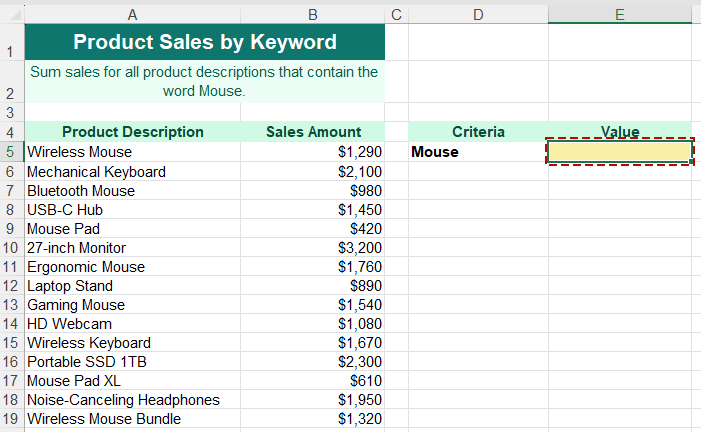
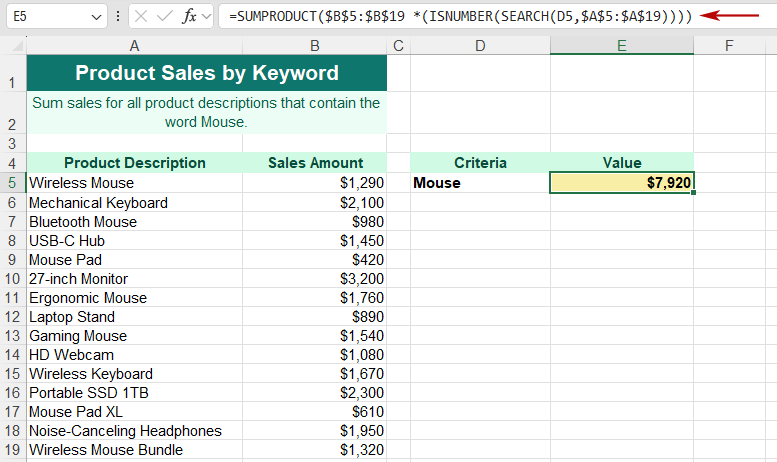
In the example below, product descriptions are searched for the word Mouse, and the corresponding Sales Amount values are added together.
Sum matching values with Formula Helper Plus Online
Use this method when you want to total values based on a word or phrase contained anywhere within corresponding text cells.
1. Prepare the data you want to evaluate. In this example, product descriptions are stored in A5:A19, sales amounts are stored in B5:B19, and the search criterion Mouse is entered in D5. Select E5, where you want the total sales result to appear.
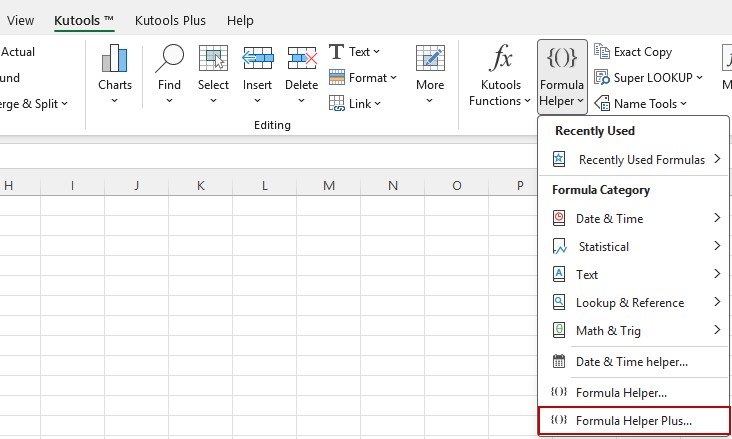
2. Click Kutools > Formula Helper > Formula Helper Plus.
3. In Formula Helper Plus, select the Online tab. Under Category, click Math, then select Sum values if cell contains specific or partial text.
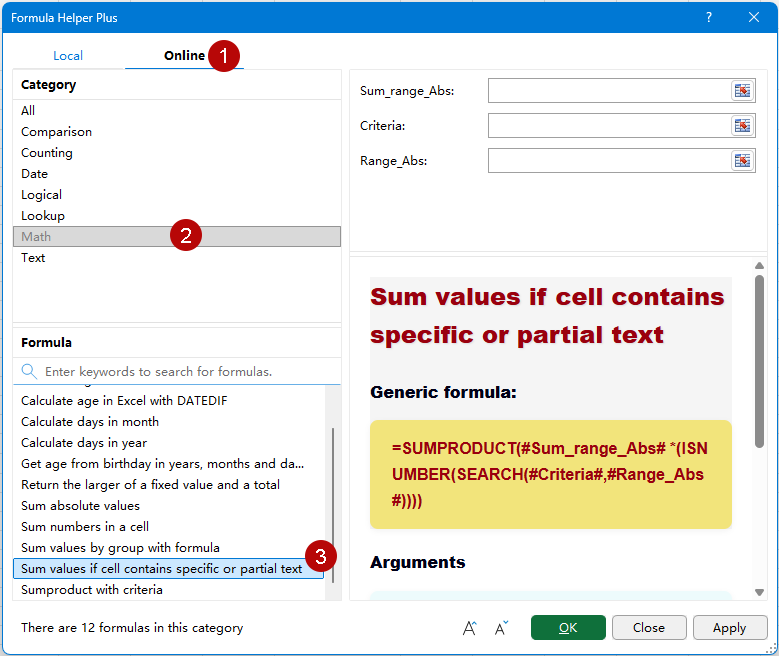
Tip: You can also enter keywords such as sum values or partial text in the search box to quickly locate the formula.
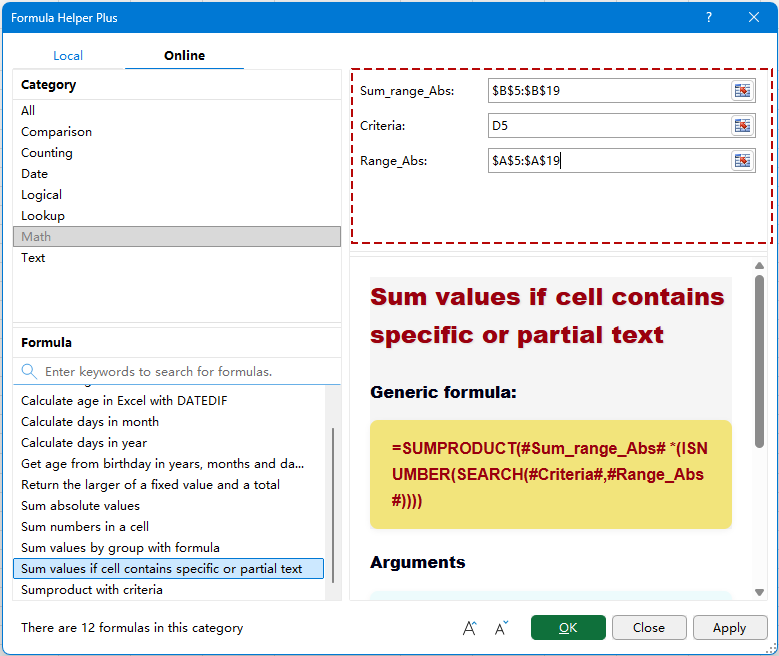
4. Specify the three arguments. Select B5:B19 as Sum_range_Abs, D5 as Criteria, and A5:A19 as Range_Abs.
5. Click OK or Apply to insert the formula and calculate the result.
Result: All sales amounts whose corresponding product descriptions contain Mouse are added together. In this example, the total sales amount is $7,920.
Understand the three formula arguments
The formula uses three arguments to determine which text to search, which cells to search, and which corresponding values to add.
| Argument | Purpose | Example |
| Sum_range_Abs | The numeric range containing the values you want to add. | B5:B19 — Sales Amount |
| Criteria | The specific or partial text you want to search for. | D5 — Mouse |
| Range_Abs | The text range in which Formula Helper Plus searches for the criteria. | A5:A19 — Product Description |
Tip: Sum_range_Abs and Range_Abs should cover corresponding rows and contain the same number of cells. For Criteria, you can select a cell containing the search text or enter the text directly.
How the generated SUMPRODUCT, SEARCH, and ISNUMBER formula works
The generic formula used by Sum values if cell contains specific or partial text is:
=SUMPRODUCT((#Sum_range_Abs#)*(ISNUMBER(SEARCH(#Criteria#,#Range_Abs#))))With the cell references used in this example, Formula Helper Plus generates a formula based on the following structure:
=SUMPRODUCT((B5:B19)*(ISNUMBER(SEARCH(D5,A5:A19))))
The formula works in three main parts:
- SEARCH(D5,A5:A19) searches each product description for the text in D5, which is Mouse. When the text is found, SEARCH returns its position within the cell.
- ISNUMBER checks the SEARCH results. A numeric result means the text was found, so the corresponding item is treated as a match.
- SUMPRODUCT uses those matches to include the corresponding values from B5:B19 and returns their total.
For example, Wireless Mouse, Bluetooth Mouse, and Mouse Pad all contain the word Mouse, so their corresponding sales amounts are included. Mechanical Keyboard does not contain the search text, so its sales amount is excluded.
Understand how partial text matching works
The search criteria does not need to match the entire contents of a cell. As long as the specified text appears anywhere within the cell, that row is treated as a match.
| Product Description | Criteria | Match? |
| Wireless Mouse | Mouse | Yes |
| Mouse Pad | Mouse | Yes |
| Bluetooth Mouse | Mouse | Yes |
| Mechanical Keyboard | Mouse | No |
Key point: Because the generated formula uses SEARCH, the match is not case-sensitive. Text such as Mouse, mouse, and MOUSE can all be recognized regardless of capitalization.
Tips for accurate text-based sums
Keep the following points in mind when using this formula to calculate totals based on text.
- Keep the two ranges aligned: Sum_range_Abs and Range_Abs should contain the same number of rows, with each value corresponding to the text on the same row.
- Use numeric values in Sum_range_Abs: The sum range should contain numbers that Excel can include in the calculation.
- Choose the criteria carefully: Partial matching means that the search text can also match cells containing the same characters as part of a longer value.
- Avoid overly broad search text: A short or general keyword may match more records than you intended and produce a higher total.
- Remember that matching is case-insensitive: Because the formula uses SEARCH, uppercase and lowercase differences do not affect the match.
- Review unexpected results: If the total is higher than expected, check whether the criteria also appears within product descriptions or other text that you did not intend to include.
Practical use cases
This formula is useful whenever numeric values need to be totaled based on words or phrases contained within related text fields.
Sum sales for products containing a keyword
Search product descriptions for a word such as Mouse, Keyboard, or Monitor and add the corresponding sales amounts.
Sum expenses containing a category keyword
Search expense descriptions for terms such as Travel, Hotel, or Shipping and calculate the corresponding total expenses.
Sum orders for a product family
Use part of a product name or family name to total amounts across multiple related products whose descriptions contain the same keyword.
Sum transaction amounts based on description text
Search transaction descriptions for terms such as Refund, Subscription, or Service and add the amounts for matching records.
Sum hours for tasks containing a keyword
Search task descriptions for words such as Design, Testing, or Support and total the corresponding work hours.
About Formula Helper Plus
Formula Helper Plus in Kutools for Excel provides Local and Online formula libraries that help you find, understand, and insert useful formulas through a guided interface.
The Online library organizes formulas into categories such as Comparison, Counting, Date, Logical, Lookup, Math, and Text. You can browse formulas by category or use the search box to quickly locate one by name or purpose. Sum values if cell contains specific or partial text is available under the Math category.
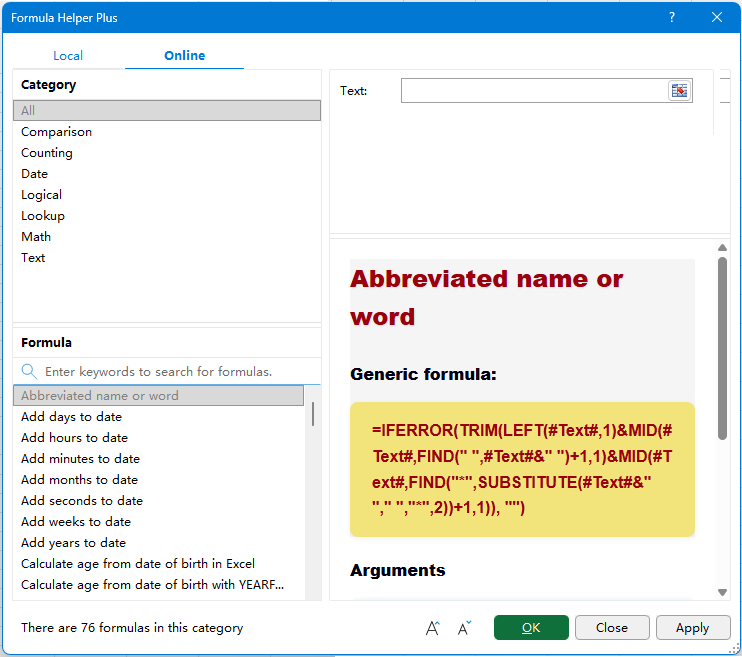
After selecting a formula, its argument boxes appear at the top of the window, while the right-hand information pane displays the formula description, generic formula, argument explanations, and other guidance to help you configure the formula correctly.
🔤 Display controls
Use the display controls at the bottom of the Formula Helper Plus window to adjust the text size in the right-hand information pane for easier reading. These controls are available in both the Local and Online libraries.
 Increase font size: Enlarge the formula description, generic formula, arguments, and other information displayed in the right-hand pane.
 Decrease font size: Reduce the text size in the right-hand pane when you want to view more information at once.
 Increase font size: Enlarge the formula description, generic formula, arguments, and other information displayed in the right-hand pane.
 Decrease font size: Reduce the text size in the right-hand pane when you want to view more information at once.
FAQ
What does Sum values if cell contains specific or partial text do?
It searches a specified text range for cells containing your criteria and adds the corresponding numeric values from another range.
Does the entire cell need to match the criteria?
No. The criteria can match part of the cell content. For example, Mouse can match Wireless Mouse, Bluetooth Mouse, Mouse Pad, and other cells containing that text.
Is the text matching case-sensitive?
No. The generated formula uses SEARCH, which is not case-sensitive, so differences between uppercase and lowercase letters do not affect the match.
Do Sum_range_Abs and Range_Abs need to be the same size?
Yes. The two ranges should cover corresponding records and contain the same number of cells. For example, B5:B19 can be used as Sum_range_Abs together with A5:A19 as Range_Abs.
Can I enter the search criteria directly?
Yes. For Criteria, you can either select a cell containing the search text or enter the text directly in Formula Helper Plus.
Why is the calculated total higher than expected?
Because the formula performs partial-text matching, the criteria may appear in more cells than you expected. Review the text range to see whether the search text is also contained within other descriptions that should not be included.
Can I change the criteria and recalculate the total?
Yes. If the formula refers to a criteria cell such as D5, changing the value in that cell allows Excel to recalculate the result using the new search text.
Where can I find Sum values if cell contains specific or partial text?
Click Kutools > Formula Helper > Formula Helper Plus, select the Online tab, and choose Math > Sum values if cell contains specific or partial text. You can also use the search box in the Online library to find the formula by keyword.
Productivity Tools Recommended
Office Tab: Use handy tabs in Microsoft Office, just like Chrome, Firefox, and the new Edge browser. Easily switch between documents with tabs — no more cluttered windows. Know more...
Kutools for Outlook: Kutools for Outlook offers 100+ powerful features for Microsoft Outlook 2010–2024 (and later versions), as well as Microsoft 365, helping you simplify email management and boost productivity. Know more...
Kutools for Excel
Kutools for Excel offers 300+ advanced features to streamline your work in Excel 2010 – 2024 and Microsoft 365. The feature above is just one of many time-saving tools included.

Table of Contents
- Advantages of Sum values if cell contains specific or partial text
- How to sum values if cells contain specific or partial text
- Sum matching values with Formula Helper Plus Online
- Understand the three formula arguments
- How the generated SUMPRODUCT, SEARCH, and ISNUMBER formula works
- Understand how partial text matching works
- Tips for accurate text-based sums
- Practical use cases
- About Formula Helper Plus
- FAQ
- The Best Office Productivity Tools
Kutools for Excel
Brings 300+ advanced features to Excel
- 🧩 Overview
- 📥 Free Download
- 🎁 30-Day Free Trial available