Turn Off Kutools for Excel Temporarily
Kutools for Excel provides a wide range of powerful tools to improve productivity in Microsoft Excel. In some situations, however, users may need to temporarily disable all Kutools features without uninstalling the add-in.
The Turn Off Kutools feature is designed for this purpose. It allows users to quickly deactivate all Kutools functions within the current Excel session. Once turned off, all Kutools-related commands in the ribbon become unavailable (displayed in grey).
This tutorial explains what the feature does, why you may need it, and how to use it step by step.
- What Is “Turn Off Kutools”?
- Why Would You Need to Turn Off Kutools?
- How to Turn Off Kutools in Excel
- How to Re-enable Kutools in Excel
- Important Notes
What Is “Turn Off Kutools”?
The Turn Off Kutools feature temporarily disables all Kutools for Excel functions in the current Excel session.
When activated:
- All Kutools menu items become grey and inactive
- All Kutools tools are temporarily unavailable
- Excel continues to run normally without Kutools interference
- The feature does not remove or uninstall Kutools
This is a session-based disable function, meaning it only affects the current open instance of Excel.
Why Would You Need to Turn Off Kutools?
Although Kutools is designed to enhance Excel functionality, there are several practical situations where temporarily disabling it may be useful:
How to Turn Off Kutools in Excel
To turn off Kutools in Excel temporarily, follow these steps:
- Go to Kutools / Kutools Plus > Help > Turn Off Kutools.
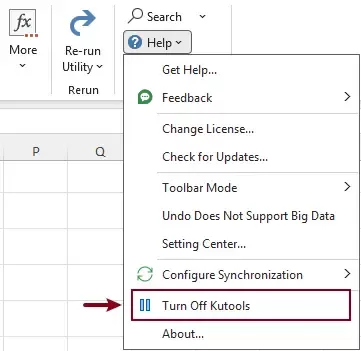
- After clicking the option, a prompt window will appear, click the Got it button to close it.
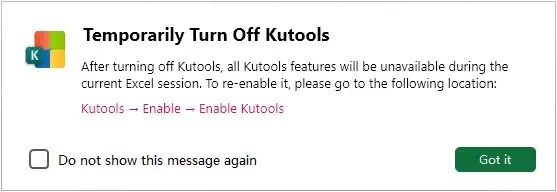 Note: In the confirmation dialog, you can check “Do not show this message again” if you prefer to skip this reminder during the current session.
Now Kutools becomes disabled in Excel.
- All Kutools features in the ribbon will turn grey
- Only the “Enable Kutools” button remains active
How to Re-enable Kutools in Excel
To restore full functionality of Kutools for Excel:
- Go to the Kutools tab.
- Click Enable Kutools.

All tools will immediately become active again.
Important Notes
Temporary Effect Only
This feature only affects the current Excel session. If you close and reopen Excel, Kutools will automatically be enabled again.
No Data Loss or File Changes
Turning off Kutools does not affect:
- Your Excel files
- Formulas
- Formatting
- Data structure
It only disables the add-in interface.
Excel Continues to Function Normally
Even when Kutools is turned off:
- Microsoft Excel works as usual
- Other non-Kutools features remain unaffected
Reversible Anytime
You can re-enable Kutools at any time during the same session with one click.
Conclusion
The Turn Off Kutools feature provides a quick and convenient way to temporarily disable all Kutools functions in Excel without uninstalling the add-in or changing system settings.
It is especially useful for troubleshooting, compatibility checks, or working in a clean Excel environment. With a single click, users can switch Kutools off or back on whenever needed, making it a flexible session-based control tool.
Productivity Tools Recommended
Office Tab: Use handy tabs in Microsoft Office, just like Chrome, Firefox, and the new Edge browser. Easily switch between documents with tabs — no more cluttered windows. Know more...
Kutools for Outlook: Kutools for Outlook offers 100+ powerful features for Microsoft Outlook 2010–2024 (and later versions), as well as Microsoft 365, helping you simplify email management and boost productivity. Know more...
Kutools for Excel
Kutools for Excel offers 300+ advanced features to streamline your work in Excel 2010 – 2024 and Microsoft 365. The feature above is just one of many time-saving tools included.

Table of contents
- What Is “Turn Off Kutools”?
- Why Would You Need to Turn Off Kutools?
- How to Turn Off Kutools in Excel
- How to Re-enable Kutools in Excel
- Important Notes
- The Best Office Productivity Tools
Kutools for Excel
Brings 300+ powerful features to streamline your Excel tasks.
- ⬇️ Free Download
- 🛒 Purchase Now
- 📘 Feature Tutorials
- 🎁 30-Day Free Trial