Advanced Sort in ZKutools Anywhere for Excel by AI
The Advanced Sort feature in ZKutools Anywhere for Excel helps you sort Excel data using natural language instructions. Instead of manually opening Excel’s Sort dialog box and setting each sort level one by one, you can simply describe how you want the data to be sorted, and ZKutools will generate the sorting result for you.
This feature is especially useful when you need to perform multi-level sorting, custom sorting, or repeated sorting tasks in Excel.
Advantages of Advanced Sort in ZKutools for Excel
Tips for Writing Better Sorting Ruless
Advantages of Advanced Sort in ZKutools for Excel
Compared to traditional spreadsheet sorting methods, the Advanced Sort tool provides a significantly more fluid, intelligent, and powerful workflow:
1. Sort data with natural language
You do not need to manually configure each sort level. Just type what you want, for example:
ZKutools will understand the rule and apply the sorting operation to your selected data range.
2. Supports multi-level sorting
Advanced Sort can handle sorting by more than one column. For example, you can sort first by Region, then by Product, and then by Order Date.
This is useful when your table contains several categories and you want a more organized result.
3. Easier than traditional sorting dialogs
In Excel’s built-in Sort dialog, you usually need to manually select each column, sort order, and sorting level. With Advanced Sort, you can describe the rule directly in plain English.
This saves time and makes the sorting process easier, especially for users who are not familiar with advanced Excel sorting settings.
4. Context-Aware Parsing
The tool automatically scans your active data table, cross-references column headers such as Region, Product, Amount, and Order Date, and accurately matches your text instructions to the correct data types.
How to Use Advanced Sort?
Using Advanced Sort in ZKutools Anywhere for Excel is simple and intuitive. Instead of manually setting multiple sort levels in Excel, you can describe your sorting rules in plain language, and ZKutools will help apply them to the selected data range. Before you start, make sure your table has clear column headers and that the entire data range is selected, so each row stays correctly matched after sorting.
Step 1: Select the data range
Open your worksheet and select the data range you want to sort.
Step 2: Open Advanced Sort
Click ZKutools > Assistant > Advanced Sort. The Advanced Sort panel will appear on the right side of Excel. See screenshot:
Step 3: Enter your sorting rule
In the chat box, type the sorting rule you want to apply.
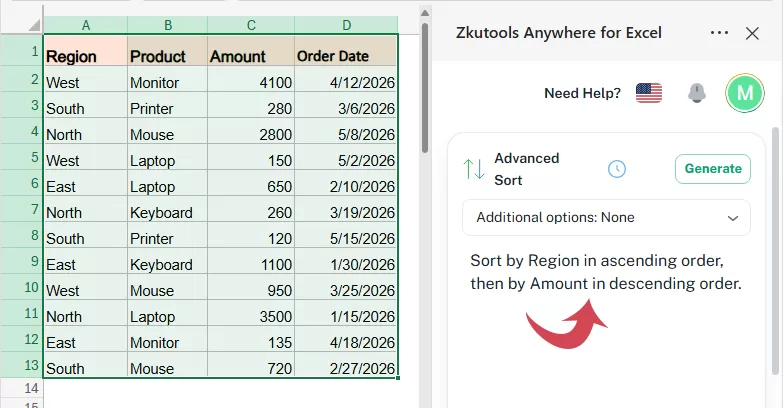
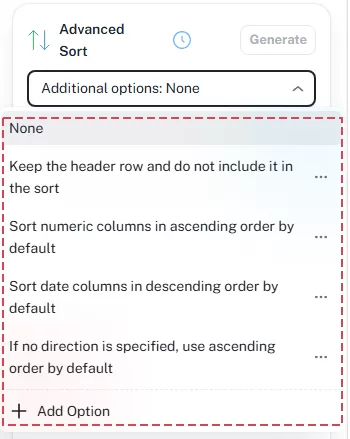
Additional options:
- Click this drop down to apply extra sorting preferences before generating the sort rules. For example, you can choose whether to keep the header row out of the sort, ort numeric columns in ascending order by default… If no extra setting is needed, select None.
- You can also click Add Option to create a custom sorting preference for future use..
- To manage existing options, click the three-dot button next to an option to edit or delete it.
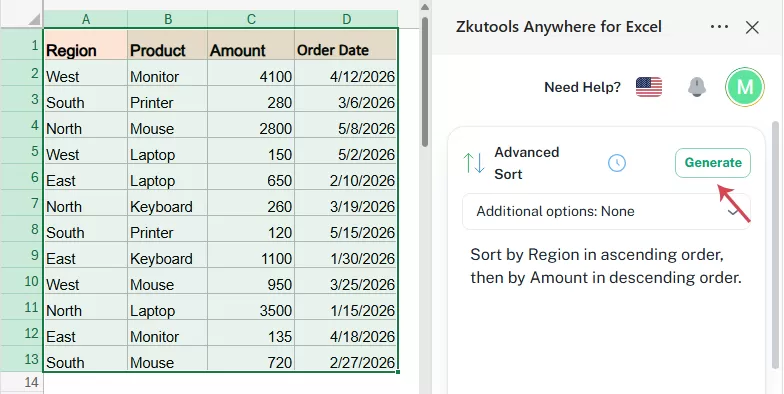
Step 4: Click Generate
- After entering the sorting rule, click the Generate button.
- ZKutools will analyze your instruction and display the detected sort rules for your review, then click Apply to sort the selected range.
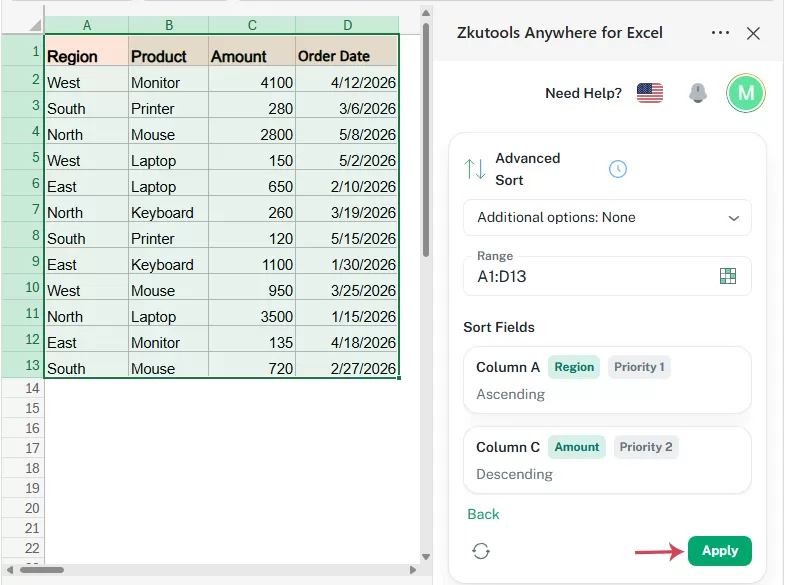
Result:
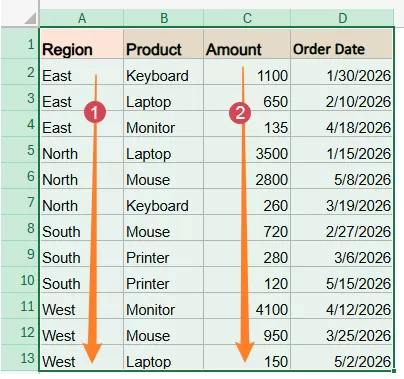
The table is sorted based on your specified sorting rules, such as sorting by Region first and then by Sales Amount. See screenshot:
Tips for Writing Better Sorting Rules
To maximize the precision of the AI engine, construct your rules with clear column references and sequential indicators. Here are some optimized formatting tips and structured examples:
1. Use exact column names
It is best to use the same column names that appear in your worksheet. Good example:
Less clear example:
Using exact column headers helps ZKutools identify the correct fields.
2. Specify the sorting order
Always mention whether you want the data sorted in ascending or descending order.
Examples:
3. Describe multi-level sorting clearly
When sorting by multiple columns, use words like then or after that.
Example:
This tells ZKutools the sorting priority.
4. Avoid vague instructions
Try not to use unclear commands such as:
Instead, describe the exact sorting logic:
Other Options of Advanced Sort feature
1 Regenerate the results
Regenerate: : Click this button to generate the sort rules again based on your current instruction.
2 Back to the main interface
Back: Click this option to return to the main Advanced Sort interface. Use it when you want to revise your sorting instruction, enter a new sorting rule, or start the sorting setup again before applying the result.
3 Reuse Previous Sort Rules
Click the history icon to view previously generated or applied sort rules. You can select a saved record to reuse the same sorting setup quickly. This is useful when you often sort similar tables using the same rules. 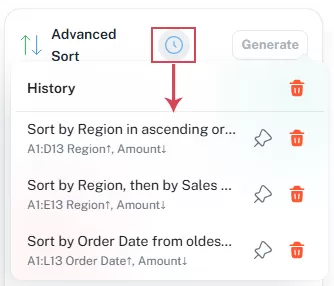
Pin: Click the pin icon to keep a frequently used sort rule in the history list for quick access.
Delete: Click the trash icon next to a record to remove that specific history item.
Clear All History: Click the trash icon at the top to clear all history records.
Notes and Limitations
1 Select the correct range before sorting
Before using Advanced Sort, make sure you select the complete table range. If you select only one column, the data may not sort as expected because other columns may not move together. For best results, select the entire table, including headers.
2 Check date and number formats
If your dates or numbers are stored as text, the sorting result may be incorrect.
For example, date values should be real Excel dates, not text strings. Amount values should be numeric values, not numbers stored as text.
3 Review the result after sorting
After applying a sorting rule, always check the result. This is especially important when sorting large tables, multi-column data, or custom order lists.
4 Save your workbook before sorting important data
Sorting changes the order of rows in your worksheet. Before sorting important data, it is recommended to save a copy of the workbook or duplicate the worksheet as a backup.
5 Merged Cells:
Like Excel's native sorting mechanisms, tables with unevenly merged cells inside the data array cannot be sorted. Ensure all data grids are unmerged prior to executing a rule.
Conclusion
The Advanced Sort feature in ZKutools Anywhere for Excel shifts the paradigm of data organization away from rigid menus and brings it into the intuitive era of natural language requests. By converting simple descriptive text rules into multi-layered data execution steps, it saves valuable time and drastically simplifies complex analytical preparations. Whether you are dealing with regional reports, tracking chronological order dates, or evaluating high-volume amounts, clear and natural typing is all it takes to keep your spreadsheets perfectly aligned.
Table of contents
- Advantages of Advanced Sort in ZKutools for Excel
- How to Use Advanced Sort?
- Tips for Writing Better Sorting Ruless
- Other Options of Advanced Sort feature
- Notes and Limitations
- Conclusion
ZKutools for Excel
Brings AI-powered assistance and practical productivity tools directly into Excel for the web, Windows, Mac, and iPad.