AI Text Processing in Excel Online with ZKutools Anywhere for Excel
Working with text data in Excel often requires repetitive and time-consuming tasks such as translating content, summarizing long text, cleaning messy data, standardizing addresses, and transforming text into a consistent format.
Traditionally, these tasks require complex formulas, multiple Excel functions, manual editing, or even third-party tools. With AI Text Processing in ZKutools Anywhere for Excel, you can perform these operations using simple natural-language instructions and AI assistance directly inside Excel Online.
In this article, you'll learn what AI Text Processing is, its advantages over Excel's built-in capabilities, and how to use it to process text data more efficiently.
What Is AI Text Processing?
AI Text Processing is an AI-powered feature that helps you perform various text-related operations quickly and accurately.
It includes a variety of built-in options, such as:
- Text Translate
- Text Polishing
- Text Rewriting
- Text Summary
- Text Cleaning
- Address Standardization
- Custom Text Processing Operations
Instead of combining multiple formulas or manually editing data, you can simply describe the result you want, and the AI will perform the operation automatically.
Whether you're cleaning customer data, translating product descriptions, standardizing addresses, or extracting key information from text, AI Text Processing can significantly reduce manual work.
Advantages of AI Text Processing Compared with Excel Online
Excel Online provides several text functions, but many common text-processing tasks still require complicated formulas and multiple steps.
For example:
- Translation usually requires external tools.
- Summarizing text is not available natively.
- Cleaning inconsistent data often involves multiple formulas.
- Address formatting typically requires manual editing.
- Custom text transformations can be difficult to build.
With AI Text Processing, you can:
- Use natural-language instructions instead of formulas.
- Process large amounts of text in seconds.
- Handle multiple text-processing tasks from one interface.
- Preview results before applying changes.
- Create custom text-processing operations.
- Reduce manual errors and repetitive work.
How to Use AI Text Processing
Step 1: Install ZKutools Anywhere for Excel
First, install the ZKutools Anywhere for Excel add-in for Excel Online.
For installation instructions, refer to:
How to Install ZKutools Anywhere for Excel
Step 2: Open AI Text Processing
Select the cells containing the text you want to process.
Then click:

The AI Text Processing pane will appear on the right side of Excel.
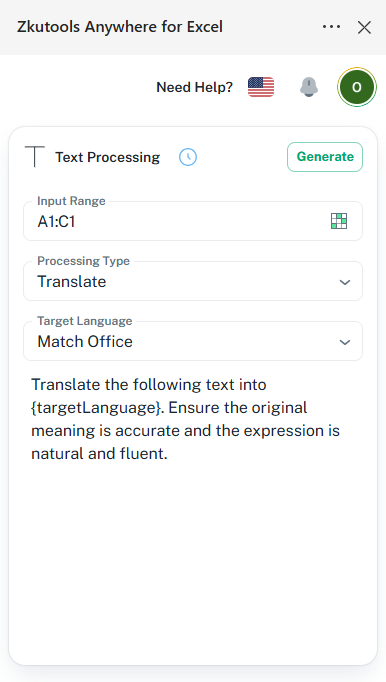
Tip: The first time you use this feature, you will need to register a Kutools AI account using your email address.
After registration, you can use the AI features for free.
Step 4: Select an Operation
Choose one of the available text-processing operations.
For example, select the Text Summary from the drop-down list.
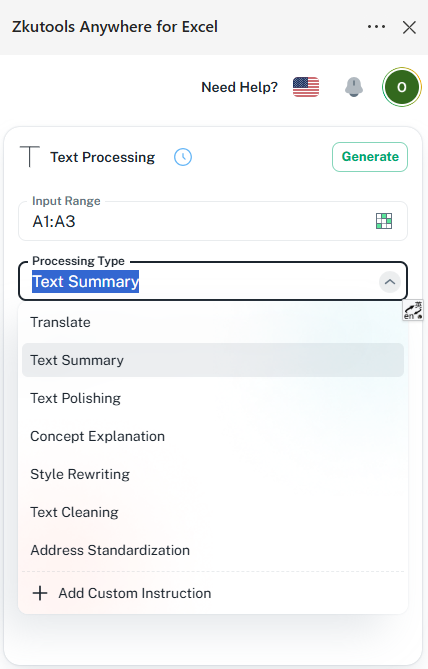
After selecting an operation, you can customize the description below to fit your specific requirements.
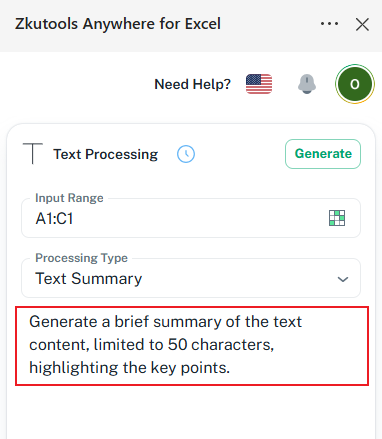
Step 5: Click Generate
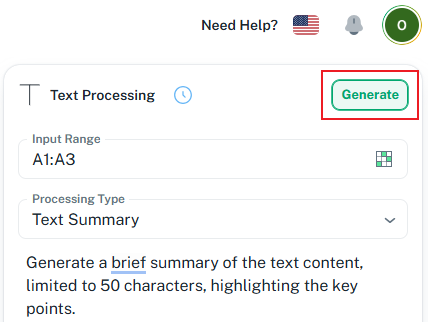
The AI will process the selected data and display a preview of the results.
Review the output and confirm that it meets your expectations.
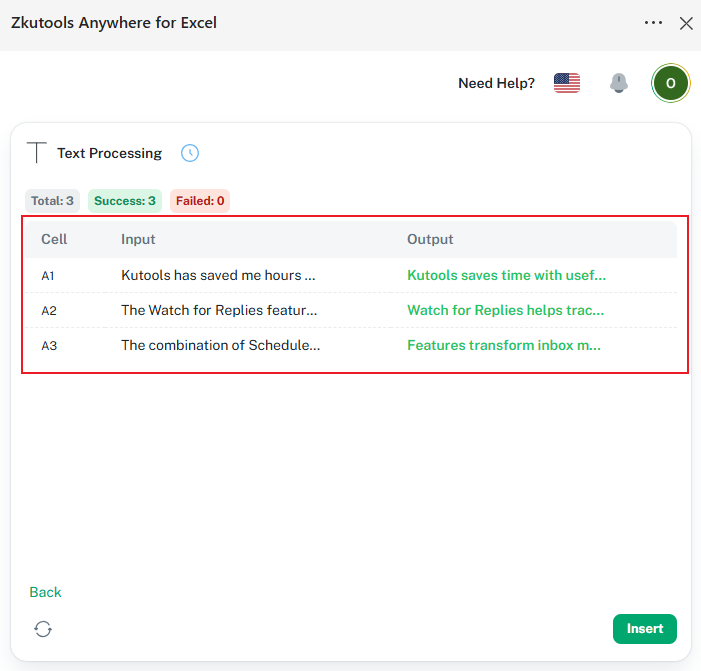
Step 6: Insert the Results
Once satisfied with the preview, click:
The processed results will be written back to your worksheet.
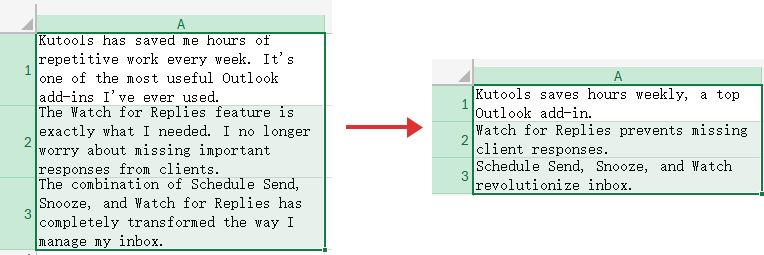
Feature Examples
Text Translate
The Text Translate feature allows you to translate text into different languages directly within Excel.
Example
Suppose you have a table in Spanish and want to translate it into English so you can easily understand the content.

- Select the table you want to translate.
- Choose Translate from the available AI actions.
- Select the target language:
- Match Office Language, or
- English
- Click Generate.
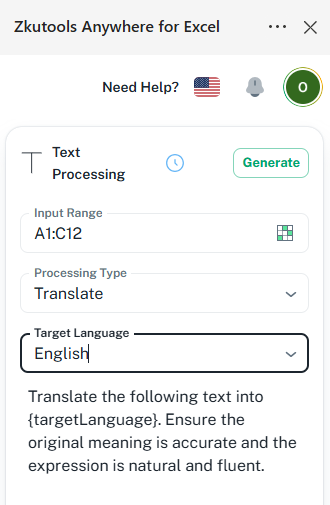
The translated result will be displayed immediately.
Review the translation in the Result Preview window before applying it.
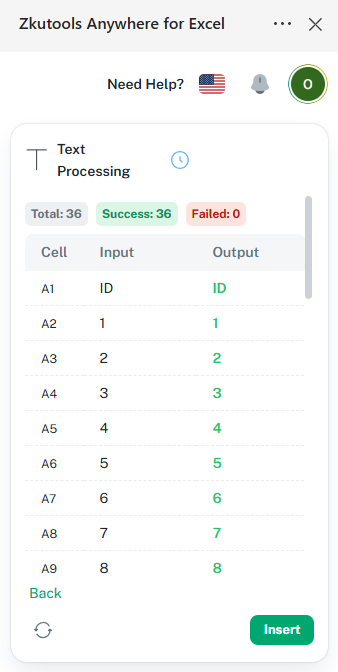
You can then:
Insert the translated content to replace the original table.
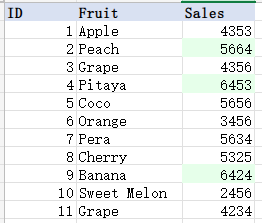
This allows you to quickly convert foreign-language tables into readable content without manually copying, pasting, or using external translation tools.
Text Cleaning
The Text Cleaning feature helps remove unwanted content and improve data consistency.
It can:
- Remove extra spaces
- Remove specific characters
- Remove special symbols
- Standardize capitalization
- Clean inconsistent formatting
- Intelligently correct common typos and mistakes
While keeping the original meaning unchanged.
Example
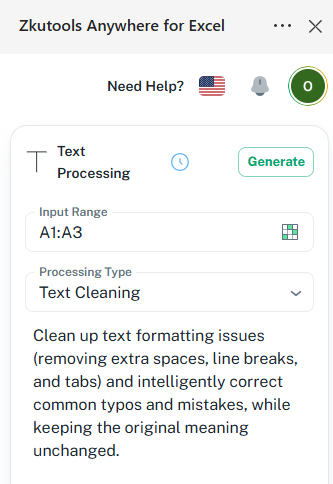
Original:

- Select the data.
- Select Text Cleaning from the available AI actions.
- Click Generate.
Result preview
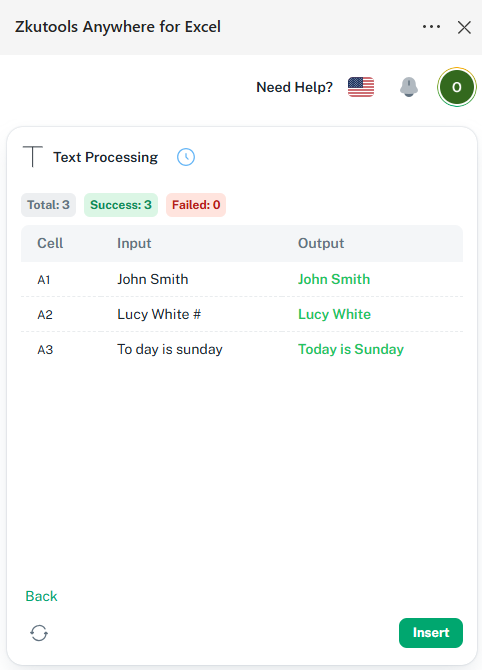
Insert to replace the original data.
Cleaned:

This feature is particularly useful when importing data from external sources.
Address Standardization
Addresses often appear in different formats, making analysis and sorting difficult.
The Address Standardization feature can automatically reorganize addresses into a consistent structure.
Example
Original:

Standardized:
- Select the addresses.
- Select Address Standardization from the available AI actions.
- Click Generate.
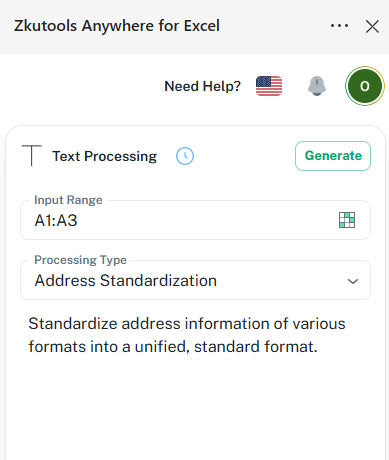
Result preview
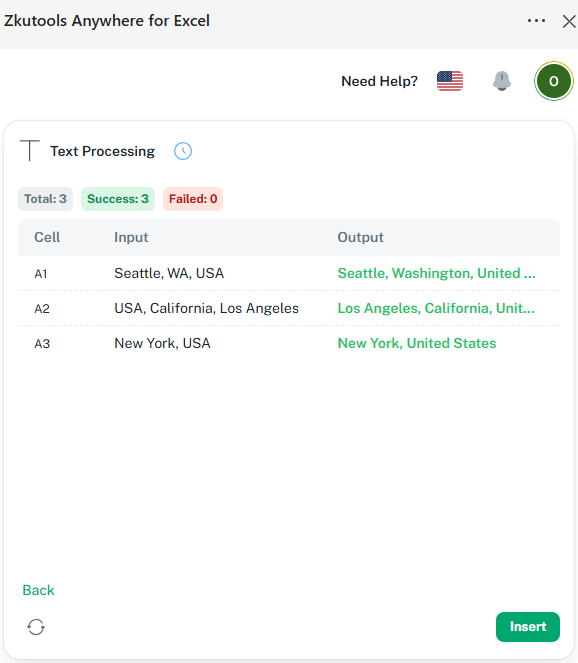
Result:

This makes address data easier to manage, filter, and analyze.
Custom Operations
If the built-in options do not meet your needs, you can create your own text-processing instructions.
Simply describe what you want the AI to do.
Example
Extract only the company name from each email signature.
Original:

- Select the signatures that you want to extract company names from.
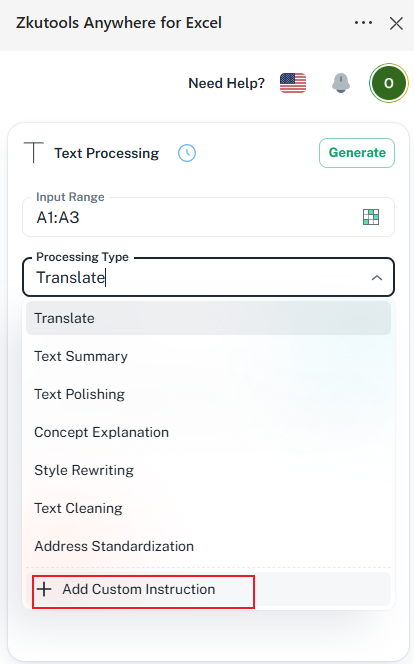
- Select Add Custom Instruction from the drop-down list
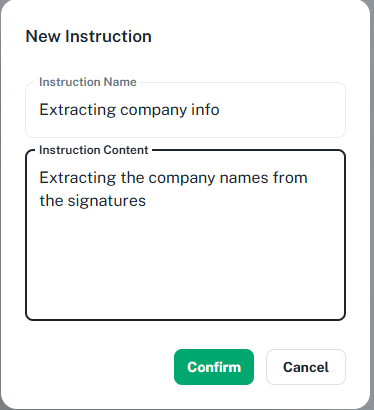
- Enter the instruction name and contents. Click Confirm.
- Click Generate.
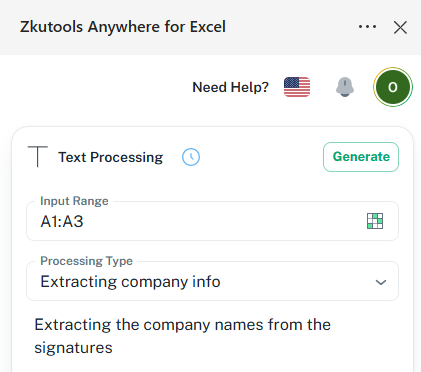
The AI will analyze the text and return only the company names.
Result preview
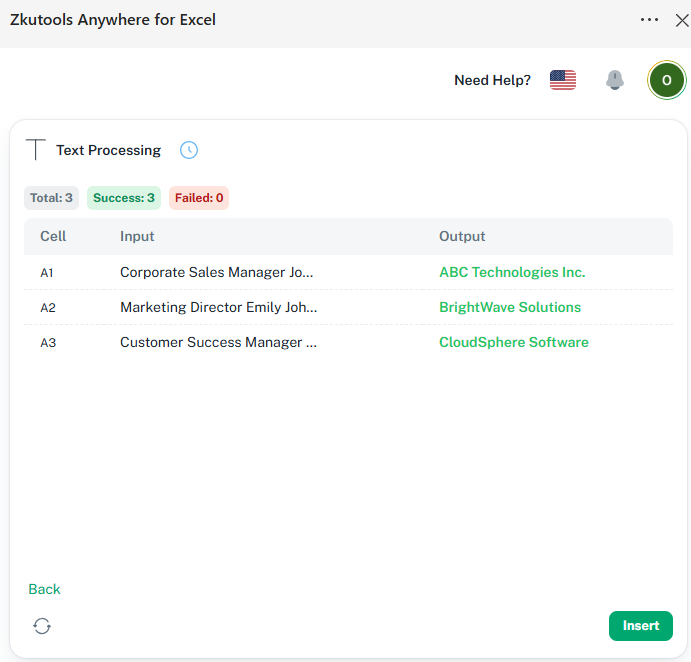
Click Insert to replace the original data.
Other examples include:
- Extract product codes
- Convert text to title case
- Remove email addresses
- Extract keywords
- Rewrite descriptions
- Categorize text content
Additional Tips
Change the Language: Click the flag icon in the pane to switch languages.

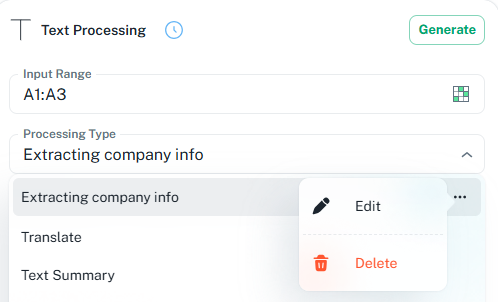
Edit or Delete the Option: Click  to edit or remove the related option.
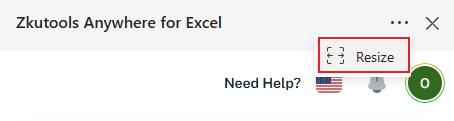
Resize the Pane: You can resize the task pane in two ways:
- Click the resize button in the pane
- Or drag the left border of the pane directly
Final Thoughts
AI Text Processing in ZKutools Anywhere for Excel makes text manipulation significantly easier in Excel Online.
Instead of relying on complicated formulas, manual editing, or external tools, you can use AI to translate, summarize, clean, standardize, and transform text data with just a few clicks.
Whether you're managing customer information, survey results, business documents, or imported datasets, AI Text Processing can help you save time, improve accuracy, and work more efficiently.
Table of contents
- What Is AI Text Processing?
- Advantages of AI Text Processing Compared with Excel Online
- How to Use AI Text Processing
- Feature Examples
- Text Translate
- Text Cleaning
- Address Standardization
- Custom Operations
- Best Office Productivity Tools