Change Case in Excel: Uppercase, Lowercase, Proper Case, Sentence Case, and AI Smart Case
Text in Excel often comes from different sources, and the capitalization may not be consistent. Some values may be all uppercase, some may be all lowercase, and some may have mixed or incorrect capitalization. This can happen with customer names, product names, report titles, descriptions, imported data, or copied text.
The Change Case feature in ZKutools Anywhere for Excel helps you quickly convert text case directly in Excel. You can use classic non-AI options such as UPPERCASE, lowercase, Proper Case, Sentence case, and Toggle Case. For more advanced text capitalization, you can also use the AI Smart option to handle abbreviations, brand names, title case, proper nouns, and custom rules.
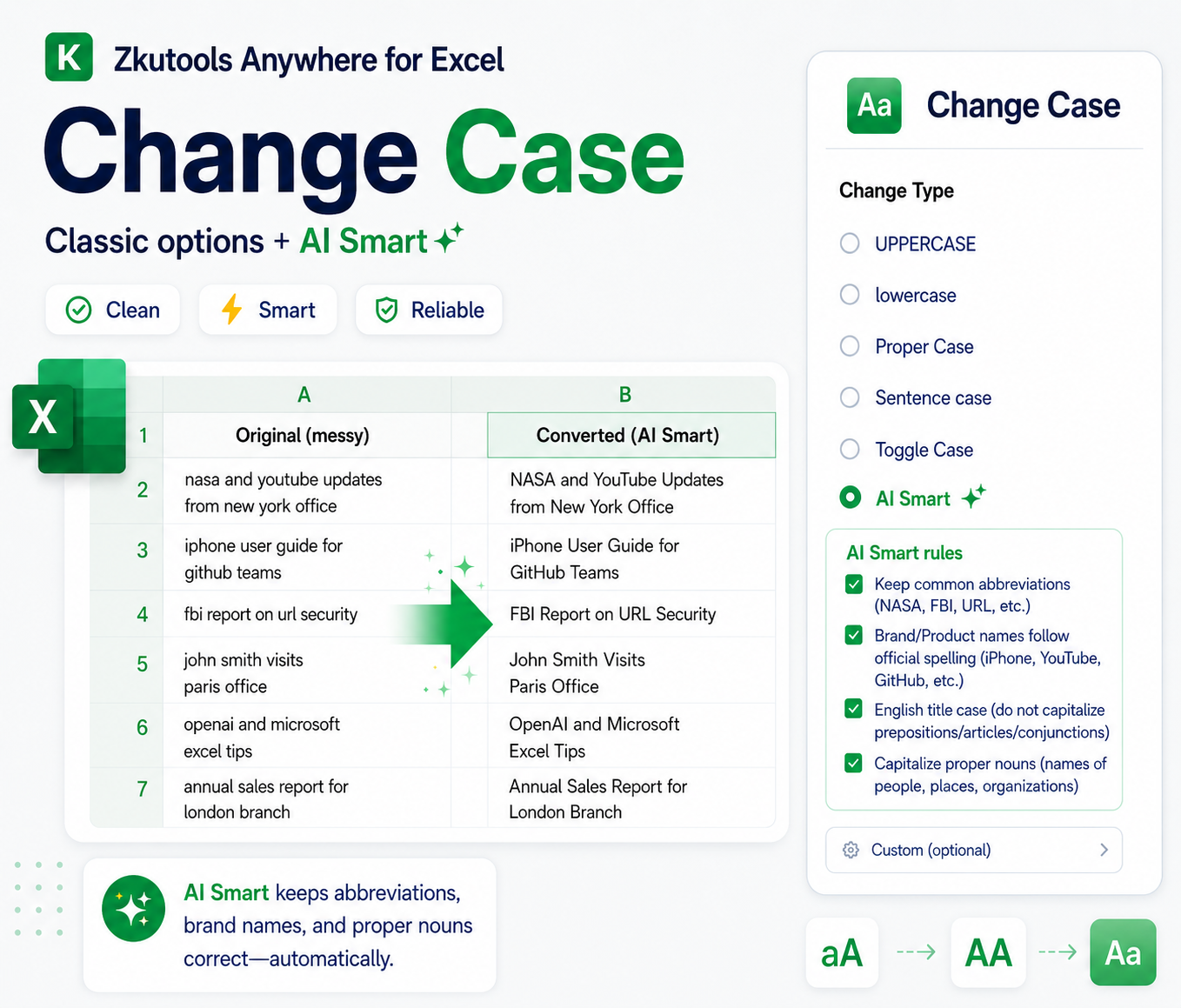
Advantages of Change Case
Change text case without formulas
No need to create helper columns with UPPER, LOWER, or PROPER formulas. Select your cells, choose a case type, preview the result, and apply the conversion directly.
Clean inconsistent capitalization quickly
Imported or copied data often contains mixed capitalization, such as all caps, all lowercase, or random case. Change Case helps standardize names, titles, labels, descriptions, and text records in just a few clicks.
Cover everyday case conversion needs
Use classic options to convert text to UPPERCASE, lowercase, Proper Case, Sentence case, or Toggle Case, depending on how you want the selected text to appear.
Preview the result before applying
The preview area shows both the original value and the converted result, so you can check the output before changing your worksheet data. For classic options, the preview appears automatically.
Handle real-world capitalization with AI Smart
Simple case rules may not handle text like NASA, iPhone, YouTube, GitHub, names, places, or English titles correctly. AI Smart helps apply more natural capitalization rules for these real-world cases.
Add custom rules for special text
When preset rules are not enough, select Custom under AI Smart and describe your own conversion rule, such as keeping product codes uppercase, preserving model names, or following your company’s naming style.
Method 1: Change Case with Classic Options
Before you start, make sure ZKutools Anywhere for Excel is available in your Excel. Get it from Microsoft AppSource if needed.
The Change Case feature includes both classic options and an AI Smart option. The classic options, including UPPERCASE, lowercase, Proper Case, Sentence case, and Toggle Case, are free to use directly and do not require AI. They are ideal for simple and predictable text case conversions.
Step 1: Open Change Case
Select the cells you want to convert. Then click ZKUTOOLS > Text > Change Case to open the Change Case dialog.
Step 2: Choose a classic change type
In the Change Type list, choose the option that matches the result you need:
- UPPERCASE: Converts all selected text to capital letters.
- lowercase: Converts all selected text to small letters.
- Proper Case: Capitalizes the first letter of each word.
- Sentence case: Capitalizes the first letter of each sentence.
- Toggle Case: Switches uppercase letters to lowercase and lowercase letters to uppercase.
In this example, we select the Proper Case option to capitalize the first letter of each word.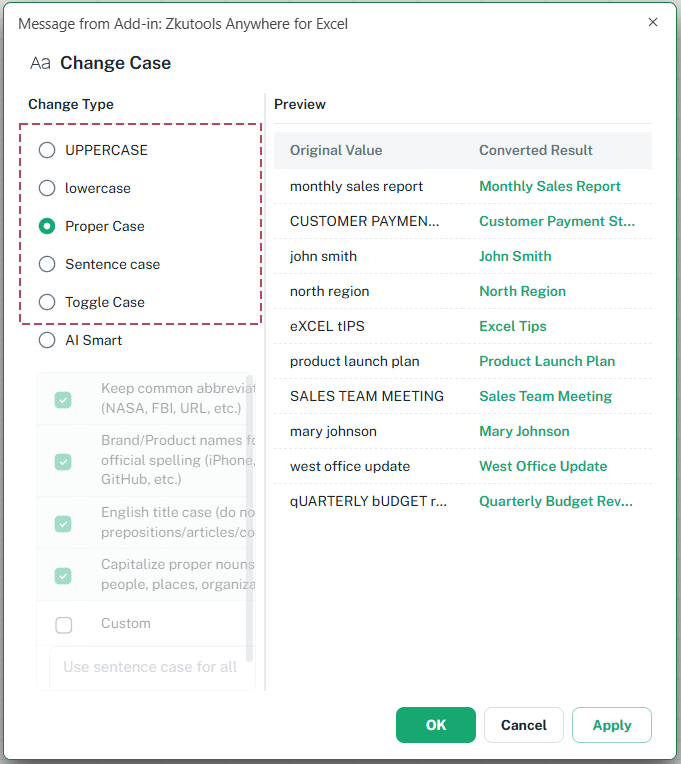
Step 3: Preview and apply the conversion
Check the Original Value and Converted Result in the preview area to confirm the conversion.
Click OK to apply the change and close the dialog, or click Apply to apply it and keep the dialog open.
Result
The selected text is converted directly in Excel according to the classic change type you selected. In this example, each word is converted to Proper Case.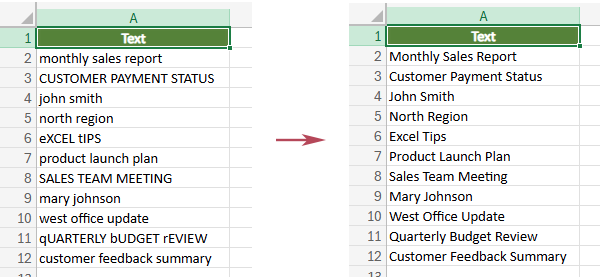
- Use classic options for simple and predictable changes, such as converting text to UPPERCASE, lowercase, Proper Case, Sentence case, or Toggle Case.
- Use AI Smart when the text contains abbreviations, brand names, proper nouns, titles, or special capitalization rules.
- For classic options, the preview appears automatically after you select a change type.
- In the preview area, results that remain the same as the original value are shown in gray, while changed results are shown in green, so you can quickly see which cells will be updated.
Method 2: Use AI Smart for Smarter Case Conversion
Before you start, make sure ZKutools Anywhere for Excel is available in your Excel. Get it from Microsoft AppSource if needed.
AI Smart is useful when simple case rules are not enough. For example, regular Proper Case may not handle abbreviations, brand names, product names, title capitalization, or special naming rules correctly. AI Smart helps apply more natural and context-aware capitalization rules.
Note: Unlike the classic Change Case options, AI Smart requires a ZKutools AI account. Make sure you are signed in before using this option. You can start with 200,000 free tokens, and then continue with one ZKutools AI subscription for Excel, Outlook, and Word.
Step 1: Open Change Case
Select the cells you want to convert. Then click ZKUTOOLS > Text > Change Case to open the Change Case dialog.
Step 2: Use the AI Smart option
1. Choose the AI Smart first, then choose the rules you want to apply. You can use the preset rules, or select Custom to enter your own conversion rule. Available AI Smart rules include:
- Keep common abbreviations, such as NASA, FBI, and URL.
- Keep brand or product names in official spelling, such as iPhone, YouTube, and GitHub.
- Apply English title case rules, such as not capitalizing articles, prepositions, and conjunctions when appropriate.
- Capitalize proper nouns, such as names of people, places, and organizations.
- Select Custom and enter a custom rule, such as Keep file extensions lowercase.
2. For AI Smart, the preview is not generated automatically. Click the Refresh button in the preview area to generate the AI Preview.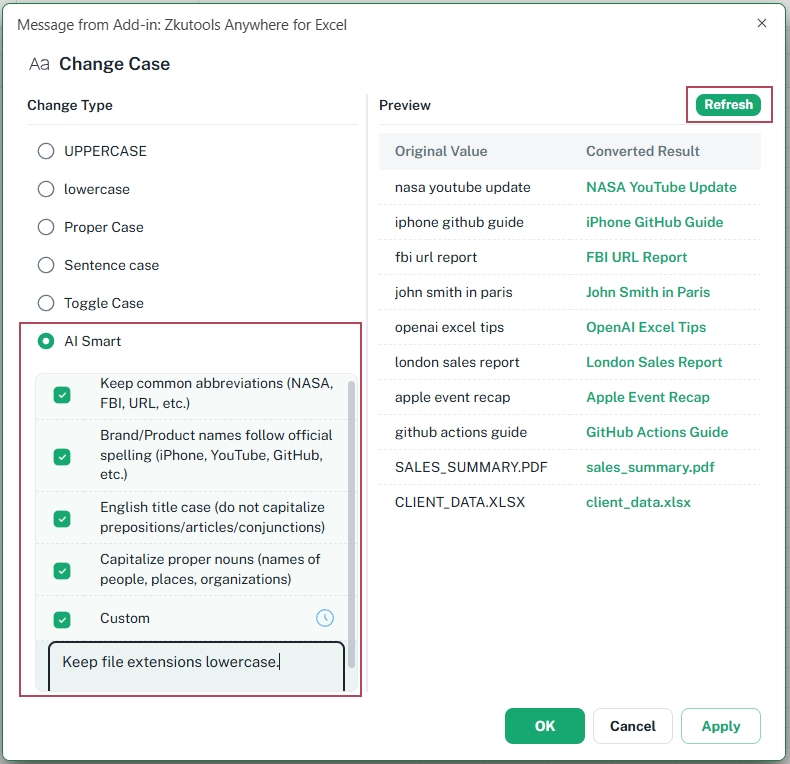
Result: Apply the AI Smart result
After you click OK or Apply, the selected cells are replaced with the AI Smart conversion results. The text is cleaned into a more natural capitalization style, while abbreviations, brand names, proper nouns, and lowercase file extensions are handled according to the selected AI rules.
For example, nasa youtube update becomes NASA YouTube Update, and SALES_SUMMARY.PDF becomes sales-summary.pdf.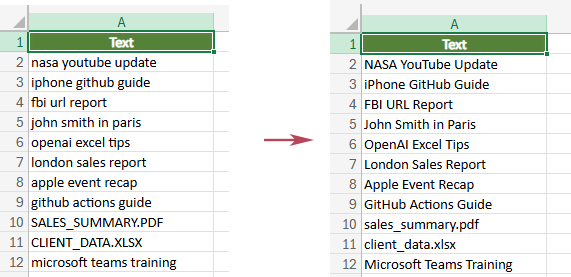
- For classic non-AI options, the preview appears automatically.
- For AI Smart, click Refresh to generate the AI Preview before applying the result.
- Use Custom when the preset AI Smart rules do not fully match your text conversion needs.
- In the preview area, results that remain the same as the original value are shown in gray, while changed results are shown in green, so you can quickly see which cells will be updated.
Understand the 6 Change Case Options
The Change Case feature provides six options. The first five are classic non-AI options, while AI Smart uses AI for more advanced capitalization rules.
| Change Type | AI Required? | What It Does | Example |
|---|---|---|---|
| UPPERCASE | No | Converts all letters to uppercase. | sales report → SALES REPORT |
| lowercase | No | Converts all letters to lowercase. | SALES REPORT → sales report |
| Proper Case | No | Capitalizes the first letter of each word. | john smith → John Smith |
| Sentence case | No | Capitalizes the first letter of a sentence and makes the rest lowercase. | MONTHLY SALES REPORT → Monthly sales report |
| Toggle Case | No | Switches uppercase letters to lowercase and lowercase letters to uppercase. | Sales Report → sALES rEPORT |
| AI Smart | Yes | Applies smarter capitalization rules with AI. | youtube report for nasa → YouTube Report for NASA |
What AI Smart Can Help With
AI Smart is designed for real-world text where simple uppercase, lowercase, or proper case rules may not be enough. It can help make the converted result look more natural and professional.
Keep common abbreviations
Keep common abbreviations in uppercase, such as NASA, FBI, and URL, instead of converting them like ordinary words.
Preserve brand and product spelling
Help keep brand or product names closer to their official spelling, such as iPhone, YouTube, and GitHub.
Apply English title case rules
Use title case rules for English titles, while avoiding unnecessary capitalization of small words such as articles, prepositions, and conjunctions when appropriate.
Capitalize proper nouns
Capitalize names of people, places, and organizations more naturally than a simple rule-based conversion.
Custom conversion rules
Select Custom and enter your own rule, such as keeping SKU codes uppercase, keeping product model names unchanged, or applying a special capitalization style required by your worksheet.
Frequently Asked Questions
Is Change Case free to use?
The classic Change Case options, including UPPERCASE, lowercase, Proper Case, Sentence case, and Toggle Case, can be used directly without AI. The AI Smart option requires a ZKutools AI account.
Which Change Case options do not require AI?
UPPERCASE, lowercase, Proper Case, Sentence case, and Toggle Case do not require AI.
Does AI Smart require a ZKutools AI account?
Yes. AI Smart uses AI-powered conversion rules, so you need to sign in with a ZKutools AI account before using it.
Why do I need to click Refresh for AI Smart?
AI Smart needs to generate an AI Preview based on the selected rules and your selected data. Click Refresh to create the preview before applying the result.
Why does the preview appear automatically for other options?
The classic options are rule-based and do not require AI processing, so the converted result can be shown automatically in the preview area.
Can I create my own AI conversion rule?
Yes. Select Custom under AI Smart and enter your own conversion rule based on your worksheet needs.
Which option should I use for names?
Use Proper Case for simple name conversion. If the text contains special names, organizations, brands, or mixed capitalization, AI Smart may give better results.
Which option should I use for titles?
Use Proper Case for simple titles. Use AI Smart with English title case when you want more natural title capitalization.
Conclusion
The Change Case feature in Kutools for Excel gives you a fast way to clean and standardize text capitalization in Excel. For common tasks, the classic options can quickly convert selected text to uppercase, lowercase, proper case, sentence case, or toggle case without formulas or helper columns.
When your text needs smarter handling, such as preserving abbreviations, brand names, proper nouns, title case, or custom capitalization rules, the AI Smart option gives you more flexibility. With preview support, you can check the converted result before applying changes to your worksheet.