How to Convert Numbers to Roman Numerals in Excel and Back
Need to convert numbers to Roman numerals in Excel? Roman numerals are often used for chapter numbers, section labels, outline levels, project codes, year labels, and other formatted lists. You may also receive Roman numerals in a worksheet and need to convert them back to normal numbers for sorting, filtering, or further processing.
Convert between Roman and Arabic numerals in ZKutools Anywhere for Excel helps you convert selected cells between normal numbers and Roman numerals without formulas. Here, Arabic numerals means normal Excel numbers, such as 1, 2, 3, and 2026. You can convert numbers to Roman numerals, or convert Roman numerals back to numbers.
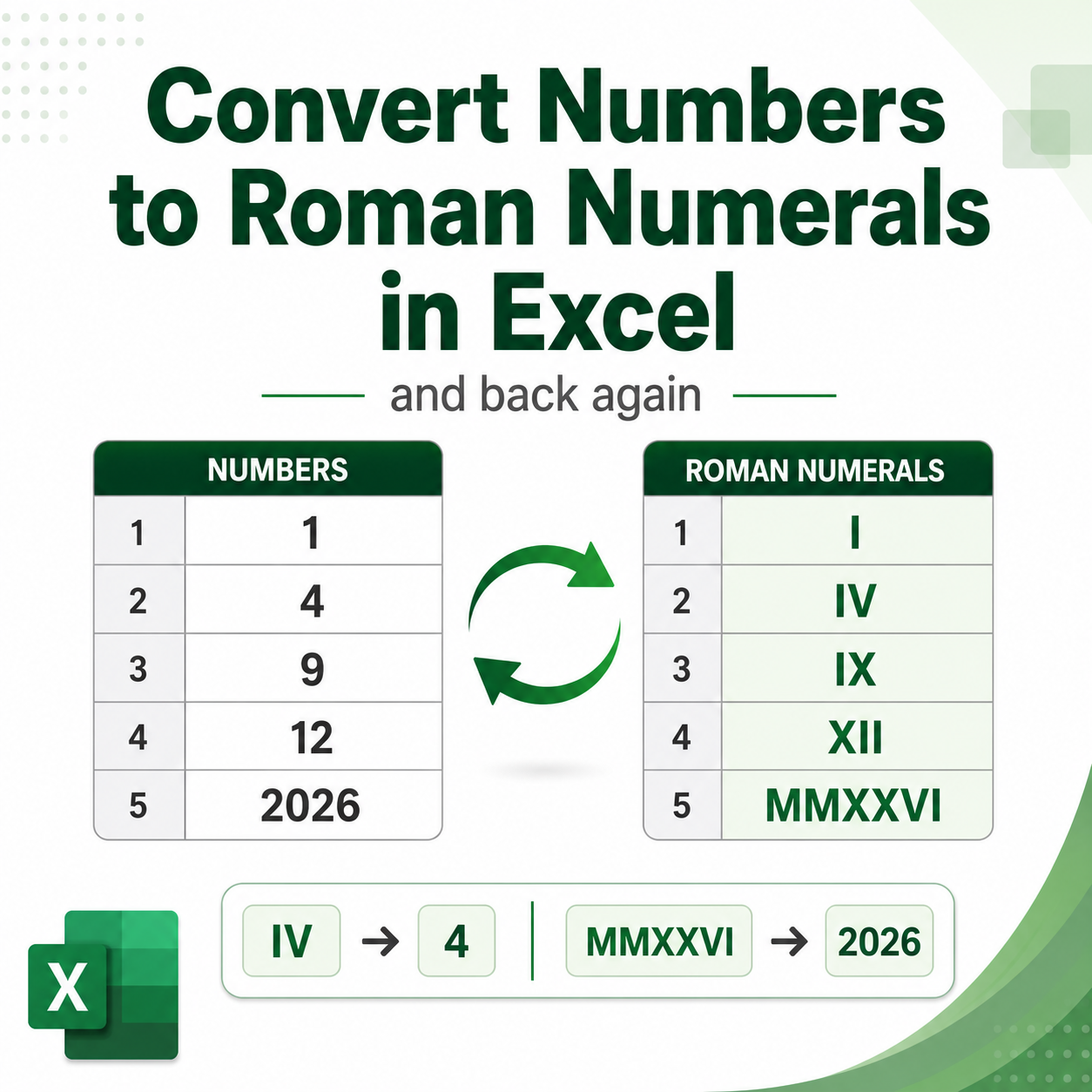
Advantages of converting Roman numerals with ZKutools
Convert without formulas
Convert selected cells directly without entering ROMAN, ARABIC, or other formulas in extra columns.
Support both conversion directions
Convert normal numbers to Roman numerals, or convert Roman numerals back to normal numbers when you need numeric values again.
Convert selected cells directly
Select the cells you want to convert, choose the conversion direction, and apply the result to the selected range.
Preview results before applying
Check the Original Value and Converted Result before applying the conversion. Results that change are highlighted, while unchanged results appear in gray, making it easier to review the output at a glance.
Convert numbers to Roman numerals in Excel
Use this option when your selected cells contain normal numbers and you want to display them as Roman numerals.
Before you start, make sure ZKutools Anywhere for Excel is available in your Excel. Get it from Microsoft AppSource if needed.
Note: Convert between Roman and Arabic numerals is a classic non-AI feature. It does not require a ZKutools AI account, AI tokens, or an AI subscription. You can use it directly after opening the feature.
Step 1: Open Convert between Roman and Arabic numerals
Select the cells containing the text you want to reverse. Then click ZKUTOOLS > Convert > Convert between Roman and Arabic numerals.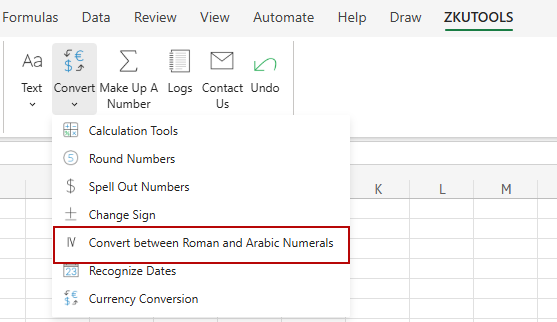
Step 2: Choose Arabic to Roman numerals and Apply
In the Convert between Roman and Arabic numerals dialog, select Arabic to Roman numerals.
Click OK.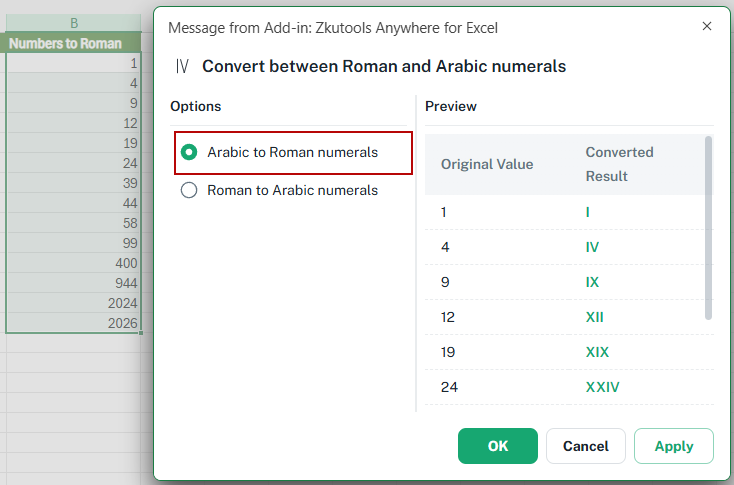
Tip: The Preview area shows the original numbers and their converted Roman numeral results. Review the preview to make sure the conversion is correct.
Result
The selected numbers are converted to Roman numerals directly in the worksheet.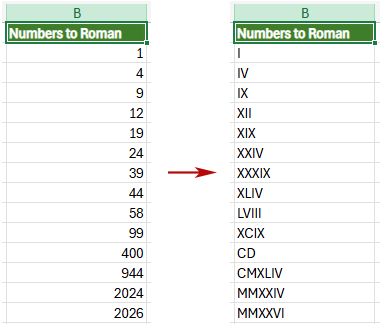
Tip: The conversion supports undo. To restore the previous values, go to ZKUTOOLS > Undo.
Convert Roman numerals back to numbers
Use this option when your selected cells contain Roman numerals and you want to convert them back to normal Excel numbers for sorting, filtering, calculation, or further editing.
Before you start, make sure ZKutools Anywhere for Excel is available in your Excel. Get it from Microsoft AppSource if needed.
Note: Convert between Roman and Arabic numerals is a classic non-AI feature. It does not require a ZKutools AI account, AI tokens, or an AI subscription. You can use it directly after opening the feature.
Step 1: Open Convert between Roman and Arabic numerals
Select the cells containing the Roman numerals you want to convert. Then click ZKUTOOLS > Convert > Convert between Roman and Arabic numerals.
Step 2: Choose Roman to Arabic numerals and Apply
In the Convert between Roman and Arabic numerals dialog, select Roman to Arabic numerals. Then click OK.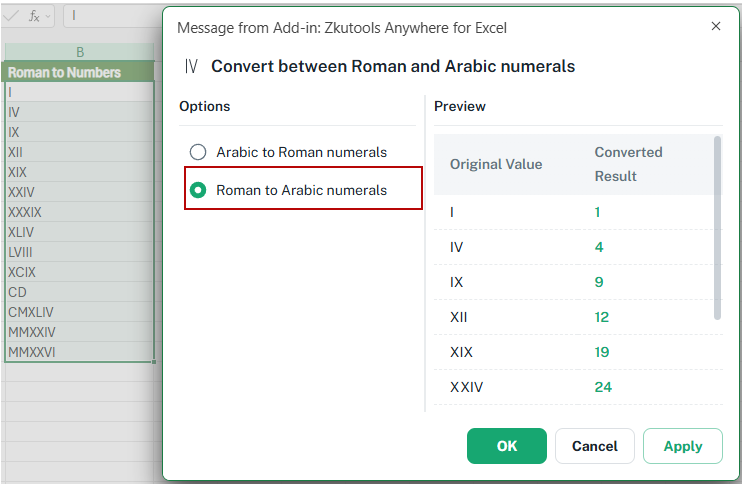
Tip: The Preview area shows the original Roman numerals and their converted number results. Review the preview before applying the conversion, especially if the selected range contains mixed values.
Result
The selected Roman numerals are converted back to normal numbers directly in the worksheet.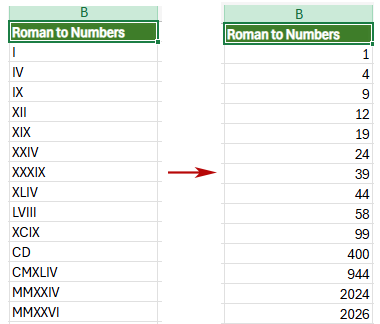
Tip: The conversion can be undone. To restore the previous Roman numeral values, go to ZKUTOOLS > Undo.
Notes for Roman numeral conversion
Keep the following points in mind when converting numbers and Roman numerals in Excel.
- Arabic numerals mean normal numbers: In this feature, Arabic numerals refer to common numbers used in Excel, such as 1, 2, 3, 10, and 2026.
- Select valid values before converting: When converting numbers to Roman numerals, the selected cells should contain valid numbers. When converting Roman numerals back to numbers, the selected cells should contain valid Roman numerals, such as IV, XII, or MMXXVI.
- Use the correct conversion direction: Choose Arabic to Roman numerals when converting normal numbers to Roman numerals. Choose Roman to Arabic numerals when converting Roman numerals back to normal numbers.
- Check the preview before applying: The Preview area shows the original values and converted results. Review the preview to make sure the selected cells are converted as expected.
- Unchanged results are easy to notice: If a value does not change after conversion, the converted result appears in a lighter gray style in the preview. This helps you quickly distinguish changed results from values that remain the same.
- Roman numerals are usually used as text: After converting numbers to Roman numerals, the results are best used as labels, section numbers, display text, or formatted identifiers.
- Convert back before sorting or calculating: If you need to sort numerically, calculate, or compare values, convert Roman numerals back to normal numbers first.
- Undo is supported: If you want to restore the previous values after conversion, go to ZKUTOOLS > Undo.
Frequently Asked Questions
How do I convert numbers to Roman numerals in Excel?
Select the cells containing numbers, open Convert between Roman and Arabic numerals, choose Arabic to Roman numerals, preview the results, and then click Apply or OK.
Can I convert Roman numerals back to numbers in Excel?
Yes. Select the cells containing Roman numerals, choose Roman to Arabic numerals, preview the converted numbers, and apply the conversion.
What does Arabic numerals mean in this feature?
Arabic numerals means normal numbers used in Excel, such as 1, 2, 3, 10, or 2026.
Can I batch convert multiple cells at once?
Yes. You can select multiple cells and convert them at once.
Do I need formulas to convert numbers to Roman numerals?
No. With this feature, you can convert selected cells directly without entering formulas.
Is this the same as Excel's ROMAN and ARABIC functions?
No. Excel's ROMAN and ARABIC functions return results through formulas. This feature converts selected cell values directly through a dialog box.
Why are my Roman numerals not converted correctly?
The selected cells may contain invalid Roman numerals, extra spaces, unsupported characters, or text that is not recognized as a Roman numeral. Check the values and try again.