Add Text to Excel Cells on Web, Desktop, Windows, and Mac
Adding the same text to multiple Excel cells can be repetitive, especially when the text needs to be inserted at a specific location, such as before the first character, after the last character, before certain text, or between words. The Add Text feature in ZKutools Anywhere for Excel helps you insert text into selected cells more flexibly without formulas or manual editing.
Whether you use Excel on the web, desktop, Windows, or Mac, this feature allows you to quickly add prefixes, suffixes, labels, separators, years, codes, or other custom text to multiple cells at once while previewing the result before applying the changes.
Benefits of Add Text
Add Text in ZKUTOOLS Anywhere for Excel helps you insert text into multiple cells without formulas or repeated manual editing. Because it works across Excel web, desktop, Windows, and Mac, you can use the same workflow wherever you work in Excel.
Reduce manual editing
Add prefixes, suffixes, or custom text to many cells at once instead of editing each value one by one.
Insert text more precisely
Place text before or after cell values, specified text, specific positions, letters, numbers, or words.
Preview results before applying
Use the live preview to check how values will change before updating the worksheet.
Handle different text patterns
Insert text between characters or words, before uppercase or lowercase letters, before letters, or before numbers.
Use AI Smart for flexible rules
Describe where to insert the text in natural language when standard position options do not fit your data.
Work across Excel platforms
Use ZKUTOOLS Anywhere for Excel on Excel web, desktop, Windows, and Mac.
How to use Add Text in Excel
- Select the cells where you want to add text.
- Go to the ZKUTOOLS tab.
- Click Text > Add Text.
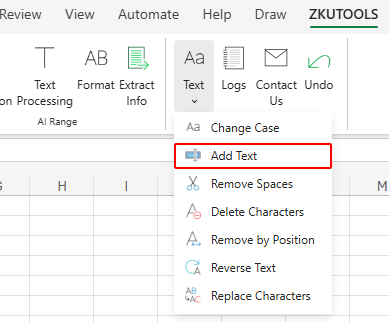
The Add Text dialog box will open. Enter the text you want to add, choose an insertion position, preview the result, and then click OK or Apply.
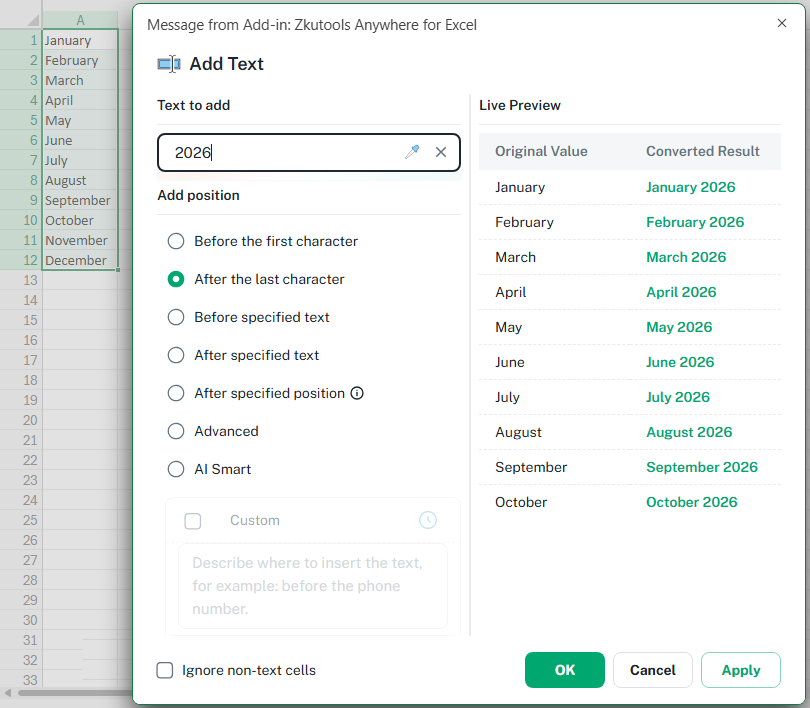
What Add Text can do in Excel
The Add Text feature provides multiple ways to insert text into Excel cells depending on where and how you want the text to appear. You can add text before or after existing content, insert text at specific positions, apply advanced insertion rules, or even describe custom insertion logic with AI Smart.
ZKutools Anywhere for Excel
ZKutools Anywhere for Excel helps you work smarter in Excel wherever you are—web, desktop, Windows, or Mac. Every feature is completely free to use, including AI tools with free AI tokens included.

Add prefixes to Excel cells
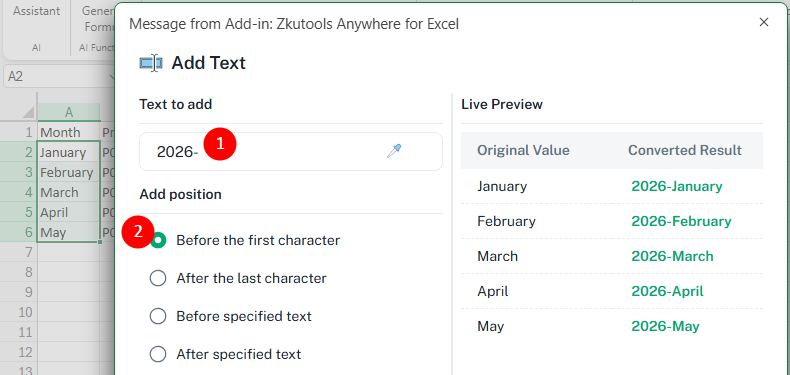
Use the Before first character option to add text to the beginning of selected cell values.
✏️ Example:
Select column A (Month) and add 2026- before each value to change January into 2026-January.
Add suffixes to Excel cells
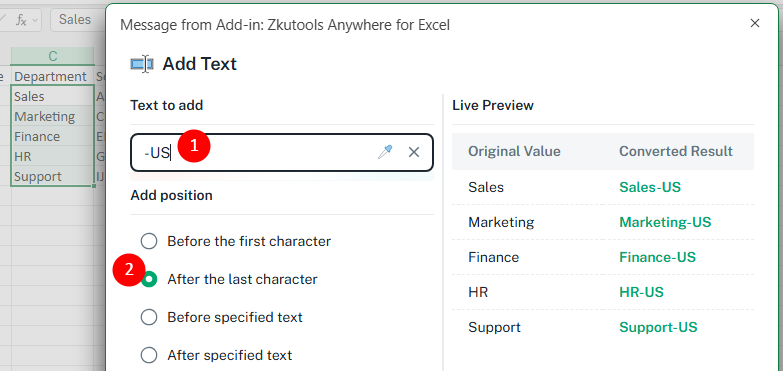
Use the After last character option to add text to the end of selected cell values.
✏️ Example:
Select column C (Department) and add -US after each value to change Sales into Sales-US.
Insert text before or after specific characters or words
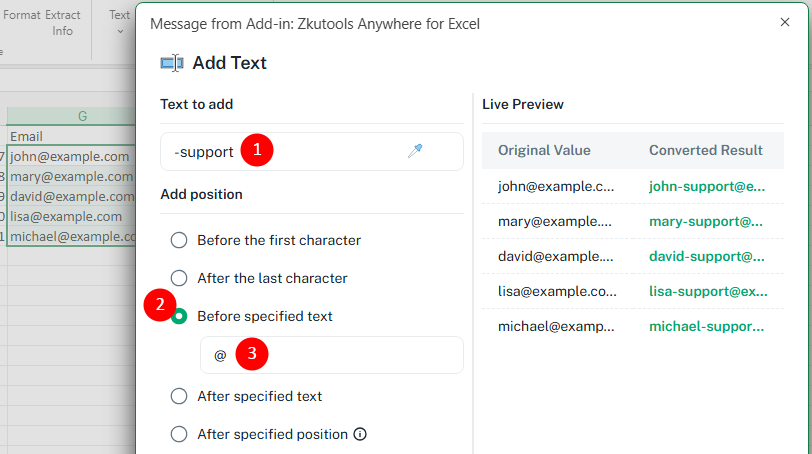
Use the Before specified text or After specified text option to insert text based on specific letters, characters, words, or text strings inside the cell.
✏️ Example:
Select column G (Email), use the Before specified text option, and insert -support before the @ symbol to create tagged email addresses.
Insert text at specific positions in Excel cells
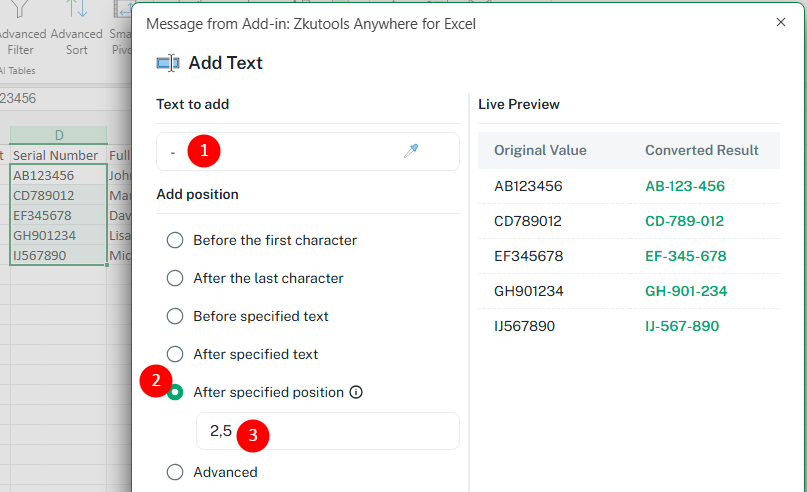
Use the Specified position option to insert text after one or more character positions inside the cell value.
✏️ Example:
Select column D (Serial Number), add -, and enter 2,5 to insert separators after the 2nd and 5th characters.
Use advanced text insertion rules
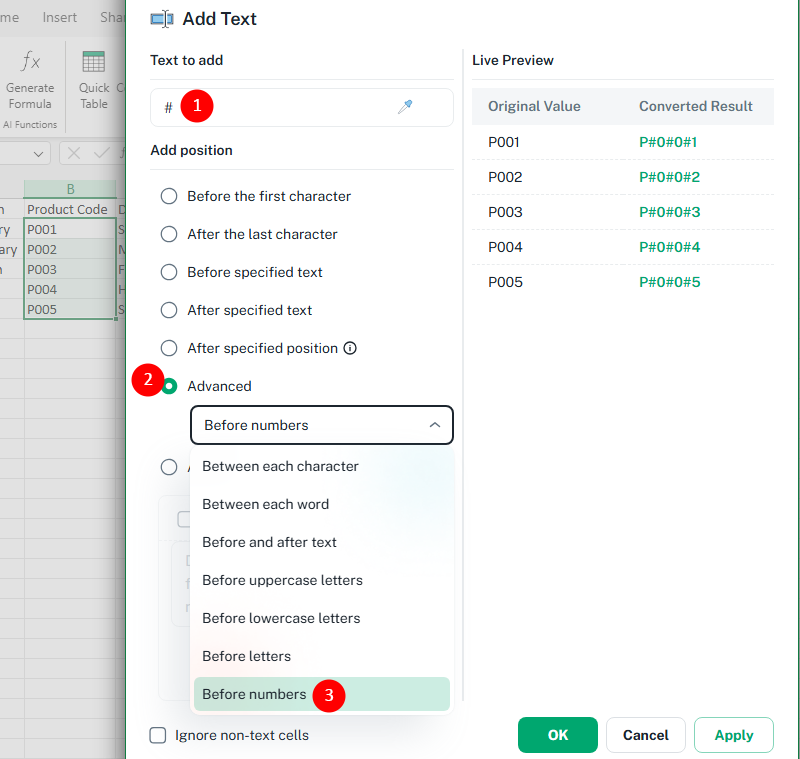
Use the Advanced option for more flexible text insertion rules.
- Between each character: Insert text between every character in the cell.
- Between each word: Insert text between words.
- Before and after text: Add text around the original cell value.
- Before uppercase letters: Insert text before uppercase letters.
- Before lowercase letters: Insert text before lowercase letters.
- Before letters: Insert text before alphabetic characters.
- Before numbers: Insert text before numeric characters.
✏️ Example:
Select column B (Product Code) and insert # before numbers.
Use AI Smart to insert text with natural language
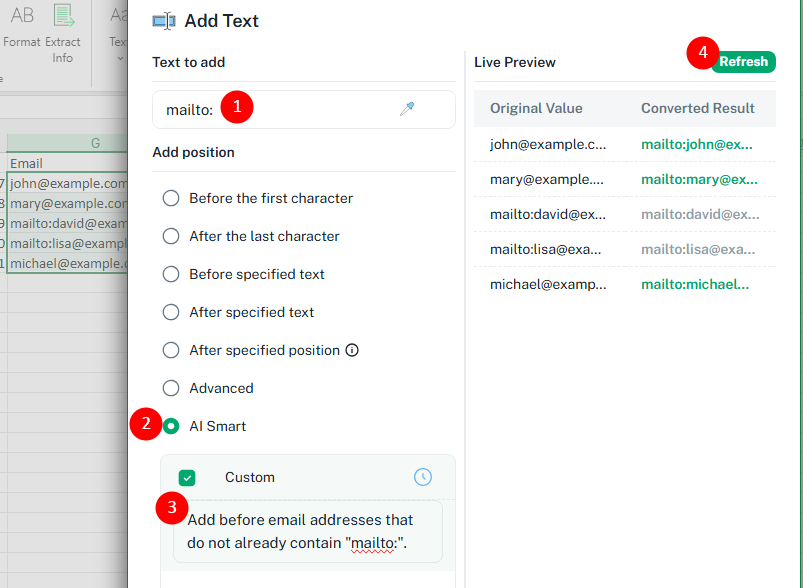
Use the AI Smart option when the standard insertion options do not fit your needs. Simply describe where or how you want the text inserted in natural language, then click Refresh to preview the generated result.
✏️ Example:
Select column G (Email), enter mailto: in the Text to add box, then enter the request: Add before email addresses that do not already contain "mailto:". Click Refresh to preview the result.
💡 Additional examples:
- Insert SKU- before product codes only when missing.
- Add parentheses around area codes in phone numbers.
- Insert separators around number groups in serial numbers.
- And more...
Tips for better results
- Use Live Preview before applying: Always check the Live Preview area to confirm how the converted result will look.
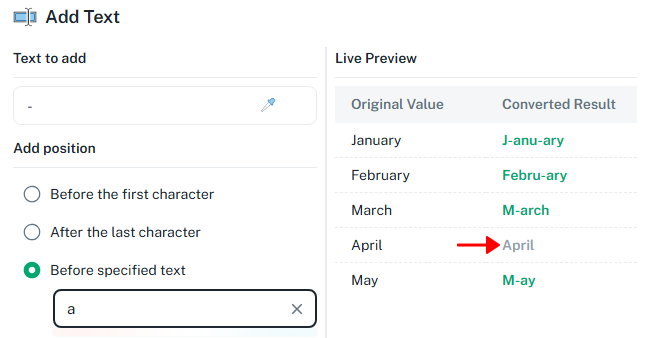
- Pay attention to case sensitivity: When inserting text before or after specified text, uppercase and lowercase letters may produce different results. For example, searching for a may not match A.
- Use Ignore non-text cells when needed: Enable Ignore non-text cells if you only want to process text values and avoid changing numbers, dates, or other non-text cells.
- Choose Apply if you want to keep testing: Click Apply to apply the current setting while keeping the dialog open, or click OK to apply the result and close the dialog.
- Use specified positions carefully: When inserting text by position, make sure the selected cells have similar text lengths or structures for more consistent results.
- Use AI Smart for irregular data: If the text pattern is not easy to define with the standard options, describe the rule in AI Smart instead.
ZKutools Anywhere for Excel
ZKutools Anywhere for Excel helps you work smarter in Excel wherever you are—web, desktop, Windows, or Mac. Every feature is completely free to use, including AI tools with free AI tokens included.
Conclusion
The Add Text feature in ZKutools Anywhere for Excel provides a flexible and efficient way to insert text into Excel cells without formulas or repetitive manual editing. Whether you need to add prefixes and suffixes, insert text at specific positions, format serial numbers, modify email addresses, or apply more advanced insertion rules, the feature offers multiple built-in options to handle different text-processing tasks.
For more complex scenarios, the AI Smart option lets you describe insertion rules in natural language, making it easier to work with irregular data patterns that are difficult to handle with standard insertion settings.
Because ZKUTOOLS Anywhere for Excel works across Excel web, desktop, Windows, and Mac, you can use the same text-processing workflow wherever you work in Excel.
Table of Contents
- Benefits of Add Text
- How to use Add Text
- What Add Text can do
- Add prefixes to Excel cells
- Add suffixes to Excel cells
- Insert text before or after specific characters or words
- Insert text at specific positions in Excel cells
- Use advanced text insertion rules
- Use AI Smart to insert text with natural language
- Tips for better results
- Conclusion