Easily Format Excel Data with AI Instructions
Formatting data in Excel can often require repetitive manual editing, complicated formulas, or VBA, especially for non-standard formatting tasks. To simplify the process, ZKutools Anywhere for Excel provides an AI-powered Formatting feature that allows you to automatically format selected data using AI instructions. Simply choose a formatting type or enter a custom instruction, and the AI will process the data automatically.
- The advantages of using the Format feature
- How to Use the Format Feature
- Reuse Previous Formatting Tasks
- Other Additional Interface Options
The Advantages of Using the Formatting Feature
How to Use the Formatting Feature
The Formatting feature is designed to make Excel formatting tasks faster and easier. You can either select an existing processing type for common formatting tasks or create your own custom AI instruction when no suitable option is available.
Step 1. Enable the Format feature
Under the ZKUTOOLS tab, click Assistant > Format.

The ZKutools Anywhere for Excel pane will open and appear on the right side of the worksheet.

Step 2. Select the data range you want to format
Just select the cell range, and it will be automatically filled into the Input Range box.

Step 3. Choose or create a processing type.
By default, the Format feature provides two built-in processing types. If the existing processing types do not meet your needs, you can create your own AI formatting instruction.
For example, standardizing product codes in Excel often requires multiple formulas or manual editing, especially when the data contains inconsistent capitalization, spaces, or separators.
To create a custom instruction:
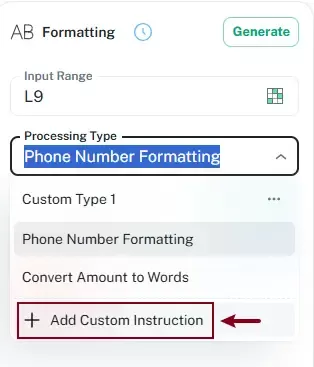
- Expand the Processing Type drop-down list.
- Click Add Custom Instruction.
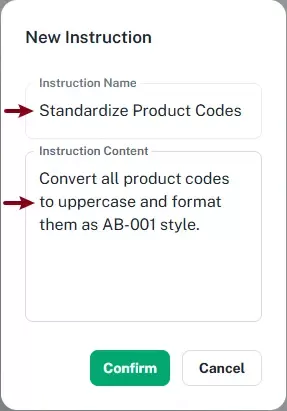
- Enter the instruction name.
For example: Standardize Product Codes
- Enter the instruction content.
For example:Convert all product codes to uppercase and format them as AB-001 style.The instruction content tells the AI how to process the selected data.
- Click Confirm.
 The custom instruction will then appear in the Processing Type list for future use.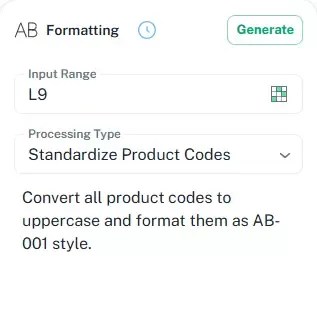
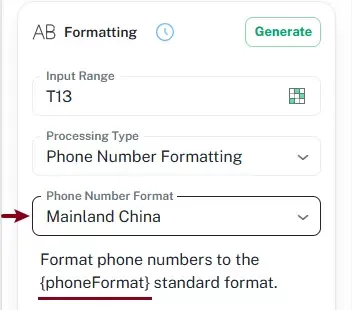
- Some processing types require additional regional or language settings.
For example, when using Phone Number Formatting, make sure to select the correct region under Phone Number Format. The placeholder variable {phoneFormat} in the instruction content is automatically replaced with the selected regional format and applies the corresponding phone number formatting standard.
- Other processing types automatically match the current Office language.
Step 4. Generate the formatted results
Click the Generate button. The AI automatically analyzes the selected data and generates the formatted results based on the instruction content.

Step 5. Preview and insert the formatting results
After processing, the preview pane displays the formatted results, allowing you to compare the original values and formatted output before applying the changes. After confirming the results are correct, click Insert to write the formatted data back into the worksheet.

Result
The selected product codes are automatically standardized based on the custom instruction. Compared with manually editing inconsistent codes or using complex formulas, the AI-powered Formatting feature allows you to standardize data formats more quickly and efficiently.

Reuse Previous Formatting Tasks
The Formatting feature automatically saves previously used formatting tasks in the History list.
This allows you to quickly reuse previous formatting operations without recreating the same processing types or instructions repeatedly.
To reuse a previous formatting task:
- Click the History button in the Formatting pane.
- Browse the saved processing records.
- Select a previous formatting task.
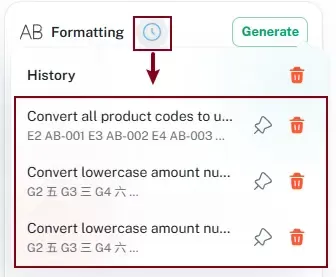
- Regenerate or insert the results again.
This feature is especially useful for recurring formatting tasks and repetitive data processing workflows.
Other Additional Interface Options
The Formatting pane also provides several additional interface options to help you manage formatting tasks more efficiently.
Regenerate the results
If the AI does not generate the expected formatting results, you can click the Regenerate button to generate the results again.

Back to the main interface
After inserting the formatted results, click the Back button to return to the Formatting main interface.

Edit or delete a processing type
You can edit or delete an existing custom processing type by expanding the Processing Type drop-down list, clicking the configure button, and then choosing Edit or Delete from the menu.

Conclusion
Formatting data in Excel no longer requires complicated formulas, VBA code, or repetitive manual editing.
With the AI-powered Formatting feature in ZKutools Anywhere for Excel, you can quickly process data using AI instructions, while previewing the results before applying them.
Whether you need to format phone numbers, convert amounts to words, standardize data formats, or handle more specialized formatting tasks, the Formatting feature provides a faster, easier, and more flexible solution for Excel data formatting.
Table of contents
- The Advantages of Using the Format Feature
- How to Use the Format Feature
- Reuse Previous Formatting Tasks
- Other Additional Interface Options
- The Best Office Productivity Tools
ZKutools Anywhere for Excel
Transform your Excel experience with AI-powered productivity tools