Easily Delete Unwanted Characters from Excel Cells with Built-in Rules and AI
When working with imported data in Excel, cells often contain unwanted characters that make the data difficult to analyze, search, sort, or standardize. These may include numbers, letters, special symbols, duplicate characters, URLs, emojis, HTML tags, or other unnecessary content.
While Excel offers functions such as SUBSTITUTE and REPLACE for text cleaning, building and maintaining formulas can be tedious, especially when processing large datasets or dealing with complex text patterns.
To make text cleaning easier, ZKutools Anywhere for Excel provides the Delete Characters feature. It combines traditional rule-based character removal with AI-powered text cleaning, allowing you to remove common character types in bulk or describe complex removal requirements in natural language.
The Biggest Advantages of Using Delete Characters
How to Use the Delete Characters Feature
The Delete Characters feature supports both built-in deletion rules and AI-powered text cleaning. Depending on your needs, you can choose the most appropriate method to remove unwanted content.
Delete Characters Using Built-in Rules
Built-in rules are designed for common text-cleaning scenarios and can be used individually or combined together.
Remove Only Numbers
When working with product codes, employee IDs, customer references, or other mixed-content data, cells often contain both letters and numbers. If you need to remove all numeric characters while preserving the text portion, the Numbers option provides a quick solution without requiring formulas or manual editing.
Suppose your worksheet contains product codes such as AB123, CD456, and EF789. To remove all numbers and keep only the letters, do as follows:
Steps
- Select the cells or range you want to process.
- Under the ZKUTOOLS tab, click Text > Delete Characters.
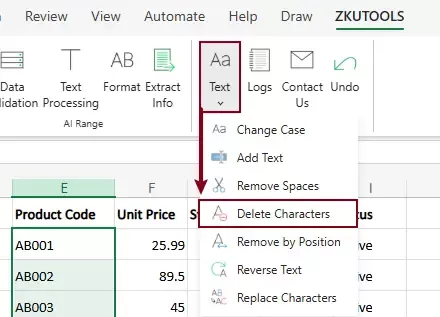
- In the Delete Characters dialog box
- Check Numbers in the Character Type section.
- Review the preview results.
The Preview pane automatically displays the original values and converted results so that you can verify the changes before applying them.
- Click OK or Apply.
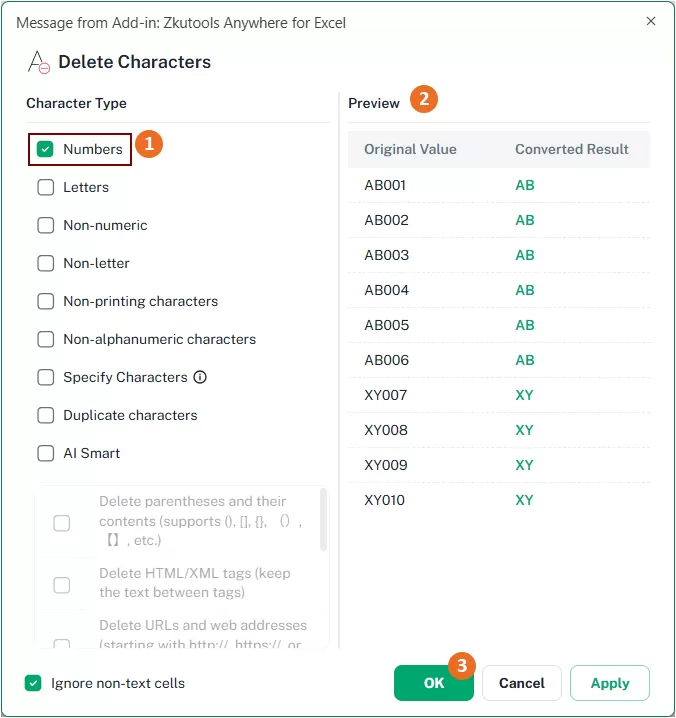
Result
All numeric characters are removed from the selected cells while the remaining text is preserved.

Remove Only Letters
In some cases, you may need to extract numbers from text strings by removing all alphabetic characters. This is particularly useful when working with order numbers, invoice references, product IDs, or other data where letters are not required.
The Letters option allows you to quickly remove all alphabetic characters from selected cells while retaining numbers and other non-letter characters.
Steps
- Select the cells or range you want to process.
- Under the ZKUTOOLS tab, click Text > Delete Characters.
- In the Delete Characters dialog box
- Check Letters in the Character Type section.
- Review the preview results.
- Click OK or Apply.
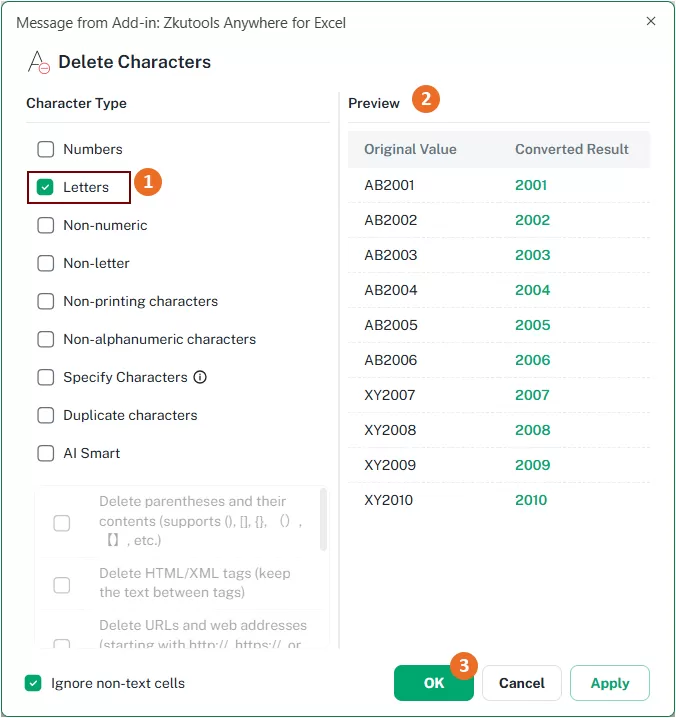
Result
All letters are removed from the selected cells, while numbers and other characters remain unchanged.

Remove Non-numeric Characters
If you need to keep only numbers and remove everything else, including letters, spaces, punctuation marks, and special symbols, the Non-numeric option is the ideal choice.
This feature is especially useful for extracting phone numbers, invoice numbers, customer IDs, ZIP codes, and other numeric information from mixed-content data.
Steps
- Select the cells or range you want to process.
- Under the ZKUTOOLS tab, click Text > Delete Characters.
- In the Delete Characters dialog box
- Check Non-numeric in the Character Type section.
- Review the preview results.
- Click OK or Apply.
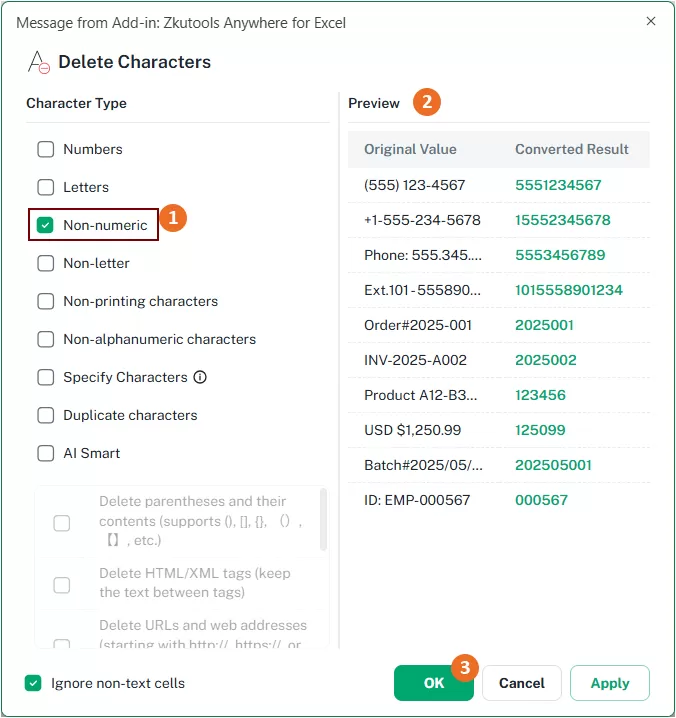
Result
All characters except numbers are removed immediately from the selected cells.

Remove Non-letter Characters
If your cells contain a mixture of letters, numbers, symbols, and punctuation marks, and you want to keep only the alphabetic characters, the Non-letter option can help you quickly remove everything else.
Steps
- Select the cells or range you want to process.
- Under the ZKUTOOLS tab, click Text > Delete Characters.
- In the Delete Characters dialog box
- Check Non-letter in the Character Type section.
- Review the preview results.
- Click OK or Apply.
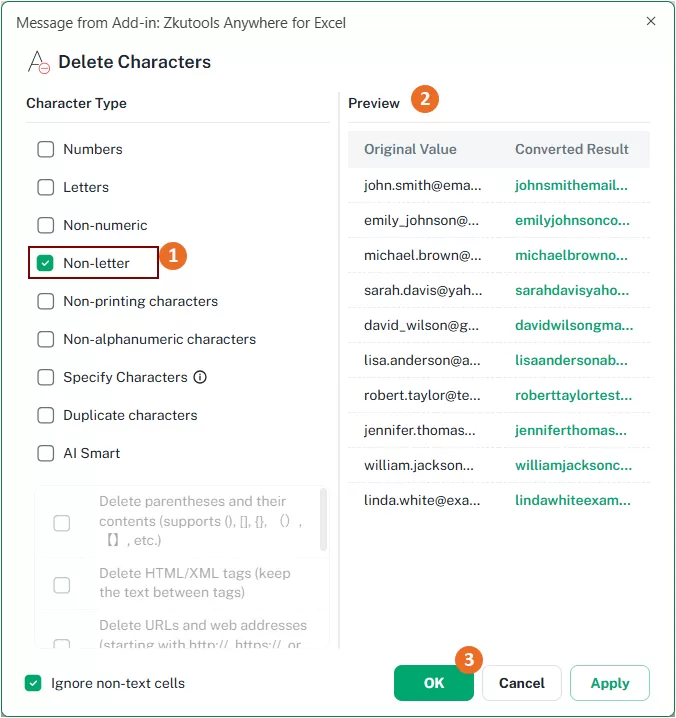
Result
All numbers, spaces, punctuation marks, and special symbols are removed from the selected cells, leaving only alphabetic characters.

Remove Non-printing Characters
Data imported from websites, databases, text files, or other external systems may contain hidden non-printing characters, such as tabs, line breaks, and other invisible control characters. These hidden characters can interfere with searching, sorting, matching, or data validation. The Non-printing characters option allows you to clean such data instantly.
Steps
- Select the cells or range you want to process.
- Under the ZKUTOOLS tab, click Text > Delete Characters.
- In the Delete Characters dialog box
- Check Non-printing characters in the Character Type section.
- Review the preview results.
- Click OK or Apply.
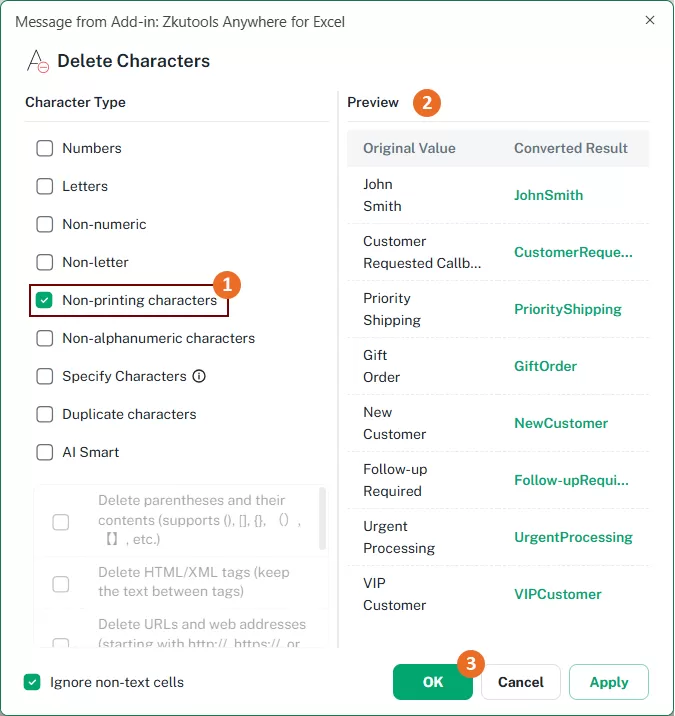
Result
All hidden non-printing characters are removed from the selected cells while preserving the visible text content. The cleaned data becomes easier to analyze, search, and process.

Remove Non-alphanumeric Characters
When working with imported or manually entered data, cells may contain special symbols such as hyphens, slashes, parentheses, punctuation marks, or other non-alphanumeric characters. If you want to keep only letters and numbers, use the Non-alphanumeric characters option.
Steps
- Select the cells or range you want to process.
- Under the ZKUTOOLS tab, click Text > Delete Characters.
- In the Delete Characters dialog box
- Check Non-alphanumeric characters in the Character Type section.
- Review the preview results.
- Click OK or Apply.
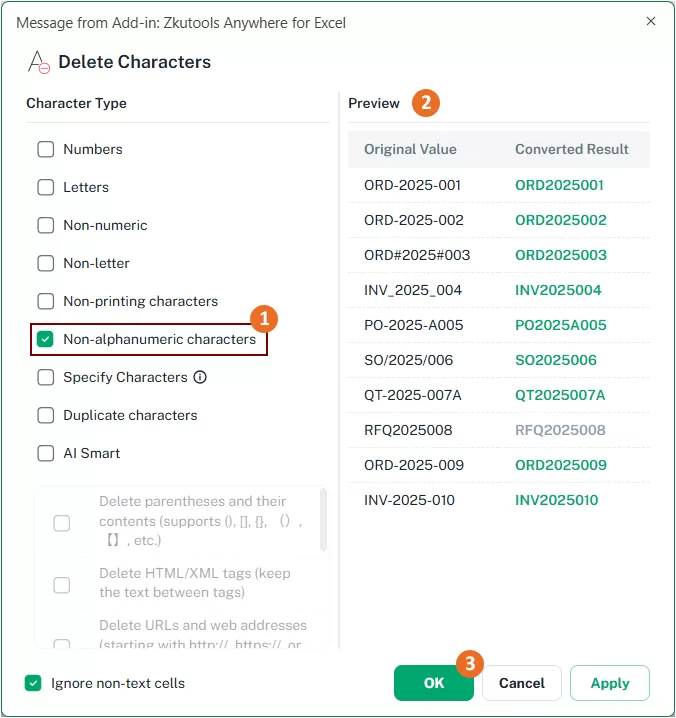
Result
All characters except letters and numbers are removed from the selected cells. This is particularly useful for standardizing product IDs, customer codes, account numbers, and other structured data.

Remove Specified Characters
Sometimes you only need to remove certain characters while keeping all other content unchanged. For example, as shown in the screenshot below, you may want to remove the characters +, &, and . from the selected cells. In this case, the Specify Characters option provides a quick and flexible solution.

Steps
- Select the cells or range you want to process.
- Under the ZKUTOOLS tab, click Text > Delete Characters.
- In the Delete Characters dialog box
- 1) Check Specify Characters in the Character Type section and then type the characters you want to remove into the textbox. For multiple characters, separate them by commas.
- Review the preview results.
Note: The cell that needs to be deleted will be marked as green in the Preview pane, otherwise, it shows as gray.
- Click OK or Apply.
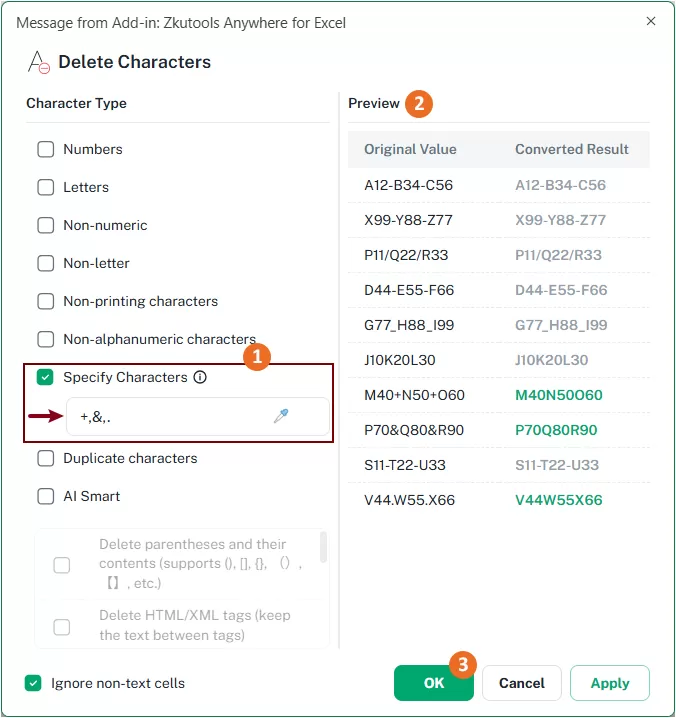
Result
Only the specified characters are removed from the selected cells, while all remaining text and numbers stay intact.

Remove Duplicate Characters
If cells contain repeated characters and you want to keep only the first occurrence of each character, the Duplicate characters option can help. This feature is useful for cleaning imported data, standardizing text strings, or simplifying repeated character sequences.
Steps
- Select the cells or range you want to process.
- Under the ZKUTOOLS tab, click Text > Delete Characters.
- In the Delete Characters dialog box
- Check Duplicate characters in the Character Type section.
- Review the preview results.
Note: The cell that needs to be deleted will be marked as green in the Preview pane, otherwise, it shows as gray.
- Click OK or Apply.
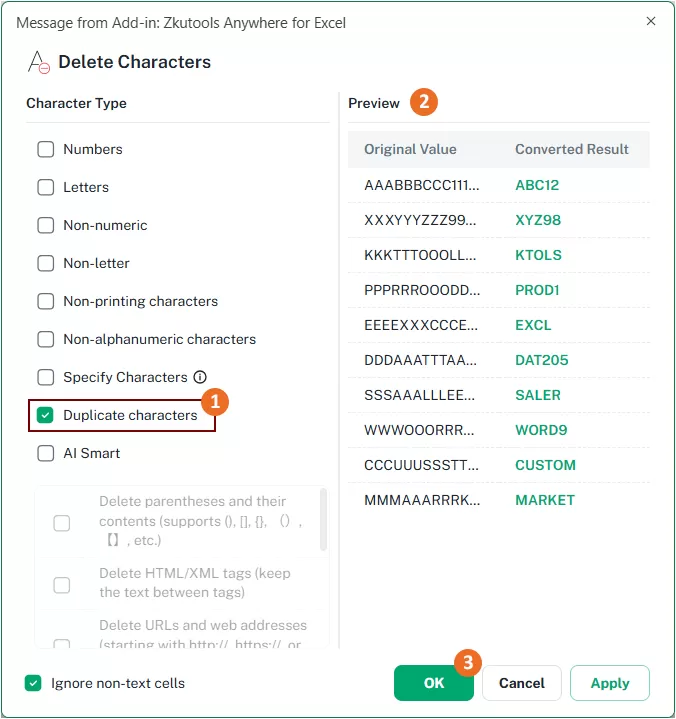
Result
All duplicate characters are removed from each selected cell, leaving only the first occurrence of every character.
This allows you to quickly eliminate repeated characters without manually editing each cell.

Use AI to Delete Unwanted Characters from Cells
While the built-in deletion rules are ideal for common text-cleaning tasks, some situations are too complex to describe with simple character-based rules. In these cases, AI Smart can understand your instructions written in natural language and remove content based on meaning rather than specific characters.
For example, you may want to:
- Remove text inside parentheses while keeping the remaining content
- Remove URLs or web addresses from text
- Remove emojis from imported data
- Remove everything after a specific symbol
- Remove hashtags while keeping the rest of the text intact
These tasks can be difficult to handle with traditional Excel features. With AI Smart, you simply describe what you want to remove, and the AI automatically processes the selected cells based on your instructions.
Remove Characters with Built-in AI Rules
To help you handle common text-cleaning scenarios quickly, the Delete Characters feature in ZKutools Anywhere for Excel provides several built-in AI rules.
Available AI rules include:
- Delete parentheses and their contents
- Delete HTML/XML tags (keep the text between tags)
- Delete URLs and web addresses
- Delete emojis
These preset rules allow you to perform advanced text cleanup with just a few clicks. Let's take a rule as an example.
Example: Remove Parentheses and Their Content
Suppose your worksheet contains product descriptions, notes, or comments with additional information enclosed in parentheses. If you want to remove both the parentheses and the text inside them, you can use the built-in AI rule.

Steps
- Select the cells you want to process.
- Select ZKUTOOLS > Text > Delete Characters to open the Delete Characters dialog box.
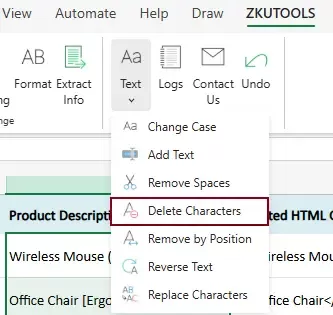
- In the Delete Characters dialog box:
- Enable AI Smart and check Delete parentheses and their contents.
- Click Refresh to generate the AI preview.
- Review the preview results.
- Click OK or Apply.
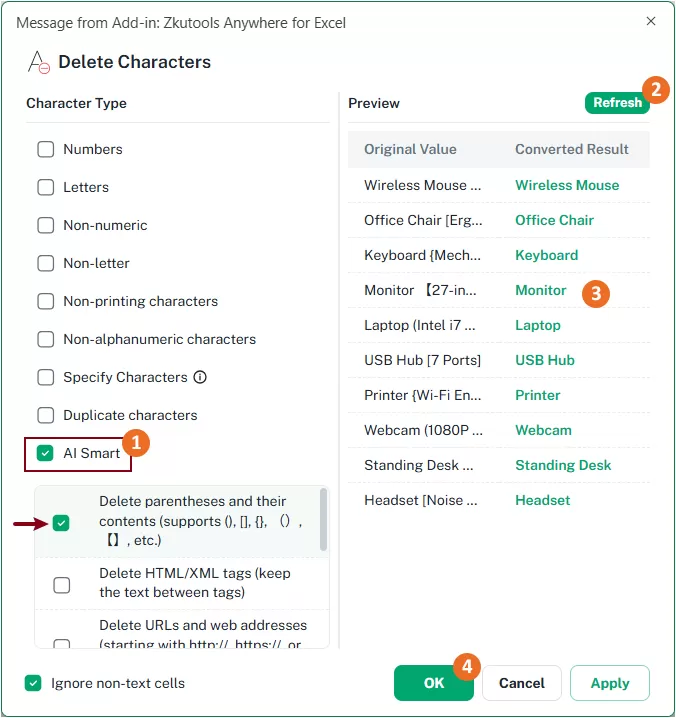
Result
All parentheses and the text enclosed within them are removed from the selected cells, while the remaining content is preserved.

Remove Characters with Custom AI Rule
If the built-in AI rules do not fully meet your requirements, you can create your own custom AI rule by describing exactly what content should be removed.
This gives you complete flexibility to handle specialized text-cleaning tasks and allows you to reuse frequently used instructions in future operations.
For example, suppose your cells contain descriptions followed by additional information separated by a dash, and you want to remove everything after the dash, including the dash itself.
Steps
- Select the cells you want to process.
- Select ZKUTOOLS > Text > Delete Characters to open the Delete Characters dialog box.
- In the Delete Characters dialog box:
- Enable AI Smart.
- Check Custom and enter your instruction in the text box.
Example: Delete all text after the dash "-" in each cell, including the dash itself.
- Click Refresh to generate the AI preview.
- Review the preview results.
- Click OK or Apply.
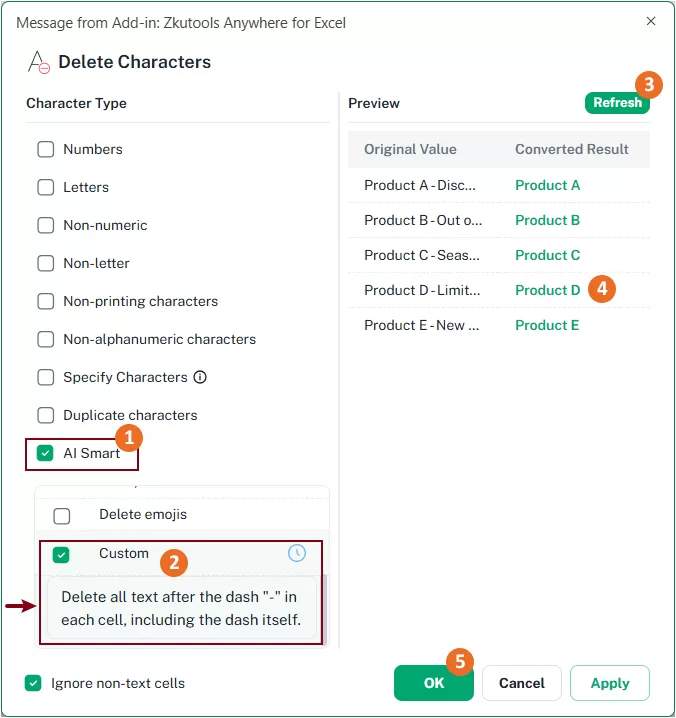
Result
The AI removes the unwanted content according to your custom instruction and displays the cleaned results in the selected cells.
You can reuse your custom instructions later, making repetitive text-cleaning tasks even faster and more efficient.

Reuse Previously Custom AI Instructions
When you create and use custom AI instructions, ZKutools Anywhere for Excel automatically saves them for future use. This allows you to quickly reuse frequently used text-cleaning rules without retyping the same instructions every time.
The History feature is particularly useful when you regularly process data with similar formats, helping you improve efficiency and maintain consistent results across worksheets and workbooks.
Steps
- Select the cells you want to process.
- Select ZKUTOOLS > Text > Delete Characters to open the Delete Characters dialog box.
- In the Delete Characters dialog box:
- Enable AI Smart.
- Check Custom and click the History icon.
The previously used AI instructions are displayed in the History list.
- Select the instruction you want to reuse. The corresponding prompt is automatically inserted into the text box.
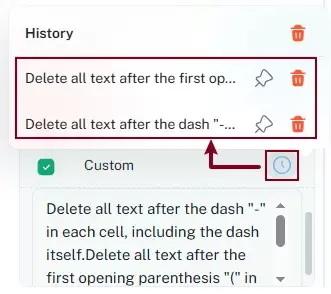
- Click Refresh to generate the AI preview results.
- Click OK or Apply to apply the results.
The selected custom AI instruction is reused without requiring you to manually re-enter the prompt. This makes recurring text-cleaning tasks faster, more convenient, and more consistent.
Other Tips
In addition to the built-in and AI-powered deletion rules, the Delete Characters dialog box provides several helpful options that make text-cleaning tasks more flexible and efficient.
Combine Multiple Built-in Rules
The Delete Characters feature allows you to select multiple built-in character types at the same time. The selected rules are applied together, making it easy to perform complex text-cleaning operations in a single step.
For example, you can select:
- Numbers
- Non-letter characters
The tool will remove all numbers first and then remove any remaining non-letter characters, leaving only alphabetic characters in the selected cells.
This eliminates the need to run the feature multiple times and helps improve processing efficiency.
Combine Built-in Rules with AI smart rules
Built-in rules and AI Smart rules can be used together to handle more advanced data-cleaning scenarios.
For example, you may want to:
- Remove all numbers using a built-in rule
- Remove text enclosed in parentheses using an AI rule
By combining both rule types in a single operation, you can clean and standardize complex text data more efficiently than using either method alone.
Ignore Non-Text Cells
When working with mixed data types, such as text, numbers, dates, formulas, and logical values, you may not want non-text cells to be modified.
Enable Ignore non-text cells to ensure that only text cells are processed while all other cell types remain unchanged.

Refresh AI Preview
Whenever you modify an AI instruction, switch to a different AI rule, or select another history item, click Refresh to generate a new preview.
The AI will reanalyze the selected cells and display updated results in the Preview pane, allowing you to verify the outcome before applying any changes.
Delete or pin a previously use AI rule
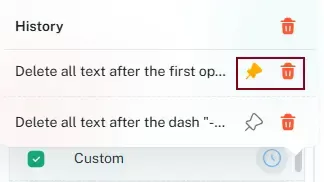
As you create more custom AI instructions, the history list may gradually grow. To keep your frequently used instructions organized and easy to access, you can delete unnecessary entries or pin important ones.
- Delete an AI instruction that is no longer needed to keep the history list clean and organized.
- Pin frequently used instructions to keep them available at the top of the history list for quicker access.
Conclusion
Removing unwanted characters in Excel often requires complex formulas, manual editing, or VBA. With ZKutools Anywhere for Excel's Delete Characters feature, you can quickly clean text using built-in character removal rules or AI-powered deletion instructions.
Whether you need to remove numbers, symbols, duplicate characters, URLs, emojis, or more complex text patterns, the combination of smart rules and AI assistance provides a faster, easier, and more flexible way to clean Excel data.
Table of contents
- The advantages of using Delete Characters
- How to use
- Using built-in rules
- Remove only numbers
- Remove only letters
- Remove non-numeric characters
- Remove non-letter characters
- Remove non-printing characters
- Remove non-alphanumeric characters
- Remove specified characters
- Remove duplicate characters
- Using AI to remove characters
- Built-in AI rules
- Custom AI rules
- Reuse Previously Custom AI Instructions
- Other tips
- The Best Office Productivity Tools
ZKutools Anywhere for Excel
Transform your Excel experience with AI-powered productivity tools