Change number signs in Excel with ZKutools
Positive and negative values are used throughout Excel for income and expenses, gains and losses, credits and debits, inventory changes, temperature differences, and many other types of data. When the signs are incorrect or use an inconsistent format, correcting them manually can take time and may lead to mistakes.
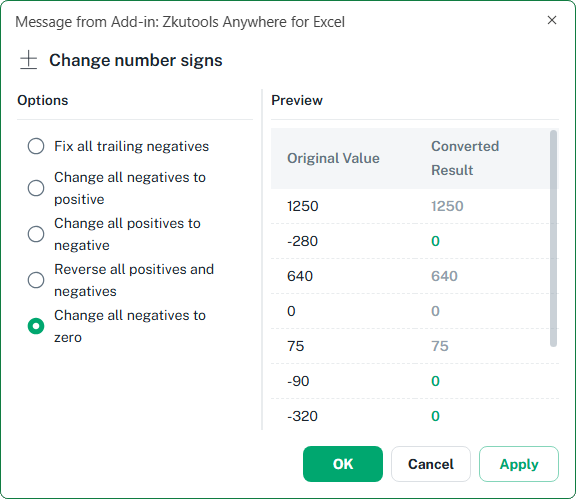
The Change Sign feature in ZKutools Anywhere for Excel lets you update number signs in a selected range without formulas or helper columns. You can fix trailing negative signs, convert negative numbers to positive, convert positive numbers to negative, reverse both positive and negative values, or replace negative values with zero. A preview shows the original and converted values before you apply the change.
Whether you are reviewing a project tracker, cleaning an exported report, checking a financial worksheet, or preparing a file before sharing it, the Columns tool helps you control the worksheet structure without losing your place in Excel.
 |
What Change Sign can do
Change Sign provides five conversion options for correcting or transforming positive and negative numbers in a selected range.
↩️ Fix trailing negative signs
Convert values with a minus sign at the end, such as 125-, into standard negative numbers such as -125.
➕ Change negatives to positive
Remove the negative sign from negative values while leaving positive values unchanged.
➖ Change positives to negative
Add a negative sign to positive values while leaving existing negative values unchanged.
🔄 Reverse positive and negative values
Switch positive values to negative and negative values to positive in one operation.
0️⃣ Change negatives to zero
Replace every negative value in the selected range with zero while keeping other values unchanged.
👀 Preview before applying
Compare the original value with the converted result before changing the selected cells.
Benefits of Change Sign
Change Sign makes common positive and negative number conversions faster and easier to review.
Convert values quickly
Update the signs of an entire selected range in a few clicks instead of editing each cell individually.
Avoid helper formulas
Change the selected values directly without creating temporary formulas, filling them down, and replacing the original data.
Check results before applying
Use the preview to confirm how the selected values will change before updating the worksheet.
Clean imported numbers
Correct trailing minus signs commonly found in data copied or imported from accounting and business systems.
Support Excel languages
Use the feature with the languages supported by Excel itself.
Work across Excel platforms
Use ZKutools Anywhere for Excel on the web, desktop, iPad, Windows, and Mac.
How to use Change Sign
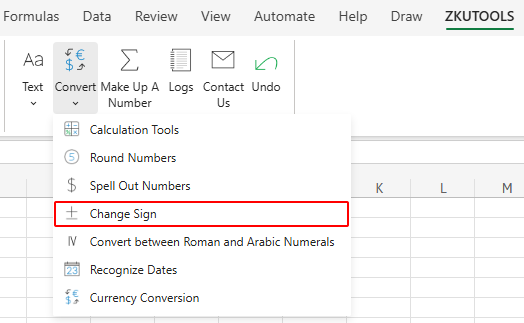
First, select the cells containing the values you want to change. Then go to ZKUTOOLS > Convert > Change Sign to open the Change number signs dialog.
 |
| ⬇️⬇️⬇️ |
|
In the dialog, choose the conversion you need, check the preview, then click OK or Apply. You can also undo the change afterward if the result is not what you expected.
- Fix trailing negative signs
- Change negative values to positive
- Change positive values to negative
- Reverse positive and negative values
- Change negative values to zero
- Undo a sign change
📝 Note:
If the selected range includes cells with formulas, Change Sign ignores those cells and processes only constant numeric values.
Fix trailing negative signs
Some imported systems place the minus sign after a number instead of before it. For example, a negative value may appear as 125- rather than -125.
- Select the cells containing values with trailing negative signs.
- Open ZKUTOOLS > Convert > Change Sign.
- Select Fix all trailing negatives.
- Check the converted values in the preview area.
💡 Tip:
In the Converted Result column, green values indicate that the original value will be converted, while gray values indicate that the original value will remain unchanged.
- Click OK or Apply.
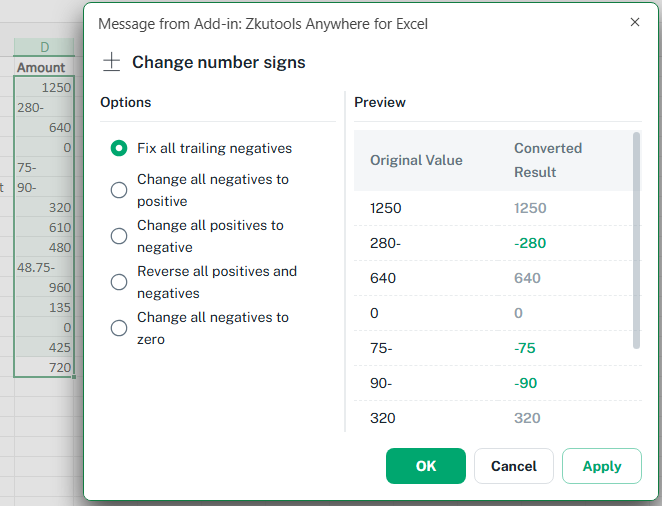
Only values with a trailing negative sign are converted to standard negative numbers. Other values remain unchanged.
Change negative values to positive
Use this option when you need the absolute amount of negative values without changing numbers that are already positive.
- Select the range containing the numbers.
- Open the Change number signs dialog.
- Select Change all negatives to positive.
- Review the preview, then click OK or Apply.
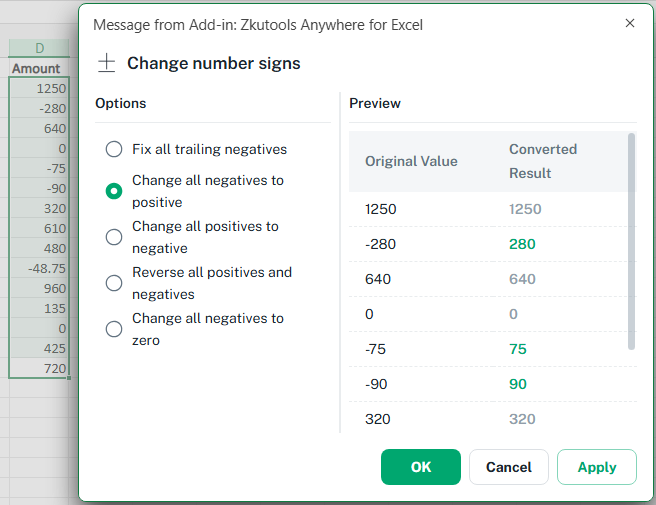
Negative numbers become positive, while positive numbers and zeros remain unchanged.
Change positive values to negative
Use this option when positive amounts need to be recorded as negative values.
- Select the range containing the numbers.
- Open the Change number signs dialog.
- Select Change all positives to negative.
- Review the preview, then click OK or Apply.
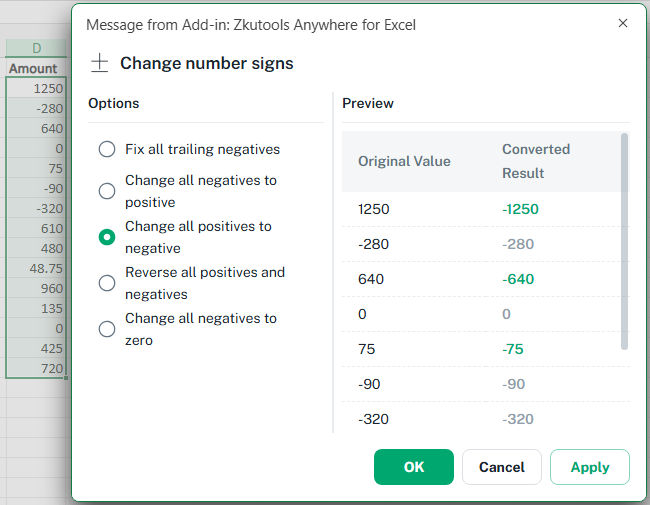
Positive numbers become negative, while existing negative numbers and zeros remain unchanged.
Reverse positive and negative values
Use this option to invert both positive and negative values in the selected range.
- Select the range containing the values you want to reverse.
- Open the Change number signs dialog.
- Select Reverse all positives and negatives.
- Check the results in the preview area.
- Click OK or Apply.
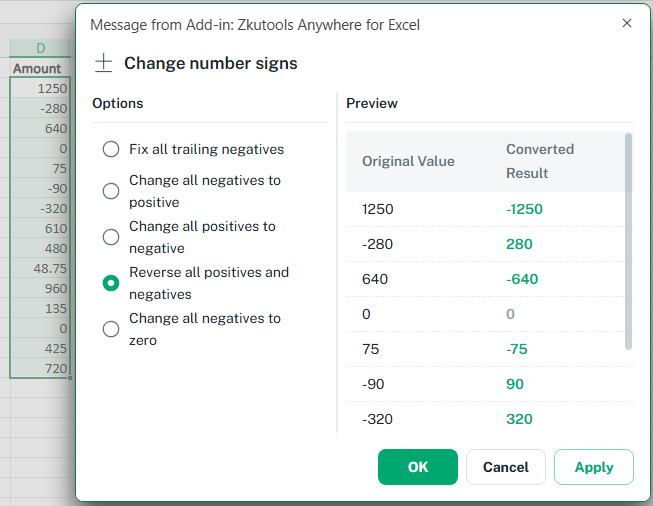
Positive numbers become negative, negative numbers become positive, and zero remains unchanged.
Change negative values to zero
Use this option when negative values should not be included and need to be replaced with zero.
- Select the range containing the numbers.
- Open the Change number signs dialog.
- Select Change all negatives to zero.
- Review the preview, then click OK or Apply.
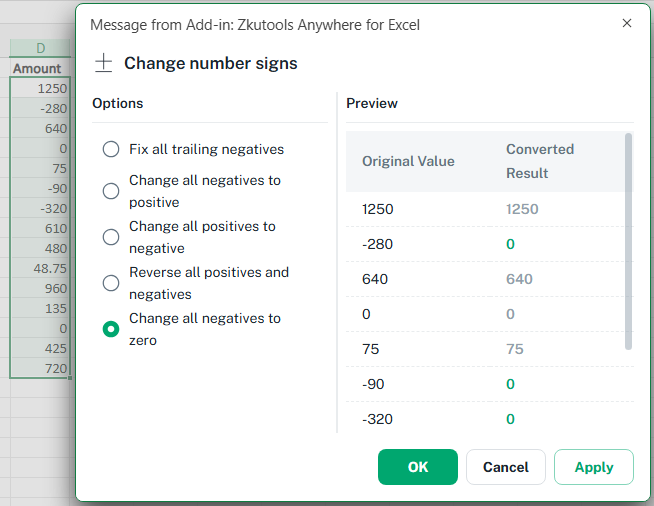
All negative values in the selected range are replaced with zero. Positive values and existing zeros remain unchanged.
Undo a sign change
If the result is not what you expected, click Undo on the ZKUTOOLS tab or press Ctrl + Z to restore the original values.
📝 Note:
Undo is available only while the workbook remains open and the action is still in Excel’s undo history. Saving the workbook does not necessarily remove the undo history, but closing and reopening it does.
Compare with Excel built-in methods
| Task | Excel built-in method | ZKutools Change Sign |
|---|---|---|
| Change negative numbers to positive | Use an ABS formula in a helper column, then copy and paste the results as values | Choose Change all negatives to positive and apply it directly to the selected cells |
| Change only positive numbers to negative | Use a conditional formula such as =IF(A2>0,-A2,A2), then replace the original values | Choose Change all positives to negative and apply it directly |
| Reverse positive and negative numbers | Use a formula such as =-A2, or multiply the range by -1 with Paste Special | Choose Reverse all positives and negatives |
| Replace only negative numbers with zero | Use a conditional formula such as =IF(A2<0,0,A2) or =MAX(A2,0), then replace the original values | Choose Change all negatives to zero |
| Fix numbers with trailing negative signs | Use the trailing-minus setting while importing a text file, or use a formula to convert existing text values | Choose Fix all trailing negatives for the selected cells |
Frequently Asked Questions
Can I use Change Sign on Mac?
Yes. ZKutools Anywhere for Excel is designed for supported Excel platforms, including Mac, Windows, and Excel on the web.
Does Change Sign support other languages?
Yes. The feature supports the languages supported by Excel itself.
What is a trailing negative sign?
A trailing negative sign appears after a number, such as 125-, instead of before it as -125. This format can appear in data exported from accounting, banking, or business systems.
Does fixing trailing negative signs change the values?
It corrects the sign format so Excel can treat the entries as standard negative numbers. For example, 125- becomes -125.
What happens to zero when I reverse number signs?
Zero remains zero because it is neither positive nor negative.
What happens if the selected range contains formulas?
Change Sign ignores cells containing formulas and processes only constant numeric values in the selected range.
Will changing negatives to positive affect positive values?
No. The Change all negatives to positive option changes only negative values. Existing positive values and zeros remain unchanged.
What is the difference between changing negatives to positive and reversing all signs?
Changing negatives to positive affects only negative values. Reversing all signs changes negative values to positive and positive values to negative at the same time.
Can I check the result before changing the worksheet?
Yes. The preview area displays the original value and converted result, allowing you to check the conversion before clicking OK or Apply.
What is the difference between OK and Apply?
OK applies the conversion and closes the dialog. Apply performs the conversion while keeping the dialog open so you can continue with another range.
Can I use Change Sign on a protected worksheet?
It depends on the worksheet protection settings. If editing the selected cells is blocked, you may need to unprotect the worksheet or allow the required editing permissions first.
Should I make a backup before replacing negative values with zero?
It is a good idea when working with important data. Replacing negative values with zero changes the cell values, so review the preview and keep a copy of the original data when necessary.
Conclusion
The Change Sign feature in ZKutools Anywhere for Excel provides a simple way to correct and transform positive and negative numbers. It can fix trailing negative signs, remove negative signs, make positive values negative, reverse both signs, or replace negative values with zero.
Because the feature works directly with a selected range and includes a preview, you can complete common number-sign conversions without building helper formulas or manually editing individual cells. It is especially useful for cleaning imported data and preparing financial, operational, and analytical worksheets.
ZKutools Anywhere for Excel
ZKutools Anywhere for Excel helps you work smarter in Excel wherever you are—web, desktop, Windows, or Mac. Every feature is completely free to use, including AI tools with free AI tokens included.

Table of Contents
- What Change Sign can do
- Benefits of Change Sign
- How to use Change Sign
- Fix trailing negative signs
- Change negative values to positive
- Change positive values to negative
- Reverse positive and negative values
- Change negative values to zero
- Undo a sign change
- Compare with Excel built-in methods
- Frequently Asked Questions
- Conclusion