Convert Currencies in Excel with the Currency Conversion Tool in ZKutools
The Currency Conversion tool in ZKutools Anywhere for Excel allows you to convert selected numbers from one currency to another using a specified exchange rate. It provides a real-time preview, supports custom decimal places, and lets you output the converted values to cells, comments, or both.
This feature is useful for financial reports, sales records, expense sheets, international invoices, budgets, and other worksheets containing values in different currencies.

Key Features and Benefits of this Currency Conversion
Key Features and Benefits of this Currency Conversion
Quick currency conversion
Convert multiple values at once using a selected exchange rate. There is no need to create or copy formulas down the worksheet manually.
Wide Range of Supported Currencies
The tool supports a wide range of commonly used currencies, including USD, CNY, EUR, GBP, JPY, and more, making it easy to convert amounts for international sales, financial reports, travel expenses, invoices, and cross-border transactions.
Editable exchange rate
The exchange rate is displayed automatically after you select the two currencies. You can also enter a custom exchange rate when you need to use a fixed company rate, historical rate, or manually confirmed rate.
Exchange-rate refresh
Click the refresh icon next to the Exchange Rate box to retrieve an updated rate when available.
Swap currencies instantly
Use the swap button between the two currency boxes to reverse the conversion direction.
For example: USD to CNY becomes CNY to USD; EUR to GBP becomes GBP to EUR.
Flexible decimal settings
Specify how many decimal places should be retained in the converted results. This is useful when different currencies, reports, or accounting rules require different levels of precision.
Multiple output options
You can place the converted result in the cell, store it in a comment, or use both locations.
Real-time preview
The Preview pane displays the original values and their converted results before you apply the operation. This allows you to check the calculation, exchange rate, and decimal settings in advance.
How to Use the Currency Conversion Tool?
Step 1: Copy and Select the Cells
Select the cells containing the values you want to convert. To preserve the original data, copy the cells to another location first, and then select the copied values for conversion.
Step 2: Open the Currency Conversion tool
Go to the ZKutools tab, and click Convert > Currency Conversion, see screenshot:
Step 3: Configure the Conversion Settings
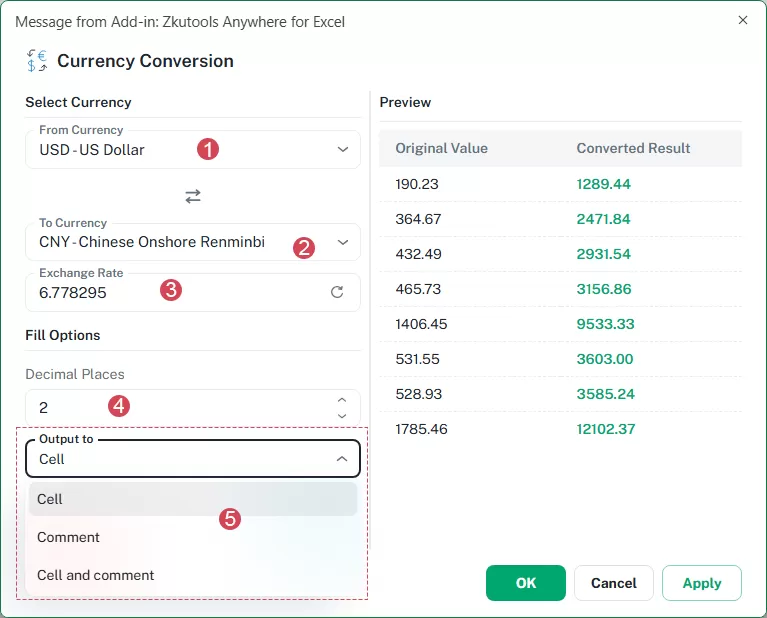
In the Currency Conversion dialog box, configure the following options:
1. From Currency: Select the currency used by the original values.
2. To Currency: Select the currency you want to convert the values into.
3. Exchange Rate: Review the automatically displayed rate, click the refresh icon to update it, or enter a custom rate manually.
4. Decimal Places: Specify how many decimal places to retain in the converted results.
5. Output to: Choose where to place the converted values:
- Cell: Replace the original values with the converted results.
- Comment: Keep the original values and add the converted results as comments.
- Cell and comment: Place the converted results in the cells and also add them as comments.
Tip: When Comment or Cell and comment is selected from the Output to drop-down list, you can choose which conversion details will be included in the cell comment.
- Output date: Adds the date when the conversion was performed.
- Converted value: Adds the calculated currency value.
- Exchange rate: Adds the exchange rate used for the conversion.
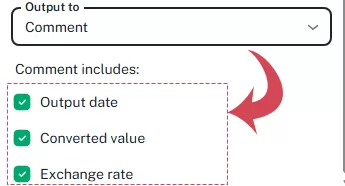
With Comment, the original cell value remains unchanged and the selected information is stored in a comment. With Cell and comment, the converted value is written to the cell, while the selected conversion details are also added as a comment for reference.
Step 4: Apply the conversion
After confirming the settings, click one of the following buttons:
OK – applies the conversion and closes the dialog box.
Apply – applies the conversion while keeping the dialog box open, allowing you to continue processing other data.
Result:
The selected values are converted using the specified currencies, exchange rate, and decimal-place settings. Depending on the selected Output to option, the converted results are inserted into the cells, added as comments, or displayed in both locations.
Result 1: The converted value replaces the original value.
Result 2: The converted value is added as a comment; the original value remains.
Result 3: The converted value is written to the cell and added as a comment. 
When to Use Each Output Option
| Output option | Best used when |
|---|---|
| Cell | You only need the converted amounts in the worksheet. |
| Comment | You want to preserve the original values and store the conversions as references. |
| Cell and comment | You need visible converted values together with additional conversion information. |
Practical Usage Tips
Back up important data
When using Cell or Cell and Comment as the output option, the operation may change the selected cell values. Make a copy of important data before performing a large conversion.
Review the exchange rate
Exchange rates can change frequently. Refresh the rate before applying the conversion when current market values are required.
For accounting reports or historical records, use the exchange rate required by your organization instead of the latest rate.
Choose suitable decimal places
Two decimal places are commonly used for standard currency amounts. However, you may need more decimal places for exchange-rate analysis, cryptocurrency values, or precise financial calculations.
Review the preview carefully
The preview makes it easier to detect an incorrect currency, exchange rate, or decimal setting before the selected worksheet values are changed.
Select only numeric cells
For the most reliable results, select a continuous range containing numeric values and avoid including headers or descriptive text.
Notes and Limitations
Exchange rates may change
Currency exchange rates fluctuate over time. A result calculated today may differ from a result calculated on another date.
Online access may be required
Refreshing or retrieving an exchange rate may require an active internet connection.
The displayed rate may differ from a bank rate
Banks, payment platforms, and credit-card providers may apply their own rates, service charges, or conversion fees. Therefore, the final amount charged by a financial institution may differ from the worksheet result.
Rounding can affect totals
When individual values are rounded before being totaled, the result may differ slightly from converting the total amount directly.
Existing cell contents may be overwritten
When Cell or Cell and Comment is selected as the output location, the original selected values may be replaced. Back up important data before applying the operation.
Frequently Asked Questions
Conclusion
The Currency Conversion tool in ZKutools Anywhere for Excel provides a convenient way to convert multiple Excel values between currencies without creating formulas manually. With selectable currencies, exchange-rate controls, decimal settings, multiple output options, and a live preview, you can review the results carefully before applying them to your worksheet.
Table of contents
- Key Features and Benefits
- How to Use the Currency Conversion Tool?
- Practical Usage Tips
- Notes and Limitations
- Frequently Asked Questions
- Conclusion
ZKutools for Excel
Brings AI-powered assistance and practical productivity tools directly into Excel for the web, Windows, Mac, and iPad.