Create Excel tables from natural language, files, and images with AI
Building structured tables in Excel often takes time. You need to create headers, organize columns, enter sample data, and format everything manually. The Quick Table feature in ZKutools Anywhere for Excel helps simplify this process by generating complete Excel tables directly from natural language requests.
Whether you use Excel on the web, desktop, Windows, or Mac, simply describe the table you want, and Quick Table can automatically generate organized headers, sample datasets, comparison tables, multilingual content, and more. You can also choose different generation modes, such as creating headers only, generating lightweight sample data, or building richer demonstration datasets for better understanding.
After the table is generated, you can preview the result and insert it directly into the worksheet with one click, making it much easier to prepare demo files, reports, templates, training materials, and structured datasets.
- What Quick Table can do
- Benefits of Quick Table
- How to use Quick Table
- Best use cases for Quick Table
- Conclusion

What Quick Table can do
With Quick Table, you can quickly turn text descriptions, uploaded files, or images into ready-to-use Excel tables.
📝 Generate tables from text
Describe the table you need in plain language, and Quick Table will create a structured table for you.
🖼️ Convert images into Excel data
Upload an image or screenshot containing data. Quick Table can recognize the content and convert it into an editable Excel table.
📄 Extract data from files
Upload documents or files, and Quick Table can analyze the content, extract key information, and organize it into rows and columns.
🌍 Create multilingual tables
Choose a language and generate table content for different audiences or localized examples.
🧱 Build table structures instantly
Generate only the table framework, including clear headers and organized fields, so you can fill in the data yourself later.
🧪 Create sample data for testing
Generate small or rich sample datasets for demonstrations, formula testing, reports, tutorials, or training materials.
Benefits of Quick Table
Quick Table helps reduce repetitive table-building work and makes it easier to prepare structured Excel data in seconds.
Save time
Create complete tables in seconds instead of manually building headers, rows, and sample data.
Create cleaner worksheets
Generate organized and structured tables for reports, templates, and data analysis.
Prepare demo data quickly
Create realistic sample datasets for tutorials, testing, dashboards, and presentations.
Support file and image uploads
Upload files or pictures and let Quick Table extract useful information into an editable Excel table.
Support multilingual workflows
Generate tables in different languages for localized examples and international reports.
Work across Excel platforms
Use Quick Table in Excel on the web, desktop, Windows, and Mac.
How to use Quick Table
Follow the steps below to generate a table from your request and insert it into the worksheet.
Step 1: Generate a table
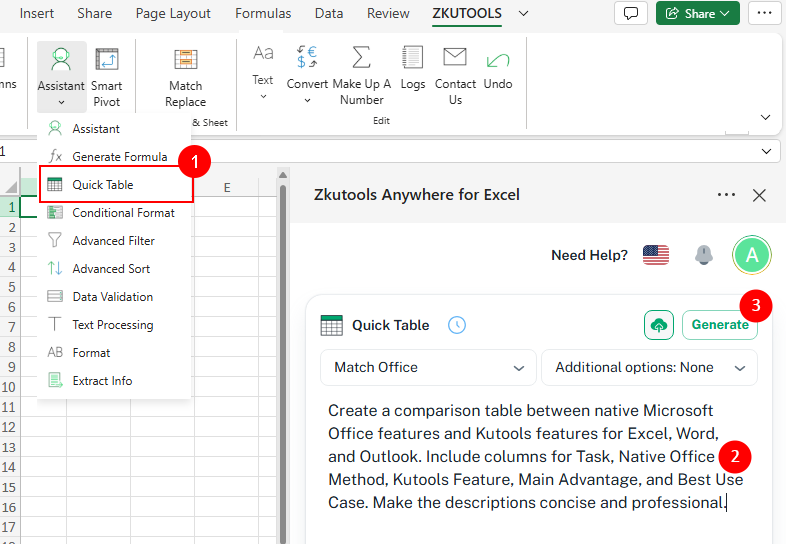
- Open Excel, go to the ZKUTOOLS tab, and click Assistant >Quick Table.
- In the Quick Table pane, describe the table you want directly in the input box.
💡 Tip:
Besides entering a text request, you can also click the Upload File button
 to upload a file or image. AI will analyze and summarize the uploaded content, then automatically generate a structured table based on the extracted information.
 - Click Generate to create the table.
 to upload a file or image. AI will analyze and summarize the uploaded content, then automatically generate a structured table based on the extracted information.
Step 2: Insert the generated table
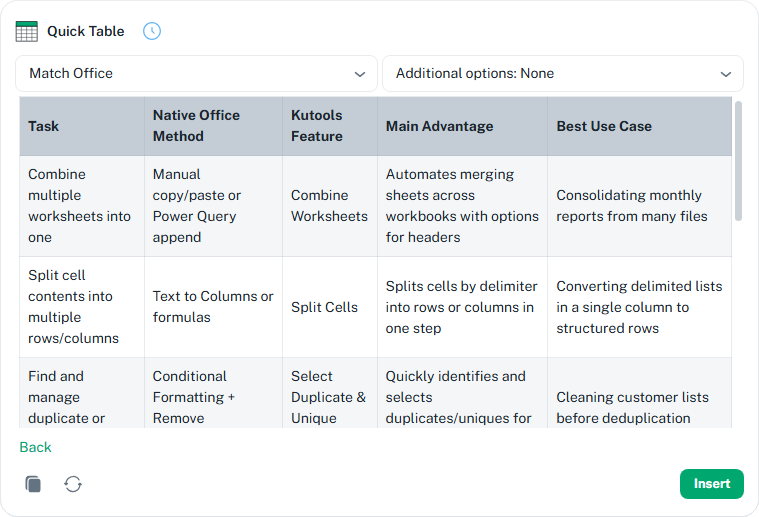
- Preview the generated result in the pane.
- If the table looks correct, click Insert to place it directly into the current worksheet at the cursor position.
💡 Tip:
If you are not satisfied with the generated result, click the Regenerate button
 in the lower-left corner to create a new version of the table. If needed, click Back to adjust your request and generate the table again.
 in the lower-left corner to create a new version of the table. If needed, click Back to adjust your request and generate the table again.
Tips for better results
- Upload a file or image: When entering your request, you can also click the Upload File button beside the Generate button to upload screenshots, documents, or images containing data. Quick Table can analyze the uploaded content and automatically organize the extracted information into a structured Excel table.
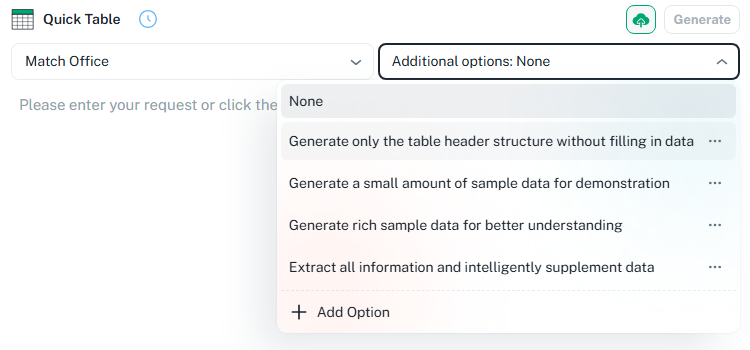
- Use Additional options: Open the Additional options dropdown to control how the table is generated.
- None: Generate the table normally.
- Generate only the table header structure without filling in data: Create headers only.
- Generate a small amount of sample data for demonstration: Add lightweight example data.
- Generate rich sample data for better understanding: Create more detailed demonstration data.
- Extract all information and intelligently supplement data: Extract and complete information automatically.
💡 Tips:
- Click the three-dot menu beside an option to edit or delete it.
- Click Add Option to add your own custom generation option.
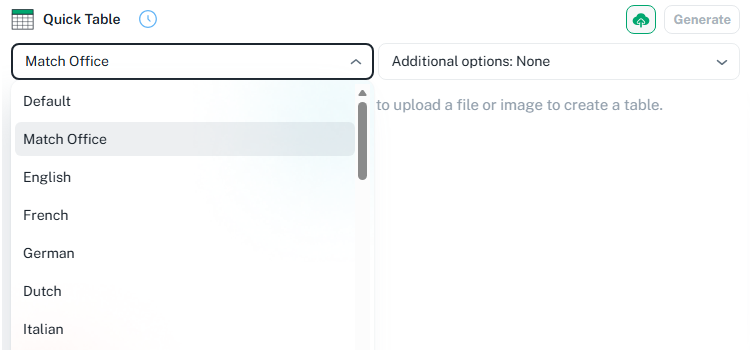
- Choose a language: Use the language dropdown to generate tables in different languages when needed.
Best use cases for Quick Table
Quick Table works well for many everyday Excel tasks, from creating sample data to turning screenshots or documents into editable tables.
Demo datasets
Create realistic sample data for tutorials, product demos, formula testing, or PivotTable practice.
Comparison tables
Compare products, plans, tools, methods, features, or service options in a clear table format.
Work templates
Generate ready-to-use table structures for planning, tracking, scheduling, and daily office work.
Report preparation
Build organized tables for business summaries, KPI reviews, meeting notes, or internal reports.
Image-to-table conversion
Convert screenshots, scanned documents, or images containing data into editable Excel tables.
Multilingual tables
Use the language dropdown to generate table content in the language you need for localized reports, examples, or training materials.
Conclusion
Quick Table provides a faster and more flexible way to build tables in Excel. Instead of manually creating headers, organizing fields, entering sample data, or converting information from screenshots and files, you can simply describe what you need or upload existing content and let AI generate the table for you automatically.
Whether you use Excel on the web, desktop, Windows, or Mac, Quick Table can help simplify repetitive table-building tasks when preparing reports, creating templates, testing formulas, organizing datasets, or converting images into editable Excel data.
ZKutools Anywhere for Excel
ZKutools Anywhere for Excel helps you work smarter in Excel wherever you are—web, desktop, Windows, or Mac. Every feature is completely free to use, including AI tools with free AI tokens included.
