Manage columns in Excel faster with ZKutools Columns
When a worksheet becomes wide, managing columns can take more time than working with the data itself. You may need to scroll across dozens of fields, find one specific column, move important columns closer to the front, or check whether some columns are hidden. Excel can do these tasks, but they often require repeated scrolling, selecting, dragging, right-clicking, and checking column letters one by one.
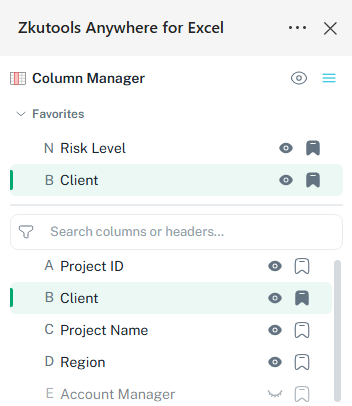
The Columns tool in ZKutools Anywhere for Excel gives you a more direct way to manage worksheet columns from a side pane. You can view all columns in one list, search by header name, select any column instantly, move columns left or right, jump a column to the far left or far right, add important columns to Favorites, and list hidden columns so they are easy to find and show again.
Whether you are reviewing a project tracker, cleaning an exported report, checking a financial worksheet, or preparing a file before sharing it, the Columns tool helps you control the worksheet structure without losing your place in Excel.
 |
What Columns can do
With Columns, you can manage worksheet columns from one pane instead of moving back and forth across a wide sheet manually.
🔎 Find columns by header name
Use the search box to quickly locate a column by its header, even in a wide worksheet with dozens of fields.
✅ Select a column instantly
Click a column name in the pane to jump to and select that column in the worksheet, without scrolling or checking column letters.
↔️ Move columns from the menu
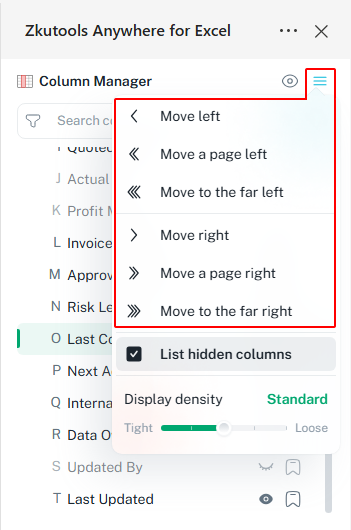
Move a selected column left, right, one page left, one page right, to the far left, or to the far right from the column menu.
🖱️ Drag columns in the pane
Drag columns directly in the Columns pane to reorder them. This is much easier than moving back and forth across a wide worksheet manually.
👁️ Toggle all hidden columns visibility
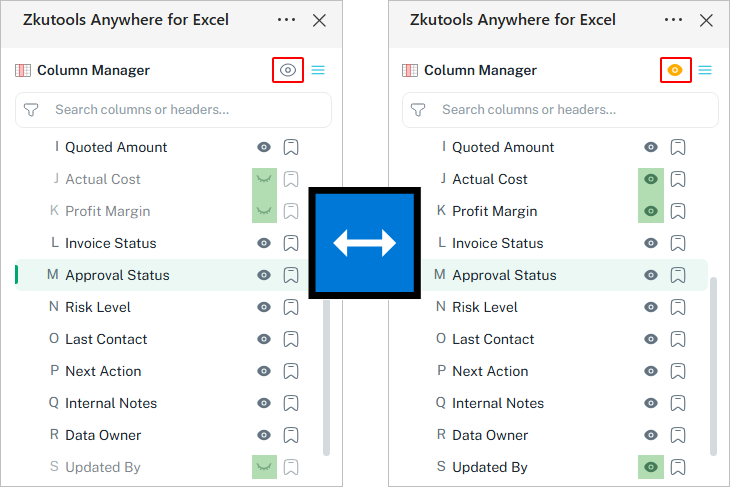
Use the eye icon to show all hidden columns in the worksheet, or hide them again with one click.
🙈 Hide or show columns from the pane
Use the visibility icon beside a column to hide or show it directly, without using Excel’s right-click Hide or Unhide commands.
⭐ Add key columns to Favorites
Add frequently used columns to Favorites so important fields such as Due Date, Project Status, Risk Level, and Next Action stay easy to access.
📏 Adjust display density
Change the pane density to make the column list tighter or looser, depending on how many columns you want to view at once.
Benefits of Columns
Columns helps reduce repeated column management work and makes wide worksheets easier to review, clean, and reorganize.
Save time in wide worksheets
Jump directly to the column you need from the pane instead of scrolling horizontally through the worksheet.
Find hidden columns faster
Show hidden columns in their original positions in the pane, so you can quickly understand what is hidden in the worksheet.
Reorder columns more easily
Move columns from the menu or drag them directly in the pane, without moving back and forth across a wide sheet manually.
Control visibility with less effort
Hide or show one column, or toggle all hidden columns at once, directly from the Columns pane.
Keep important fields close
Add key columns to Favorites and return to them quickly whenever you need them.
Work across Excel platforms
Use Columns in Excel on the web, desktop, Windows, and Mac.
How to use Columns
Follow the steps below to open the Columns pane in your Excel.
- Go to the ZKUTOOLS tab.
- Click Columns to open the Columns pane.

Then choose any action you need from the pane, such as finding, selecting, moving, hiding, showing, favoriting columns, or changing how hidden columns are listed.
Find and select a column
- In the Columns pane, browse the column list.
- To find a column quickly, type part of its header name in the search box.
- Click any column name to select that column in the worksheet.
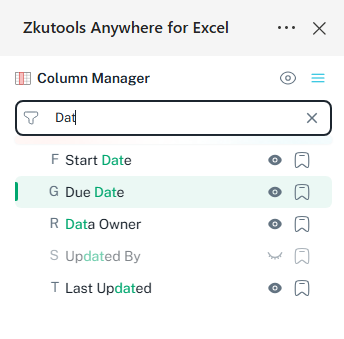
For example, if your worksheet includes many project fields, you can search for margin, approval, risk, or notes to jump to the exact column immediately.
💡 Tip:
When you select a column from the Columns pane, that column is selected in the worksheet and shown on the screen at once. This helps you move between fields much faster without scrolling across a wide worksheet.
Move columns
You can move columns from the column menu, or drag them directly in the Columns pane. Both methods update the column order in the worksheet.
Option 1: Move columns from the menu
- In the Columns pane, find the column you want to move.
- Click the menu icon on the top-right corner of the Column Manager pane.
- Choose one of the move options:
- Move left
- Move a page left
- Move to the far left
- Move right
- Move a page right
- Move to the far right
Option 2: Drag columns in the pane
This is useful when you need to reorder columns in a wide worksheet. You can drag columns inside the pane instead of moving back and forth across the sheet manually.
- In the Columns pane, find the column you want to reorder.
- Drag the column to a new position in the pane.
- The worksheet column order will update accordingly.
ZKutools Anywhere for Excel
ZKutools Anywhere for Excel helps you work smarter in Excel wherever you are—web, desktop, Windows, or Mac. Every feature is completely free to use, including AI tools with free AI tokens included.

Hide or show a single column
- Find the column in the Columns pane.
- Click the visibility icon beside the column name.
- The selected column will be hidden or shown in the worksheet.
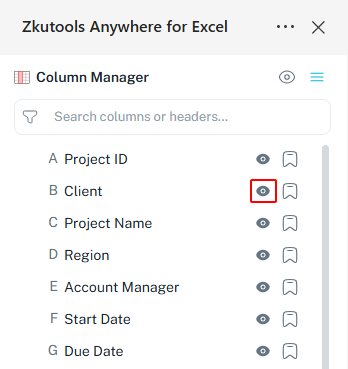
This is best when you only want to control one specific column without using Excel’s right-click Hide or Unhide commands.
Add columns to Favorites
- Find the column you use often.
- Click the favorite icon beside the column name.
- The column will be added to the Favorites section.
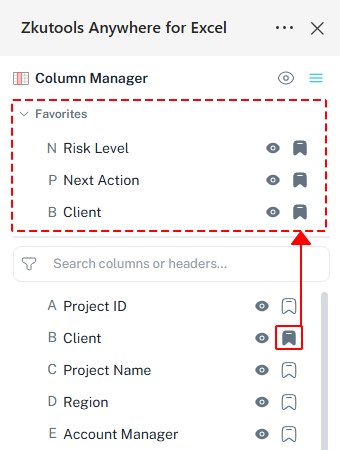
Favorites are useful when you repeatedly check the same key fields. Instead of searching for them each time, you can keep them easy to access in the pane.
Tips for using the Columns pane
The options below help you control how the Columns pane displays column information. They do not directly move, hide, or show worksheet columns, but they make the pane easier to use.
Show or hide hidden columns in the pane
- In the Columns pane, click the menu icon.
- Turn on List hidden columns to include hidden columns in their original positions in the pane.
- Turn it off if you do not want hidden columns to appear in the pane.
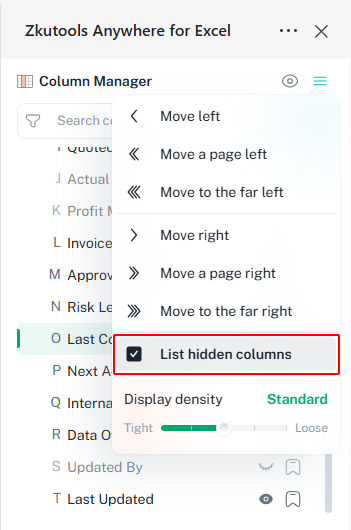
Change display density
- In the Columns pane, open the menu.
- Find the Display density setting.
- Drag the slider toward Tight or Loose.
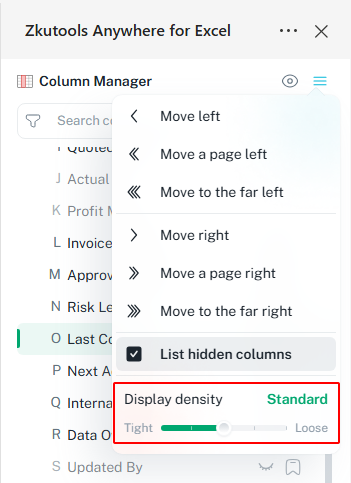
Use a tighter display when the workbook has many columns and you want to see more items in the pane. Use a looser display when you want more spacing between column names.
ZKutools Anywhere for Excel
ZKutools Anywhere for Excel helps you work smarter in Excel wherever you are—web, desktop, Windows, or Mac. Every feature is completely free to use, including AI tools with free AI tokens included.
Practice example: use Columns with a wide project tracker
To try the main features of Columns, use the sample worksheet below. It gives you enough columns to practice hiding, unhiding, moving, searching, temporarily showing hidden columns, and adding frequently used columns to Favorites.
Project ID	Client	Project Name	Region	Account Manager	Start Date	Due Date	Project Status	Quoted Amount	Actual Cost	Profit Margin	Invoice Status	Approval Status	Risk Level	Last Contact	Next Action	Internal Notes	Data Owner	Updated By	Last Updated
PRJ-1001	Northwind Trading	Website redesign	North America	Olivia Carter	2025-01-06	2025-02-28	In progress	28500	17300	39.3%	Not invoiced	Approved	Medium	2025-02-03	Send design preview	Client requested mobile-first layout	Design Team	Mia Chen	2025-02-04
PRJ-1002	BluePeak Logistics	Warehouse dashboard	Europe	Liam Walker	2025-01-12	2025-03-15	Delayed	42000	31800	24.3%	Partial	Waiting for approval	High	2025-02-01	Confirm data source	Delay caused by missing API access	BI Team	Noah Reed	2025-02-05
PRJ-1003	GreenField Foods	Supplier audit report	Asia Pacific	Sophia Lee	2025-01-20	2025-02-20	In review	15600	8200	47.4%	Not invoiced	Approved	Low	2025-02-06	Prepare final report	All documents received	Compliance Team	Ethan Park	2025-02-06
PRJ-1004	ClearWater Energy	Maintenance schedule system	North America	Jackson Hall	2025-02-01	2025-04-10	In progress	63800	40200	37.0%	Not invoiced	Pending	Medium	2025-02-05	Book technical call	Client wants weekly status updates	Engineering Team	Ava Scott	2025-02-07
PRJ-1005	MetroStyle Retail	Loyalty campaign setup	Europe	Emma Young	2025-01-15	2025-02-18	At risk	22400	19600	12.5%	Not invoiced	Waiting for approval	High	2025-02-04	Request campaign assets	Assets are still incomplete	Marketing Team	Lucas Adams	2025-02-06
PRJ-1006	Summit Health	Patient survey analysis	North America	Mason King	2025-01-08	2025-02-14	Completed	18900	9400	50.3%	Ready to invoice	Approved	Low	2025-02-02	Send invoice	Sensitive data, keep internal	Analytics Team	Grace Miller	2025-02-05
After pasting the data into Excel, open ZKUTOOLS > Columns to display the Columns pane.
Then try the following actions:
- Hide and unhide several columns using the visibility icon next to each column name in the pane.
- Move a column from the end of the worksheet to the beginning by dragging it in the pane or using the column menu.
- Use the search box to find and select a specific column without scrolling across the worksheet.
- If you have hidden columns, click the eye icon at the top of the pane to temporarily show them all, then click it again to restore the previous hidden-column view.
- Add frequently used columns to Favorites to see how much easier they are to find and access later.
💡 These actions show how Columns makes it easier to manage a wide worksheet from one place. Hidden columns are also easy to identify in the pane, so you do not need to guess where they are and can control their visibility directly.
Compare with Excel built-in column tools
| Task | Excel built-in tools | ZKutools Columns |
|---|---|---|
| Find a column in a wide worksheet | Use Find, scroll horizontally, or check headers manually | Search the column name in the pane |
| Jump to a column quickly | Scroll across the sheet or use the Name Box if you know the column letter | Click the column name in the pane |
| Move a column | Cut and insert, or drag the selected column, may require long horizontal scrolling | Move it by menu options or drag it within the pane |
| Hide or show one column | Use the column header right-click menu | Use the visibility icon beside the column name |
| Review hidden columns | Look for gaps in column letters or use Unhide commands | Show hidden columns with their headers in their original positions in the pane |
| Temporarily check all hidden columns | Unhide columns one by one, then hide them again | Use the top eye icon to toggle hidden columns between shown and hidden |
| Keep important columns easy to access | Move them near the front, freeze panes, or remember their locations | Add them to Favorites in the pane |
| Work with very wide reports | Often requires repeated scrolling and manual checking | Manage columns from a structured side pane |
Frequently Asked Questions
Can I use Columns on Mac?
Yes. ZKutools Anywhere for Excel works with Excel on Mac, Windows, web, and desktop, so you can use the Columns tool on Mac as long as your Excel supports Office add-ins.
Does Columns support other languages?
Yes. Columns supports the languages supported by Excel itself. If your worksheet uses column headers in another language, you can still search, select, move, hide, show, and favorite those columns from the pane.
Will Columns change my formulas?
Moving columns may affect formulas the same way normal Excel column moving does. If your formulas use structured references or normal cell references, Excel usually updates them automatically. Still, it is a good idea to check important formulas after reorganizing a worksheet.
Can I use Columns with protected worksheets?
It depends on the protection settings. If the worksheet blocks actions such as selecting, moving, hiding, or showing columns, Columns may not be able to perform those actions until the sheet is unprotected or the required permissions are allowed.
Does List hidden columns unhide my columns?
No. List hidden columns only controls whether hidden columns appear in the Columns pane. It does not show hidden columns in the worksheet. To temporarily show hidden columns in the worksheet, use the eye icon at the top of the pane.
Why do hidden columns appear in the middle of the pane instead of in a separate list?
Hidden columns are shown in their original positions, so the pane matches the real worksheet order. This makes it easier to understand where hidden fields are located among the visible columns.
Can I use Columns with filtered tables?
Yes. Columns manages worksheet columns, so it can be used while a table is filtered. Filters affect which rows are displayed, while Columns helps you manage the fields across the worksheet.
Will Favorites be useful if my worksheet changes often?
Yes. Favorites are helpful for columns you check repeatedly, such as Status, Due Date, Owner, Risk Level, or Notes. If a worksheet is heavily edited or columns are renamed, you may need to review your Favorites again.
Conclusion
The Columns tool in ZKutools Anywhere for Excel gives you a faster and cleaner way to manage wide worksheets. Instead of scrolling across the sheet, dragging column letters, or checking hidden columns manually, you can manage columns from one side pane.
It is especially useful when you work with large reports, project trackers, financial files, imported datasets, and shared workbooks. You can search for columns, select them instantly, move them to better positions, add key fields to Favorites, and list hidden columns so important data is not missed.
If your worksheet has many columns, hidden fields, or columns that need frequent review, Columns can make Excel easier to navigate and much easier to control.
ZKutools Anywhere for Excel
ZKutools Anywhere for Excel helps you work smarter in Excel wherever you are—web, desktop, Windows, or Mac. Every feature is completely free to use, including AI tools with free AI tokens included.
Table of Contents
- What Columns can do
- Benefits of Columns
- How to use Columns
- Open the Columns pane
- Find and select a column
- Move columns
- Temporarily show or hide all hidden columns
- Hide or show a single column
- Add columns to Favorites
- Tips for using the Columns pane
- Practice example: use Columns with a wide project tracker
- Compare with Excel built-in column tools
- Frequently Asked Questions
- Conclusion