Navigate and Manage Worksheets Easily in Excel Online
Managing workbooks with many worksheets in Excel Online can quickly become challenging. As the number of sheets grows, finding the one you need, checking hidden sheets, or reorganizing worksheet order using the default sheet tabs becomes increasingly time-consuming.
The Navigator pane in ZKutools Anywhere for Excel provides a convenient worksheet management pane that lets you quickly search, navigate, and organize worksheets without constantly scrolling through sheet tabs. Whether you're working with a small workbook or a large project containing dozens of worksheets, Navigator helps improve productivity and keeps worksheet management simple.
Benefits of Navigator
Compared to the default worksheet tabs in Excel, Navigator offers a more efficient way to browse and manage worksheets.
- Hidden worksheets
- Worksheet protection status
How to Use Navigator
This section explains how to use the Navigator feature in ZKutools Anywhere for Excel.
Step 1. Open the Navigator pane
Under the ZKUTOOLS tab, click Navigator.

The Navigator pane opens on the right side of the workbook, displaying all worksheets in the current workbook.

Step 2. Manage your worksheets in the Navigator pane
After opening the Navigator pane, you can easily search, navigate, and organize your worksheets according to your needs.
Quickly Find a Worksheet
When your workbook contains many worksheets, searching is much faster than manually browsing sheet tabs.
- Click inside the Search sheets... box.
- Enter part or all of the worksheet name.
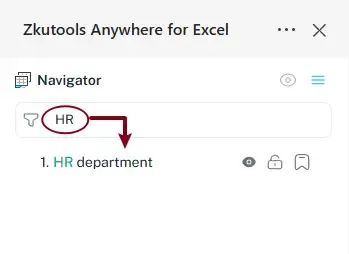
The worksheet list is filtered automatically, showing only matching worksheets. Simply click the worksheet you want to open.
Switch Between Worksheets
To navigate to another worksheet, simply click its name in the worksheet list.
The selected worksheet becomes the active worksheet immediately.
For workbooks containing many worksheets, simply scroll through the worksheet list to browse all available sheets. This provides a much faster and more convenient navigation experience than using the default worksheet tabs.

Show or Hide a Worksheet
Navigator lets you quickly hide or unhide worksheets without leaving the worksheet list.
- Hover over the worksheet in the Navigator pane.
- Click the Hide or Show button next to the worksheet name.
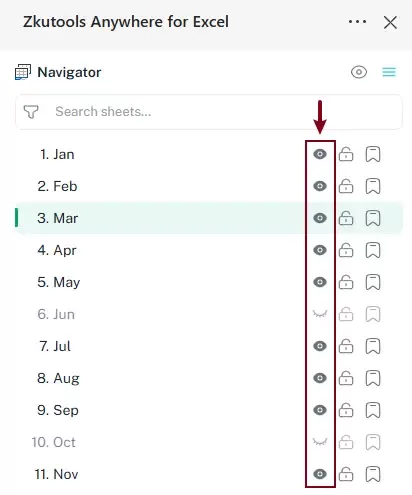
The worksheet visibility is updated immediately.
Protect or Unprotect a Worksheet
You can quickly protect or unprotect worksheets directly from the Navigator pane.
- Locate the worksheet in the list.
- Click the Lock icon next to the worksheet name.
- Enter and confirm the password.
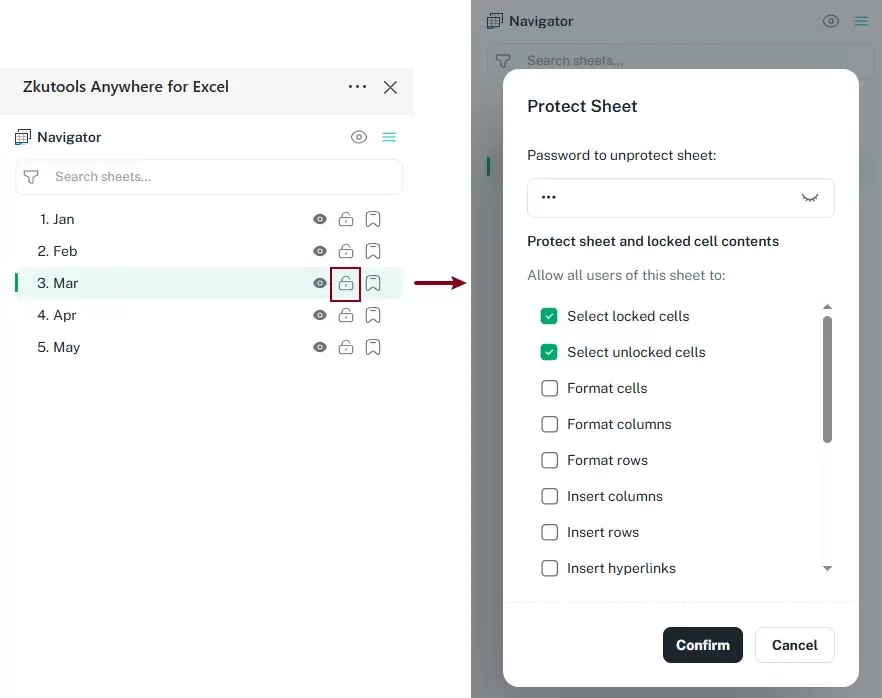
After the worksheet is protected, the lock icon turns black. To unprotect it, just click the lock icon and confirm the password.

The worksheet protection status is updated instantly, making it easy to identify protected worksheets at a glance.
Pin Frequently Used Worksheets as Favorites
Frequently used worksheets can be added to the Favorites group for quick access.
Just click the bookmark icon next to the worksheet name. The worksheet is added to the Favorites group at the top of the Navigator pane, allowing you to access it with a single click.

To remove a worksheet from Favorites, simply click the bookmark icon again.
Temporarily Show All Hidden Worksheets
If your workbook contains hidden worksheets, Navigator allows you to display them temporarily without permanently changing their hidden status.
Click the Temporarily Show Hidden Sheets button.
All hidden worksheets are temporarily displayed in the Navigator pane for viewing and navigation.

Once you click the Tempararily Show Hidden Sheets button again, the worksheets return to their original hidden state automatically.
Tips and Tricks
Navigator includes several convenient options that help you customize the worksheet list and improve your navigation experience. Whether you're working with a few worksheets or a workbook containing hundreds of sheets, these settings make it easier to organize, locate, and manage your worksheets more efficiently.
Easily reorder worksheets
Navigator provides multiple ways to rearrange worksheet order, making workbook organization much easier than dragging sheet tabs.
- Drag and drop to reorderSimply drag a worksheet to a new position in the worksheet list. The worksheet is moved immediately, allowing you to quickly reorganize your workbook.
- Easily move up and downClick the More Actions button, then choose Move Up, Move a page up, Move to Top, or Move down, Move a page down, Move to bottom to reposition the worksheet precisely.
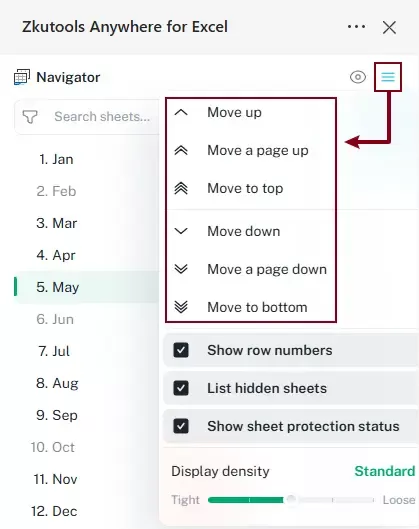
how/hide row numbers
By default, row numbers are displayed before each worksheet in the Navigator list. If you prefer a cleaner interface without the row numbers, click the More Actions button and uncheck the Show row numbers box.

Display/hide hidden worksheets in the worksheets list
By default, all worksheets are displayed in the Navigator list, including both visible and hidden worksheets. To display only the visible worksheets, just uncheck the List hidden sheets box in the More Actions menu.

Show/hide worksheet protection status
By default, lock icons are displayed next to protected worksheets, making it easy to identify which worksheets are protected at a glance.
To hide the lock icons, open the More Actions menu and uncheck the Show sheet protection status box.

Adjust the display density
You can use the Display density slider to customize the spacing between worksheet items in the Navigator pane.
- Tight – Displays more worksheets in the available space, making it ideal for large workbooks.
- Standard – Provides a balanced layout for everyday use.
- Loose – Increases spacing between worksheet items for improved readability and easier clicking.
Choose the density that best suits your working style.

Conclusion
Navigator provides a faster and more intuitive way to manage worksheets in Excel. Instead of relying solely on worksheet tabs, you can search for worksheets, switch between them instantly, reorganize their order, and view useful worksheet information from a single convenient pane.
Whether you're managing a workbook with a handful of sheets or hundreds of worksheets, Navigator in ZKutools Anywhere for Excel helps you stay organized and work more efficiently.