Use AI to Create Conditional Formatting in Excel Online with ZKutools for Excel
Conditional formatting is one of the most powerful ways to visualize data in Excel. It helps you quickly identify trends, highlight important values, detect outliers, and make spreadsheets easier to understand.
However, creating conditional formatting rules manually in Excel can sometimes be complicated — especially when dealing with custom logic, multiple conditions, or large datasets.
In this article, you’ll learn how to use the AI Conditional Format feature in ZKutools Anywhere for Excel to create conditional formatting in Excel Online using natural language and AI assistance.
- When Is AI Conditional Format Useful?
- Why Use AI Conditional Format Instead of Excel’s Built-in Conditional Formatting?
- How to Use AI Conditional Format in Excel Online
When Is AI Conditional Format Useful?
AI-powered conditional formatting is especially helpful when you want to:
- Highlight values above or below average
- Mark overdue dates automatically
- Detect duplicate or abnormal values
- Emphasize top-performing or low-performing data
- Color-code data based on custom business logic
- Apply formatting rules without remembering Excel formulas
Instead of manually building complex formatting rules, you can simply describe what you want, and the AI will generate the formatting automatically.
Why Use AI Conditional Format Instead of Excel’s Built-in Conditional Formatting?
Excel’s native conditional formatting is powerful, but it often requires:
- Manual rule setup
- Multiple dialog boxes
- Formula knowledge
- Repeated adjustments and testing
For many users, especially beginners, creating advanced rules can be time-consuming and confusing.
The AI Conditional Format feature in ZKutools Anywhere for Excel simplifies the entire process.
Advantages of AI Conditional Format
- Use natural language instead of complicated formulas
- Create formatting rules faster
- AI automatically understands your instructions
- Supports flexible and custom formatting requests
- Easier for non-technical users
- Works directly inside Excel Online
Instead of navigating through multiple menus and settings, you can simply tell the AI what you want to highlight.
How to Use AI Conditional Format in Excel Online
Step 1: Install the ZKutools Anywhere for Excel Add-in
First, install the ZKutools Anywhere for Excel add-in for Excel Online.
You can refer to the installation guide here:
How to install ZKutools Anywhere for Excel Add-in
Step 2: Select the Data Range
Open your worksheet and select the range where you want to apply conditional formatting.

Step 3: Open AI Conditional Format
Click:
ZKutools → Assistant → Conditional Format
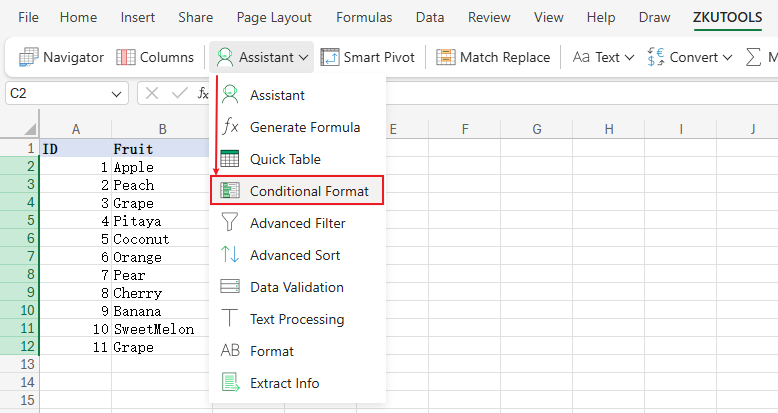
A task pane will appear on the right side of Excel.
Tip:
The first time you use the feature, you need to register an account using your email address.
Because this is a Kutools AI feature, registration is required before using the AI tools.
After registering, you can use the feature for free.
For more details, refer to:
Step 4: Choose or Create a Formatting Request
The pane will display several preset formatting options by default.

If one of them matches your needs, you can click it directly and then enter your specific condition below.
For example:
Select "Set background color to light red", then type "When numbers are below the average value, set the background color to red" in the textbox below.

Also, you can click Add Option to create your own formatting request manually.

Simply describe the rule you want, and the AI will understand and generate the formatting automatically.
For example,
Type "Highlight the top n values" as the Option, and enter the description "Highlight the top 3 values in the range with green background color".


Step 5: Generate the solution
After entering your request, click:
Generate

The AI pane will automatically generate the formula and format preview:

Step 6: Apply the conditional formatting
Click Apply to apply the conditional formatting to your selected range.

Additional Tips
Change the Language: Click the flag icon in the pane to switch languages.

Edit or Delete the Option: Click  to edit or remove the related option.

Resize the Pane: You can resize the task pane in two ways:
- Click the resize button in the pane
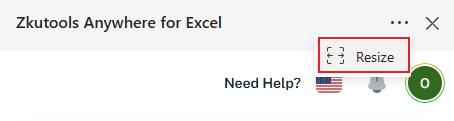
- Or drag the left border of the pane directly
Final Thoughts
Creating conditional formatting in Excel no longer needs to be complicated.
With AI Conditional Format in ZKutools for Excel, you can apply intelligent formatting rules using simple language instead of manually configuring complex settings.
Whether you’re analyzing business reports, financial data, project schedules, or daily spreadsheets, AI-powered conditional formatting can help you work faster, smarter, and more efficiently in Excel Online.
Table of contents
- When Is AI Conditional Format Useful?
- Why Use AI Conditional Format Instead of Excel’s Built-in Conditional Formatting?
- How to Use AI Conditional Format in Excel Online
- Best Office Productivity Tools