Perform Calculations Directly on Selected Cells in Excel Online with Calculation Tools
Working with numbers in Excel Online often requires creating formulas, adding helper columns, filling formulas across ranges, and then converting formula results back to values when you want to modify the original data.
For simple calculations, such as adding the same number to multiple cells, rounding decimals to integers, or applying a custom operation to an entire range, these extra steps can make a straightforward task unnecessarily time-consuming.
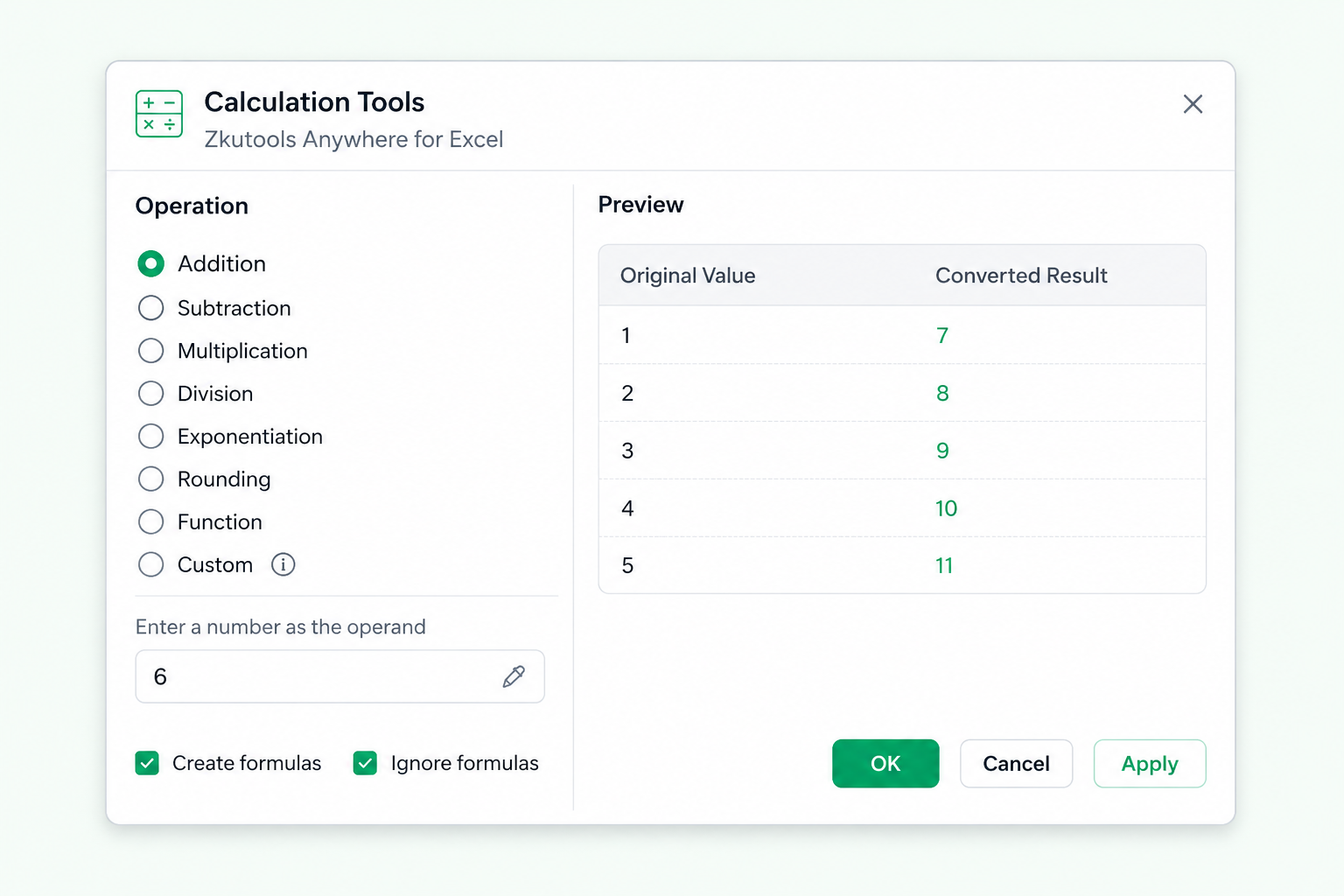
The Calculation Tools feature in ZKutools for Excel provides a faster and more convenient way to perform calculations directly on selected cells in Excel Online.
Instead of creating formulas one by one, you can select a range, choose an operation or function, preview the results, and apply the calculation to the selected cells in just a few clicks.
Where to Find Calculation Tools in Excel Online
Why Use Calculation Tools Instead of Excel Online’s Built-In Methods?
Examples of Using Calculation Tools in Excel Online
Example 1: Increase All Product Prices by 20%
Example 2: Convert Negative Expense Amounts to Positive Values for Reporting
Example 3: Calculate Selling Prices with a Markup and Handling Fee
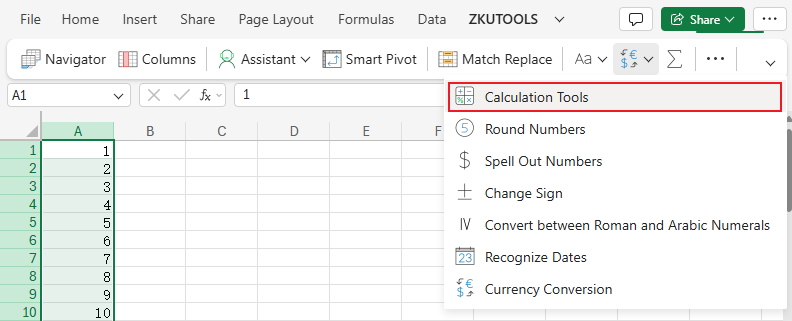
Where to Find Calculation Tools in Excel Online
After installing ZKutools for Excel and opening your workbook in Excel Online:
- Select the cells you want to calculate.
- Go to the ZKUTOOLS tab.
- Click Convert > Calculation Tools.
The Calculation Tools pane will appear, providing different types of calculations and processing options.
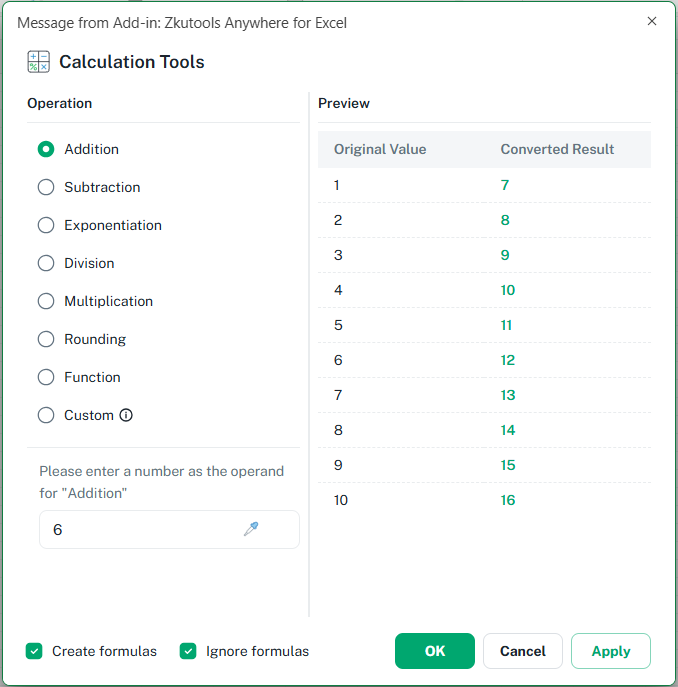
You can perform basic arithmetic operations, apply built-in functions, or create a custom calculation according to your needs.
Before applying the calculation, you can check the results and make sure the selected operation produces the expected output in Preview pane.
Why Use Calculation Tools Instead of Excel Online’s Built-In Methods?
Excel Online already provides formulas and functions for performing calculations. However, when you want to apply the same operation to many existing values, the standard workflow usually requires several steps.
For example, suppose you want to add 10 to every value in a range.
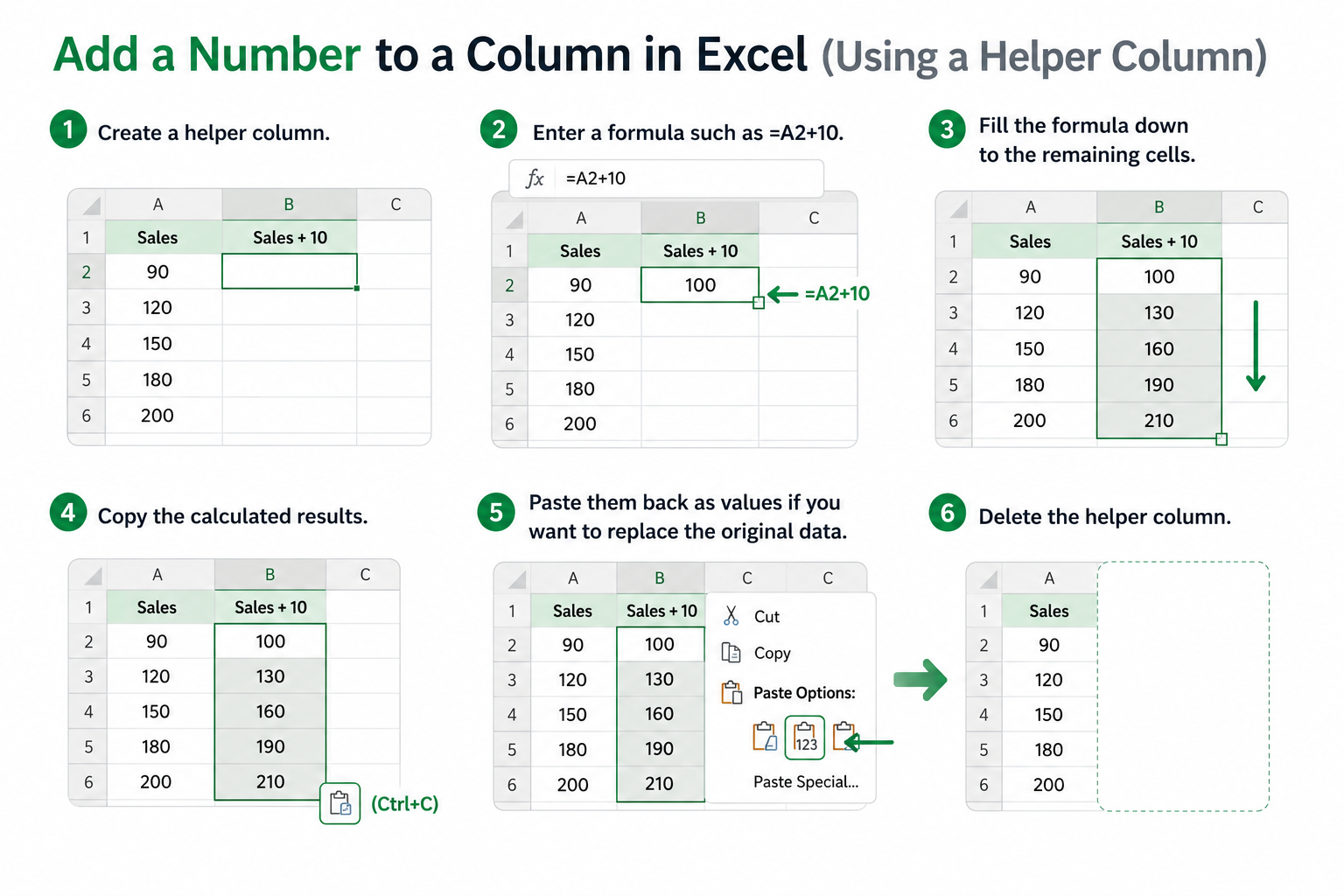
Using Excel Online’s built-in methods, you may need to:
- Create a helper column.
- Enter a formula such as =A2+10.
- Fill the formula down to the remaining cells.
- Copy the calculated results.
- Paste them back as values if you want to replace the original data.
- Delete the helper column.
Calculation Tools simplifies this process.
Simply select the original cells, choose the calculation you need, and apply it directly.
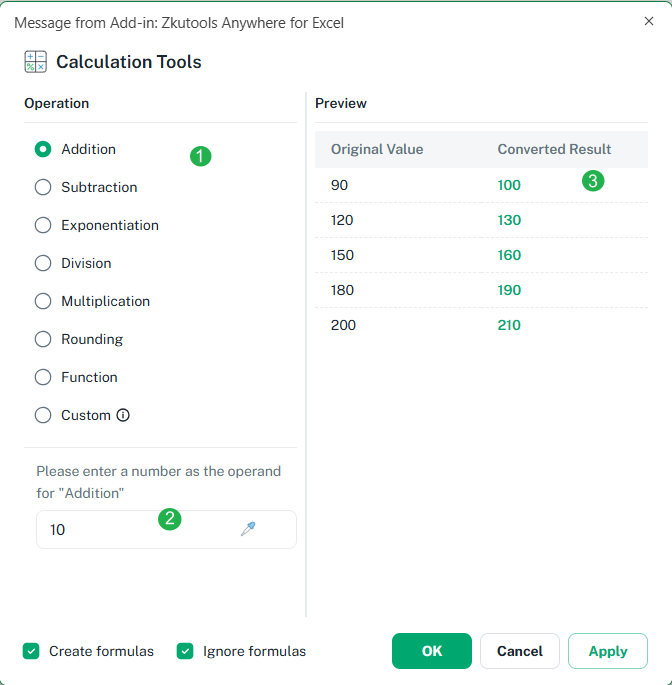
The main advantages include:
- Perform calculations directly on selected cells.
- Process an entire range at once.
- Avoid creating temporary formulas and helper columns.
- Apply arithmetic operations and functions without writing formulas manually.
- Preview the calculation results before applying changes.
- Use custom calculations for more flexible data processing.
- Reduce repetitive steps when cleaning or transforming numerical data.
This makes Calculation Tools especially useful when you need to quickly modify existing numerical data in Excel Online.
Examples of Using Calculation Tools in Excel Online
Calculation Tools can be used for many practical data-processing tasks in Excel Online, from updating product prices to preparing payroll data and calculating selling prices.
The following three examples demonstrate how Multiplication, Apply a Function, and Custom can simplify common calculations and help you process existing data more efficiently.
Example 1: Increase All Product Prices by 20%
Suppose your company needs to update the prices of multiple products because of increased material and operating costs.
You have the following product price list:

The company decides to increase all product prices by 20%.
To increase a value by 20%, multiply the original price by 1.2.
How to Increase Prices by 20%
- Select the cells containing the product prices.
- Go to ZKUTOOLS > Convert > Calculation Tools.
- In the Calculation Tools:
- Choose Multiplication.
- Enter 1.2.
- Preview the results. Then click OK or Apply.
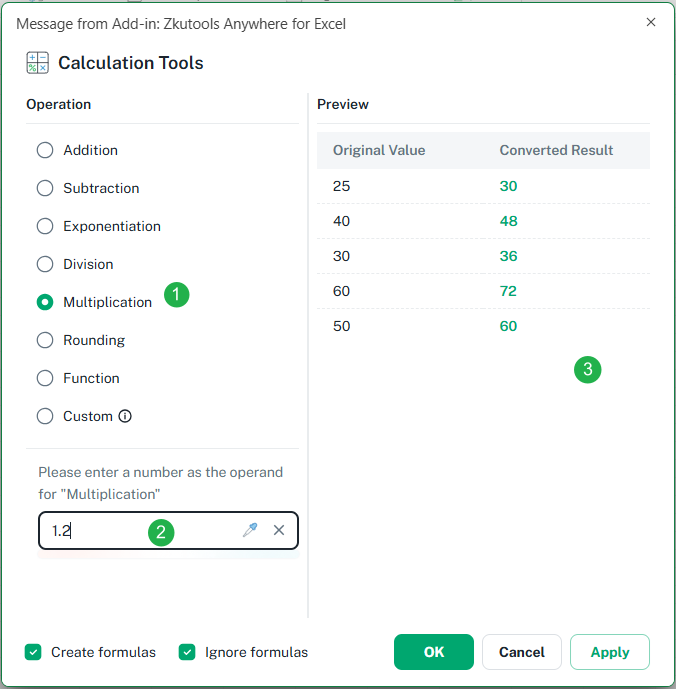
The prices are updated.
All selected prices are increased by 20% at once without creating formulas or helper columns.

This is especially useful for bulk price adjustments, annual price updates, cost increases, budget revisions, and other tasks where the same percentage change needs to be applied to multiple values.
Example 2: Convert Negative Expense Amounts to Positive Values for Reporting
Suppose you export transaction data from an accounting system to Excel Online. In the exported data, expenses are recorded as negative values because they represent cash outflows.
However, when preparing an expense report, you only need to display the actual amount of each expense as a positive value.
The original data is:

With Calculation Tools, you can apply the ABS function directly to all selected cells.
How to Convert Negative Amounts to Positive Values
- Select the cells containing the expense amounts.
- Go to ZKUTOOLS > Convert > Calculation Tools.
- In the Calculation Tools:
- Choose Apply a Function.
- Select ABS.
- Preview the results. Then click OK or Apply.
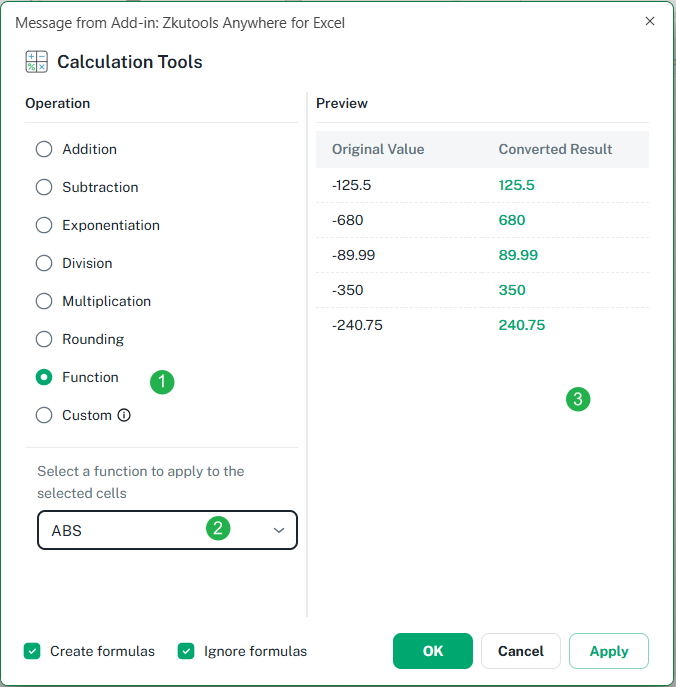
The processed data becomes:

The ABS function is applied to the entire selected range at once, without creating formulas, filling helper columns, or copying results back to the original cells.
This method is especially useful when cleaning exported financial data, preparing expense reports, processing accounting records, or converting negative differences into positive values for further analysis.
Example 3: Calculate Selling Prices with a Markup and Handling Fee
Suppose you manage an online store and need to calculate selling prices based on product costs.
Your pricing policy requires you to:
- Add a 30% markup to each product cost.
- Add a fixed $5 handling fee.
The calculation logic is:
The original product costs are:

With Calculation Tools, you can use Custom to combine multiple operations and apply the calculation directly to the selected cells.
How to Calculate the Selling Prices
- Select the cells containing the expense amounts.
- Go to ZKUTOOLS > Convert > Calculation Tools.
- In the Calculation Tools:
- Choose Custom.
- Type the formula as this: ?*1.3+5
- Click OK or Apply. (Preview not support in the custom mode)
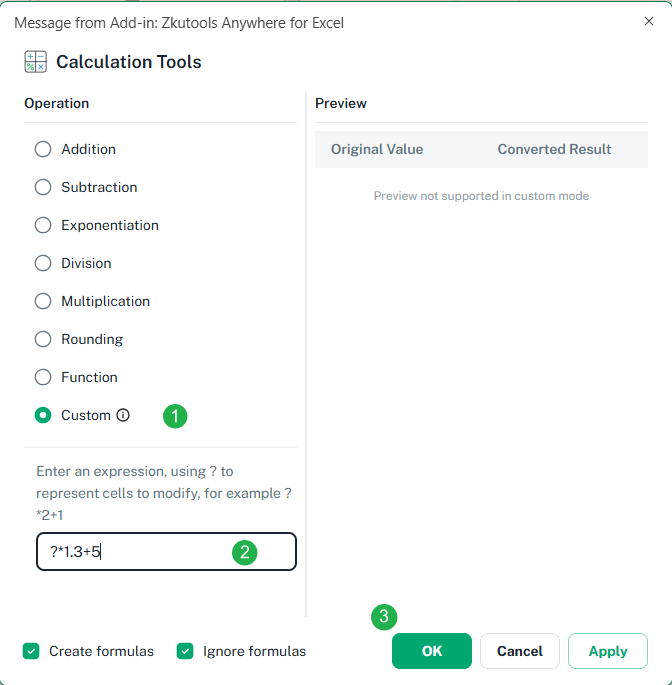
The calculated selling prices are:

Instead of creating and managing formulas manually, the entire pricing calculation can be applied directly to the selected data.
The Custom option is particularly useful for pricing rules, cost adjustments, commissions, tax calculations, unit conversions, and other business scenarios that require multiple operations to be performed on existing values.
Additional Notes:
Create formulas: Select this option to generate formulas. If not selected, the calculated results will be returned as values.
Ignore formulas: Select this option to skip cells containing formulas in the selected range. If not selected, cells containing formulas will also be processed.
Calculation Tools vs. Standard Excel Online Calculations
| Task | Excel Online Built-In Method | ZKutools Calculation Tools |
|---|---|---|
| Add the same number to many cells | Create and fill formulas | Apply directly to the selected range |
| Apply a function to existing values | Use formulas and helper cells | Select a function and process the range |
| Replace original data with results | Copy and paste results as values | Apply results directly |
| Perform custom calculations | Write formulas manually | Create and apply a custom calculation |
| Check results before changing data | Requires additional setup | Preview results before applying |
| Process large ranges | Repetitive formula operations | Batch processing in a few clicks |
Conclusion
The Calculation Tools feature in ZKutools for Excel provides a simple and efficient way to perform calculations directly on selected cells in Excel Online.
Whether you need to add the same value to multiple cells, apply a function such as ABS, or create a custom calculation, the tool helps you complete the task without repeatedly creating formulas, filling helper columns, copying results, and pasting values back into the original range.
By combining arithmetic operations, built-in functions, custom calculations, and result previews in one convenient tool, Calculation Tools makes everyday numerical data processing in Excel Online faster and easier.
If you frequently work with existing numerical data and need to perform repetitive calculations or transformations, Calculation Tools can significantly simplify your workflow.
Table of contents
- Where to Find Calculation Tools in Excel Online
- Why Use Calculation Tools Instead of Excel Online’s Built-In Methods?
- Examples of Using Calculation Tools in Excel Online
- Example 1: Increase All Product Prices by 20%
- Example 2: Convert Negative Expense Amounts to Positive Values for Reporting
- Example 3: Calculate Selling Prices with a Markup and Handling Fee
- Calculation Tools vs. Standard Excel Online Calculations
- Best Office Productivity Tools