Batch Replace Strings in Excel (Accents, Punctuation, and Special Characters)
When working with imported or shared data, you may need to replace multiple text values, remove special characters, convert accented characters, standardize punctuation, or clean non-printing characters in Excel. While Excel's Find and Replace feature works well for simple replacements, repetitive text-cleaning tasks often require multiple steps and can quickly become time-consuming.
Batch Replace Characters in ZKutools Anywhere for Excel helps streamline these tasks by allowing you to apply multiple replacement rules at once. It includes built-in scenarios for common text-cleaning operations, such as replacing accented characters, standardizing punctuation, converting full-width and half-width characters, removing non-printing characters, and normalizing text formats.
For more specialized requirements, you can also create custom scenarios with your own replacement rules, save them, and reuse them whenever needed. Available across Excel web, desktop, Windows, and Mac, ZKutools Anywhere for Excel makes it easier to keep text data clean, consistent, and ready for analysis.
- Benefits of Replace Characters
- How to use Replace Characters in Excel
- Tips for better results
- What Replace Characters can do in Excel
- Replace accented characters with standard letters
- Convert Chinese and English punctuation (full-width punctuation to standard punctuation)
- Convert full-width and half-width characters
- Convert uppercase and lowercase letters
- Convert line breaks to spaces
- Remove non-printing characters
- Create and apply custom replacement scenarios
- Conclusion
Benefits of Batch Replace Characters
Batch Replace Characters helps you clean, standardize, and normalize text data more efficiently by applying multiple replacement rules in a single operation.
Replace multiple text values at once
Apply multiple Find and Replace rules in a single operation instead of running repeated replacements manually.
Clean imported and inconsistent data
Remove unwanted characters, standardize punctuation, fix capitalization, and normalize text from external sources.
Handle multilingual text more easily
Convert accented characters, punctuation styles, and full-width or half-width characters with built-in scenarios.
Create reusable custom scenarios
Build your own replacement scenarios for company names, status values, abbreviations, or other recurring cleanup tasks.
Preview replacement results before applying
Review the replacement results in real time before making changes to the worksheet.
Work across Excel web, desktop, Windows, and Mac
Use the same text-cleaning workflow across different Excel environments with ZKUTOOLS Anywhere for Excel.
How to use Replace Characters in Excel
- Select the cells where you want to batch replace strings.
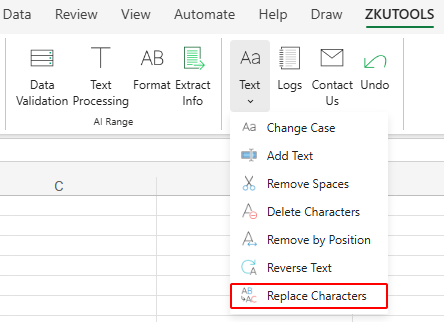
- Go to the ZKUTOOLS tab, and click Text > Replace Characters.
- Select a built-in replacement scenario from the Scenario dropdown list.
- Enable or disable individual replacement rules using the checkboxes beside each rule.
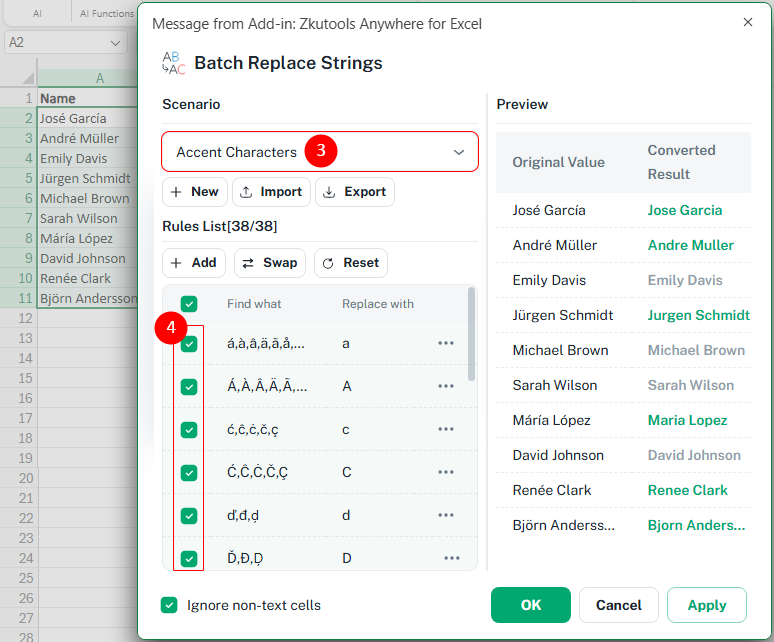
- Review the replacement results in the Preview pane. If everything looks correct, click OK or Apply to apply the selected replacement rules to the worksheet.
Tips for better results
The Batch Replace Strings dialog includes several tools for managing replacement rules and scenarios. You can create custom scenarios, add or modify replacement rules, save frequently used rule lists, and reuse them across different worksheets and projects.
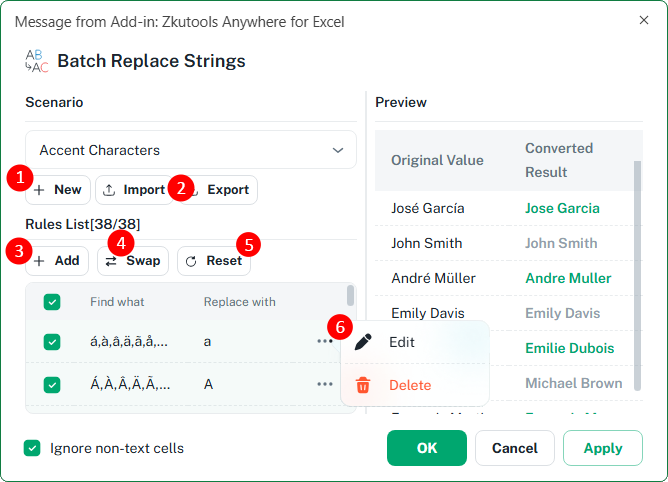
- New: Create a custom scenario for text patterns that are not covered by the built-in scenarios. You can save and reuse the replacement rules whenever needed. See an example of creating a scenario to standardize company names.
- Import / Export: Export a scenario to save or share its replacement rules, or import a previously saved scenario into another workbook or computer.
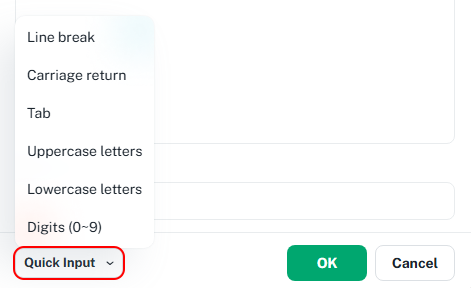
- Add: Add a new Find and Replace rule to the current scenario. For example, replace Ltd. with Limited or replace & with and. 📝 When defining Find and Replace values, use the Quick Input menu to quickly insert common special characters, including line breaks, carriage returns, and tabs, as well as complete sets of digits, uppercase letters, or lowercase letters.
- Swap: Reverse all Find and Replace values in the current scenario. For example, a rule that replaces Ltd. with Limited will become a rule that replaces Limited with Ltd..
- Reset: Restore the current scenario to its original built-in rules.
- Rule menu: Click the three-dot menu beside a rule to modify the Find and Replace values or remove the rule from the scenario.
📝 If you temporarily do not need a rule but may use it again later, simply clear the checkbox instead of deleting the rule.
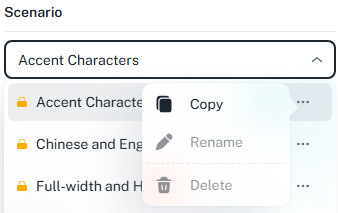
- Scenario menu: Use the three-dot menu beside a scenario to create a copy of a built-in scenario. Built-in scenarios cannot be renamed or deleted.
- Enable Ignore non-text cells to skip numbers, dates, formulas, logical values, and blank cells during processing.
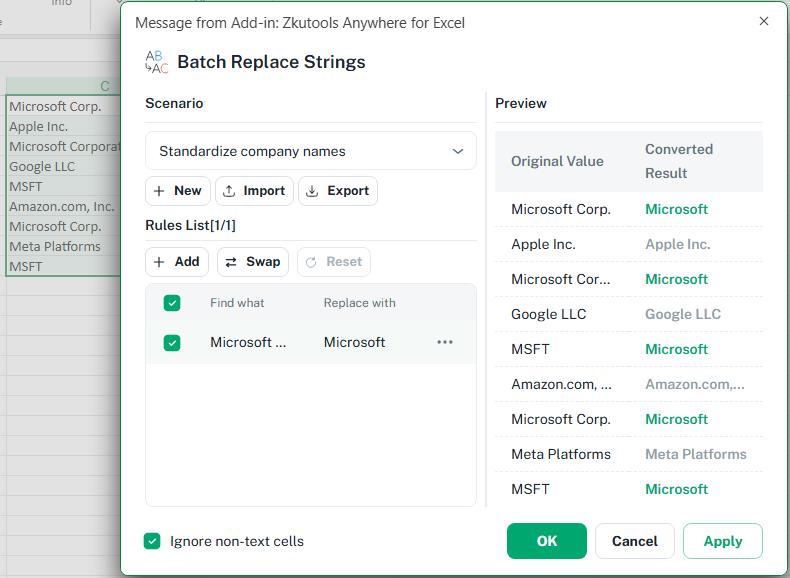
- Review the Preview pane before applying changes to confirm the replacement results. Green rows indicate that a replacement will be made, while gray rows indicate that no replacement is needed.
ZKutools Anywhere for Excel
ZKutools Anywhere for Excel helps you work smarter in Excel wherever you are—web, desktop, Windows, or Mac. Every feature is completely free to use, including AI tools with free AI tokens included.

What Replace Characters can do in Excel
Replace Characters includes multiple built-in scenarios for cleaning, converting, and standardizing text in Excel worksheets.
Replace accented characters with standard letters
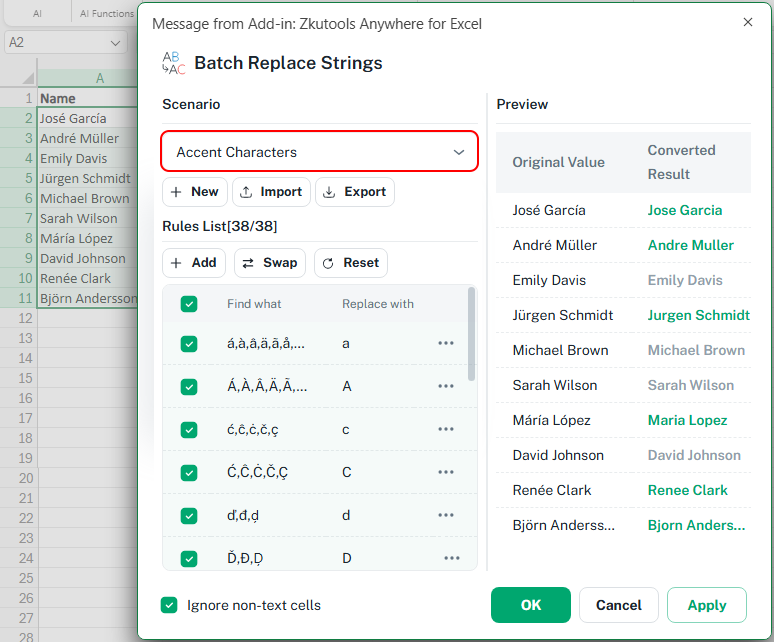
Use the Accent Characters scenario to replace accented letters with standard English characters.
✏️ Example:
Convert names such as José, André, or Émilie into Jose, Andre, and Emilie.
Convert Chinese and English punctuation
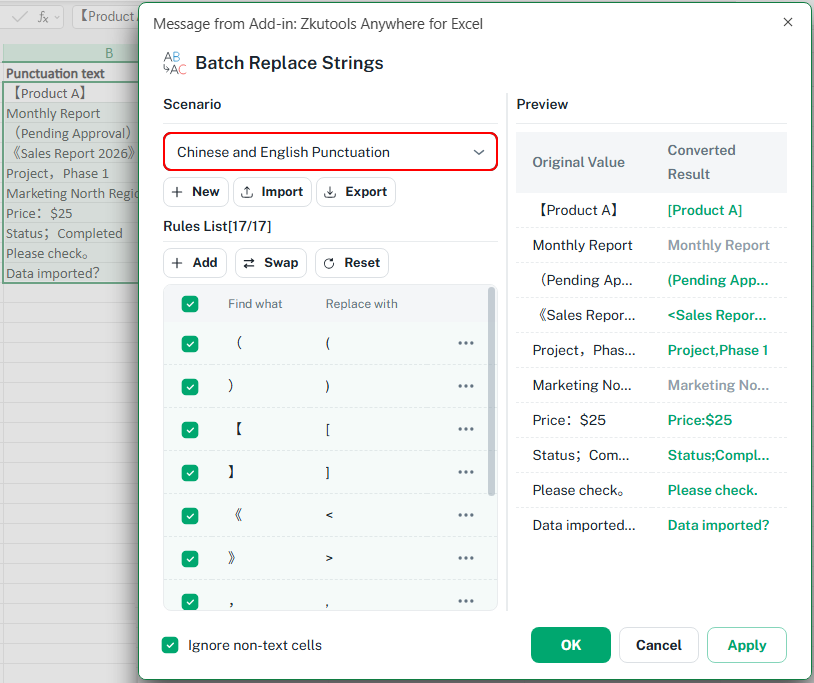
Use the Chinese and English Punctuation scenario to standardize punctuation styles between different language formats.
✏️ Example:
Convert Chinese punctuation such as 【 】 or 《 》 into English-style punctuation like [ ] or < >.
Convert full-width and half-width characters
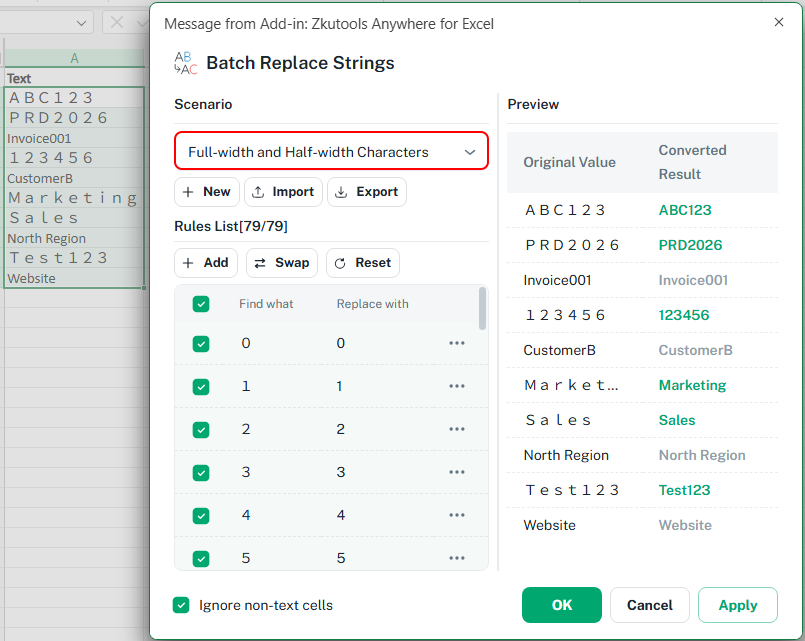
Use the Full-width and Half-width Characters scenario to normalize character widths commonly found in multilingual or imported datasets.
✏️ Example:
Convert full-width numbers such as 12345 into standard half-width numbers like 12345.
ZKutools Anywhere for Excel
ZKutools Anywhere for Excel helps you work smarter in Excel wherever you are—web, desktop, Windows, or Mac. Every feature is completely free to use, including AI tools with free AI tokens included.
Convert uppercase and lowercase letters
Use the Uppercase and Lowercase Letters scenario to standardize inconsistent capitalization.
✏️ Example:
Convert text such as PRODUCTCODE into productcode for cleaner and more consistent datasets.
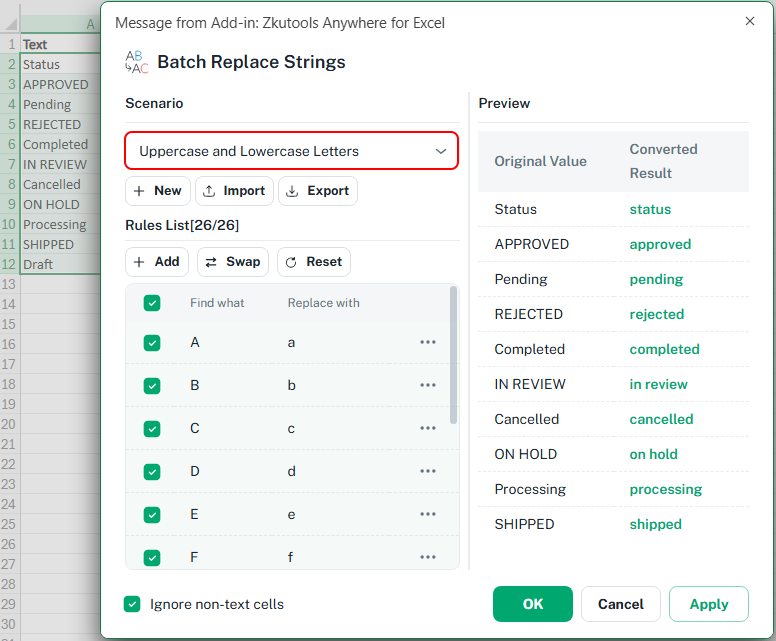
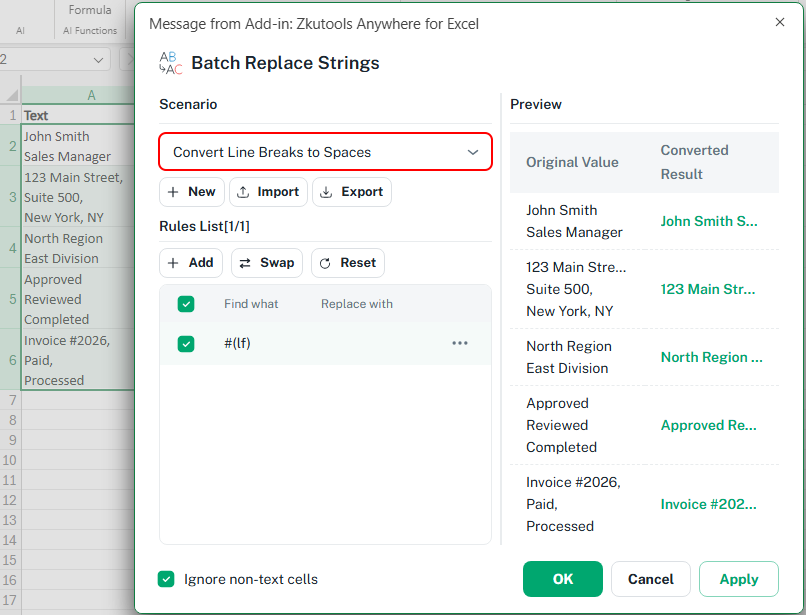
Convert line breaks to spaces
Use the Convert Line Breaks to Spaces scenario to clean cells containing unwanted line breaks.
✏️ Example:
Convert multi-line addresses or copied paragraphs into single-line text separated by spaces.
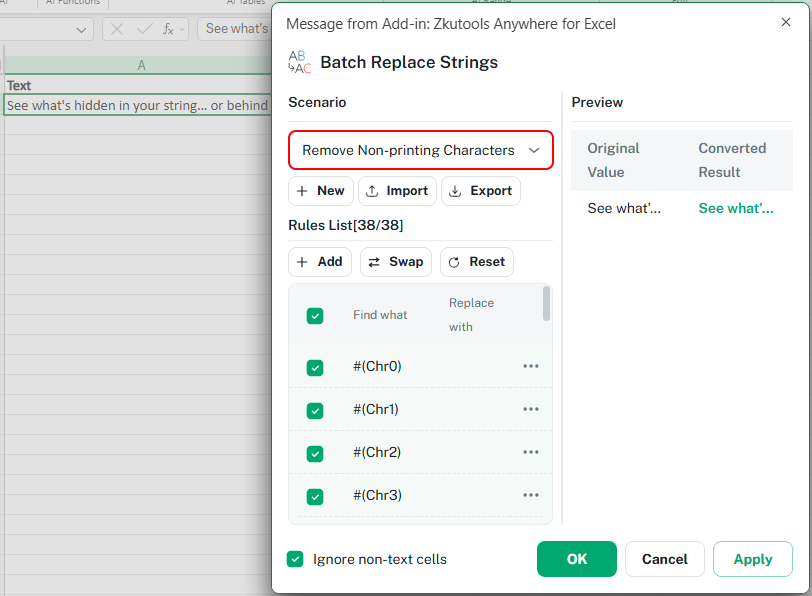
Remove non-printing characters
Use the Remove Non-printing Characters scenario to remove invisible characters that may affect formulas, sorting, filtering, or imports.
✏️ Example:
Remove hidden characters copied from websites, external systems, PDFs, or imported text files.
Create and apply custom replacement scenarios
Create your own replacement scenarios when the built-in options do not match your requirements. Custom scenarios are useful for standardizing company-specific terms, abbreviations, product names, or data-entry variations.
✏️ Example:
Create a scenario that standardizes company names by replacing Microsoft Corp., Microsoft Corporation, and MSFT with Microsoft.
Click New to create a new custom scenario, and enter a name for the scenario.
Click Add to create a new replacement rule. Enter one or more values to find, then specify the value that should replace them.
Click OK to add the rule to the scenario.
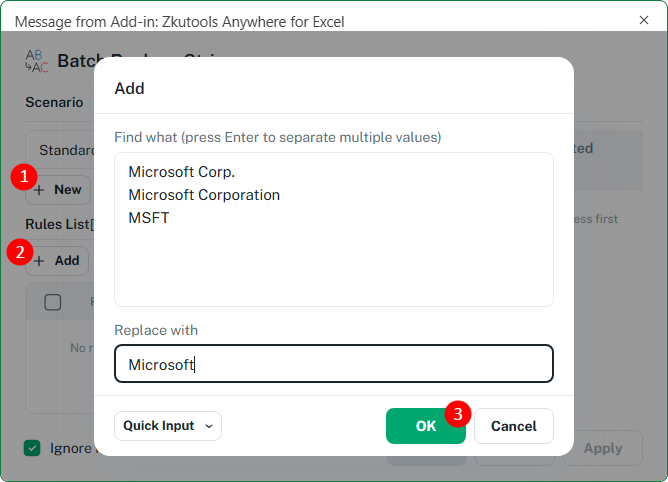
Select the cells you want to process and apply the custom scenario. The rule will standardize different variations of the same company name—for example, replacing Microsoft Corp., Microsoft Corporation, and MSFT with Microsoft.
ZKutools Anywhere for Excel
ZKutools Anywhere for Excel helps you work smarter in Excel wherever you are—web, desktop, Windows, or Mac. Every feature is completely free to use, including AI tools with free AI tokens included.
Conclusion
The Replace Characters feature in ZKutools Anywhere for Excel provides a faster and more organized way to clean, standardize, and normalize text in Excel worksheets. Instead of manually replacing text one pattern at a time, you can apply multiple replacement rules together using reusable scenarios.
Whether you need to normalize punctuation, clean imported datasets, convert accented characters, remove invisible characters, or standardize multilingual text formats, Replace Characters helps simplify repetitive text-cleaning tasks in Excel.
ZKUTOOLS Anywhere for Excel is available across Excel web, desktop, Windows, and Mac, so you can use the same text-cleaning workflow across different Excel environments.
Table of Contents
- Benefits of Replace Characters
- How to use Replace Characters in Excel
- Tips for better results
- What Replace Characters can do in Excel
- Replace accented characters with standard letters
- Convert Chinese and English punctuation (full-width punctuation to standard punctuation)
- Convert full-width and half-width characters
- Convert uppercase and lowercase letters
- Convert line breaks to spaces
- Remove non-printing characters
- Create and apply custom replacement scenarios
- Conclusion