Round Numbers with the Rounding Tool in ZKutools Anywhere for Excel
Rounding numbers is a common task when working with prices, financial reports, measurements, percentages, statistics, and other numerical data in Excel. Although Excel provides formulas such as ROUND, ROUNDUP, and ROUNDDOWN, using formulas can be inconvenient when you need to process a large range of values or directly modify the original data.
The Rounding tool in ZKutools Anywhere for Excel provides a quick and convenient way to round multiple numbers at once. It supports standard rounding, rounding up, rounding down, and banker’s rounding. You can also specify how many decimal places should be retained.
This article explains how to use each rounding method and how the different methods affect your results.

Advantage of Rounding feature in Zkutools
How to Round Numbers in Excel?
- Example 1: Round numbers
- Example 2: Round numbers up
- Example 3: Round numbers down
- Example 4: Apply Banker’s Rounding
Advantage of Rounding feature in Zkutools
Round Multiple Cells at Once
Process an entire range of numbers in a single operation.
No Formulas Required
Round values without creating helper columns or copying formulas.
Four Rounding Methods
Choose standard rounding, rounding up, rounding down, or banker’s rounding.
Flexible Decimal-Place Settings
Round to decimal places, whole numbers, tens, hundreds, or other positions.
Easy to Use
Complete the task through a visual interface without memorizing different Excel functions.
Useful for Different Types of Data
Ideal for financial values, prices, percentages, measurements, statistics, and reports.
Works Across Supported Excel Platforms
Use ZKutools Anywhere for Excel on Windows, macOS, Excel for the web, and iPad.
How to Round Numbers in Excel?
The following sections explain the four available rounding methods in detail, including how each method works, when to use it, and examples of the results it produces.
Example 1: Round Numbers normally
The Round numbers option applies standard rounding. It checks the first digit after the specified decimal position:
- If the digit is 5 or greater, the preceding digit is increased by 1.
- If the digit is less than 5, the preceding digit remains unchanged.
1. Select the cells containing the numbers.
2. Click Zkutools > Convert > Round Numbers, see screenshot:
3. In the Rounding dialog box:
- In the Decimal places box, enter or select the number of decimal places you want to retain. Here, I will enter 2.
- Under Rounding mode, choose Round;
- Click OK or Apply button.
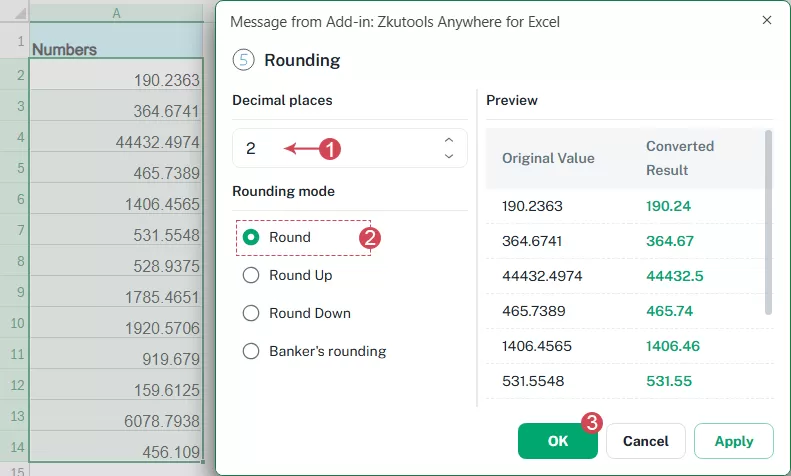
Result: The numbers will be rounded to two decimal places, see screenshot:
Example 2: Round Numbers Up
The Round numbers up option always rounds a number away from zero at the specified decimal position.
Unlike standard rounding, it does not depend on whether the next digit is greater than or less than 5. As long as there are additional nonzero digits after the specified position, the retained number is increased.
1. Select the cells containing the numbers.
2. Click Zkutools > Convert > Round Numbers.
3. In the Rounding dialog box:
- In the Decimal places box, enter or select the number of decimal places you want to retain. Here, I will enter 2.
- Under Rounding mode, choose Round Up;
- Click OK or Apply button.
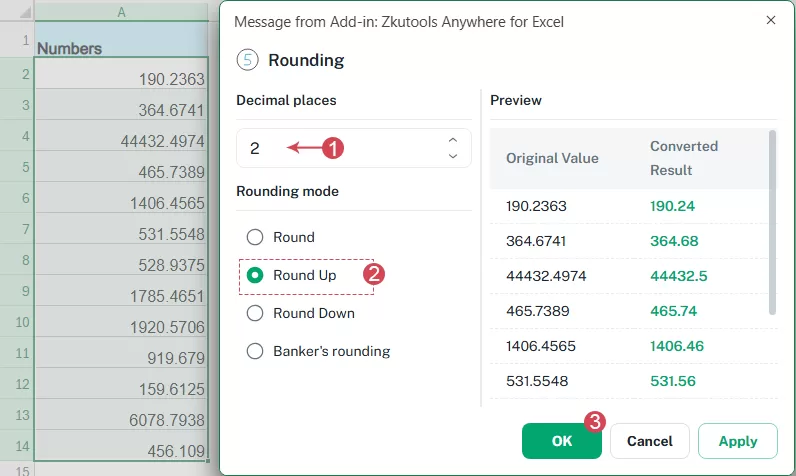
Result: All selected numbers are rounded up to two decimal places. The rounded results are applied directly to the selected cells. See screenshot: 
Example 3: Round numbers down
The Round numbers down option always rounds a number toward zero at the specified decimal position. Additional digits after the specified decimal position are removed without increasing the retained digit.
1. Select the cells containing the numbers.
2. Click Zkutools > Convert > Round Numbers.
3. In the Rounding dialog box:
- In the Decimal places box, enter or select the number of decimal places you want to retain. Here, I will enter 1.
- Under Rounding mode, choose Round Down;
- Click OK or Apply button.
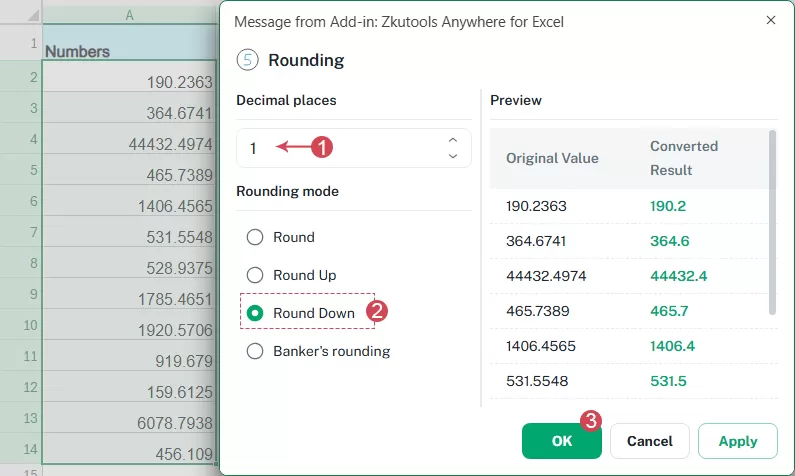
Result: All selected numbers are rounded down to one decimal place.
Example 4:Apply Banker’s Rounding
Banker’s rounding, also known as round half to even, handles numbers ending exactly halfway between two possible rounded values differently from standard rounding.
When the next digit is exactly 5 and there are no additional nonzero digits:
- The number is rounded to the nearest even value.
- If the retained digit is already even, it remains unchanged.
- If the retained digit is odd, it is increased to the next even digit.
This method helps reduce accumulated rounding bias when processing large amounts of numerical data.
1. Select the cells containing the numbers.
2. Click Zkutools > Convert > Round Numbers.
3. In the Rounding dialog box:
- In the Decimal places box, enter or select the number of decimal places you want to retain. Here, I will enter 1.
- Under Rounding mode, choose Banker’s Rounding;
- Click OK or Apply button.
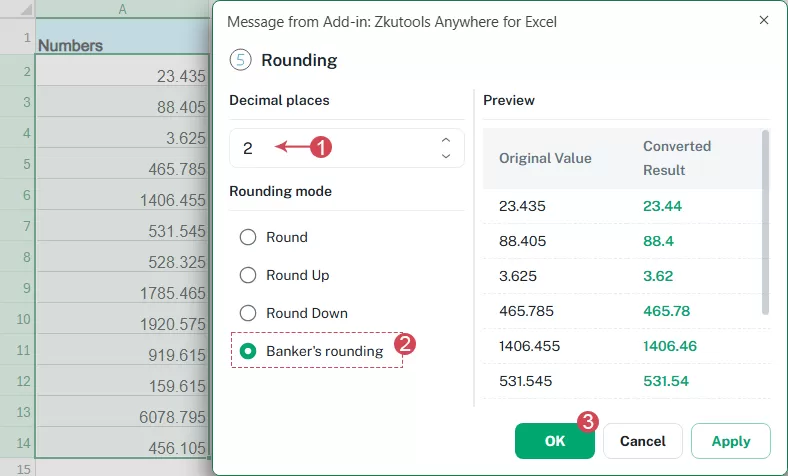
Result: The selected numbers are rounded using the banker’s rounding rule. When a value falls exactly halfway between two possible results, it is rounded to the nearest even number. 
Some tips for using this Rounding feature
Understanding the Decimal-Place Setting
The decimal-place setting determines the position at which the selected numbers are rounded.
Positive Decimal Places
Use a positive number to retain digits after the decimal point.
| Decimal places | Original value | Result |
|---|---|---|
| 1 | 123.4567 | 123.5 |
| 2 | 123.4567 | 123.46 |
| 3 | 123.4567 | 123.457 |
Zero Decimal Places
Use 0 to round to the nearest whole number.
| Decimal places | Original value | Result |
|---|---|---|
| 0 | 123.4567 | 123 |
Negative Decimal Places
When supported by the feature, use a negative number to round digits to the left of the decimal point.
| Decimal places | Rounded position | Original value | Result |
|---|---|---|---|
| -1 | Nearest ten | 123.4567 | 120 |
| -2 | Nearest hundred | 123.4567 | 100 |
| -3 | Nearest thousand | 1,623.4567 | 2,000 |
Comparison of the Four Rounding Methods
| Rounding method | Original value | Result | Rule |
|---|---|---|---|
| Round numbers | 12.345 | 12.35 | Uses standard rounding |
| Round numbers up | 12.345 | 12.35 | Always rounds away from zero |
| Round numbers down | 12.345 | 12.34 | Always rounds toward zero |
| Banker’s Rounding | 12.345 | 12.34 | Rounds an exact midpoint to the nearest even digit |
Important Notes
1. Rounding Changes the Actual Value
Changing the number format in Excel only changes how many decimal places are displayed. It does not change the underlying value.
The Rounding tool processes the actual number stored in the cell. This can affect formulas, totals, averages, and other calculations that reference the rounded cells.
For example, a cell containing 12.3456 may be displayed as 12.35, while its underlying value remains 12.3456. After applying the Rounding tool to two decimal places, the stored value becomes 12.35.
2. Back Up Important Data
Before applying rounding to a large or important dataset, consider creating a backup copy of the worksheet. This is especially important when the rounded results will replace the original values.
3. Select Numeric Cells
The tool is designed to process numeric values. Text, blank cells, error values, or other nonnumeric content may be ignored or left unchanged.
Numbers stored as text may need to be converted into real numbers before rounding.
4. Understand Negative-Number Behavior
For negative numbers:
- Round up moves the value away from zero.
- Round down moves the value toward zero.
For example, when rounding to a whole number:
| Method | Original value | Result |
|---|---|---|
| Round up | -12.1 | -13 |
| Round down | -12.9 | -12 |
5. Banker’s Rounding Applies to Exact Midpoints
Banker’s rounding produces a different result from standard rounding only when a number is exactly halfway between two possible rounded values.
For values that are not exact midpoints, banker’s rounding works like normal rounding.
6. Rounded Values May Affect Totals
Rounding individual values before calculating a total can produce a different result from calculating the total first and then rounding it.
For example:
- Round each item, and then add the rounded values.
- Add the original values, and then round the final total.
These two approaches may produce slightly different results.
Frequently Asked Questions
1 Can I round an entire column at once?
Yes. Select the cells in the column that contain the numbers, open the Rounding tool, choose the required method and decimal places, and apply the operation.
2 Can I round numbers to whole numbers?
Yes. Set the number of decimal places to 0. For example, standard rounding changes 15.6 to 16 and 15.4 to 15.
3 Can I round numbers to the nearest ten or hundred?
Yes, if negative decimal-place settings are supported.
Use:
- -1 for the nearest ten
- -2 for the nearest hundred
- -3 for the nearest thousand
For example, standard rounding changes 1,568 to 1,570 when using -1, or to 1,600 when using -2.
4 Why does rounding up make a negative number smaller?
Rounding up means moving away from zero, not necessarily producing a numerically greater value.
For example, rounding -12.1 up to a whole number gives -13, which is farther away from zero.
5 Why does rounding down make a negative number larger?
Rounding down in this tool means moving toward zero. For example, rounding -12.9 down to a whole number gives -12.
6 Can I undo the rounding operation?
You may be able to use the Undo command in Zkutools immediately after applying the operation. However, certain later actions may clear the undo history. Creating a backup copy is the safest option when working with important data.
7 Which rounding method should I choose?
Choose the method according to your purpose:
- Use Round numbers for general calculations.
- Use Round numbers up when the result must not fall below the original required amount.
- Use Round numbers down when only complete units or a lower estimate should be retained.
- Use Banker’s Rounding when processing large financial or statistical datasets where reducing rounding bias is important.
8 Can I apply different rounding methods to different columns?
Yes. Process each column or range separately. Select the first range, apply its required rounding method, and then repeat the operation for the next range using different settings.
Conclusion
The Rounding tool in ZKutools Anywhere for Excel makes it easy to process multiple numeric values without writing formulas. You can use standard rounding for everyday calculations, round values up or down for specific business requirements, or apply banker’s rounding to reduce bias in large datasets.
By selecting the appropriate rounding method and decimal-place setting, you can quickly standardize prices, measurements, percentages, financial figures, and other numerical data throughout your worksheet.
Remember that rounding changes the actual values rather than only changing their appearance. Review your settings carefully and back up important data before processing a large range.
Table of contents
- Advantage of Rounding feature in Zkutools
- How to Round Numbers in Excel?
- Example 1: Round numbers
- Example 2: Round numbers up
- Example 3: Round numbers down
- Example 4: Apply Banker’s Rounding
- Some tips for using this Rounding feature
- Important Notes
- Frequently Asked Questions
- Conclusion
ZKutools for Excel
Brings AI-powered assistance and practical productivity tools directly into Excel for the web, Windows, Mac, and iPad.