Extract Specific Information from Text String in Excel with AI
When working with large amounts of text data in Excel, it is often difficult to manually identify and extract useful information from messy or unstructured text. For example, you may need to extract job titles from resumes, product models from customer orders, names from email signatures, or addresses from long descriptions.
The Information Extraction of Zkutools for Excel feature helps you quickly extract specific information from selected text cells using AI. Instead of writing complex formulas, VBA code, or regular expressions, you can simply choose what type of information you want to extract, and the tool will analyze the text and return the matching results.
What is Information Extraction?
Advantages of Information Extraction feature
Choose what kind of information to extract
- Extract general information (such as job title, product model…)
- Extract specific number of Keywords from long text string
- Extract Address from Text Strings
- Extract Names from Text Strings
- Extract Company Names from Text Strings
- Create Custom extraction rule
What is ZKutools Anywhere for Excel?
The Information Extraction feature in ZKutools Anywhere for Excel (powered by Kutools AI Functions) is an advanced tool designed to pull structured data out of messy, unstructured text directly inside your spreadsheets.
Unlike traditional Excel tools that require rigid patterns, delimiters, or complex nested formulas (like MID, SEARCH, or VBA macros), ZKutools uses built-in artificial intelligence to handle semantic understanding. This means it reads text data the way a human would, allowing you to instantly isolate and extract key details—such as company names, email addresses, phone numbers, job titles, or geographic locations—from long paragraphs, customer notes, or raw descriptions.
For example, if a cell contains the following text:
John Smith is a Sales Manager at ABC Technology Inc. He is based at 245 Market Street, San Francisco, CA.
You can use Information Extraction to extract:
This allows you to quickly turn messy text into structured data for filtering, sorting, reporting, or further analysis.
Advantages of the Information Extraction Feature
The Information Extraction feature provides a much easier and smarter way to process text data in Excel.
1. No formulas or VBA required
Traditional extraction methods often require Excel formulas, regular expressions, helper columns, or VBA code. With AI extraction, you can describe or select what you want to extract without building complex logic manually.
2. Works well with unstructured text
Text data is not always clean or consistent. The same information may appear in different positions, formats, or sentence structures. AI can understand the context and extract the correct information even when the text format varies.
3. Supports multiple information types
You can extract common business information such as names, addresses, company names, keywords, product models, job titles, and more.
4. Saves time on repetitive data cleaning
If you need to process hundreds or thousands of rows, manually copying information from each cell can be slow and error-prone. This feature helps automate the extraction process and improves efficiency.
5. Useful for business analysis
After extraction, the results can be used for customer segmentation, lead management, order analysis, resume screening, address cleaning, contract review, and other business tasks.
Choose what kind of information to extract
The Information Extraction feature provides several built-in extraction types. You can choose the option that best matches your task.
Extract general information (such as job title, product model…)
Use Extract general information when you want to extract a specific type of information that is not limited to one fixed category. For example, you can extract: Job titles, Product models, Order numbers, Invoice numbers…
Select the cell or range that contains the text you want to analyze.
Click ZKUTOOLS > Assistant > Extract Info to open the Information Extraction pane.
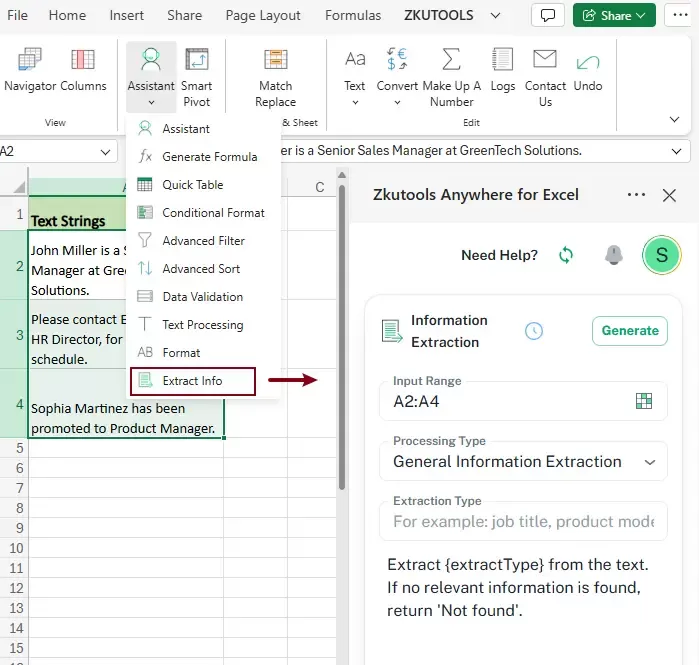
In the Information Extraction pane:
- Click the Processing Type drop-down list, and choose General Information Extraction option.
- Then, enter the extraction type, such as job title.
- Click Generate button.
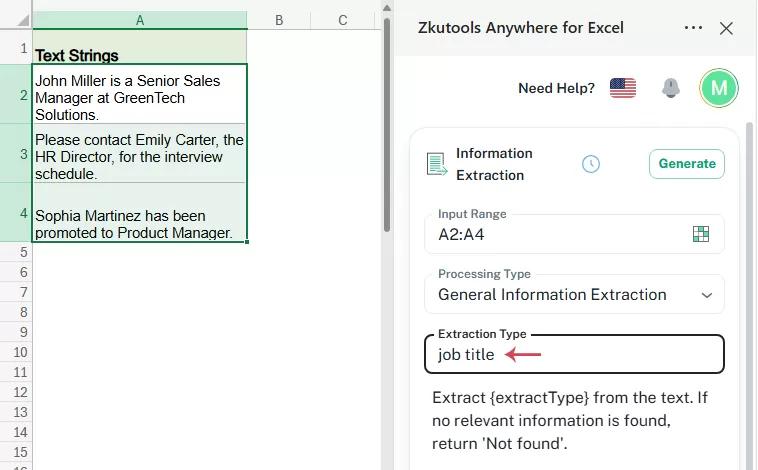
Tip: If the results are not accurate enough, click Regenerate to generate the result again.
The Information Extraction feature analyzes the selected input cells and displays the extraction results in a preview list.
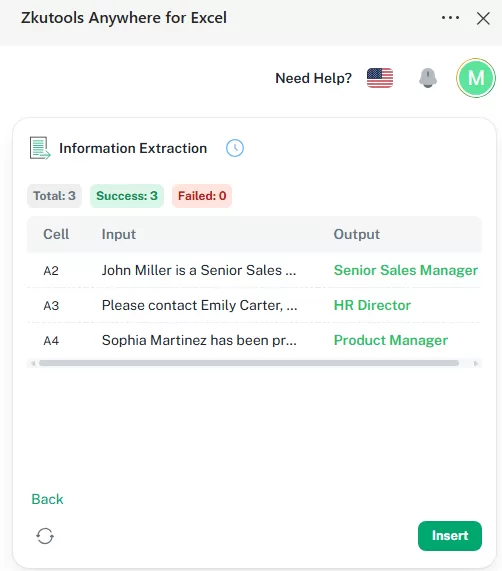
Review the results. If they are correct, select a cell in the worksheet where you want to place the extracted results, and then click Insert to insert them into the worksheet. See screenshot:
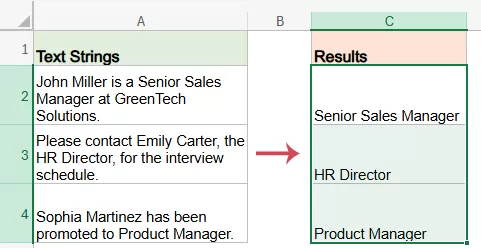
Extract specific number of Keywords from long text string
The Extract Keywords option helps you pull out the main keywords from a text cell. This is useful for categorizing feedback, summarizing customer requests, analyzing comments, or preparing text data for reports.
Instead of reading long sentences manually, you can quickly identify the main topics in each cell.
Select the cells that contain the text strings you want to analyze.
Click ZKUTOOLS > Extract Info to open the Information Extraction pane.
In the Information Extraction pane:
- Click the Processing Type drop-down list, and choose Extract Keywords option.
- In the Number of Keywords box, enter how many keywords you want to extract from each cell.
In this example, enter 2. - Click Generate button.
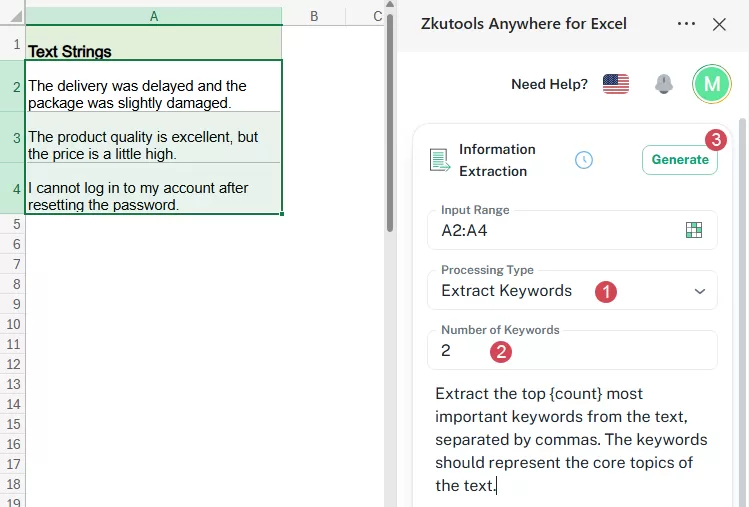
Tip: If the results are not accurate enough, click Regenerate to generate the result again.
The Information Extraction feature analyzes the selected input cells and displays the extraction results in a preview list.
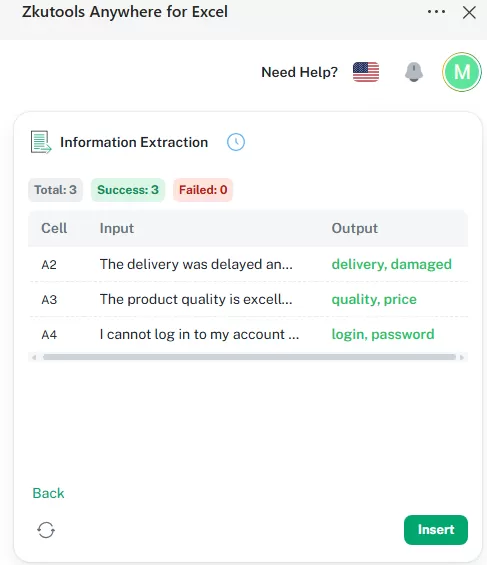
Check the generated results. If they are correct, select a cell in the worksheet where you want to place the extracted keywords, and then click Insert
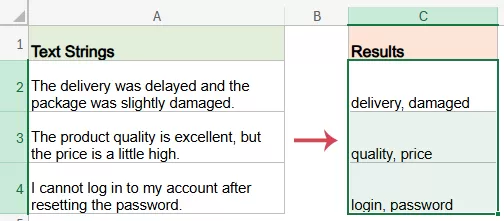
Extract Address from Text Strings
The Extract Address option is designed to find and extract address information from text. This is helpful when addresses are mixed with names, phone numbers, company details, or notes.
Select the cells that contain the text strings you want to analyze and extract the addresses.
Click ZKUTOOLS > Extract Info to open the Information Extraction pane.
In the Information Extraction pane:
- Click the Processing Type drop-down list, and choose Extract Address option.
- Click Generate button.
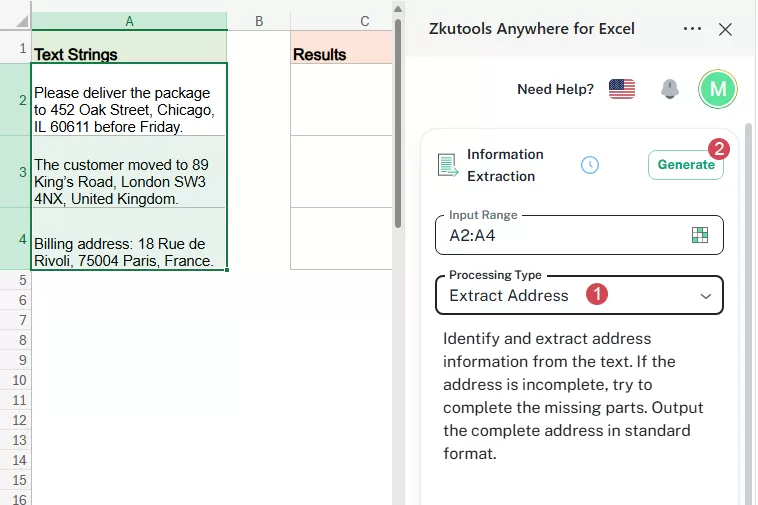
Tip: If the results are not accurate enough, click Regenerate to generate the result again.
The AI will analyze the selected text strings and extract the address information from each cell.
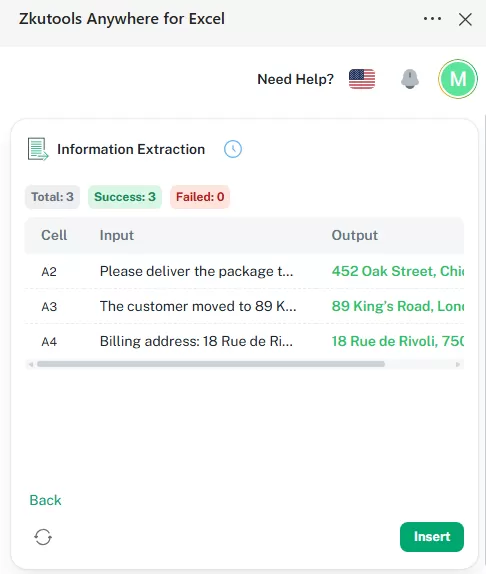
Check the generated results in the preview area. If the results are correct, click a cell in the worksheet where you want to place the extracted addresses. Click Insert to insert the extracted address results into the worksheet.
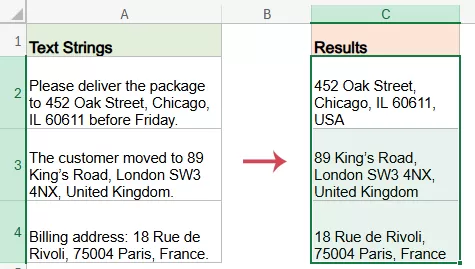
Extract Names from Text Strings
The Extract Name option helps identify people’s names from selected cells. It is useful when names appear inside emails, inquiry messages, meeting notes, or support records.
Select the cells that contain the text strings from which you want to extract people’s names.
Click ZKUTOOLS > Extract Info to open the Information Extraction pane.
In the Information Extraction pane:
- Click the Processing Type drop-down list, and choose Extract Name option.
- Click Generate button.
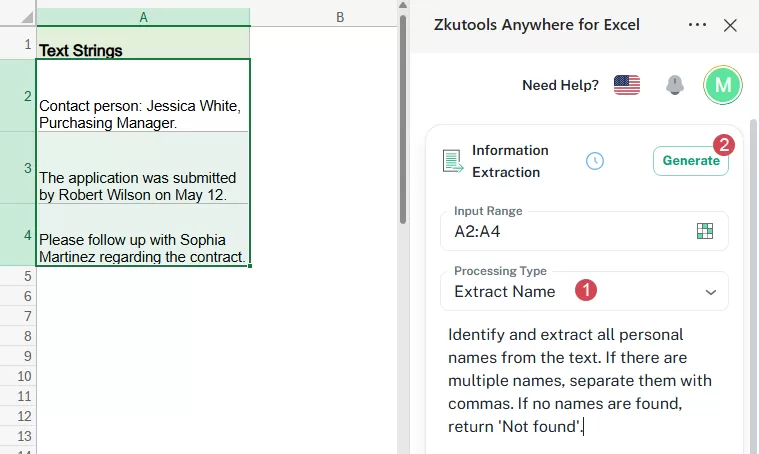
Tip: If the results are not accurate enough, click Regenerate to generate the result again.
The AI will analyze the selected text strings and identify the names contained in each cell.
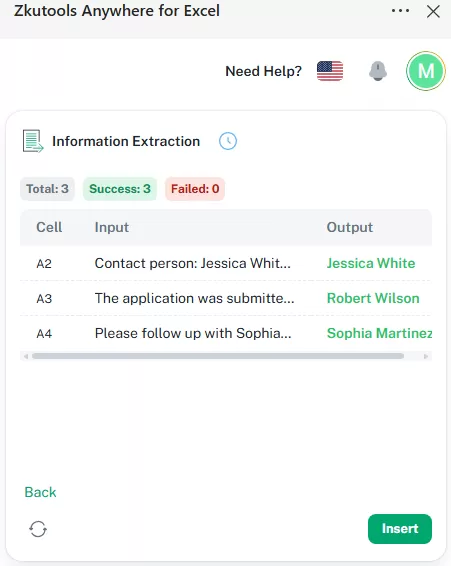
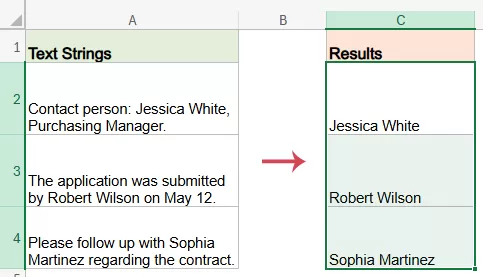
Check the generated results in the preview area. Make sure the extracted names are correct and match the original text. If the results are correct, click a cell in the worksheet where you want to place the results. Click Insert to insert the extracted name results into the worksheet.
Extract Company Names from Text Strings
The Extract Company Name option identifies company or organization names from the selected text. This is useful when business names are mixed with contact names, addresses, requests, or descriptions.
Select the cells that contain the text strings from which you want to extract company names.
Click ZKUTOOLS > Extract Info to open the Information Extraction pane.
In the Information Extraction pane:
- Click the Processing Type drop-down list, and choose Extract Company Name option.
- Click Generate button.
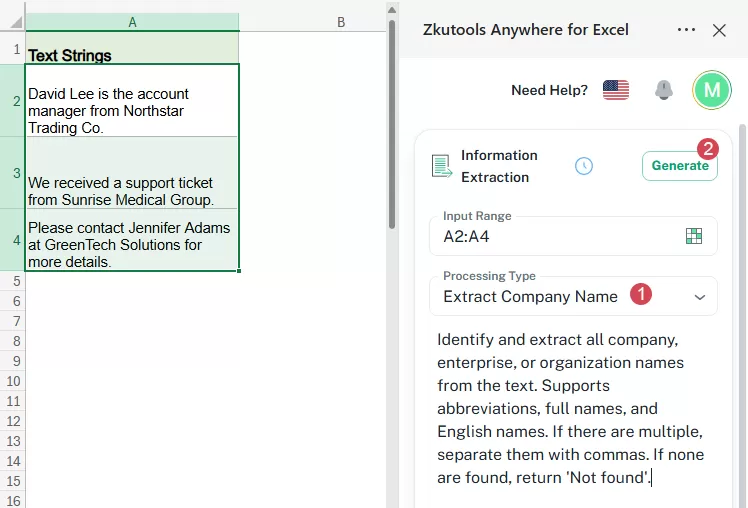
Tip: If the results are not accurate enough, click Regenerate to generate the result again.
The AI will analyze the selected text strings and identify the company names contained in each cell.
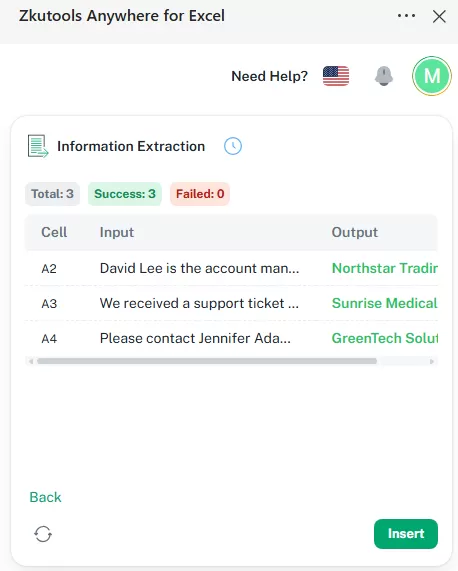
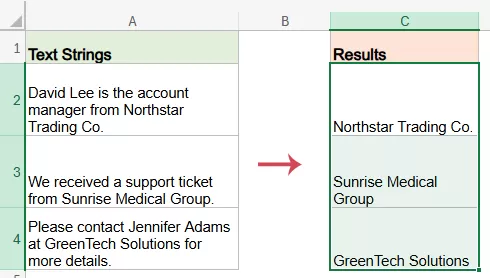
Check the generated results in the preview area. If the results are correct, click a cell in the worksheet where you want to place the extracted company names. Click Insert to insert the extracted company name results into the worksheet.
Create Custom extraction rule
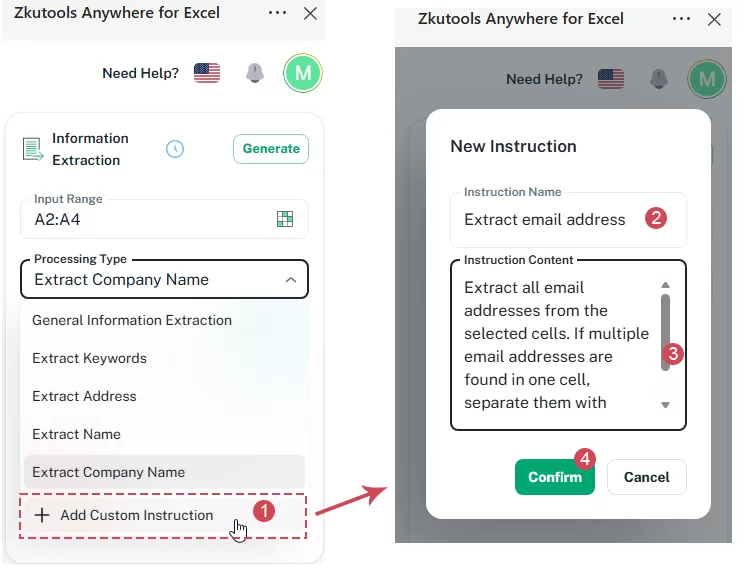
If the built-in extraction types do not meet your needs, you can click Add Custom Instruction to create a custom extraction rule.
This allows you to tell the tool exactly what you want to extract. For example, you can create instructions to extract phone numbers, email addresses, product names, invoice numbers, dates, order IDs, or any other specific information.
In this section, I will show you how to create a custom instruction to extract email addresses from selected cells.
Select the cells that contain the text strings you want to extract email addresses.
Click ZKUTOOLS > Extract Info to open the Information Extraction pane.
In the Information Extraction pane, Click the Processing Type drop-down list, and choose Add Custom Instruction option.
In the New Instruction window:
- Type a name for the custom rule, such as: Extract email address;
- In the Instruction Content box, enter the AI prompt that describes what you want to extract. For example:Extract all email addresses from the selected cells. If multiple email addresses are found in one cell, separate them with commas. If none are found, return 'Not found'.
- Finally, click Confirm button to save the new custom instruction.
After the custom instruction is created, select it from the Processing Type list, and then click Generate to extract the email addresses from the selected cells.
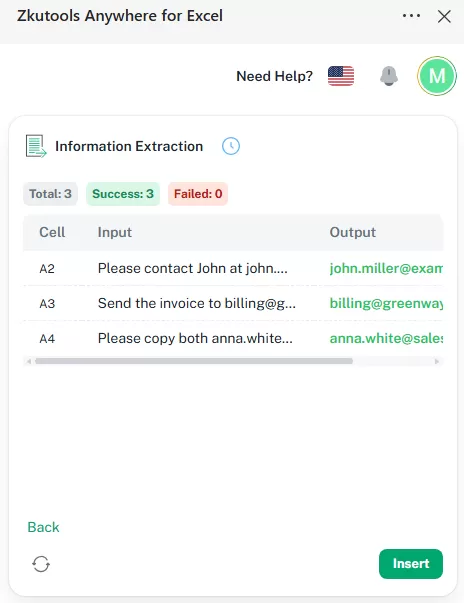
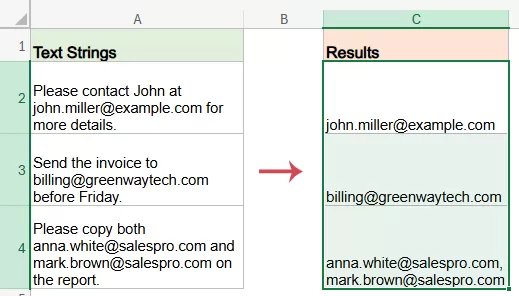
Check the generated results in the preview area. If the results are correct, click a cell in the worksheet where you want to place the results. Click Insert to insert the extracted Email addresses into the worksheet.
Tips for Better Extraction Results
To get more accurate and useful extraction results, keep the following tips in mind.
1 Select the correct text range
Before running the extraction, make sure you select the cells that contain the text you want to process. Avoid selecting unrelated columns or empty areas.
2 Use clear extraction instructions
When creating a custom rule, describe exactly what you want to extract. For example:
- Extract the invoice number.
- Extract the customer complaint.
- Extract the delivery address.
- Extract the product model.
- Extract the company name from the email signature.
3 Keep one record per cell when possible
For best results, each cell should contain one main record or message. If one cell contains multiple unrelated records, the extraction result may be less precise.
4 Review the results before final use
AI extraction can greatly improve efficiency, but you should still review the results, especially when processing important business, legal, financial, or customer data.
5 Choose the right processing type
Use Extract Name for personal names, Extract Address for addresses, and Extract Keywords for topics or key terms.
Other Options of Information Extraction feature
Besides choosing the extraction type, the Information Extraction feature may also provide additional options to help you control how the results are generated and inserted.
1. Regenerate results:
If the result is not what you expected, you can click  button to regenerate the extraction. This is useful when you want the AI to analyze the text again or improve the output based on a revised instruction.
2. Back to the main interface
Back: Click this option to return to the main Information Extraction interface. Use it when you want to change the processing type, select another extraction option, revise the custom extraction rule, or start the extraction setup again before inserting the results into the worksheet.
3. Reuse previous extraction rules
If you often extract the same type of information, you may be able to reuse previous extraction rules. This saves time when processing similar worksheets.
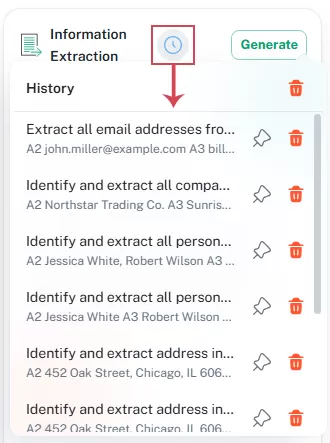
Pin: Click the pin icon to keep a frequently used sort rule in the history list for quick access.
Delete: Click the trash icon next to a record to remove that specific history item.
Clear All History: Click the trash icon at the top to clear all history records.
4. Edit or Delete a Custom Extraction Option
For custom extraction options, you can edit the instruction before generating the final result, or delete the record when it is no longer needed.
If you have created a custom extraction option, you can click the three-dot button next to that option to manage it.
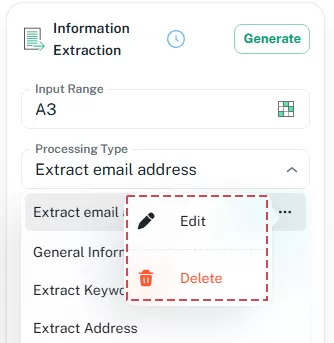
Edit: Modify the custom extraction rule and b name, such as changing the instruction or adjusting the information to extract.
Delete: Remove the custom extraction option from the list when it is no longer needed.
Table of contents
- What is Information Extraction?
- Advantages of Information Extraction feature
- Choose what kind of information to extract
- Extract general information
- Extract specific number of Keywords
- Extract Address from Text Strings
- Extract Names from Text Strings
- Extract Company Names from Text Strings
- Create Custom extraction rule
- Tips for Better Extraction Results
- Other Options of Information Extraction feature
ZKutools for Excel
Brings AI-powered assistance and practical productivity tools directly into Excel for the web, Windows, Mac, and iPad.