Generate Excel Formulas with AI
Have you ever known what you wanted Excel to do, but could not figure out the right formula? Whether you need to calculate by condition, look up a value, extract text, filter rows, or return a custom result, the hard part is often choosing the right function and writing it correctly.
Generate Formula in ZKutools Anywhere for Excel makes this easier. This AI-powered formula assistant turns natural-language instructions into Excel formulas, so you can simply describe what you need and let AI generate a formula you can review and use directly in Excel.
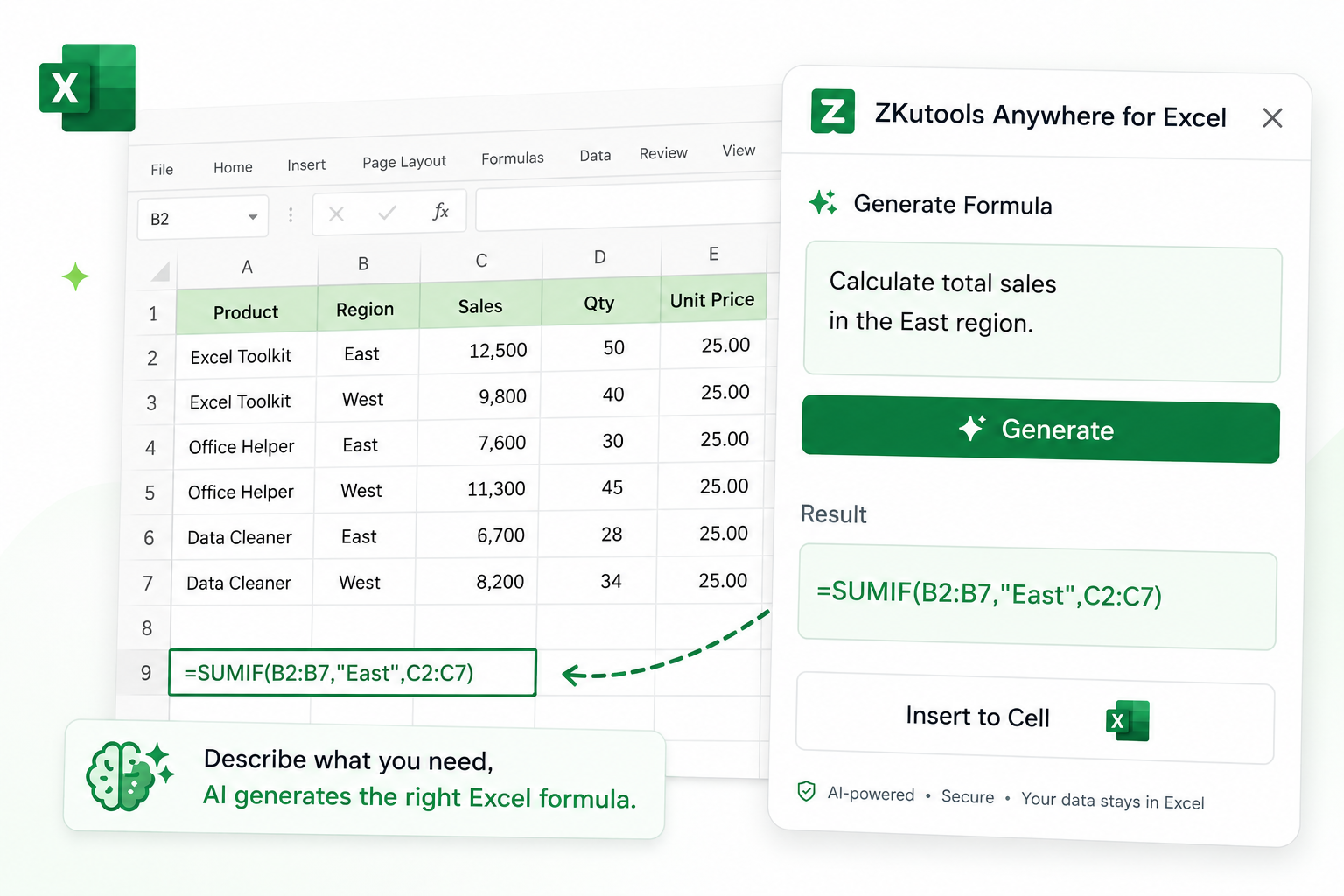
The advantages of the Generate Formula function
Plain-English formula creation
Describe what you want to calculate in normal language, without remembering whether you need SUMIF, XLOOKUP, FILTER, TEXTSPLIT, or another Excel function. For example, ask it to “find the matching price for a product name” or “sum sales by region and payment status.”
Faster formula building
Get a useful formula starting point for lookups, multiple conditions, text extraction, date rules, error handling, and other common Excel tasks.
Turns tasks into formula logic
When you know the result you want but are not sure how to write the formula, Generate Formula helps translate your request into structured Excel logic.
Flexible formula style
Use Additional Options to guide the formula style, such as simple formulas, error-handling formulas, modern Excel 365 formulas, or formulas that work better in older Excel versions.
How to Use Generate Formula
Before you start, make sure ZKutools Anywhere for Excel is available in your Excel. Get it from Microsoft AppSource if needed.
Note: Generate Formula is one of the AI features in ZKutools Anywhere for Excel. AI features require a ZKutools AI account. You can start with 200,000 free tokens, and then continue with one ZKutools AI subscription for Excel, Outlook, and Word.
Step 1: Open ZKutools Anywhere for Excel
- Open your Excel workbook, and click ZKUTOOLS > Assistant > Generate Formula to open the ZKutools Anywhere for Excel panel.
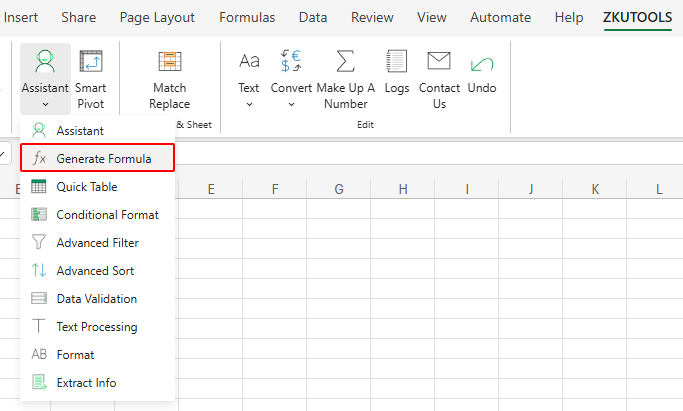
- After the ZKutools Anywhere pane opens, sign in with your ZKutools AI account. If you do not have one yet, you can create one from the pane.
Step 2: Use Generate Formula
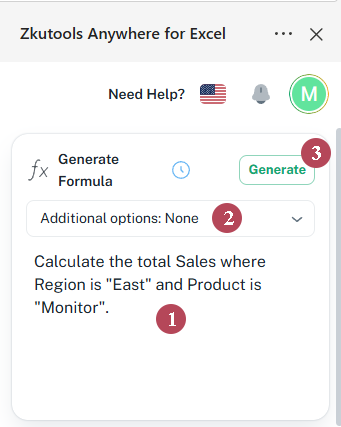
- In the Generate Formula interface, enter your formula requirement in the input box. For example, you can enter:
- Calculate the total Sales where Region is "East" and Product is "Monitor".
- Calculate the total Sales made by Emily Chen.
- Choose an Additional Option if needed. You can keep the default option None for general formula generation.
- Click the Generate button to create the formula.
Result: Review and use the formula
After the formula is generated, select a blank cell and click Insert to apply the formula directly to your worksheet. Or click the Copy button to copy the formula as needed.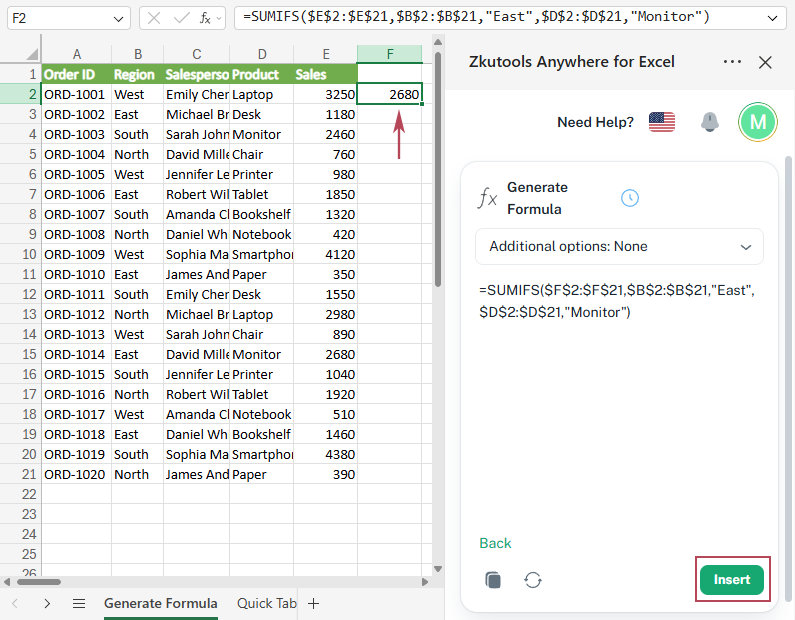
Tip: Before using the generated formula in your worksheet, review it carefully. Make sure the cell references, ranges, conditions, and expected result match your actual data.
Write Better Prompts for Better Formulas
Generate Formula can understand both short requests and more detailed instructions. You can start naturally, such as Calculate sales or Calculate the total Sales made by Emily Chen. If your worksheet contains multiple tables, similar column names, or several conditions, adding more context can help the AI generate a more precise formula.
A helpful formula request may include:
- What you want to calculate or return, such as total sales, a matching price, a filtered list, or a custom result.
- The conditions you want to apply, such as Region is "East", Product is "Monitor", or Sales is greater than 1500.
- Optional details, such as specific ranges, column names, fallback results, or Excel version requirements.
| Task | Prompt you can enter | Possible formula type |
|---|---|---|
| Sum values by condition | Calculate the total Sales where Region is "East" and Product is "Monitor". | SUMIFS |
| Sum values for a person | Calculate the total Sales made by Emily Chen. | SUMIF or SUMIFS |
| Count matching records | Count how many orders have the status Completed. | COUNTIF or COUNTIFS |
| Look up a value | Find the price for the product name in F2. | XLOOKUP, VLOOKUP, or INDEX MATCH |
| Filter matching rows | Filter all rows where the status is Paid. | FILTER |
| Extract unique values | Extract unique customer names. | UNIQUE |
| Return a custom result | If Region is "East" and Sales is greater than 1500, return "Key Order"; otherwise return "Normal Order". | IF, AND |
| Avoid lookup errors | Look up the product price. If no match is found, return "Not found". | XLOOKUP with fallback result or IFERROR |
Tip: Short prompts can work well. For more complex worksheets, you can add column names, ranges, conditions, or the expected fallback result to help Generate Formula return a more accurate formula.
Understand Additional Options
Additional Options help you control how the formula is generated. You do not need to change this setting every time. For most common tasks, None is enough.
| Additional Option | What it is used for |
|---|---|
| None | Use this for general formula generation when you do not have a special formula style requirement. |
| Generate simple and easy-to-understand basic formulas | Use this when you want a clear formula that is easy to read, explain, or teach. |
| Generate robust formulas with error handling | Use this when the data may contain blanks, missing matches, or errors, and you want cleaner results. |
| Prioritize using Excel 365 dynamic array functions | Use this when you work in Microsoft 365 and want modern formulas such as FILTER, UNIQUE, SORT, TEXTSPLIT, or other dynamic array functions. |
| Generate highly compatible traditional function formulas | Use this when you need formulas that work better in older Excel versions or shared workbooks. |
| Add Option | Use this to add your own formula rule, such as returning blank when no result is found, avoiding helper columns, using semicolons as formula separators, or keeping formulas compatible with a specific Excel version. |
Tip: Excel 365 dynamic array formulas may not work in older Excel versions. If compatibility matters, choose Generate highly compatible traditional function formulas or mention the required Excel version in your request.
Frequently Asked Questions
Is Generate Formula free to use?
Generate Formula is an AI feature and requires a ZKutools AI account. You can start with 200,000 free tokens, and then continue with one ZKutools AI subscription for Excel, Outlook, and Word.
Can Generate Formula create Excel 365 formulas?
Yes. You can choose Prioritize using Excel 365 dynamic array functions when you want modern formulas such as FILTER, UNIQUE, SORT, or TEXTSPLIT.
Can Generate Formula create formulas for older Excel versions?
Yes. You can choose Generate highly compatible traditional function formulas when you need better compatibility with older Excel versions or shared workbooks.
What is Add Option used for?
Add Option lets you create your own formula-generation rule. For example, you can add a rule to return blank when no result is found, avoid helper columns, use semicolons as formula separators, or keep formulas compatible with a specific Excel version.
Do I still need to check the generated formula?
Yes. Always review the generated formula and confirm that it matches your worksheet ranges, headers, conditions, and expected result before using it in important workbooks.
Conclusion
Writing Excel formulas is easier when you can describe the result you want instead of starting from function syntax. With Generate Formula in ZKutools Anywhere for Excel, you can enter a natural-language instruction for a calculation, lookup, filter, text operation, or logic rule, and let AI help create a formula for you.
Whether you need a simple formula, an error-handled formula, a modern Excel 365 dynamic array formula, or a more compatible traditional formula, Generate Formula gives you a faster way to turn your Excel task into a usable formula.
Turn Excel Tasks into Results Faster
With ZKutools Anywhere for Excel, you can use AI directly in Excel to help with formulas, data processing, and everyday worksheet tasks — without switching between different tools.
Start with 200,000 free AI tokens, then continue with one ZKutools AI subscription for Excel, Outlook, and Word.