Remove Characters from the Left, Right, or Specific Position in Excel
When working with text data in Excel, you may often need to remove unwanted characters from the beginning, end, or a specific position within cells. For example, you may want to remove country codes from location names, delete extra prefixes from product IDs, or clean suffixes from employee titles. Instead of editing each cell manually or building complex formulas, the Remove Characters by Position feature in ZKutools Anywhere for Excel provides a simple and visual way to clean text strings quickly. With just a few settings, you can remove characters from the left, from the right, from a specified position, or based on specific text, while previewing the results before applying the changes.
Advantages of Remove Characters by Position feature
Advantages of Remove Characters by Position feature
The Remove Characters by Position feature provides a fast and flexible way to clean text strings in Excel without using formulas or manually editing each cell. It is especially useful when you need to remove unwanted prefixes, suffixes, codes, symbols, or extra text from a large range of cells.
Remove characters without formulas
With this feature, you do not need to write complex Excel formulas such as LEFT, RIGHT, MID, LEN, or FIND. Simply select a removal option, enter the required number or specified text, and the tool will process the selected cells automatically.
Support multiple removal methods
This feature supports several common text-cleaning scenarios. You can remove characters from the left, from the right, from a specific position, before specified text, after specified text, or between two specified text strings. This makes it suitable for both fixed-length and variable-length text cleanup tasks.
Process multiple cells at once
Instead of editing cells one by one, you can select an entire range and apply the same removal rule to all selected cells at the same time. This greatly improves efficiency when working with large worksheets.
Preview results before applying changes
The preview area lets you check the converted results before applying the operation. This helps reduce mistakes and ensures that the selected removal rule produces the expected output.
Useful for cleaning imported data
Imported data often contains unnecessary codes, labels, separators, or descriptions. This feature helps you quickly clean data such as product IDs, location names, employee titles, report names, order numbers, and customer records.
Easy to use for all Excel users
The operation is simple and visual. Even users who are not familiar with Excel formulas, VBA, or advanced text functions can remove unwanted characters quickly through the dialog box.
Flexible for different text structures
For fixed-length text, you can remove a specific number of characters from the left, right, or a specified position. For text with changing lengths, you can remove content based on specified separators or keywords, such as hyphens, colons, brackets, or custom words.
Remove Characters by Position in Excel
The Remove Characters by Position tool allows you to quickly clean up your Excel data by deleting a specific number of characters from your text strings based on their location or surrounding context. This section explains how to use each option step by step.
Remove the Number of Specific Characters from Left
Use this option when the unwanted characters are always at the beginning of the text string.
For example, if your data contains country codes such as US-, CA-, or UK-, you can remove the first 3 characters and keep only the city or state name.
- Select the cells that contain the text you want to process.
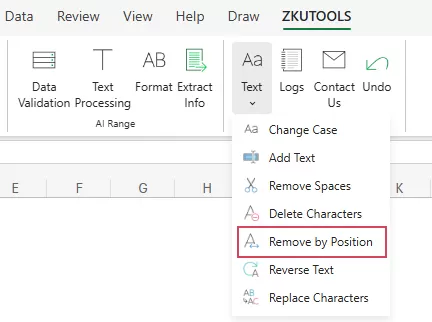
- Then, click ZKUTOOLS > Text > Remove by Position, see screenshot:
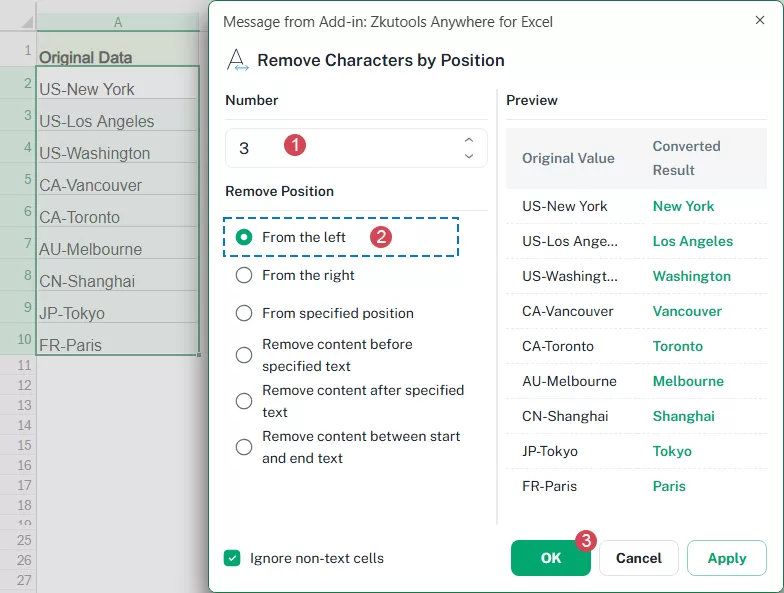
- In the Remove Characters by Position dialog box:
- Enter the number of characters you want to remove.
- Under Remove Position, select From the left.
- Click OK to apply the selected removal rule and close the dialog box.
Result:
The specified number of characters is removed from the left side of each selected cell, see screenshot: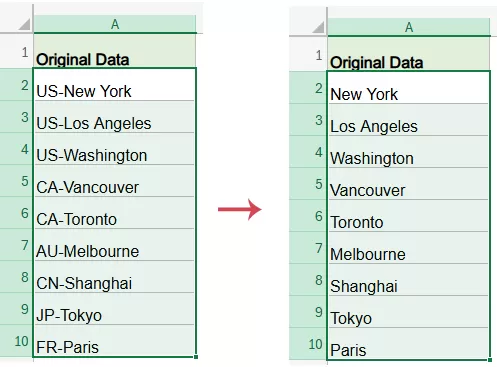
Remove the Number of Specific Characters from Right
Use this option when the unwanted characters are always at the end of the text string.
For example, you may want to remove suffix codes, version numbers, or ending marks from product names or report titles.
- Select the cells that contain the text you want to process.
- Then, click ZKUTOOLS > Text > Remove by Position, see screenshot:
- In the Remove Characters by Position dialog box:
- Enter the number of characters you want to remove.
- Under Remove Position, select From the right.
- Click OK to apply the selected removal rule and close the dialog box.
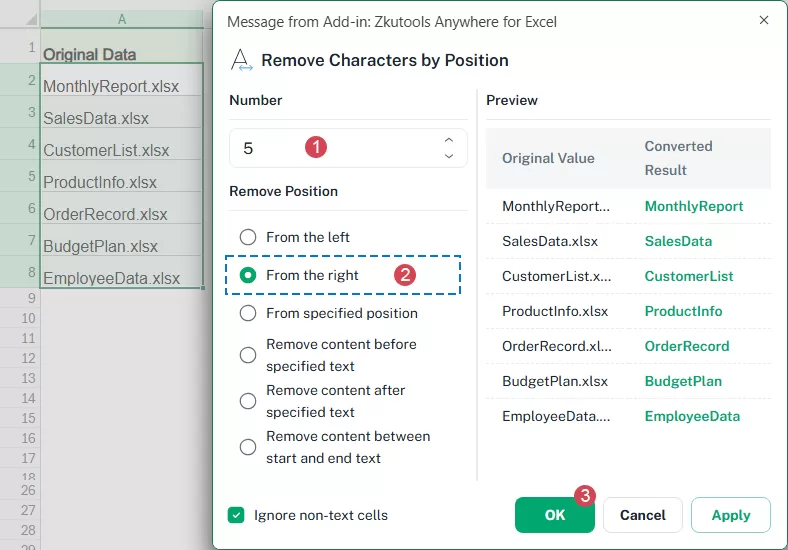
Result:
The specified number of characters is removed from the right side of each selected cell, see screenshot: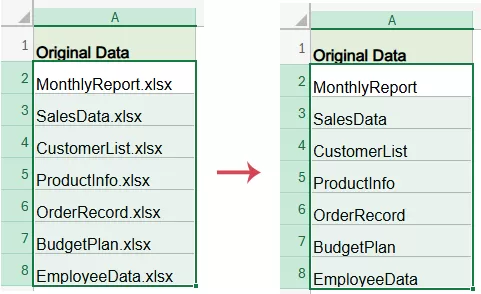
Remove the Number of Specific Characters from Specific Position
If the unwanted characters are located in the middle of each text string and always start from the same position, you can use the From specified position option.
This option allows you to define both the starting position and the number of characters to remove.
- Select the cells you want to clean.
- Then, click ZKUTOOLS > Text > Remove by Position.
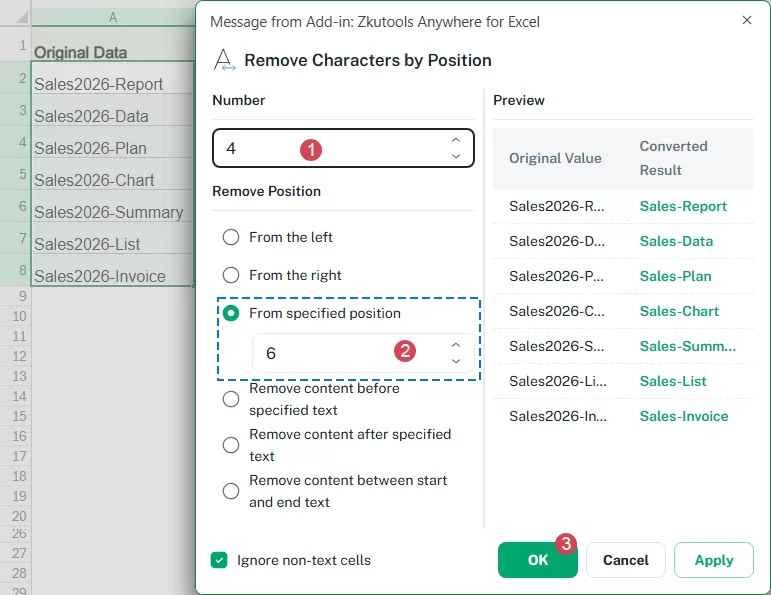
- In the Remove Characters by Position dialog box:
- Enter the number of characters you want to remove.
- Under Remove Position, select From specified position. And then, enter the starting position from which the removal should begin. For example, if you want to start removing from the 6th character, enter 6.
- Click OK to apply the selected removal rule and close the dialog box.
Result:
The specified number of characters is removed from the defined starting position in each selected cell. The text before and after the removed characters will be kept, and the cleaned results will be displayed directly in the original cells.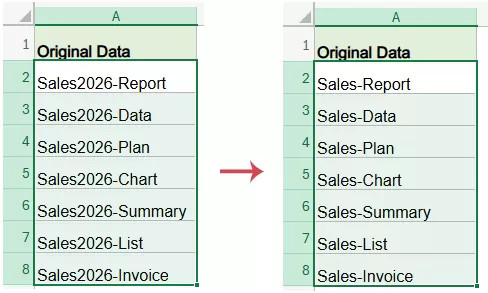
Remove Content Before Specified Text
When your text strings contain different prefixes but share the same separator or keyword, you can use the Remove content before specified text option to quickly clean the data.
This option removes everything before the specified text and keeps the content after it. It is especially useful for extracting useful information from values such as location codes, product labels, customer records, email subjects, or text separated by symbols like hyphens, colons, underscores, or custom keywords.
- Select the cells that contain the text you want to process.
- Then, click ZKUTOOLS > Text > Remove by Position.
- In the Remove Characters by Position dialog box:
- Under Remove Position, select Remove content before specified text. In the text box, enter the specified text you want to use as the marker. For example, enter 2026.
- Click OK to apply the selected removal rule and close the dialog box.
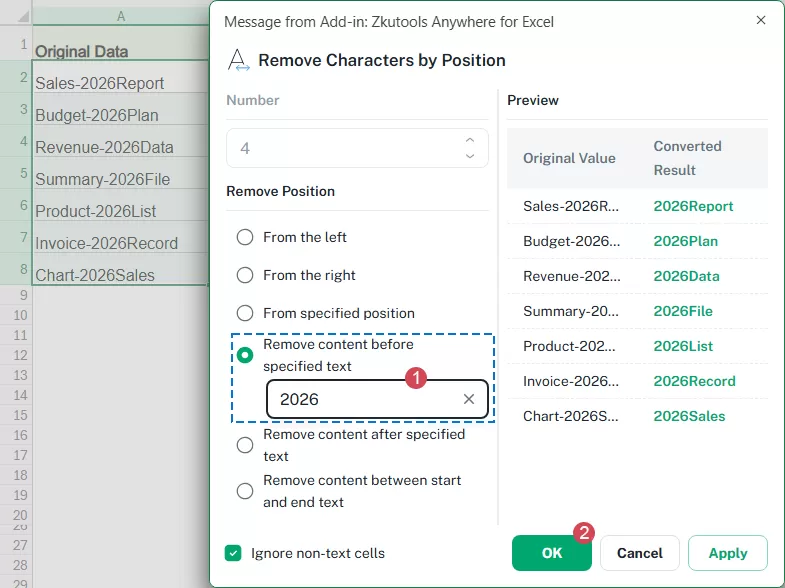
Result:
All content before the specified text is removed from each selected cell. The specified text itself and the content after it are kept in the cell. See screenshot: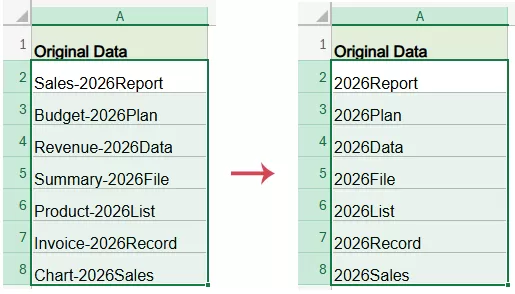
Remove Content After Specified Text
If your text strings contain extra descriptions, status labels, dates, notes, or other unwanted content after a specific word or symbol, you can use the Remove content after specified text option.
This option removes everything after the specified text and keeps only the content before it.
- Select the cells that contain the text you want to process.
- Then, click ZKUTOOLS > Text > Remove by Position.
- In the Remove Characters by Position dialog box:
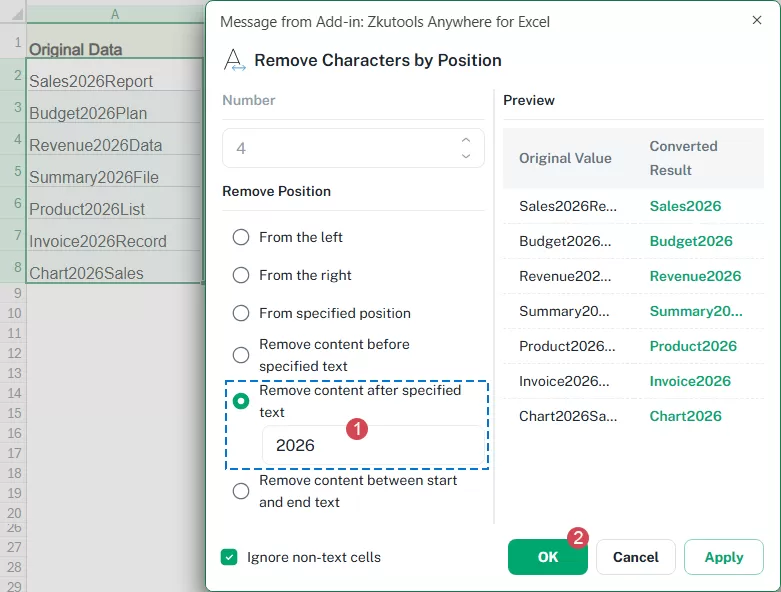
- Under Remove Position, select Remove content after specified text. In the text box, enter the specified text you want to use as the marker. For example, enter 2026.
- Click OK to apply the selected removal rule and close the dialog box.
Result:
After applying the operation, all content after the specified text is removed from the selected cells.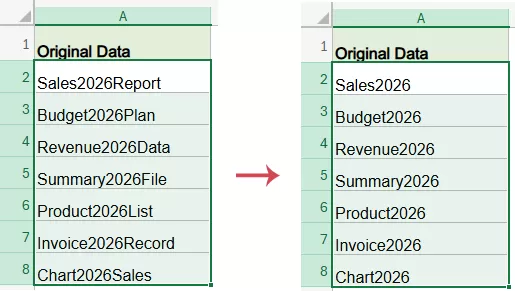
Remove Content Between Start and End Text
If your text strings contain unwanted content enclosed by specific start and end characters, you can use the Remove content between start and end text option.
This option removes the content located between two specified text markers and keeps the remaining text before and after them.
- Select the cells that contain the text you want to process.
- Then, click ZKUTOOLS > Text > Remove by Position.
- In the Remove Characters by Position dialog box:
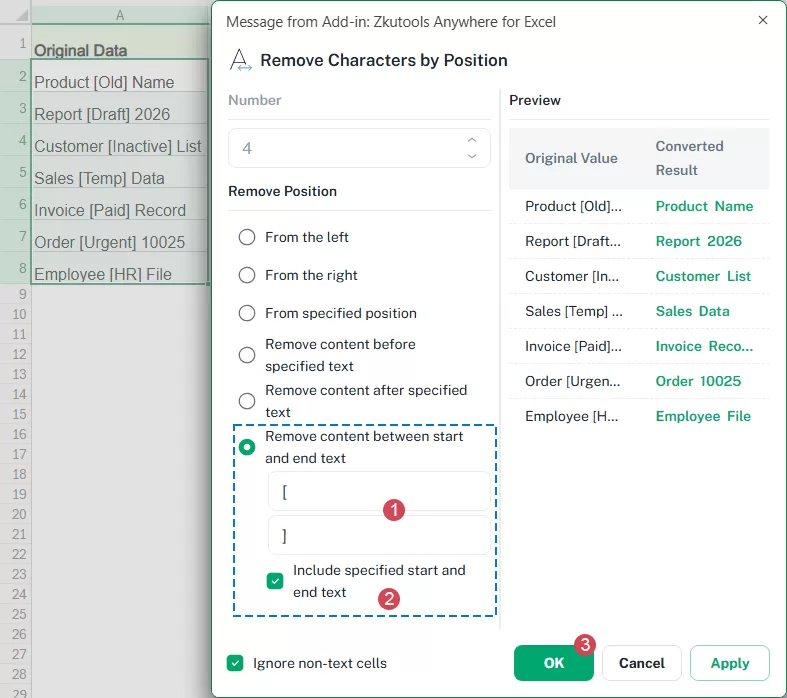
- Under Remove Position, select Remove content between start and end text.
In the Start text box, enter the beginning marker. For example, enter [.
In the End text box, enter the ending marker. For example, enter ]. - Check Include specified start and end text if you also want to remove the start and end markers themselves. In this example, both the bracketed content and the brackets [ and ] will be removed.
- Click OK to apply the selected removal rule and close the dialog box.
- Under Remove Position, select Remove content between start and end text.
Result:
The content between the specified start text and end text is removed from each selected cell. If Include specified start and end text is checked, the start and end markers are also removed. See screenshot: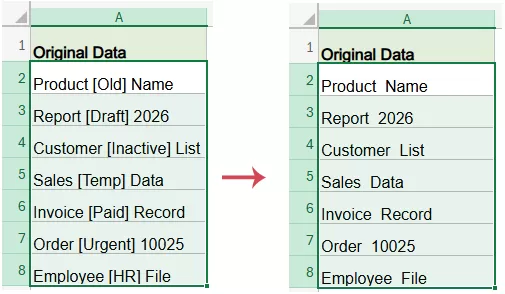
Notes:
Ignore non-text cells:
Enable Ignore non-text cells if you only want the tool to process text values. When this option is checked, numbers, dates, formulas, or other non-text cells can be skipped to avoid unexpected changes.
Preview the Result:
The Preview area shows how the selected rule will affect your data before you apply it. Always check the preview carefully before applying the changes, especially when working with important or large datasets.
Tips for Better Results
✓ Select the correct range first
Make sure you select only the cells that need to be processed. Avoid selecting unrelated columns or empty areas.
✓ Use position-based removal for fixed-length text
If the unwanted part always has the same number of characters, use From the left, From the right, or From specified position.
✓ Use specified-text removal for variable-length text
If the unwanted part has different lengths but is separated by a clear keyword or symbol, use the options based on specified text.
✓ Check the preview carefully
The preview helps you confirm whether the selected rule is correct before applying it to your worksheet.
✓ Back up important data
If you are processing important data, create a copy of the worksheet before applying changes.
Table of contents
- Advantages of Remove Characters by Position feature
- Remove Characters by Position in Excel
- Remove characters from left
- Remove characters from right
- Remove characters from specific position
- Remove content before specified text
- Remove content after specified text
- Remove content between start and end text
- Tips for Better Results
ZKutools for Excel
Brings AI-powered assistance and practical productivity tools directly into Excel for the web, Windows, Mac, and iPad.