Reverse Text in Excel by Character, Space, Comma, Semicolon, or Line Break
Need to reverse text in Excel, but do not want to write formulas or VBA? Sometimes you may need to reverse an entire text string, reverse word order, reverse comma-separated items, reorder multi-line text, or reverse text based on a custom delimiter.
The Reverse Text feature in ZKutools Anywhere for Excel helps you reverse selected text directly in Excel. You can reverse the full text string or reverse text after splitting it by space, comma, semicolon, carriage return, or another custom character.
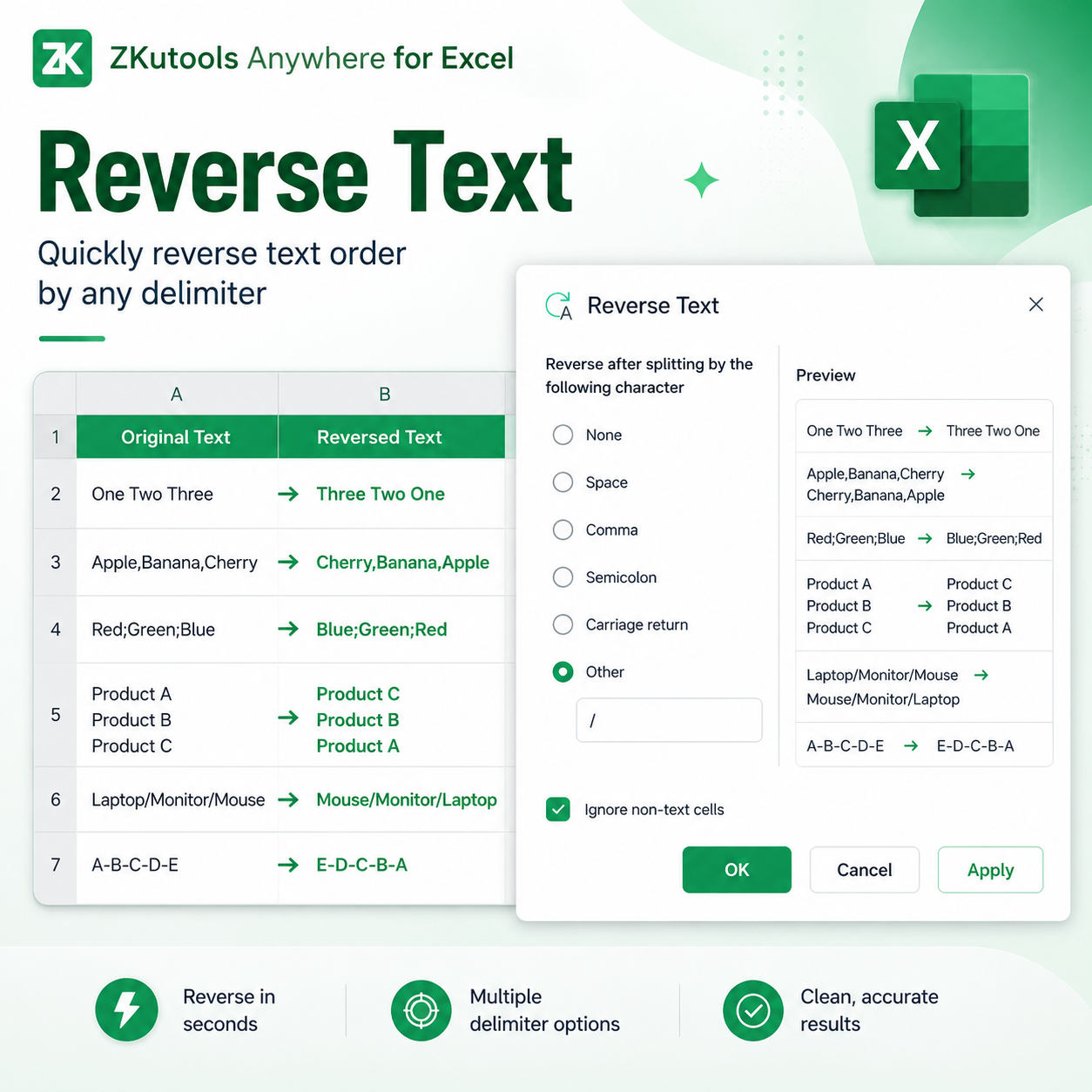
Advantages of Reverse Text
Reverse text without formulas
No need to build helper columns, write formulas, or run VBA. Select the cells, choose how to reverse the text, preview the result, and apply the conversion directly.
Reverse text in different ways
Reverse the entire text string, reverse word order, reverse comma-separated or semicolon-separated items, reverse multi-line text, or reverse text by a custom delimiter.
Preview before applying
The Preview area shows the original value and the reversed result, so you can confirm the output before changing your worksheet data.
Skip non-text cells safely
When your selected range contains mixed data, the Ignore non-text cells option helps skip numbers, dates, and other non-text values that should not be changed.
Useful for structured and imported text
Reverse Text is helpful for product paths, tag lists, exported system strings, multi-line cells, code-like values, and delimiter-separated text.
How to Reverse Text in Excel
With the Reverse Text feature, you only need to select your text cells, choose how the text should be split before reversing, preview the result, and apply the change directly to your worksheet.
Before you start, make sure ZKutools Anywhere for Excel is available in your Excel. Get it from Microsoft AppSource if needed.
Note: Reverse Text is a classic non-AI feature. It does not require a ZKutools AI account, AI tokens, or an AI subscription. You can use it directly after opening the feature.
Step 1: Open Reverse Text
Select the cells containing the text you want to reverse. Then click ZKUTOOLS > Text > Reverse Text to open the Reverse Text dialog.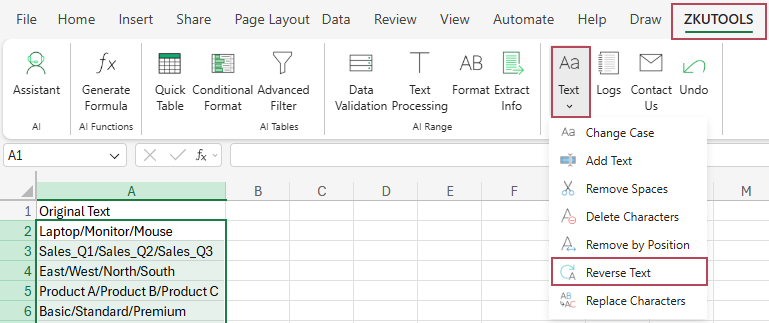
Step 2: Choose how to split the text before reversing
In the Reverse Text dialog, choose one of the available options:
- None - reverse the whole text string character by character.
- Space - reverse text after splitting by spaces.
- Comma - reverse text after splitting by commas.
- Semicolon - reverse text after splitting by semicolons.
- Carriage return - reverse text after splitting by line breaks.
- Other - reverse text after splitting by a custom character.
If you are not sure which option to choose, see Choose the Right Reverse Option below for a quick explanation of each option.
For this example, the sample text is separated by slashes, so choose Other and enter / as the custom delimiter.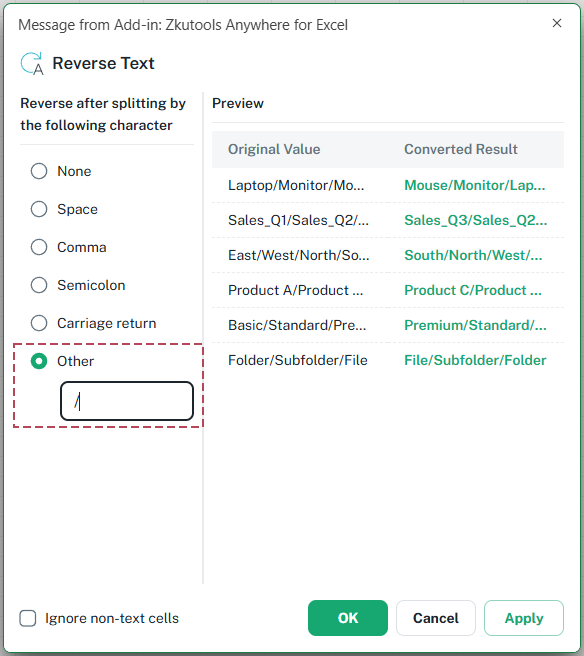
Step 3: Check the preview and apply the result
Check the Preview area to confirm the original value and the reversed result. Then click OK to apply the result and close the dialog, or click Apply to apply the result while keeping the dialog open.
Result: Text order is reversed
After applying the conversion, the selected cells are updated directly in your worksheet. Since this example uses Other with / as the custom delimiter, the items separated by slashes are reversed in order while the slash separators are kept.
For example, Laptop/Monitor/Mouse becomes Mouse/Monitor/Laptop, and East/West/North/South becomes South/North/West/East.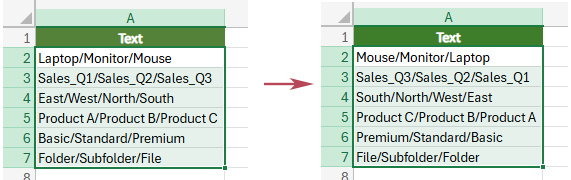
- Choose None to reverse the entire text string character by character.
- Choose Space, Comma, Semicolon, or Carriage return when your text uses one of these common separators.
- Choose Other when your text uses a custom delimiter such as /, -, |, or _.
- Check the Preview area before applying the result.
- Keep Ignore non-text cells selected if your range contains numbers, dates, formulas, or other non-text values that should not be changed.
- In the Preview area, unchanged results are shown in gray, while updated results are shown in green, making it easy to see which cells will change before you apply the conversion.
Choose the Right Reverse Option
The key to using Reverse Text correctly is choosing the right split option. Each option controls how the text is separated before the order is reversed.
| Option | Use It When... | Example |
|---|---|---|
| None | You want to reverse the entire text string character by character. | Product → tcudorP |
| Space | You want to reverse the order of words or items separated by spaces. | One Two Three → Three Two One |
| Comma | You want to reverse comma-separated items. | Apple,Banana,Cherry → Cherry,Banana,Apple |
| Semicolon | You want to reverse semicolon-separated items. | Low;Medium;High → High;Medium;Low |
| Carriage return | You want to reverse the order of multiple lines inside a cell. | Apple Banana Cherry → Cherry Banana Apple |
| Other | You want to reverse text by a custom delimiter, such as slash, hyphen, vertical bar, or underscore. | A-B-C-D → D-C-B-A |
Practical Examples of Reverse Text
Here are several common scenarios that show how each Reverse Text option works in real Excel tasks.
Example 1: Reverse characters in a text string
Choose None when you want to reverse every character in the selected text.
| Choose | Original Text | Reversed Result |
|---|---|---|
| None | Product | tcudorP |
| None | ABC-123 | 321-CBA |
Example 2: Reverse word order
Choose Space when words or items are separated by spaces.
| Choose | Original Text | Reversed Result |
|---|---|---|
| Space | One Two Three | Three Two One |
| Space | Sales Report Q1 | Q1 Report Sales |
Example 3: Reverse comma-separated items
Choose Comma when the text contains comma-separated values, such as tag lists, category lists, or CSV-like content.
| Choose | Original Text | Reversed Result |
|---|---|---|
| Comma | Apple,Banana,Cherry | Cherry,Banana,Apple |
| Comma | Red,Green,Blue | Blue,Green,Red |
Example 4: Reverse semicolon-separated items
Choose Semicolon when items are separated by semicolons, which is common in exported data or multi-value fields.
| Choose | Original Text | Reversed Result |
|---|---|---|
| Semicolon | Red;Green;Blue | Blue;Green;Red |
| Semicolon | Low;Medium;High | High;Medium;Low |
Example 5: Reverse multi-line text inside a cell
Choose Carriage return when a cell contains multiple lines and you want to reverse the line order.
| Choose | Original Text | Reversed Result |
|---|---|---|
| Carriage return | Apple Banana Cherry | Cherry Banana Apple |
| Carriage return | Product A Product B Product C | Product C Product B Product A |
Example 6: Reverse text by a custom delimiter
Choose Other when the text uses a custom separator. After choosing Other, enter the delimiter you want to split by.
| Choose | Delimiter | Original Text | Reversed Result |
|---|---|---|---|
| Other | / | Product1/Product2/Product3 | Product3/Product2/Product1 |
| Other | - | A-B-C-D-E | E-D-C-B-A |
| Other | | | East|West|North | North|West|East |
Frequently Asked Questions
Does Reverse Text require AI?
No. Reverse Text is a classic non-AI feature. It does not require a ZKutools AI account, AI tokens, or an AI subscription.
What does None mean in Reverse Text?
None reverses the entire text string character by character. For example, Product becomes tcudorP.
Can I reverse the order of words in a cell?
Yes. Choose Space to reverse text after splitting it by spaces. For example, One Two Three becomes Three Two One.
Can I reverse comma-separated values?
Yes. Choose Comma to reverse the order of comma-separated items, such as Apple,Banana,Cherry to Cherry,Banana,Apple.
Can I reverse multi-line text inside a cell?
Yes. Choose Carriage return to reverse the order of line-break-separated items in a cell.
Can I use my own separator?
Yes. Choose Other and enter the custom character you want to split by, such as /, -, |, or _.
What does Ignore non-text cells do?
It skips non-text cells in the selected range, helping avoid changes to numbers, dates, formulas, or other non-text values.
Should I use OK or Apply?
Use OK to apply the result and close the dialog. Use Apply if you want to apply the result while keeping the dialog open for more changes.
Conclusion
Reverse Text in ZKutools Anywhere for Excel gives you a quick way to reverse text directly in Excel without formulas, helper columns, VBA, or AI. You can reverse the full text string or reverse the order of items after splitting by a separator.
Whether your text is separated by spaces, commas, semicolons, line breaks, or custom delimiters, Reverse Text helps you clean, reorder, and transform text values more efficiently.