How to Update One Excel Table from Another in Excel
Need to update one Excel table with the latest values from another table? In daily work, you may have a main table that contains existing records, while another table contains newer or corrected information. Instead of checking rows one by one or using lookup formulas, you may want a faster way to match records and update only the needed columns.
Match Replace in ZKutools Anywhere for Excel helps you match rows between two tables and replace selected values directly. In this feature, Table A is the table you want to update, and Table B is the table that provides the new values. You can specify which columns are used for matching and which columns should be updated.
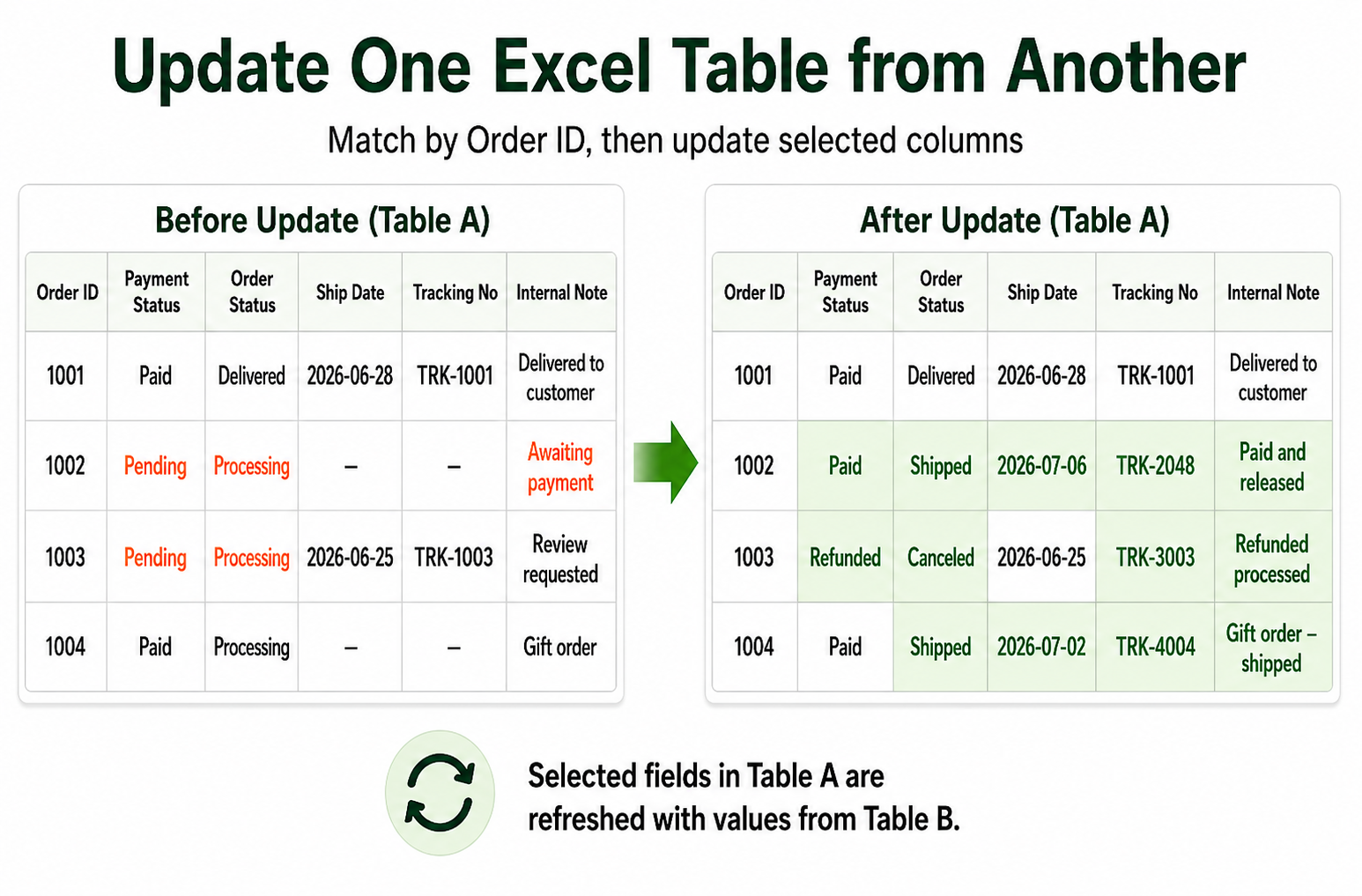
Advantages of Match Replace
Match Replace is useful when you need to update existing Excel data from another table. It helps you match records by key columns, such as order number, product code, customer ID, employee ID, or email address, and then update only the columns you choose.
Match records by key columns
Use one or more matching columns to identify the same records in two tables, such as matching orders by Order ID or products by Product Code.
Update data without formulas
Update matching rows directly without writing VLOOKUP, XLOOKUP, INDEX MATCH, or other lookup formulas.
Update only selected columns
Choose exactly which columns should be updated, instead of overwriting the entire row or manually copying values column by column.
Work across different worksheets
Select Table A and Table B from the same worksheet or from different worksheets, which is helpful when the latest data is stored separately from the main list.
Avoid accidental blank overwrites
Use optional update rules to prevent blank cells in Table B from clearing existing values in Table A, or to fill only empty cells in Table A.
How to use Match Replace to update one Excel table from another
In this example, Table A is the current order list on Sheet1, and Table B is the latest order update table on Sheet2. Both tables contain the following columns:
- Order ID
- Payment Status
- Order Status
- Ship Date
- Tracking No
- Internal Note
In this example, Order ID is used as the match column, and the other five columns are updated from Table B to Table A.
Note: Before you start, make sure ZKutools Anywhere for Excel is available in your Excel. Get it from Microsoft AppSource if needed.
Step 1: Open ZKutools Anywhere for Excel
- Open your Excel workbook, and click ZKUTOOLS > Match Replace to open the ZKutools Anywhere for Excel panel.

- After the ZKutools Anywhere pane opens, sign in with your ZKutools AI account. If you do not have one yet, you can create one from the pane.
Step 2: Use Match Replace
In the Match Replace interface, use the range selector icon next to Table A to specify the table you want to update. Then use the range selector icon next to Table B to specify the table that contains the new values. You can select the two tables from the same worksheet or from different worksheets.
In this example, Table A is selected from Sheet1, and Table B is selected from Sheet2.Tip: For best results, make sure both selected ranges include the column headers. This makes it easier to identify the match column and update columns correctly.
Under Match Columns, select one or more columns used to match rows between Table A and Table B.
In this example, select Order ID from Table A and match it with Order ID from Table B. This tells Match Replace how to find the corresponding records in the two tables.Tip: If both tables have the same column headers, Match Replace may automatically pair columns with matching names. Still review the selected columns before applying the update.
Under Update Columns, select the columns in Table A that should be updated, and match them with the corresponding source columns in Table B.
In this example, select all columns except the match column Order ID, so the values in Payment Status, Order Status, Ship Date, Tracking No, and Internal Note can be updated from Table B.Tip: The match column is used only to identify the correct row. Values are replaced only in the columns selected under Update Columns.
Click the Apply button to update Table A with the matching values from Table B.
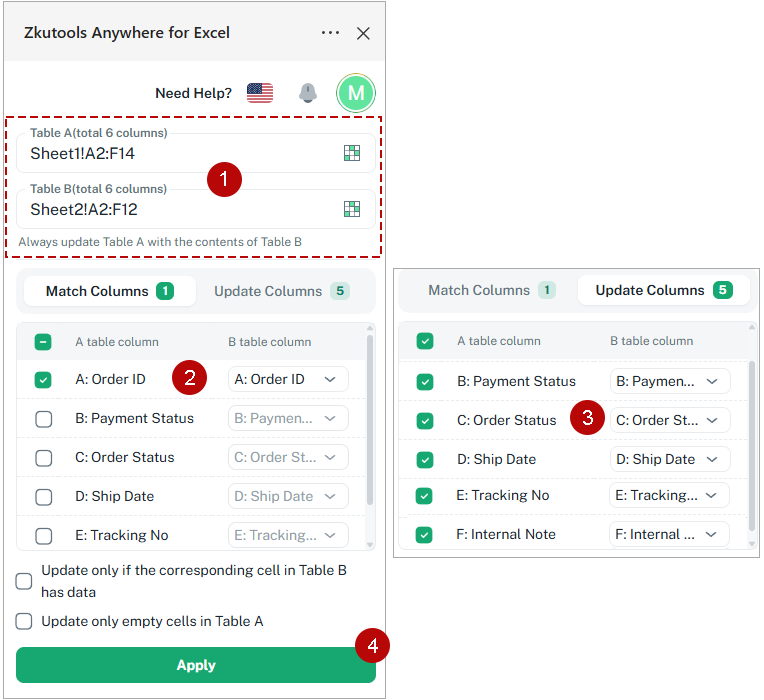
Tip: If your tables contain blank cells, check the optional update rules before applying the update. Use Update only if the corresponding cell in Table B has data to avoid overwriting Table A with blanks from Table B, or use Update only empty cells in Table A to fill only missing values in Table A. For more details, see the Optional update rules section below.
Result
Match Replace matches rows in Table A and Table B by Order ID, then refreshes the selected columns in Table A with the latest values from Table B. Table A keeps its original layout, and only the columns selected under Update Columns are changed.
After the update is completed, a message appears showing how many rows were matched and how many cells were updated.
The final result is shown below. The selected fields in Table A are refreshed with the corresponding values from Table B.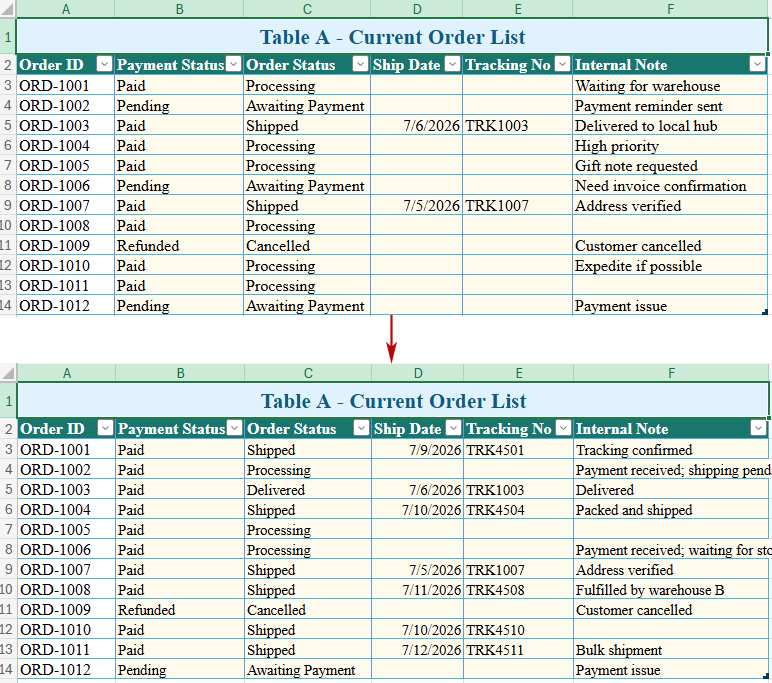
Tip: If the update result is not what you expected, you can restore Table A to its previous values by going to ZKUTOOLS > Undo.
Optional update rules
Before clicking Apply, you can use the optional update rules to control how blank cells are handled during the update. These options do not change how rows are matched or which columns are selected for update. They only affect whether a value from Table B should be written into the corresponding cell in Table A.
Note: A corresponding cell means the cell in Table B that belongs to the matched row and the mapped update column. For example, after two rows are matched by Order ID, the Tracking No cell in Table B corresponds to the Tracking No cell in Table A.
Option 1: Update only if the corresponding cell in Table B has data
Select Update only if the corresponding cell in Table B has data if you do not want blank cells in Table B to overwrite existing values in Table A.
This option is useful when Table B is an update file that may contain incomplete information. For example, some orders may already have new status values, while the tracking number or note fields are still blank. With this option selected, Match Replace updates Table A only when the corresponding Table B cell contains data.
Example:
If Table A already has a Tracking No, but the matching Tracking No cell in Table B is blank, this option prevents the existing tracking number in Table A from being cleared.
Use this option when:
- Table B may contain blank cells.
- You want to update only with available values from Table B.
- You want to avoid accidentally replacing existing data in Table A with blanks.
Option 2: Update only empty cells in Table A
Select Update only empty cells in Table A if you only want to fill missing values in Table A and keep existing values unchanged.
This option is useful when Table A already contains confirmed or manually reviewed information, and you only want to complete the blank cells with values from Table B. Existing values in Table A will not be replaced, even if Table B contains different values.
Example:
If some Ship Date or Tracking No cells are blank in Table A, this option lets Match Replace fill those missing cells from Table B while keeping the values that already exist in Table A.
Use this option when:
- Table A contains existing values that should not be overwritten.
- You only want to fill blanks in Table A.
- You are completing missing data rather than replacing old data.
What happens if both options are selected?
If both options are selected, Match Replace updates a cell only when both conditions are met:
- The cell in Table A is empty.
- The corresponding cell in Table B has data.
In other words, this combination fills blank cells in Table A only when Table B provides a non-blank value. Existing values in Table A are kept, and blank cells in Table B are ignored.
| Option setting | What happens | Best for |
|---|---|---|
| No option selected | The selected columns in Table A are updated with the corresponding values from Table B. Blank cells in Table B may overwrite existing values in Table A. | Fully replacing selected fields with the latest Table B values. |
| Update only if the corresponding cell in Table B has data | Table A is updated only when the corresponding Table B cell is not blank. | Avoiding blank overwrites from incomplete update tables. |
| Update only empty cells in Table A | Only blank cells in Table A are updated. Existing values in Table A are kept. | Filling missing values without changing existing data. |
| Both options selected | A cell is updated only when the Table A cell is empty and the corresponding Table B cell has data. | Safely filling blanks without clearing or overwriting existing values. |
Recommended use: If Table B may contain blank cells, select Update only if the corresponding cell in Table B has data to avoid accidentally clearing existing values in Table A. If your goal is only to complete missing data, select Update only empty cells in Table A.
Frequently Asked Questions
Can I update one Excel table from another table?
Yes. With Match Replace in ZKutools Anywhere for Excel, you can match rows between two tables and update selected columns in Table A with values from Table B.
Can Table A and Table B be on different sheets?
Yes. You can select Table A from one worksheet and Table B from another worksheet. This is useful when your original table and latest update table are stored separately.
Does Match Replace update the whole row?
No. Match Replace updates only the columns you select under Update Columns. The match column is used to find the correct row and does not have to be replaced.
What happens if Table B contains blank cells?
If you select Update only if the corresponding cell in Table B has data, blank cells in Table B will not overwrite existing values in Table A.
Can I fill only blank cells in Table A?
Yes. Select Update only empty cells in Table A if you only want to fill missing values in Table A while keeping existing values unchanged.
Can I use more than one match column?
Yes. You can use multiple match columns when one column is not enough to identify a unique row. For example, you can match rows by both order number and customer email.
Is Match Replace the same as VLOOKUP or XLOOKUP?
No. VLOOKUP and XLOOKUP return values through formulas, while Match Replace directly updates selected columns in Table A based on matching rows from Table B.
Can I use Match Replace to update order status, tracking numbers, or notes?
Yes. Match Replace is suitable for updating order status, payment status, shipping dates, tracking numbers, internal notes, product information, customer records, employee lists, and other structured Excel data.