Detach and Reattach Document Tabs in Office Tab
Office Tab allows you to manage open Office documents more flexibly by dragging document tabs between windows. Instead of keeping all documents in a single tab bar, you can detach a tab to create a separate Office window, move tabs between different windows, and merge them back whenever needed.
This feature is especially useful when working with multiple documents at the same time. You can organize related documents into separate tab groups, compare files side by side on one or multiple monitors, and quickly rearrange your workspace without closing or reopening any documents.
Before using this feature, please note the following:
- This feature is available only in the Standard and Professional editions of Office Tab for Microsoft Word, Excel, and PowerPoint.
- This feature is supported only when using the New Tab Style. If you are using the Classic Tab Style, switch to the New Tab Style to enable drag-and-drop document tab management.
Detach a Document Tab
When many documents are open in the same Office window, you may want to separate one or more documents into their own window for easier viewing or comparison. Office Tab lets you detach any document tab with a simple drag-and-drop operation.
To detach a document tab:
- After opening multiple documents in Word, Excel, or PowerPoint, click and hold the document tab you want to separate.
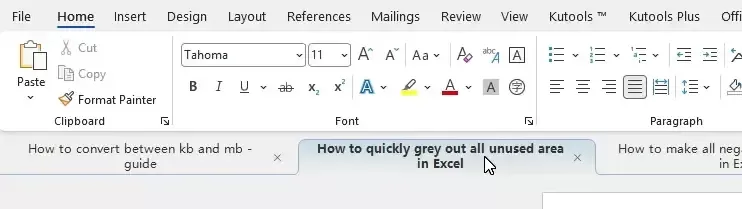
- Drag the tab away from the current tab bar.
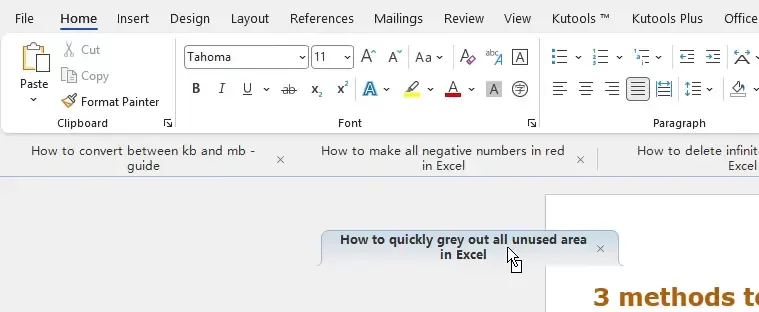
- Release the mouse button outside the current Office window.
Result
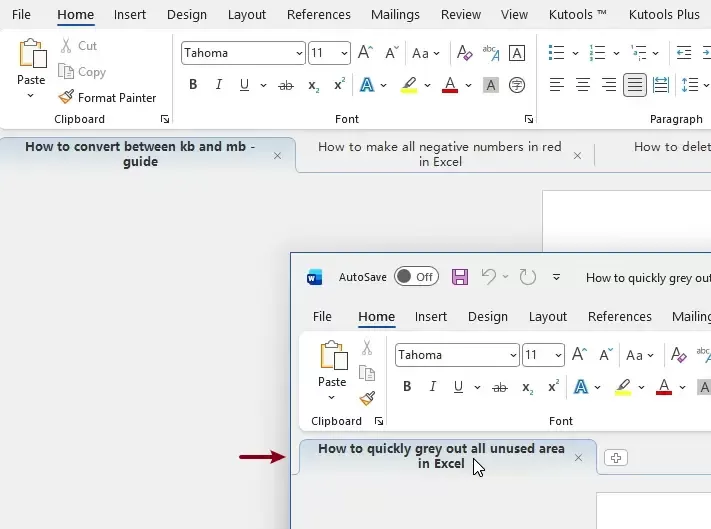
Office Tab automatically creates a new Office window containing the selected document, while the remaining documents stay in the original window.
Reattach a Document Tab
After working in separate windows, you can easily merge documents back into the same Office window. Reattaching document tabs helps consolidate your workspace and keeps related documents together.
To reattach a document tab:
- Click and hold the document tab in the detached Office window.
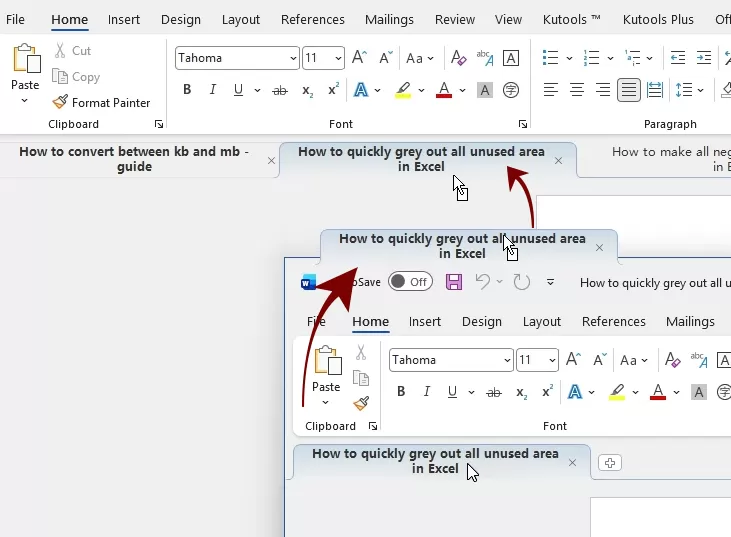
- Drag the tab onto the tab bar of another Office window.
- When the target tab bar is highlighted, release the mouse button.
Result
The document is immediately added to the destination window as a tab, and it is removed from its previous window.
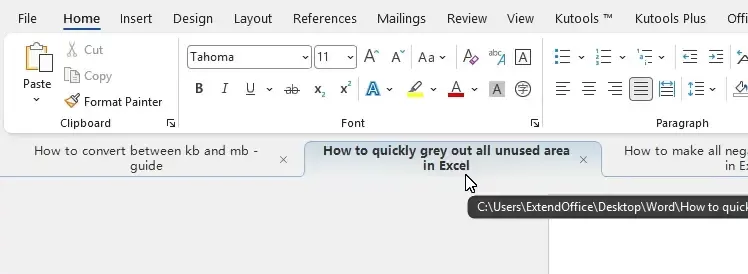
- You can move document tabs between any open Office windows of the same Office application (Word, Excel, or PowerPoint). This allows you to organize related documents into different windows for easier navigation and a more efficient workspace.
- If the detached window contains only that document, the empty Office window closes automatically after the tab is moved.
Conclusion
Office Tab makes it easy to organize your workspace by allowing you to detach and reattach document tabs with simple drag-and-drop operations. Whether you want to separate documents for side-by-side comparison or group related files into different Office windows, you can quickly rearrange your document tabs without closing or reopening any files, helping you work more efficiently across multiple documents.
Office Tab document
Office TabBrings Tabbed interface to Office, Make Your Work Much Easier
- Enable tabbed editing and reading in Word, Excel, PowerPoint, Publisher, Access, Visio and Project.
- Open and create multiple documents in new tabs of the same window, rather than in new windows.
- Increases your productivity by 50%, and reduces hundreds of mouse clicks for you every day!
Table of Contents
Office Tab
Microsoft Office.
- ✓ Browse Office files in tabs
- ✓ Access favorite documents instantly
- ✓ Manage documents more efficiently