Use AI to generate Excel formulas with Kutools
Creating formulas in Excel can be overwhelming—especially for beginners or when working with complex conditions. The Generate Formula feature in Kutools for Excel leverages AI to help you generate accurate formulas simply by describing what you want in plain language.
Instead of writing formulas manually, you can let the AI analyze your worksheet and generate the right formula based on your request, saving you time and effort.

Why use the Generate Formula feature in Kutools
Writing Excel formulas—especially complex ones—can be time-consuming and error-prone, particularly if you're not familiar with Excel functions. The Generate Formula feature in Kutools helps solve this problem by letting you describe your goal in plain language. The built-in AI then translates your description into a working formula.
- ⚡ No formula knowledge needed – Just describe what you want, and let the AI handle the logic.
- ⏱️ Saves time – Quickly get accurate formulas without trial and error.
- 🎯 Better accuracy – Securely send your data to AI for context-based formula generation.
- 📋 History tracking – Reuse or refine previous requests with the built-in history feature.
- 💾 Favorites – Save frequently used formulas for one-click reuse.
Whether you're a beginner or an advanced Excel user, this tool can dramatically speed up your workflow and reduce frustration when working with formulas.
How to use Kutools' Generate Formula in Excel
Follow the steps below to describe your formula need, generate the formula using AI, and insert or reuse it directly in your worksheet.
- Navigate to Kutools > AI Aide > Generate Formula to open the AI-powered formula generator.
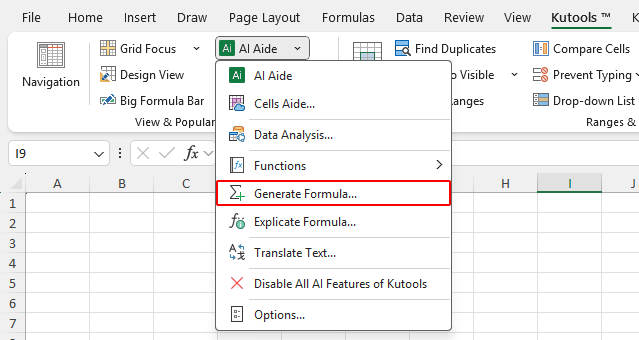
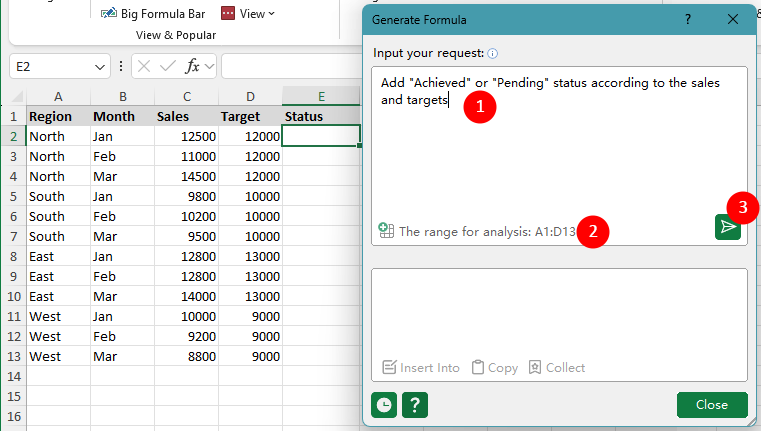
- In the Generate Formula dialog box, follow these steps:
- In the Input your request box, enter a clear and specific description of what you want the formula to do.
For example: Add "Achieved" or "Pending" status according to the sales and targets. - (Optional) Specify the data range for analysis. This helps the AI understand your worksheet structure and generate a more accurate formula.
- Click the Send Request button to generate the formula.
Tip: Make sure you have a valid AI key set up in Kutools > AI Aide > Options to use this feature. Need help getting an AI key? Click here to learn how to get your OpenAI API key, or click here to learn how to get a KutoolsAI key and enjoy 100 free uses of all AI tools with no restrictions.
- In the Input your request box, enter a clear and specific description of what you want the formula to do.
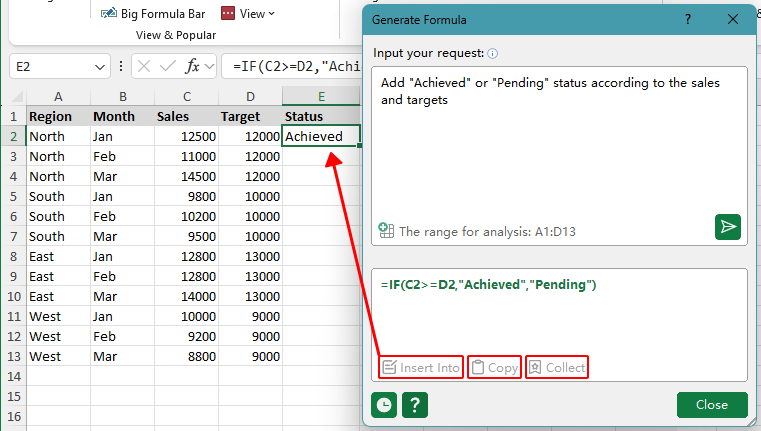
- Once the formula is generated, you can:
- Insert Into: Insert the formula directly into the currently active cell (e.g., cell E2 in the screenshot).
- Copy: Copy the formula to your clipboard for use anywhere.
- Collect: Save the formula to your personal favorites for reuse later.
Tips for using Kutools' Generate Formula in Excel
Here are some tips and helpful links to improve your experience with the Generate Formula feature and manage your Kutools AI setup.
- Be as specific as possible when entering your request to ensure the AI generates an accurate formula. The clearer your description, the better the result.
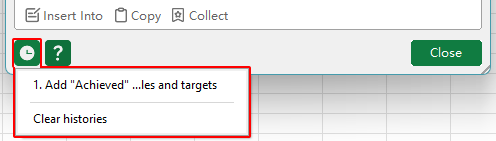
For example: Get the total sum from cell A1:B200. - Click the History icon to view previously submitted requests along with their generated formulas. This is useful for reviewing, reusing, or refining formulas over time.
- If you often use similar logic (e.g., grading students or calculating commissions), click the Collect button below the generated formula to save it for easy reuse in the future.
- If needed, you can turn off all AI-related functionality by clicking Kutools > AI Aide > Disable All AI Features of Kutools. Once disabled, Kutools will no longer provide any AI-powered features. To re-enable them, go to Kutools > Help > Settings Center and turn the AI features back on.
- Make sure you have a valid AI key set up in Kutools > AI Aide > Options to use this feature. Need help getting an AI key? Click here to learn how to get your OpenAI API key, or click here to learn how to get a KutoolsAI key and enjoy 100 free uses of all AI tools with no restrictions.
Productivity Tools Recommended
Office Tab: Use handy tabs in Microsoft Office, just like Chrome, Firefox, and the new Edge browser. Easily switch between documents with tabs — no more cluttered windows. Know more...
Kutools for Outlook: Kutools for Outlook offers 100+ powerful features for Microsoft Outlook 2010–2024 (and later versions), as well as Microsoft 365, helping you simplify email management and boost productivity. Know more...
Kutools for Excel
Kutools for Excel offers 300+ advanced features to streamline your work in Excel 2010 – 2024 and Microsoft 365. The feature above is just one of many time-saving tools included.

Table of Contents
- Why use Kutools' Generate Formula feature
- How to use Generate Formula
- Tips for using Generate Formula
- The Best Office Productivity Tools
Kutools for Excel
Brings 300+ advanced features to Excel
- 🧩 Overview
- 📥 Free Download
- 🎁 30-Day Free Trial available