Explain Any Excel Formula in Seconds with Kutools AI Aide
Excel formulas can get confusing fast—especially when they’re nested, long, or written by someone else. Kutools AI Aide includes an Explicate Formula feature that turns a formula into a clear, step-by-step explanation in plain English, so you can understand what it does, verify the logic, and reuse it with confidence.
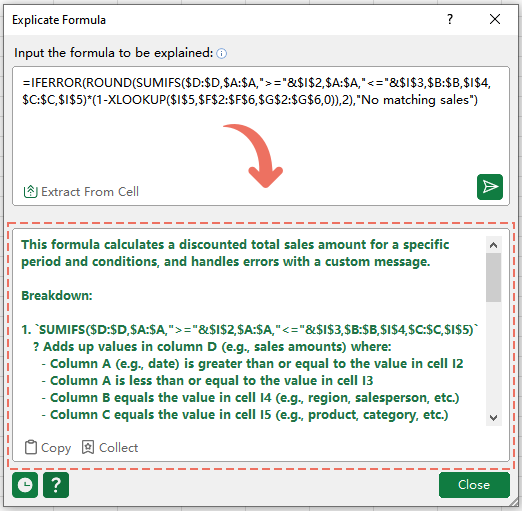
Why use Kutools' Explicate Formula feature
Most people don’t struggle with writing formulas—they struggle with reading them. Explicate Formula is built for the exact moments when you’re staring at a formula and thinking: “What does this actually do?”
- ⚡ Instant understanding – get a readable explanation in seconds instead of manually tracing each part of a formula.
- 🧠 Learn as you go – see how the formula works step-by-step, which makes it easier to remember and replicate.
- 🔍 Audit and troubleshoot – quickly spot logic issues in long or nested formulas before they cause reporting errors.
- 📌 Reduce handover pain – understand formulas created by coworkers (or older files) without reverse-engineering them.
- 🖱️ Less copying around – pull formulas directly from a cell with Extract From Cell and explain them immediately.
- 📋 One-click reuse – copy the explanation with Copy or save it with Collect for later reference.
How to use Explicate Formula
The Explicate Formula window is designed to be simple: add a formula, click once, and get a clear explanation you can copy or save.
💡 Tip: Before using this feature, confirm your AI key is configured in Kutools > AI Aide > Options. Don’t have a key yet? See How to get an OpenAI API key or How to get a KutoolsAI key—plus 100 free uses of all AI tools with no limitations.
Step 1: Open the Explicate Formula feature
1. Click Kutools > AI Aide > Explicate Formula.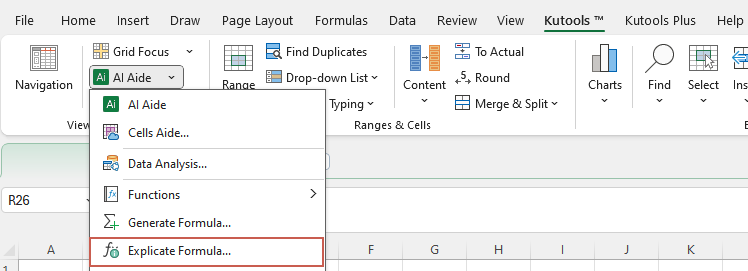
Step 2: Send a formula to be explained
2. In the Explicate Formula dialog, please do as follows:
- Add the formula you want to explain in the Input the formula to be explained box:
- If the formula already exists in a worksheet cell, click Extract From Cell to pull it into the input box automatically.
- If you have the formula elsewhere, paste it directly into the input box.
- Click the
 Send Request button to generate the explanation.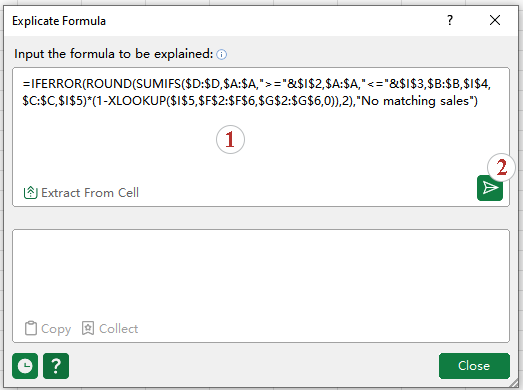
 Send Request button to generate the explanation.
Result: Get the explanation and reuse it
Read the explanation in the result panel below. It typically includes what the formula does and the key calculation steps.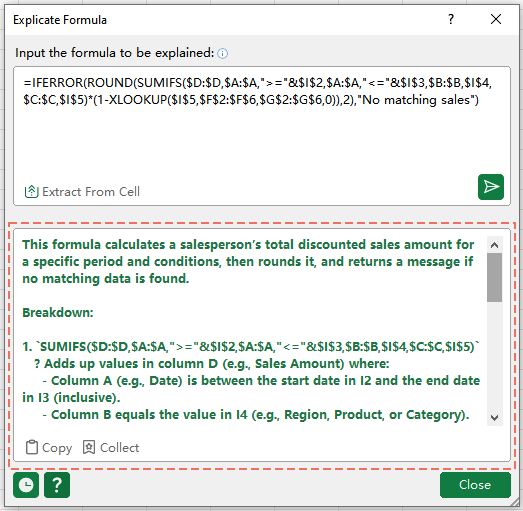
💡 Tips:
- Click
 Copy to copy the explanation text, or click
  Collect to save it for later reference.
 - Click Close when you’re finished.
 Copy to copy the explanation text, or click
  Collect to save it for later reference.
Tips for using Explicate Formula
- If Explicate Formula doesn’t run – first check whether your AI key is set in Kutools > AI Aide > Options. You can refer to How to get an OpenAI API key or How to get a KutoolsAI key.
- Use “Extract From Cell” if possible – it’s the most reliable way to capture the full formula without missing characters or copying the wrong version.
- Double-check cell references – if the formula depends on other cells, named ranges, or structured references, make sure those sources are correct; the explanation reflects the formula logic, but your references still control the result.
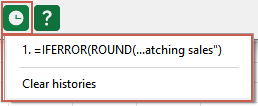
- Review and reuse with History – click the History icon to view your previously submitted requests and the explanations they generated. To remove saved records, click Clear history.
- Disable AI features when needed – to turn off all AI functionality, click Kutools > AI Aide > Disable All AI Features of Kutools. To enable AI again, go to Kutools > Help > Settings Center and switch AI features back on.
FAQ
Productivity Tools Recommended
Office Tab: Use handy tabs in Microsoft Office, just like Chrome, Firefox, and the new Edge browser. Easily switch between documents with tabs — no more cluttered windows. Know more...
Kutools for Outlook: Kutools for Outlook offers 100+ powerful features for Microsoft Outlook 2010–2024 (and later versions), as well as Microsoft 365, helping you simplify email management and boost productivity. Know more...
Kutools for Excel
Kutools for Excel offers 300+ advanced features to streamline your work in Excel 2010 – 2024 and Microsoft 365. The feature above is just one of many time-saving tools included.

Table of Contents
- Why use Kutools' Explicate Formula feature
- How to use Explicate Formula
- Tips for using Explicate Formula
- FAQ
- The Best Office Productivity Tools
Kutools for Excel
Brings 300+ advanced features to Excel
- 🧩 Overview
- 📥 Free Download
- 🎁 30-Day Free Trial available