How to combine multiple workbooks into one master workbook in Excel?
Have you ever been stuck when you have to combine multiple workbooks into a master workbook in Excel? The most terrible thing is that the workbooks you need to combine contain multiple worksheets. And how to combine only the specified worksheets of multiple workbooks into one workbook? This tutorial demonstrates several useful methods to help you solve the problem steps by steps.
Combine multiple workbooks Into one workbook with Move or Copy function
If there are just a couple of workbooks need to be combined, you can use the Move or Copy command to manually move or copy worksheets from the original workbook to the master workbook.
1. Open the workbooks which you will merge into a master workbook.
2. Select the worksheets in the original workbook that you will move or copy to the master workbook.
Notes:
1). You can select multiple non-adjacent worksheets with holding the Ctrl key and clicking the sheet tabs one by one.
2). For selecting multiple adjacent worksheets, please click on the first sheet tab, hold the Shift key, and then click the last sheet tab to select them all.
3). You can right click on any sheet tab, click on Select All Sheets from the context menu to select all worksheets in the workbook at the same time.
3. After selecting the needed worksheets, right click the sheet tab, and then click Move or Copy from the context menu. See screenshot:

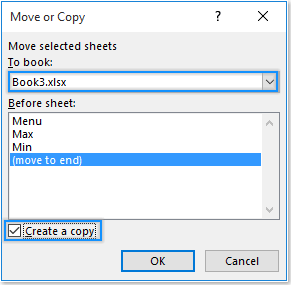
4. Then the Move or Copy dialog pops up, in the To book drop-down, select the master workbook you will move or copy worksheets into. Select move to end in the Before sheet box, check the Create a copy box, and finally click the OK button.
Then you can see worksheets in two workbooks combined into one. Please repeat the above steps to move worksheets from other workbooks into the master workbook.

Combine multiple workbooks or specified sheets of workbooks to a master workbook with VBA
If there are multiple workbooks need to be merged into one, you can apply the following VBA codes to quickly achieve it. Please do as follows.
1. Put all workbooks that you want to combine into one under the same directory.
2. Launch an Excel file (this workbook will be the master workbook).
3. Press the Alt + F11 keys to open the Microsoft Visual Basic for applications window. In the Microsoft Visual Basic for applications window, click Insert > Module, then copy below VBA code into the Module window.
VBA code 1: Merge multiple Excel workbooks into one
Sub GetSheets()
'Updated by Extendoffice 2019/2/20
Path = "C:\Users\dt\Desktop\dt kte\"
Filename = Dir(Path & "*.xlsx")
  Do While Filename <> ""
  Workbooks.Open Filename:=Path & Filename, ReadOnly:=True
     For Each Sheet In ActiveWorkbook.Sheets
     Sheet.Copy After:=ThisWorkbook.Sheets(1)
  Next Sheet
     Workbooks(Filename).Close
     Filename = Dir()
  Loop
End Sub
Notes:
1. The above VBA code will keep the sheet names of the original workbooks after merging.
2. If you want to distinguish which worksheets in the master workbook came from where after merging, please apply the below VBA code 2.
3. If you just want to combine specified worksheets of the workbooks into a master workbook, the below VBA code 3 can help.
In VBA codes, “C:\Users\DT168\Desktop\KTE\” is the folder path. In the VBA code 3, "Sheet1,Sheet3" is the specified worksheets of the workbooks you will combine to a master workbook. You can change them based on your needs.
VBA code 2: Merge Workbooks into one (each worksheet will be named with prefix of its original file name):
Sub MergeWorkbooks()
'Updated by Extendoffice 2019/2/20
Dim xStrPath As String
Dim xStrFName As String
Dim xWS As Worksheet
Dim xMWS As Worksheet
Dim xTWB As Workbook
Dim xStrAWBName As String
On Error Resume Next
xStrPath = "C:\Users\DT168\Desktop\KTE\"
xStrFName = Dir(xStrPath & "*.xlsx")
Application.ScreenUpdating = False
Application.DisplayAlerts = False
Set xTWB = ThisWorkbook
Do While Len(xStrFName) > 0
    Workbooks.Open Filename:=xStrPath & xStrFName, ReadOnly:=True
    xStrAWBName = ActiveWorkbook.Name
    For Each xWS In ActiveWorkbook.Sheets
    xWS.Copy After:=xTWB.Sheets(xTWB.Sheets.Count)
    Set xMWS = xTWB.Sheets(xTWB.Sheets.Count)
    xMWS.Name = xStrAWBName & "(" & xMWS.Name & ")"
    Next xWS
    Workbooks(xStrAWBName).Close
    xStrFName = Dir()
Loop
Application.ScreenUpdating = True
Application.DisplayAlerts = True
End Sub
VBA code 3: Merge specified worksheets of workbooks into a master workbook:
Sub MergeSheets2()
'Updated by Extendoffice 2019/2/20
Dim xStrPath As String
Dim xStrFName As String
Dim xWS As Worksheet
Dim xMWS As Worksheet
Dim xTWB As Workbook
Dim xStrAWBName As String
Dim xI As Integer
On Error Resume Next

xStrPath = " C:\Users\DT168\Desktop\KTE\"
xStrName = "Sheet1,Sheet3"

xArr = Split(xStrName, ",")

Application.ScreenUpdating = False
Application.DisplayAlerts = False
Set xTWB = ThisWorkbook
xStrFName = Dir(xStrPath & "*.xlsx")
Do While Len(xStrFName) > 0
Workbooks.Open Filename:=xStrPath & xStrFName, ReadOnly:=True
xStrAWBName = ActiveWorkbook.Name
For Each xWS In ActiveWorkbook.Sheets
For xI = 0 To UBound(xArr)
If xWS.Name = xArr(xI) Then
xWS.Copy After:=xTWB.Sheets(xTWB.Sheets.count)
Set xMWS = xTWB.Sheets(xTWB.Sheets.count)
xMWS.Name = xStrAWBName & "(" & xArr(xI) & ")"
Exit For
End If
Next xI
Next xWS
Workbooks(xStrAWBName).Close
xStrFName = Dir()
Loop
Application.ScreenUpdating = True
Application.DisplayAlerts = True

End Sub
4. Press the F5 key to run the code. Then all worksheets or specified worksheets of the workbooks in the certain folder are combined to a master workbook at once.
Easily combine multiple workbooks or specified sheets of workbooks to one workbook
Fortunately, the Combine workbook utility of Kutools for Excel makes it much easier to merge multiple workbooks into one. Let's see how to get this function work in combining multiple workbooks.
Before applying Kutools for Excel, please download and install it firstly.
1. Create a new workbook and click Kutools Plus > Combine. Then a dialog pops to remind you that all combined workbooks should be saved and the feature can't be applied to protected workbooks, please click the OK button.

2. In the Combine Worksheets wizard, select Combine multiple worksheets from workbooks into one workbook option, and then click the Next button. See screenshot:

3. In the Combine Worksheets - Step 2 of 3 dialog box, click the Add > File or Folder to add the Excel files you will merge into one. After adding the Excel files, click the Finish button and choose a folder to save the master workbook. See screenshot:

Now all workbooks are merged into one.
Compared with the above two methods, Kutools for Excel has the following advantages:
- 1) All workbooks and worksheets are listed in the dialog box;
- 2) For the worksheets you want to exclude from merging, just uncheck it;
- 3) Blank worksheets are excluded automatically;
- 4) The original file name will be added as prefix to the sheet name after merging;
- For more functions of this feature, please visit here.
If you want to have a free trial (30-day) of this utility, please click to download it, and then go to apply the operation according above steps.
Best Office Productivity Tools
Supercharge Your Excel Skills with Kutools for Excel, and Experience Efficiency Like Never Before. Kutools for Excel Offers Over 300 Advanced Features to Boost Productivity and Save Time. Click Here to Get The Feature You Need The Most...
Office Tab Brings Tabbed interface to Office, and Make Your Work Much Easier
- Enable tabbed editing and reading in Word, Excel, PowerPoint, Publisher, Access, Visio and Project.
- Open and create multiple documents in new tabs of the same window, rather than in new windows.
- Increases your productivity by 50%, and reduces hundreds of mouse clicks for you every day!
All Kutools add-ins. One installer
Kutools for Office suite bundles add-ins for Excel, Word, Outlook & PowerPoint plus Office Tab Pro, which is ideal for teams working across Office apps.





- All-in-one suite — Excel, Word, Outlook & PowerPoint add-ins + Office Tab Pro
- One installer, one license — set up in minutes (MSI-ready)
- Works better together — streamlined productivity across Office apps
- 30-day full-featured trial — no registration, no credit card
- Best value — save vs buying individual add-in